Add MobilityArena as a preferred source on Google
Many people agree that the iPhone is a fantastic tool when it comes to maintaining productivity. It enables us to maintain relationships with those who are significant to us, while at the same time offering the ecosystem of iOS apps that have a solution for practically every productivity issue.
With access to more than a million applications, there are undeniably more solutions to daily problems. However, this will inevitably result in many of us having an excessive number of apps on our phones, making it a bit challenging to keep them organized.
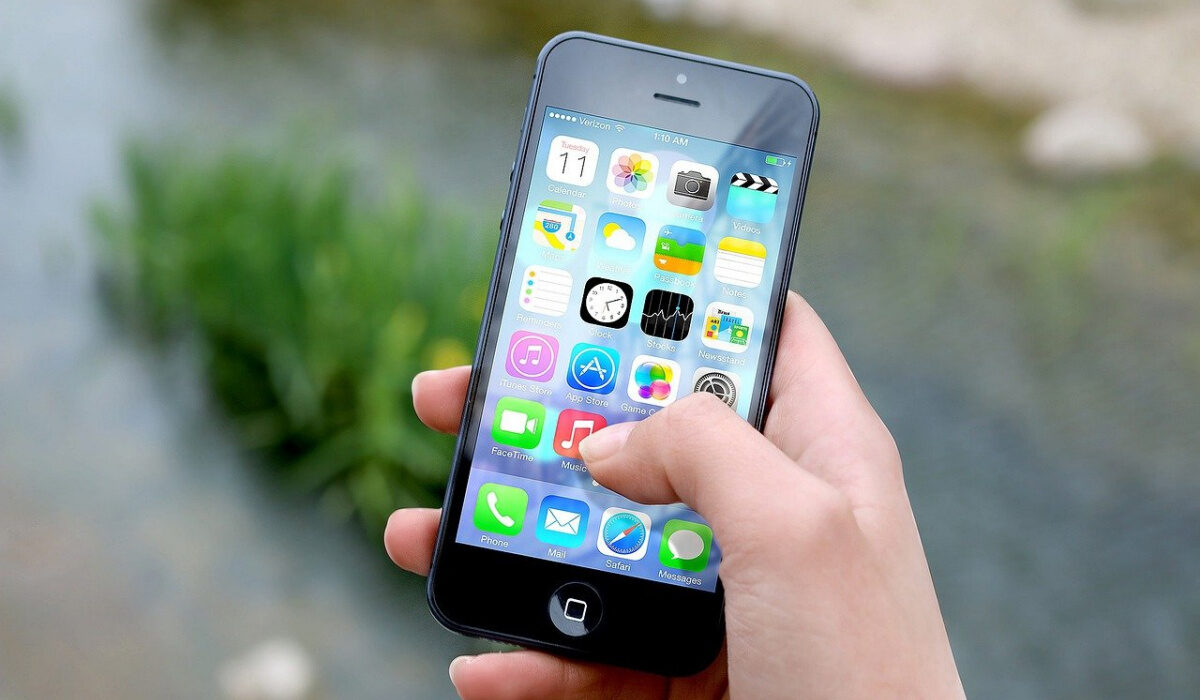
Fortunately, there are a few easy things you can do to manage your apps and use your iPhone more effectively. We understand the need for this, and this is why we’ve created this guide, to help you better manage your iPhone apps to achieve increased productivity.
- Organize iPhone Apps: Declutter your Home Screen
- Organize iPhone Apps: Use your App Library
- Organize iPhone Apps: Use the Search Bar
- Organize iPhone Apps: Use Widgets
- Organize iPhone Apps: Hide Some App Pages
Organize iPhone Apps: Declutter your Home Screen
One of the most valuable digital spaces in your life is most likely the first screen of your iPhone. Your home screen should be set up adequately such that everything is both simple to find and structured in a way that makes you feel calm every time you glance at it. Simply by having fewer apps clutter up the home screen of your iPhone, you can achieve this easily.
We advise that you include only the apps you use every day on your iPhone’s home screen. Everything that you utilize less frequently, let’s say once per week, ought to be on the second screen. If there are any apps with even less frequency of usage, we advise that you keep these in the App Library.
If you only use a few folders, we strongly advise that you delete every folder first. Then, carefully add the apps you want back in after you’ve gotten a sense of what you actually want to keep accessible.
Organize iPhone Apps:Use your App Library
The App Library is one of the features of iOS 14 that can be truly helpful in keeping you organized. Every app shows up by default in the App Library. It follows that you can still keep them on your device even if you delete them off your home screen. Then, if you still require them, you may get to the App Library by swiping across all of your screens.
Simply long-press an app to open a menu, then tap the minus icon to send it to the App Library. When you choose “Remove App,” alternatives will appear. The app can be deleted, or you can choose “Remove From Home Screen” to move it to the App Library.
You might not appreciate how the App Library automatically groups apps into the categories that Apple chooses. Instead of having to guess which category Apple placed your app in, you can quickly find what you’re searching for by tapping the search box at the top of the library, which will display an alphabetical list of all the apps on your device.
Organize iPhone Apps:Use the Search Bar
The App Library is a good place to store apps that you use sometimes, but it’s not necessarily the most effective way to find apps. Instead, pulling down from the top of the screen and typing your search term into the search box is typically speedier.
Even before you start typing, Siri will typically suggest apps you may be looking for. You’ll find that it actually does a pretty good job of anticipating what you might want, which will help you save even more time.
Organize iPhone Apps: Use Widgets
Widgets, one of the best methods for arranging the information on your iPhone, were introduced with iOS 14. They are incredibly helpful for decreasing the number of apps on your home screen and for giving you the information you require without even having to load an app.
You can fit a lot into a small space without it looking or feeling cluttered since you can stack many widgets together on your home screen. It actually offers you easy access to the data you use frequently in addition to breaking up the grid, which is a bigger value than you may imagine.
Organize iPhone Apps:Hide Some App Pages
The majority of iPhone users have way too many app pages. We’ll advise that you reduce the number of home screen pages on your device, which is one of the first recommendations for organizing your home screen. It’s not necessary to have page upon page of apps just because you have them on your device.
Most apps should only be in the App Library and not on any pages at all. Try to limit the number of apps on your iPhone to no more than two pages, with the option of adding a third page for any apps you’re testing.
However, iOS 14 makes it simple to quickly conceal app sections you don’t use frequently. Put a group of apps on a home screen and then conceal the whole page if you have a collection of them that you use collectively but aren’t always in need of.
To do this,
- Long-press the home screen to activate the “jiggly mode” and conceal pages.
- Next, press the page counter that is located right above the dock at the bottom. You can then choose to show or hide any of your app pages.
In summary , it’s also a good idea to keep fewer apps in general. One useful piece of advice is to look through your apps, both on the Home Screen and App Library, then check for any ones you’ve not used in a space of six months. Uninstall such apps to make more space and keep your applications more organized.
We’re sure you’ve found this article helpful, so don’t hesitate to share it with other iPhone users who will benefit from this helpful information.
- Don’t miss our mobile phone reviews .
- Follow our news on Google News .
- Follow us on Instagram , Facebook , Twitter , and YouTube .
Author:Joan Agie
Add MobilityArena as a preferred source on Google
The Samsung Galaxy S21 Ultra is the priciest variant of the S21 series that was released on the 29th of January, 2021. And for good reason too. There have been tons of positive reviews about the phone and its features across the board. Although, It has caused a few users a couple of problems. We’re going to take a look at some of those problems right now.
Samsung Galaxy S21 Ultra Problem:Sudden Restarts
Some users have been experiencing sudden restarts on their Samsung S21 Ultra. The phone is said to freeze and then restart, and this has been happening more after the Android 12 update. Here are some steps you can follow to possibly solve this issue.
•Turn off your Samsung Galaxy S21 Ultra.
•Press and hold the Volume Key and power button.
•You will see the “Android Recovery Menu” options
•Tap the Volume down until “Wipe Cache Partition” is highlighted and select it by tapping the power button.
•Tap on the Volume down key to highlight “Yes”, and select it by tapping the power button again.
•When this is done, you will be asked to ” Reboot System now” Select it and restart.
If this doesn’t yield any positive results or resolve the issue, you can try a factory reset. If it persists after the factory reset, you can then take it to your nearest Samsung store for repairs or a replacement.
Samsung Galaxy S21 Ultra Problem:Verizon Call quality issue
The June 2022 security patch has been causing issues for some Samsung Galaxy S21 users while making calls using Verizon. Some say the issue is with the user’s SIM card but others say it goes beyond that. Unfortunately, there’s no quick fix around this just yet, and we will have to wait for it to be addressed in future security patch updates.
Samsung Galaxy S21 Ultra Problem:Lagging Issue
There are a great many things that can cause lagging on your Samsung Galaxy S21 Ultra. There are not a lot of problems that can be as frustrating as lagging. Here are some ways to get rid of it on your device.
•Insufficient storage might be the big bad in terms of causing lag on your Samsung Galaxy S22 Ultra. If you have used up most of your phone’s storage then your phone will start to lag. Clear up some space and delete what you don’t need to make room for the phone to run smoothly.
•Brands like Samsung are quite consistent when it comes to software updates. If you have a software update available for your Samsung Galaxy S21 Ultra, update it immediately. Now, Software updates can also be the cause of lag. This is because these updates usually take a while to be fully implemented and acquainted with your device. After a while, your device will run smoothly or smoother than it ran before the update. So be sure to check for updates.
To check for updates, go to Settings > System update or Software updates > Software update , and tap on it. If there is any update available, download it.
Cached data
Having a large amount of cache can cause lag on your Samsung Galaxy S21 Ultra. Clearing the cache will go a long way in trying to improve the laggy state that your phone is currently in. To clear the cache, go to device settings, then look for storage and tap on cached data. All you have to do now is tap on Clear cache. Clearing cache also helps increase your storage space.
•Opening multiple apps and having them run in the background on your device can make lagging worse for you if you already had the problem and can cause it if you didn’t. You need to go to the app tab and close all the apps that you are not using.
•Now, these apps are menaces. Downloading a cleaner or Antivirus app will heat your phone as you have never experienced before and also cause your device to lag. Stay away from them. If you have them installed, delete them.
- Don’t miss our mobile phone reviews .
- Follow our news on Google News .
- Join our WhatsApp Group , to be notified of the most important articles and deals,
- Follow us on Instagram , Facebook , Twitter , and YouTube .
Author:Flamez
Flamez loves basketball, art, gadgets and cars.
