Add MobilityArena as a preferred source on Google
What is a Google Play Subscription? A Google Play Subscription is a service that allows users to access premium content, including apps, games, movies, TV shows, and music, for a monthly fee. With Google Play Subscription, users can enjoy ad-free access to a wide range of digital content, making it a great choice for those who want to avoid ads and unlock exclusive features.
If you want to put your subscription to Google Play on hold for a while, for whatever reason, you don’t necessarily need to cancel your subscription. You can simply put the subscription on pause, and you can restart the subscription whenever you want, or set it to whenever you feel is comfortable for you to resume.
Some apps will allow you to pause your subscription, and some won’t. You also need to note that the subscription will pause at the end of your current billing period.
How to Pause a Google Play Subscription
Open up your Google Play Store app.
Tap on the profile icon at the top right of the screen.
Select the subscription that you want to pause.
Tap on “manage”, and then on Pause payments.
Set the period for how long you want to pause the payments.
Finally, tap on confirm.
How to Restart a Google Play subscription
Open up your Google Play Store app.
Tap on the profile icon at the top right of the screen.
Tap on “Payments & Subscriptions”, and then on “Subscriptions”.
Select the subscription you want to restart.
Tap on “Resume”.
Follow the rest of the on-screen instructions.
And with that, you can now pause and resume your subscription as you want, without necessarily cancelling it.
Whether you’re a casual user or a power user, Google Play Subscription is a great way to enjoy premium content without breaking the bank.
Author:Flamez
Flamez loves basketball, art, gadgets and cars.
Add MobilityArena as a preferred source on Google
One of the best apps to use with your car is Android Auto , which should already be available on your Android device. If your car supports it, Android Auto is an easy way to use music apps, Google Maps, call and text, and react to messages (with your voice) while driving.
However, Android Auto won’t be of much help if it’s not working as it should. If you can’t connect to Android Auto or it’s no longer working dependably, we’re here to help. This guide will show you different ways to fix Android Auto not working. Follow the instructions we’ve provided, and you should be able to get it to work well again.
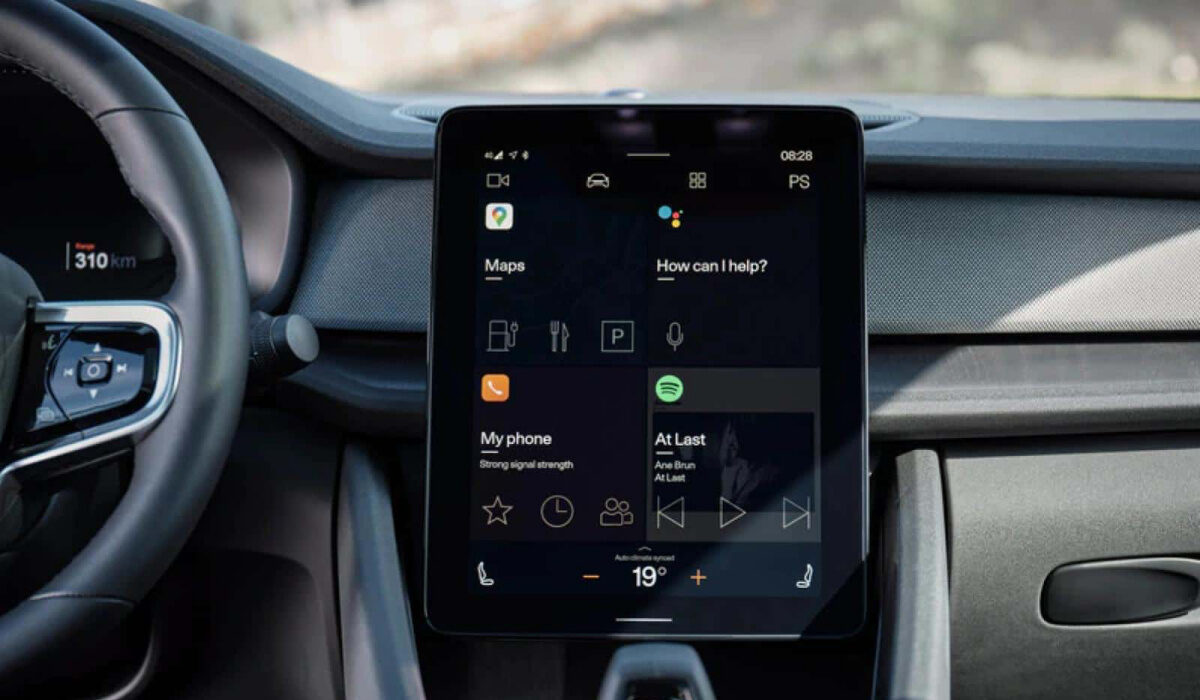
How to Fix Android Auto Not Working
How Can I Fix Android Auto Not Working?
Your Android Auto app may not be working correctly for one of the following reasons:
● You’re trying to connect Android auto to the wrong car
● An incompatible car or smartphone brand is in use
● A poor wired or wireless connection
● The app is faulty
● Changes in the connection’s settings
Not minding the reason though, we’ve described several ways below to fix android Auto not working correctly.
Check Android Auto’s compatibility with your car
One of the first things to try is to verify that Android Audio is compatible with your car and your car stereo.
You’ll be able to determine this by using the Android Auto compatibility website . Note that you may not be able to fix Android Auto not working if it’s not compatible with your car.
Check your wired or wireless connection
It’s also important to check your connections when trying to fix Android auto not working. Ensure that everything is properly connected and operating whether you are using a cable or a wireless connection.
Make sure the cable you’re using for the connection to Android Auto is in good condition. If there’s something broken inside (which you may not be able to see), try a different cable that is in good working order.
Reboot/Restart your device
A restart of your Android tablet or phone usually fixes any minor issues that might obstruct communication between the phone, the car, and the Android Auto apps. As such, this might be just what you need to fix Android auto not working for you.
You can reboot the majority of Android smartphones just by holding down the Power button until you see a menu. If Restart is among the menu options, click on it; if not, select Shut Down and then switch your phone back on after a few seconds. Following that, try using Android Auto once again to check if it functions properly.
To rule out any glitches there as well, it’s worth turning off your car, waiting a bit, and then restarting it.
Check your Paired Car Settings
Several cars can use Android Auto, therefore a couple of things may be going on in your paired car settings. It’s possible that you’re attempting to connect to a different vehicle, that you mistakenly placed your car on the list of Rejected Cars , or that you switched off the option to Add new cars to Android Auto .
Your phone will only be able to charge in these circumstances; it won’t be able to connect to Android Auto. So to fix Android Auto not working in such an instance, verify each of these settings again to be sure they are correct.
If you’re unsure about the settings, you can remove all linked vehicles by selecting Forget all cars from the three-dot menu in the top right. Then, try installing Android Auto once more in your vehicle.
Update your device and Android Auto app
If you’re trying to fix Android Auto not working, you should also ensure that the Android Auto app and your phone are both up to date.
Incompatible operating systems or programs can prevent proper interaction for things to work as they should. So, to ensure you have the most recent versions of both your device and the Android Auto app, update the Android OS first, followed by the apps on the device.
In summary , you’ll find these troubleshooting tips pretty helpful to fix Android Auto not working.
