Add MobilityArena as a preferred source on Google
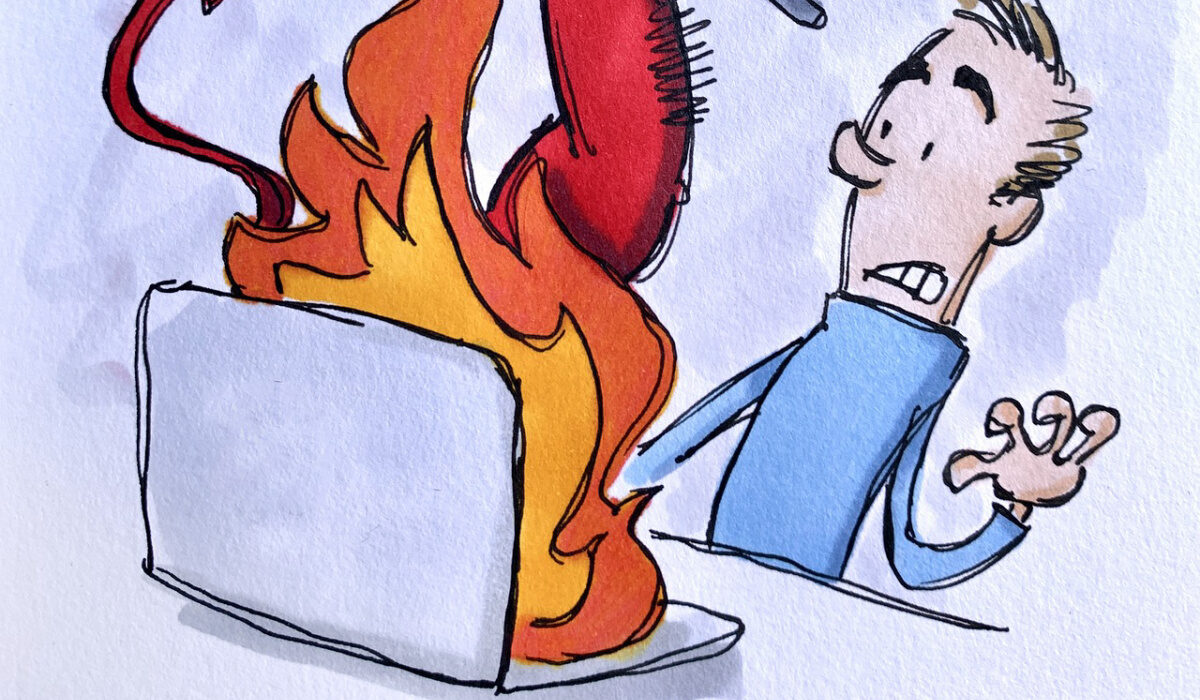
Most of our activities on the Internet are made possible and considerably easier on a computer, be it a desktop or laptop. While it is easy to get carried away with all your activities on your computer, it’s also noteworthy that the likelihood of overheating increases as you perform more activities concurrently on your PC.
Overheating can cause your computer to run slowly, shut down automatically, lose data or even cause permanent harm to its components. As such, you’ll need to act right away if you’ve discovered that your laptop or desktop is heating up to a dangerous level.
How to prevent computer overheating
We’ve created this two-part guide to teach you all you need to know about PC overheating: why it happens and how to prevent it, how to recognize when it happens, how to cool your PC down if overheated, and how to keep your PC running smoothly afterward.
- Why does Overheating Happen?
- What Can I Do to Prevent Computer Overheating? Locate and Close Demanding Apps and Tabs Improve your Graphics Processing Unit (GPU) Use your PC in the right conditions Update your PC
- How To Troubleshoot and Fix Computer Overheating When It Happens
- How do I Know When my PC is Overheating?
- How to cool down an overheating computer Clean your PC Confirm that the Fans are Working Reapply Thermal Paste
- Bonus Tips To cool down an overheating PC
Why does Overheating Happen?
Overheating can cause different forms of temporary and permanent damage to your data as well as your PC and its components. In understanding how to fix and prevent it, it’s necessary to understand what causes it in the first place.
There are several reasons overheating could be happening to your PC. It’s possible that you have too many open tabs in your browser or you’re performing demanding tasks like editing multimedia files, playing games, or streaming videos online.
Below, we’ve listed some of the common factors that contribute to overheating in PCs:
- Running too many concurrent processes and applications
- Unresponsive software
- Too many open tabs in your browser
- Faulty fans
- Obstructed air vents
- Obsolete software
- Malware such as viruses
- CPU or GPU overheating
- Accumulation of dust in the PC’s fans or vents.
What Can I Do to Prevent Computer Overheating?
In understanding the factors that typically contribute to overheating in a PC, you also get an idea of some things you can do to prevent it. We’ve described some of such steps below:
Locate and Close Demanding Apps and Tabs
Some applications demand a lot of processing power, which might lead to overheating on your computer. Checking your programs’ usage of processing power will thus help you prevent the issue of overheating with your computer.
The Task Manager on Windows 10 or 11 devices displays which programs are the most resource-intensive. Using the Start menu or the keyboard shortcut Ctrl + Shift + Esc will bring up the Task Manager. Click Additional details in the bottom-left corner to view more information because it typically opens in Compact Mode .
The Processes page displays a list of all the processes currently active on your computer along with a breakdown of the resources each one is utilizing. Your PC may begin to overheat and slow down if an application is using up a large percentage of the CPU. You’ll need to close any such applications, then when you have fewer open apps, you can reopen them.
Simply highlight a specific program and choose End task in the Task Manager window’s bottom right corner to stop resource-hungry apps and background activities.
Try not to use more than one resource-intensive app at once to avoid PC overheating. Also try to reduce the number of tabs open in your browser because each additional tab uses more RAM, especially if you’re using web-based utilities or playing video games.
Improve your Graphics Processing Unit (GPU)
The best settings for your GPU will vary based on what it is being employed for. If you’d like to improve the GPU performance for a specific app, simply open the graphics option in your system settings by searching for it in the desktop search box. This way, you may be able to optimize graphics for video editing software, video games, or your browser; it all depends on what you’re doing.
You’ll also need to maintain the proper operation of the fans and keep the entire device clean and clear of dust to keep your GPU cool. If your GPU tends to overheat, you can install more fans or another cooling solution. To keep track of when your GPU warms up, you can also keep an eye on its temperature.
Use your PC in the right conditions
Using your computer in direct sunlight can cause your PC to overheat, just as dust and inadequate airflow might. Even mild air temperatures can cause your PC to overheat if there is insufficient ventilation.
Cleaning your gadget frequently, keeping it away from direct sunlight, and making sure the vents are open are the best ways to minimize any physical impact on its capacity to stay cool. Use a microfiber cloth and canned air to clean and maintain the cleanliness of your PC. The places where dust tends to collect should be thoroughly cleaned from time to time.
Update your PC
Keeping your PC and its software updated will also help to reduce overheating. Updated software is generally more secure than older software since any exploitable flaws have probably been fixed in the most recent version, which also makes it work quicker and more smoothly.
To check for updates on Windows 11 and 10, enter the Updates & Security panel in the System Settings. Windows Update will let you know whether your computer needs to be updated, but even if it doesn’t, you may still check for updates, download them, and install them.
I t is a good idea to prevent overheating before it causes any damage to your device and data. At the same time, it’s also possible that you’re already dealing with overheating issues on your system and it’s past the prevention stage.
How To Troubleshoot and Fix Computer Overheating When It Happens
In the first part of this guide, we discussed why overheating typically occurs in a PC, as well as all the things you can do to prevent it from messing with your device. We’re sure you’ll agree that prevention is always better than looking for a fix when the damage has been done already.
If, however, it’s already past the prevention stage for you, and you’re – at this point – dealing with overheating issues on your PC, there’s no need to stress. There are some easy steps you can take to fix the issue, but first, you need to understand how to tell when your PC is overheating.
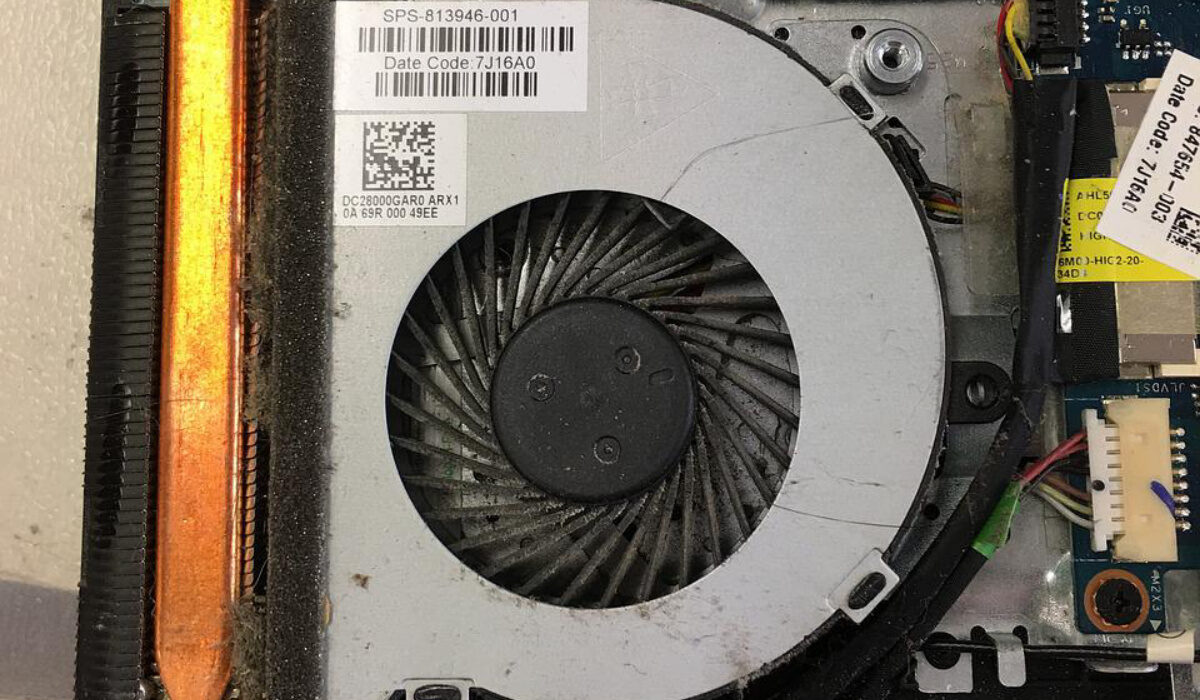
A PC fan is key to solving overheating in your computer
How do I Know When my PC is Overheating?
There are a few telltale signs that should let you know when your PC starts to overheat. If your PC feels rather warm to the touch, if its fans are running hard, or if you notice sudden shutdowns or screen freezes, then your computer has most likely already begun to overheat. Also note that when you’re prone to executing resource-intensive tasks such as gaming or video editing, CPU overheating problems are more likely to occur with your PC.
In truth, overheating is a problem expected with all gadgets. Manufacturers know this, and since overheating can be quite harmful to both software and hardware, most PCs are equipped with heat-dispersing and ventilation components as a precaution.
However, these might still not be enough to prevent overheating (especially due to our own methods of handling our gadgets), so what can you do to fix the issue when it arises?
How to cool down an overheating computer
Clean your PC
If you haven’t dusted or cleaned your computer in a while, grime is most likely to blame for your computer heating up. Dust tends to block key parts of the computer that air should normally circulate through, and this can lead to overheating.
Thankfully, a desktop computer is pretty easy to clean, even though most laptop owners might choose to get their devices serviced at a repair facility. However, the steps we’ve listed below should help you clean your computer just fine if you wish to do so on your own:
- Turn off the PC entirely and unplug it first.
- Next, open the lid, you ought to be able to see dust. You can use a leaf blower or a can of compressed air to clean it up (at slow speed). Blow air into the primary computer parts, paying specific attention to the fans, from the front and back.
- To clean the confined spaces, you can also use cotton buds. The goal is to remove any blockage brought on by dust, so don’t panic if you can’t get it sparkling clean.
Once you get rid of the dust and grime, ventilation should be restored, and the overheating issue will reduce considerably.
Confirm that the Fans are Working
Your computer will become overheated if the fans aren’t functioning properly or can’t circulate air for some reason. If this is the case, you’ll need to take it to a repair shop to have it mended.
It’s easy to determine whether the fans in your PC are operating correctly or not. The PC begins to operate as soon as you push the power button, and you should hear a pleasing “ vroom ” sound. That is the sound of the internal fans, which will initially operate at full speed before slowing down as the computer boots.
There is a possibility that the fans aren’t operating properly if you can’t hear the sound when the PC first turns on or if you notice that it is weaker than it’s supposed to be. Once you confirm that the issue is with the fan, take your PC to a reputable computer repair shop. The overheating issue should stop when your fans begin to work normally again.
You can also open up your computer to check the fans’ functionality if you’d like to investigate further. If opening the computer scares you, simply use a flashlight to check the ventilation holes for any active fans. Before the heat melts the components, you should take it to a repair shop right away if you can’t see any fan movement.
Reapply Thermal Paste
A highly conductive substance called thermal paste is typically used between CPU/GPU and metal heatsinks in your PC. This paste makes sure that the heat is effectively dispersed from the computer.
The cooling system’s efficiency will certainly be impacted if this substance expires in your PC. Also note that the thermal paste on your computer will dry out eventually, especially if you frequently overtax your system. So, if you notice your PC overheating, reapplying thermal paste is one of the beneficial actions that can stop it.
You will need to disassemble your gadget to change the thermal paste because it is housed inside the computer. If you’re not an expert, we’ll advise that you ask a skilled technician to complete this process on your behalf.
Reapplying thermal paste typically helps to reduce heat buildup, especially on older computers. As such, you’ll find it very helpful in stopping overheating issues in your PC.
Bonus Tips To cool down an overheating PC
Some other actions you’ll find beneficial to stop overheating include:
- Using a portable cooling pad for your PC
- Underclocking, rather than overclocking your CPU and GPU
- Removing blockages to your PC’s ventilation holes
These might seem really basic, but they contribute significantly to reducing overheating in PCs.
Note that the more your computer heats up, the more significant the harm that will be caused to its components. As such, you should never overlook an overheating computer if you value your device and the data it contains.
Author:Joan Agie
Add MobilityArena as a preferred source on Google
OnePlus recently added a model to its number series in the form of the OnePlus 10 Pro 5G . To some, it is probably one of the best, if not the best, gaming and performance phones on the market today. It is powered by the latest octa core Qualcomm Snapdragon 8 Gen 1 processor, with a 6.7 inch LTPO2 AMOLED FHD+ display. That is quite big and beautiful if you ask me. It also has a 120hz refresh rate, although one would expect a refresh rate of 144hz on a phone of this class but 120hz is not bad itself.
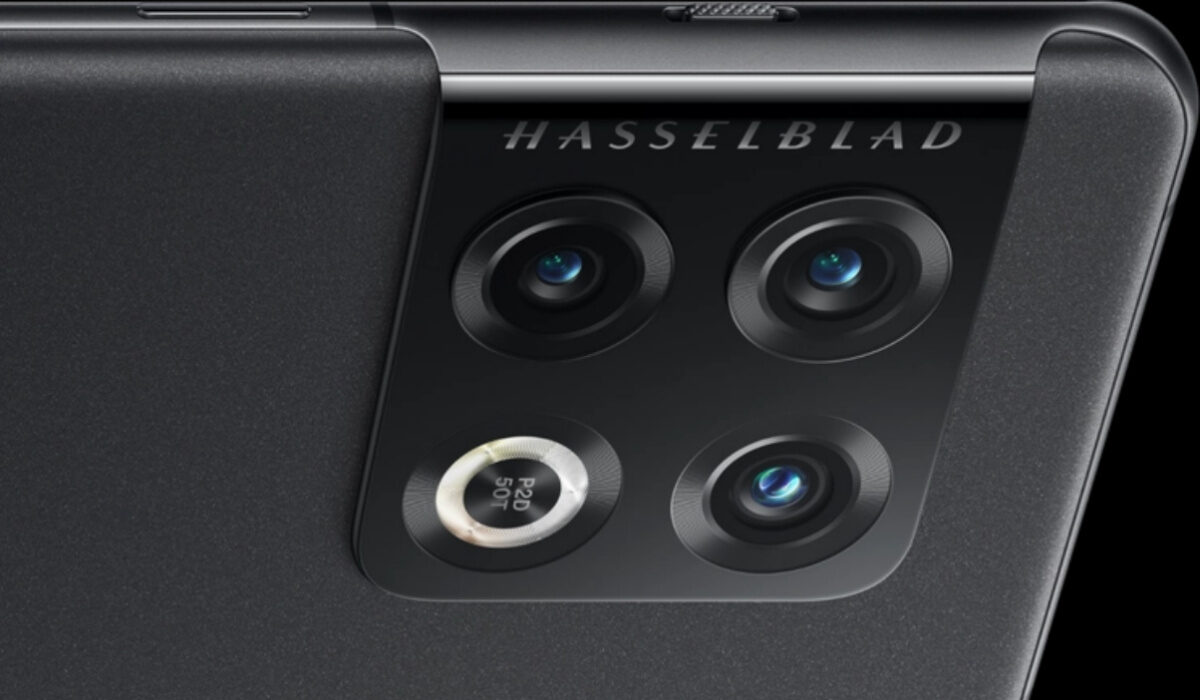
The OnePlus Pro 5G is powered by a large 5000 mAh battery and runs on the latest OxygenOS 12.1, which is based on the Android 12.1. It spots the popular Triple Camera setup, with a 48-megapixel primary camera, an 8-megapixel telephoto camera, and a 50-megapixel ultrawide camera.
OnePlus 10 Pro Problems and solutions
The OnePlus 10 Pro 5G is a brilliant and beautiful phone and is everything a flagship phone should be. But one thing about the smartphone industry is that there is no perfect phone. Today, we will be looking at some of the problems that users have encountered while using this device.
- OnePlus 10 Pro Overheating Problem
- OnePlus 10 Pro Wired and Wireless Charging problems
- Horizon Light Issues
- Notification problems
OnePlus 10 Pro Overheating Problem
I mentioned earlier that the OnePlus 10 Pro 5G is one of the best gaming phones out there right now. And it is through and through but it has a problem that needs no introduction; overheating. The device tends to heat up after a period of time while engaging in activities like gaming among other things.
To reduce the heating or stop it completely, turning off auto-brightness and decreasing screen brightness will go a long way. Close all the apps that are not in use. Turn off GPS, Bluetooth and any other connectivity options that are not in use. I would say turn off your Wi-Fi too but a number of people use Wi-Fi for its speed and consistency, but if you can make use of your personal data network, i advice you turn off your Wi-Fi.
OnePlus 10 Pro Wired and Wireless Charging problems
Some OnePlus 10 Pro 5G users have also complained about the charging speed of the device with both the wired and wireless charging. Just like its Apple competitor, the OnePlus 10 Pro 5G does not come with a charger in the box. Using any USB-PD charger will only charge the device at 18W rather than the 65W a Super VOOC charger would get you. Meaning you have to buy the OnePlus Charger.
As far as the Wireless charging is concerned, you also need to purchase the OnePlus Wireless Charger that provides up to 50W charging. If further problems surface with Wireless Charging, you need to go to Settings > Battery > Advanced settings > Wireless Charger settings and disable Quiet Charging.
Horizon Light Issues
Some OnePlus 10 Pro 5G owners can’t seem to get the Horizon Light to work as it should. Meaning the lighting that pops up on the curved edge of the device’s display has problems. You will have to ensure that all the proper settings are enabled for Horizon light to work correctly. Go to Settings > Personalisations and tap on “ Always-on display”. Ensure it is enabled. Display options in the same section need to be changed to All day or Scheduled from default.
Also go to Settings > Notifications and Status bar > manage notifications and enable Lock screen notifications. Edge lighting will only be light up when you receive a notification.
Notification problems
A hand full of OnePlus 10 Pro 5G owners face delays in receiving notifications and can only see them when they open the app. The two major apps that have been reported with this issue are WhatsApp and Gmail, other apps do face this issue but not on the scale that these two do. The phone’s battery optimisation settings often cause delayed notifications. Go to Settings > Battery > Advanced settings > Optimized battery use. Fish out the app causing the problem and tap on Don’t optimise.
Some users say that notification problems go away when they remove multiple user accounts. Go to Settings > users and accounts > Multiple users and remove any additional users you might have set up. To remove the default guest account, tap on it first to switch to this account. Pull down the notification panel and tap on the user icon and then on Remove guest.
Software Updates by OnePlus
OnePlus has a really good reputation when it comes to feedback and how fast they rollout updates to fix bugs and complaints that users have. It is why they are so reliable. Some of the latest software updates released include system stability updates, enhanced gaming performance, an improved Fingerprint scanner. Audio processing has also been enhanced as well as the battery consumption of the OnePlus 10 Pro 5G being optimised, making the device more durable for whatever activities you want to engage in on your phone. The quality of the rear camera was also improved.
- Don’t miss our mobile phone reviews .
- Follow us on Instagram , Facebook , Twitter , and YouTube .
Author:Flamez
Flamez loves basketball, art, gadgets and cars.
