Add MobilityArena as a preferred source on Google
There is nothing more upsetting than learning that one of your most valuable or critical files has been corrupted. Additionally, there’s a possibility that corruption on Windows devices will harm your files more than once if you don’t know how to tackle it. Which is why it is important to prevent file corruption on Windows PCs and laptops.
In this article, we’ll explore the numerous reasons that can cause Windows files to get corrupted. Additionally, we’ll discuss several methods for avoiding data corruption. So, keep reading to find out tested and trusted ways to protect your files from getting corrupted on Windows devices.
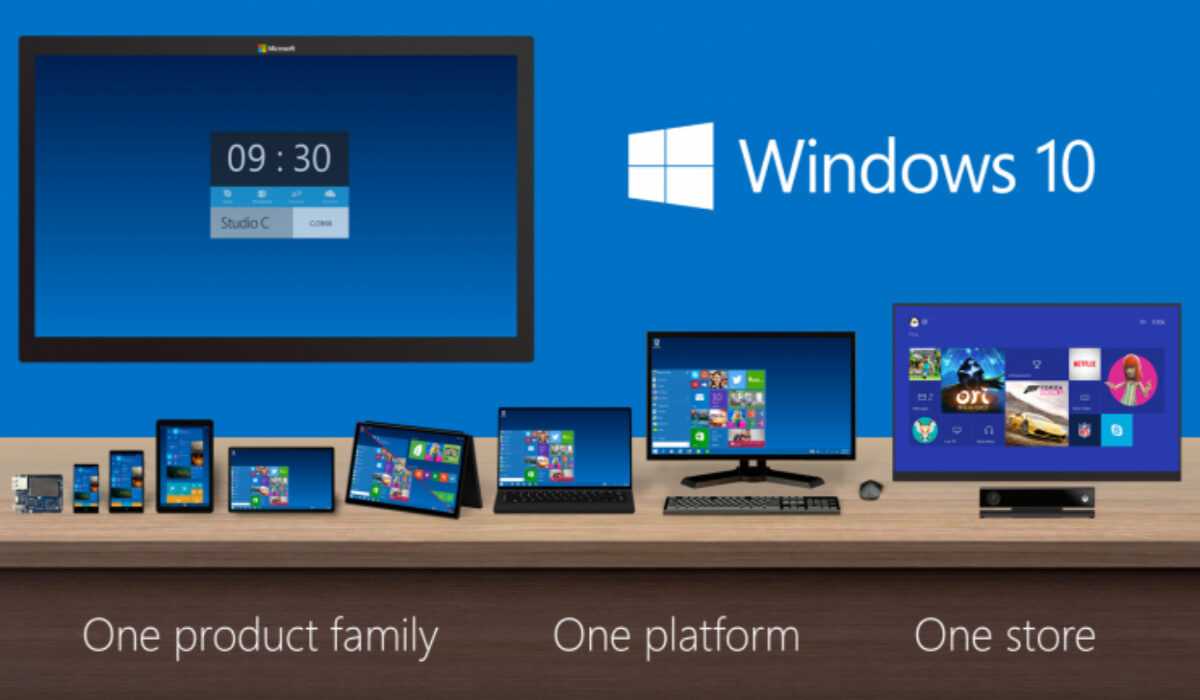
How to Prevent File Corruption on Windows Devices
Why do Files Get Corrupted on Windows?
There are several reasons for file corruption on Windows devices. Let’s consider some of the most significant causes highlighted below:
- Your data might be ruined by malware attacks and computer viruses.
- Another factor that might cause data corruption is incorrect file saving.
- Any file that was being transferred at the time can get corrupted if a file relocation procedure is incorrectly stopped.
- When you unplug storage devices from the computer without removing them carefully, the data may also become corrupted.
- Additionally, faulty disk sectors can corrupt data and directories.
Regardless of the reasons for file corruption, there are some helpful tips to prevent it from happening on your device, and we’ve discussed them in the next section.
Different Ways to Prevent File Corruption on Windows Devices
Below are different steps you can take to avoid having your important data compromised. So you can simply follow these steps if you’re worried that your files may get corrupted one way or the other:
Relocate Files Carefully and Neatly
Files may become corrupt if the transfer of data from one location to another is stopped in the middle. It’s even possible to lose the files if this occurs when moving them using Windows’ cut and paste feature. Due to this, it’s important that you move your data carefully to avoid corruption.
When moving data, always ensure to use the copy and paste feature. This way, you’ll still have the original file on your computer — which was untouched by the transfer process — even if something goes wrong during the transfer.
Always make careful to cleanly end the file-moving procedure when necessary. Simply click the Cancel button in the file transfer box to accomplish this, and Windows will end the process without corrupting any data. Never try to stop a transfer by removing the storage drive from your computer or turning it off.
Additionally, if you are in an area that frequently experiences power outages, take caution when transferring files during these times. Consider purchasing a UPS if power outages occur in your location in an unpredictable manner. These ought to be strong enough to let the transfer complete, or at the very least give you enough time to cleanly cancel it.
Properly Unmount External Storage Devices
After transferring files, it’s typical to immediately unplug the storage device. It can be difficult to determine which apps are still using the data on the storage device, though. As a result, cutting the power straight away risks corrupting any data that was being transferred.
In view of this, it is always a good idea to remove the storage device from the device before you unplug it. Since all apps would stop using the data when the external storage device is unplugged, doing this action will prevent any data loss or corruption. Remember, to How to prevent file corruption on Windows laptops and desktops, properly unmount external storage devices.
Refrain from Opening Files in Unsupported Applications
Another frequent reason for file corruption in Windows is opening files in unsupported programs. When you do this, the software’s incompatibility with the file could corrupt some of the file’s data. Therefore, we strongly advise against opening files in programs that are not supported.
You’ll need to check and confirm which file types the software supports, and then convert your files accordingly if necessary. There are several ways to convert files into different formats, however, we suggest using free online converter programs.
Keep Hard Drive Sectors from Going Bad
A storage drive component that has suffered physical damage is referred to as a bad sector. Physical damage to the storage device may arise from manufacturing faults, power surges, drops, overheating, or dust inside the device.
Windows is shrewd enough to avoid writing new data to corrupted sectors, but data that has already been written there may still get corrupted. As a result, you should refrain from allowing your drive’s sectors to spoil totally.
The following advice may help you avoid physical damage to the sectors of your storage drive:
- Don’t just press the power button to turn off your computer; instead, properly shut it down.
- Make sure to maintain the cleanliness of your laptop and prevent dust accumulation.
- Keep your laptop within a safe temperature range.
- When your laptop is charging, stay away from using any other charger; only use a trusted original one.
- As much as possible, avoid keeping your laptop in sleep mode for extended periods
- By using extra caution when handling your laptop, avoid unintentional falls.
What to Do If Your Files Get Corruptedon Windows
Even if you go by the advice we’ve provided above, data corruption is still a possibility. Sometimes, despite your best efforts to prevent file corruption on Windows devices, it still happens. Here are some pointers on how to deal with it successfully if it does occur on your Windows device:
Save copies of files in other formats
Making a duplicate file in a different format than the original is the best technique to handle file corruption. For instance, to prevent Word file from getting damaged, you can prevent losing data by making a duplicate of the Word file before converting it to PDF.
Similarly, after compressing folders, you can copy them and upload them to a secure location. As a result, you can download the duplicate and regain access to your important data if something goes wrong. However, because this method necessitates more manual labor, it is less useful.
Create regular backups to protect your files
Data corruption due to an error is always a possibility, despite best efforts, and making duplicates is a difficult task. It is thus advised that you regularly create a backup of your data because of this. Additionally, it won’t take up much of your time because it doesn’t demand as much manual labor as making copies.
You can arrange a backup similarly to how you would schedule a virus scan for each day. It is best to set your backup for the moment your computer boots up so that any changes you make the previous night will be reflected in the backup the following morning.
In summary , data loss is always a difficult situation to deal with. As such, it’s smart to do everything in your power to keep it from happening at all. Take a cue from the tips we’ve provided in this article to keep your files from getting corrupted. You should also be able to figure out how to deal with corrupted files from the information in this guide.
- Don’t miss our mobile phone reviews .
- Follow our news on Google News .
- Join our WhatsApp Group , to be notified of the most important articles and deals,
- Follow us on Instagram , Facebook , Twitter , and YouTube .
Author:Joan Agie
Add MobilityArena as a preferred source on Google
Satellite phones have been around for many years before now, but for the first time, regular smartphones have satellite connectivity. In other words, we now have iPhone and Android satellite phones.
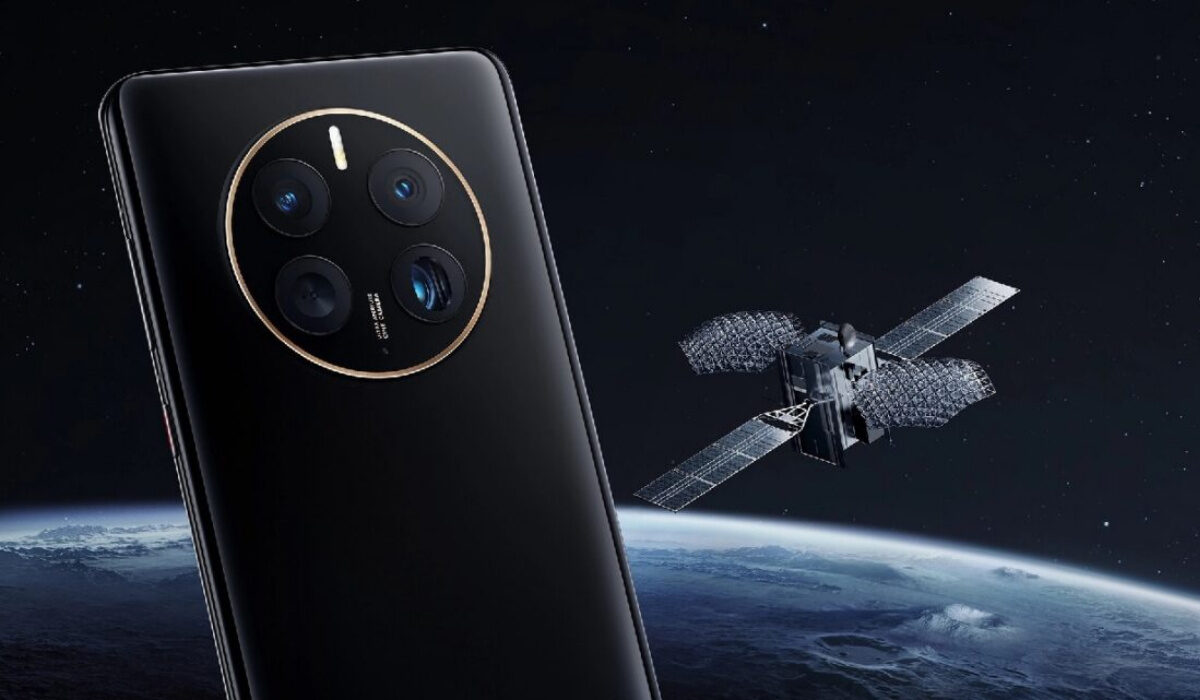
Huawei Mate 50 Pro is the first of Android satellite phones arriving from 2022.
What is a satellite phone? The name is kind of self-explanatory. Regular phones and smartphones work by connecting to wireless networks beamed from terrestrial base stations, cell sites, and towers. Terrestrial refers to the earth. Regular mobile devices connect through towers located here on the ground. In contrast, a satellite phone (or satphone) works by connecting to a wireless network beamed by satellites orbiting in space.
A long, long time ago – 1962, the first orbiting communications satellite was launched. But it wasn’t until 1989 that Motorola launched the first satellite phone. Since then, a handful of other satphone makers have emerged. Note that, unlike mobile phones, satphones can not roam to another satellite network other than that which it was built for. To use a satellite phone service, you have to buy service credits, similar to the way you have to buy mobile airtime for your regular phone.
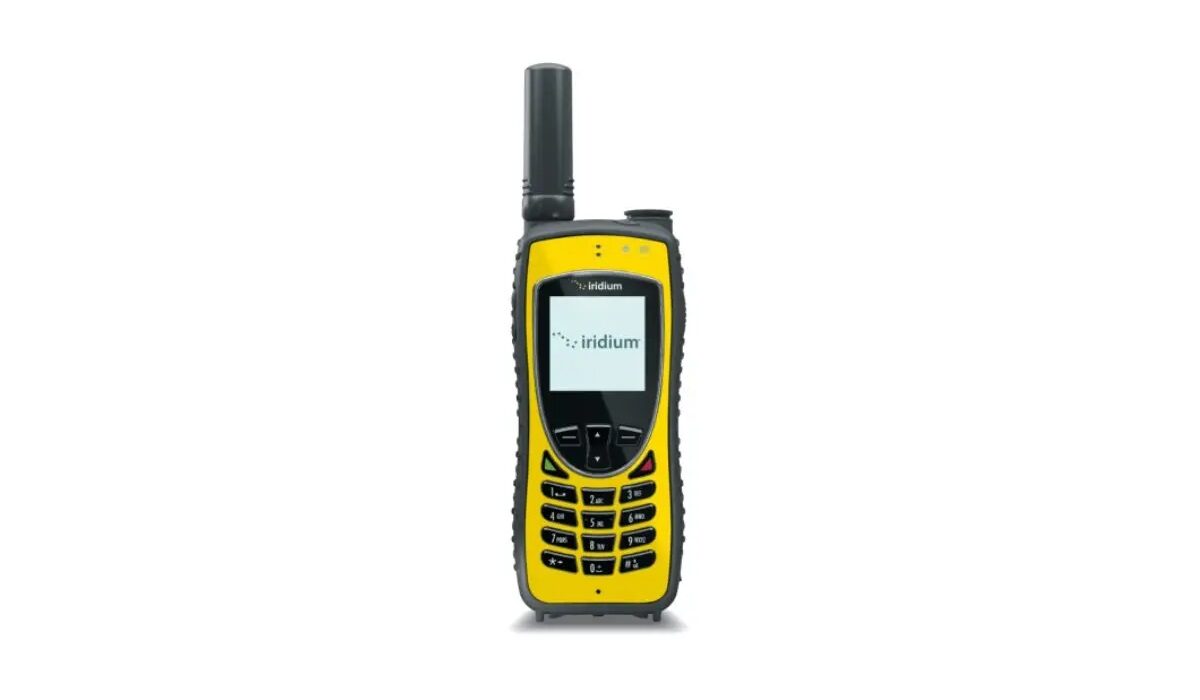
Iridium Extreme 9575 is a modern satphone
- What is a satellite phone good for?
- List Of Satellite Phone Operators
- Introducing iPhone and Android Satellite Phones
- How good is satphone connectivity?
- Can you turn your Android smartphone into a satellite phone?
- How does Huawei Mate 50’s satellite messaging work?
- How does the iPhone 14’s satellite connectivity work for Emergency SOS?
- List of Android satellite phones
What is a satellite phone good for?
Satphones are ideal for use at locations where there is no terrestrial cellular network service available. We are talking about wildernesses, deserts, mountainous regions, and the great vast seas and oceans of planet earth far from land and the reach of mobile networks. A satellite phone is useful for keeping in touch in such far out places. It serves as a useful tool for emergency service workers, especially, for this very reason.
List Of Satellite Phone Operators
The most prominent providers of satellite phone service are Inmarsat (the oldest satellite operator), Thuraya, Iridium, and Globalstar. Thuraya satellite phones were some of the best known traditional satphones. Iridium phones are also well known and provide the widest coverage. Traditional satphones are expensive, costing as much as $1,500, and initially offered nothing but satellite connectivity . Over time, satellite phones added dual-SIM functionality, so you can use your regular SIM card in it, alongside a satellite SIM card. This bridging of the gap between satellite and terrestrial connectivity took a new turn in 2022.
On August 24, 2022, SpaceX announced its plans to provide satellite phone service to T-Mobile, effectively joining the league of satellite phone operators. As such, when this rolls out, SpaceX becomes a satphone operator. The T-Mobile/SpaceX partnership will initially cover only the United States, providing much-needed connectivity at locations across the country where there is no wireless cell service.
Introducing iPhone and Android Satellite Phones
On September 7, 2022, Globalstar announced that it will be providing the newly-announced iPhone 14 and 14 Plus , and iPhone 14 Pro and 14 Pro Max , with satellite connectivity. The announcements of partnerships between Space-X and T-Mobile, and Apple and Globalstar, signal the beginning of a new generation of satellite phones. With the arrival of the iPhone 14 series, regular smartphones now began to join the league of satphones by offering satellite connectivity. Joining the iPhone 14 series will be a number of yet-to-be-named devices from T-Mobile USA.
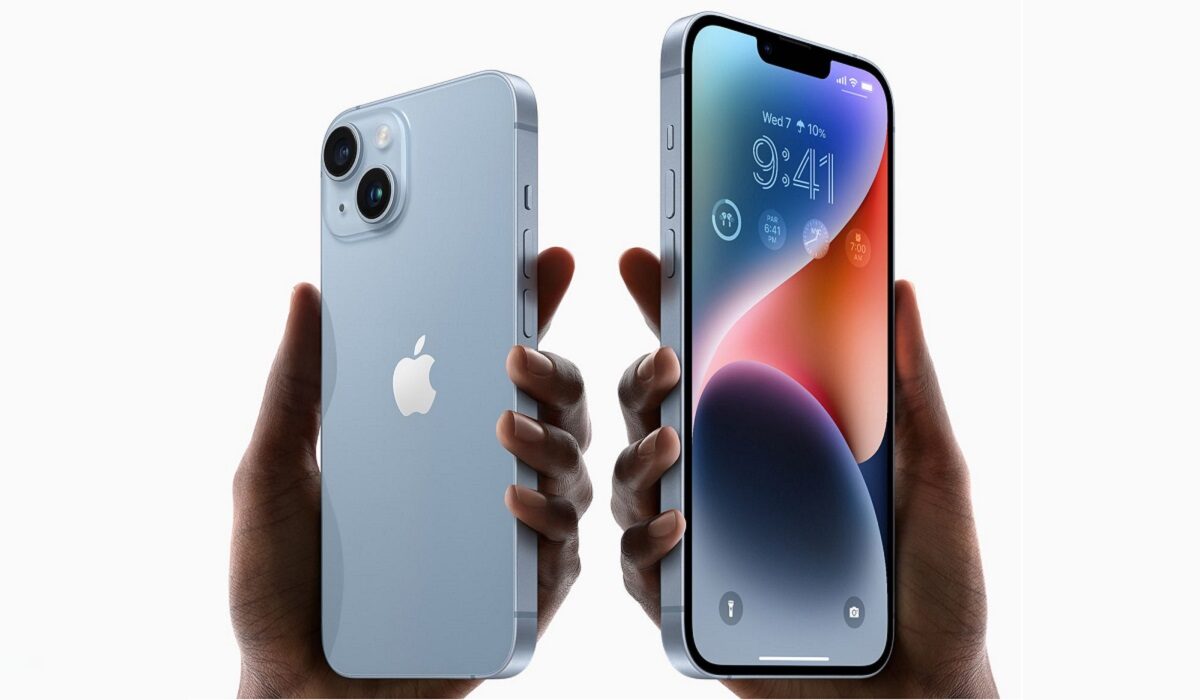
Apple iPhone 14 and iPhone 14 Plus are the first new generation satellite smartphones
In an interesting twist, Huawei also launched the Mate 50, the first of many Android satellite phones, a few hours ahead of the iPhone 14 series, and that model supports satellite-based SMS, just like the iPhone 14 series do. Huawei Mate 50’s satellite messaging uses China’s global BeiDou satellite network for this. That makes Huawei Mate 50, not the iPhone 14, the first regular phone announced to support satellite messaging.
How good is satphone connectivity?
If you were expecting to hear of blazing fast Internet and the like via satellite phone service, you will be disappointed. Despite the futuristic, cutting edge optics, satellite phone connectivity offers the slowest Internet speeds available – as low as between 2 and 4 Mbps, but often much lower than those figures. You will also get SMS and voice call service. That is mostly it. Over time, the service will improve and deliver faster speeds and support more advanced features, but for now, the purpose of satphone services is to provide emergency SOS when you are outside of regular cellular wireless coverage.
Can you turn your Android smartphone into a satellite phone?
The answer to that question is a yes. You will need an adapter, like one from Thuraya, called Thuraya SatSleeve+, along with a mobile app. This will enable you latch on to Thuraya’s satellite network for voice, SMS, and Internet in locations without GSM coverage. The adapter is a jacket worn on the phone. What kind of Internet speed will you get using this jacket? 15 kbps upload and 60 kbps download maximum. Yes; that creepy crawly slow, but if you are being Indiana Jones, that’s what you get. The Thuraya SatSleeve+ looks like this on a typical Android phone:
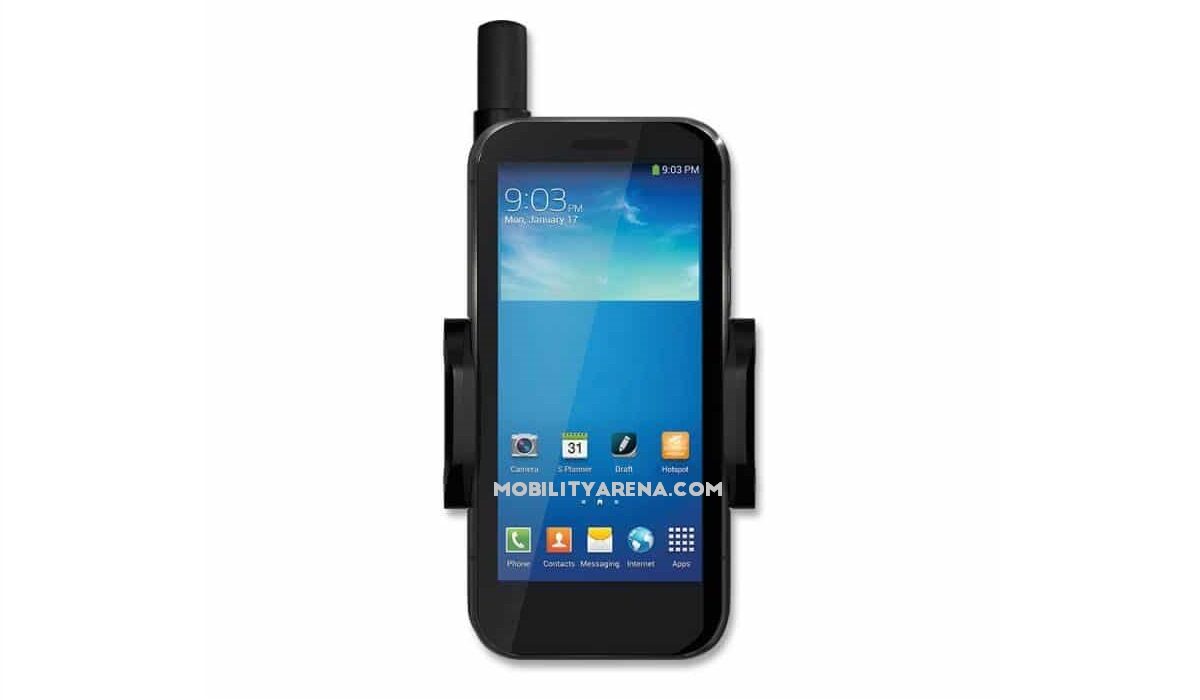
Thuraya SatSleeve+ adapter to convert your Android smartphone to a satellite phone.
With the BeiDou-Huawei partnership, the SpaceX-T-Mobile partnership, and the Apple-Globalstar partnership, users of regular smartphones can now enjoy satellite coverage outside of cellular service areas without the need for an adapter or jacket. T-Mobile phones will connect via SpaceX’s network of satellites, while the new iPhone 14 and 14 Plus will connect through Globalstar’s satellite network.
How does Huawei Mate 50’s satellite messaging work?
When outside GSM wireless coverage, the phone can be pointed up to connect to any available BeiDou currently has 35 satellites in orbit over planet earth. Details are not available yet how the feature is used on the phone.
How does the iPhone 14’s satellite connectivity work for Emergency SOS?
If outside GSM coverage and want to use your iPhone 14 or 14 Plus for emergency SOS via satellite, you have to point the device directly at a satellite with a clear view of the sky. How do you pull this off? The phone has an Emergency SOS menu that guides you in pointing to the exact location of a Globalstar satellite in the sky. Once you have a satellite connection, you can send SMS. It is limited to SMS for now, but other channels will be available eventually.
How much does the iPhone 14’s Emergency SOS service cost? Apple says that it is available for free for 2 years in US and Canada.
Welcome to the next generation of satellite phones. As you can expect, more mobile brands will release models offering the same feature. Satellite phone service is about to become more mainstream than ever before. Expect Samsung to step up so as not to be left behind in the new gold rush for satellite mobile services.
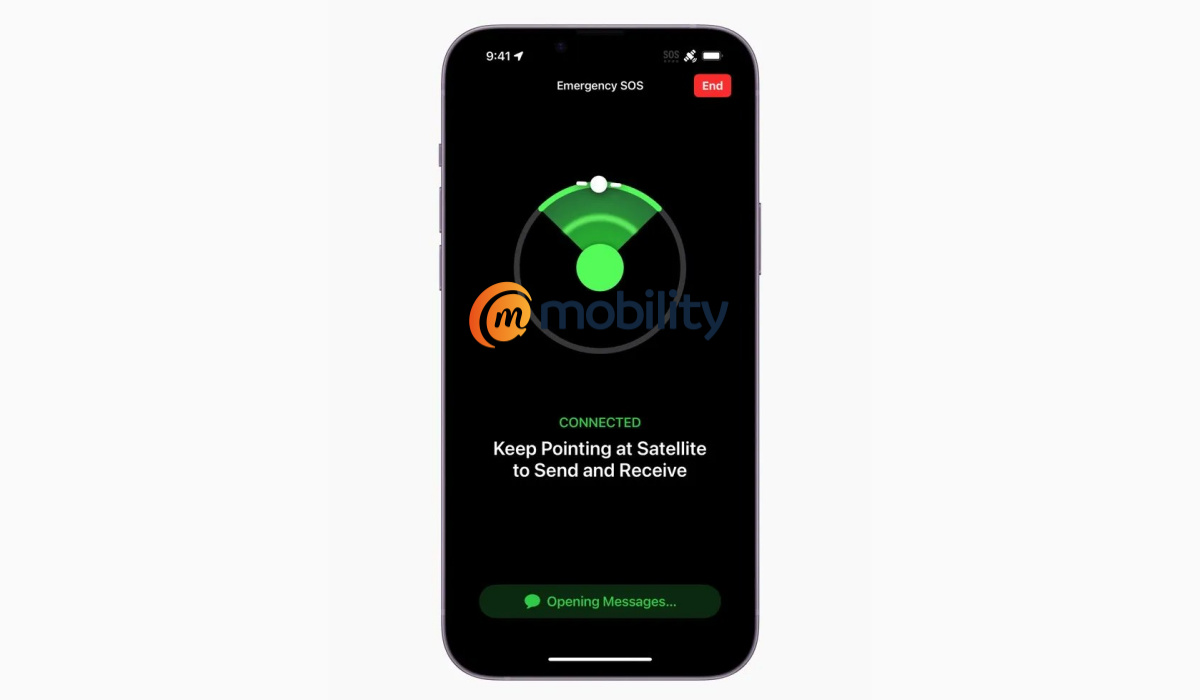
Samsung is expected to launch Android satellite phones.
List of Android satellite phones
Here is a list of Android satellite phones you can buy.
- Huawei Mate 50
- Motorola Defy2
- CAT S75
The market is expecting an ever-growing catalog of Android satellite phones, especially as Google has announced that Android 14 will support satellite connectivity.
January 2023 Update : At the Consumer Electronics Show (CES 2023), Qualcomm and Iridium announced Snapdragon Satellite for Android , which enables regular SMS and messaging for premium Android phones via satellite connectivity.
- Don’t miss our mobile phone reviews .
- Follow our news on Google News .
- Follow us on Instagram , Facebook , Twitter , and YouTube .
Author:Mister Mobility
Digital Skills and Communication Coach | Mobile Phone Connoisseur since 2001 | Tech Blogging since 2004
