Add MobilityArena as a preferred source on Google
Cyber-security has become a very topical issue in the modern world. The digital world is as imperfect as the real one, therefore the need to ensure safety for all users is crucial. The number of cyber-crime cases has increased significantly over the last decade, so people started to raise alarms about possible dangers. This is why it is imperative that you are able to protect your Android phone.
The threats and risks can wait for us everywhere, and unfortunately, we are not always ready to detect the danger. Hackers resort to different methods to invade our privacy. Most common of them is using Celltrackingapps . When a device is infected with malware, a hacker can get access to it, which means that they are able to record your phone conversations, leak private phones, record the keystrokes and track your current location. With each passing day, we see new threats from advanced spy apps for Android that can gain access remotely to the target phone. Being able to protect your Android phone from malevolent actors is a big flex.
Nowadays, almost everyone uses a smartphone – mobile device that enables a connection with the outer world including communication via messengers, working from home, creating visual content, and using the internet to find necessary sources of information. In brief, our smartphones are an indispensable part of everyday life and people can hardly spend one day without their devices.
Software developers are enhancing security features by employing innovative methods and new technologies to make their products resistant to cyber-attacks. For this reason, modern smartphones are equipped with the more and more security features to reduce or mitigate the risks of data leakage.
What are the best security features to protect your Android phone?
If you are concerned about personal safety and security and are curious about what you can do to protect your Android phone and stay safe while connected, the following security features will help you do that. It does not matter what Android phone brand you are using – Samsung, Motorola, Google Pixel, OnePlus, or any other; these features are built into Android.
- Application sandbox.
The purpose of this security mechanism is to isolate system applications from installed apps so that malware cannot access and infect the device. Sandboxing creates a separate space for the most important individual android applications and cuts off the interaction with another file without permission.
- App signing.
With this useful feature, no application cannot access your device without being properly signed with the certificate.
- Authentication
Users can unlock their phones in different ways including entering a PIN, pattern, password, or fingerprint. A device that has a fingerprint sensor allows the user to perform the tasks like confirming transactions, unlocking the password database, or getting access to some applications.
- Biometrics
Android 9,10,11 and 12 have system-provided BiometricPrompt API, that shows authentication prompts through biometric modalities including fingerprint or face.
- Find my device.
This special feature enables managing your device even when it is lost or stolen. To activate this future you should sign in with a Google account or install the app. With this feature, you can play a sound, lock the phone or erase all data from it.
- Play Protect
It is a specially designed scanned for Android devices, that scan all individual and installed applications on your phone to detect suspicious shady apps and dangerous spyware for android
- Managing app permissions.
When installing new applications on your smartphone, you should manage the permissions for every app installed. But sometimes we can forget about what we clicked on, so Permission Manager in the setting will show us what permission the certain app has. It is crucially important to review the app’s permissions from time to time because some of them can pose a serious threat to your phone’s safety.
- Emergency Info
If something unpredictable happens, this feature enables you to leave a message to a random person that can find your phone and help in case of emergencies. You can enter emergency contacts or medical information here.
- Lockdown mode.
This is a new feature to protect your Android phone by allowing you to hide all notifications on the screen and make fingerprint or face unlock impossible. To activate this feature you need to press the Power button and tap Lockdown. If you want to unlock your smartphone after this step, it is necessary to enter a PIN or password.
- Guest mode,
Most Android devices offer this useful feature. What it does is create an exclusive space for third-parties who want to use your phone, so they cannot get access to your private information or change anything in the phone’s system settings.
- Smartlock
When this feature is switched on, your device remains unlocked when linked to designated devices.
Conclusion
In a nutshell, our mobile devices are smarter than we think; they can prevent and eliminate the dangers that emerge from the evil hacking world. High-quality graphics, attractive design, and wonderful capabilities of the camera are not the only features our smartphone offer us. They also have security features that are a strong shield from possible security threats. With the abundance of spy apps for Android, you can successfully protect your Android phone from hackers who attempt to invade your privacy. All the best.
Author:Anna Makama
Gadget lover making my way through life one day at a time.
Add MobilityArena as a preferred source on Google
Why would you want to change default apps on Android smartphones? Because, sometimes, some default apps have better 3rd party alternatives. One of the things that makes smartphone usage seamless is when you can perform the right actions with the right apps. Sometimes, you may click on a file that you’d prefer to open with a specific app, but for some reason, Android keeps launching it with a different app that you don’t want.
This may be a problem you encounter frequently, and it happens because you’ve chosen the incorrect app for that particular file type. If you want such actions to be completed with a different app, you’ll need to change the default app on your Android phone.
How Can I Change Default Apps on Android Phones?
Changing default apps on Android phones used to be a much more difficult procedure, but Google has made it simple. It is now pre-programmed into the settings.
All you need to do is the following:
- On your Android smartphone, launch the Settings app
- Navigate to Apps
- Choose Default apps
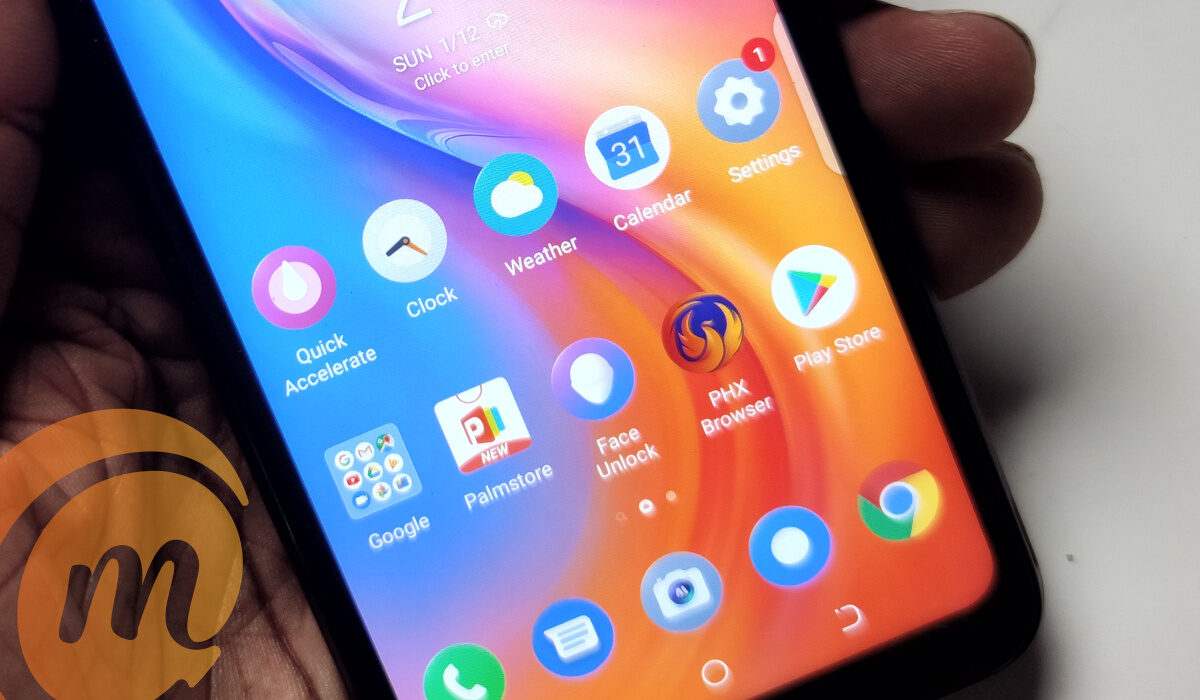
From here, you’ll be able to choose your preference for default phone, SMS, home launcher, digital assistant, caller ID, browser, and call redirection apps. Additionally, you may access Opening links to change certain apps on your Android phone.
Change Default Apps on Android As You Go
Android’s operating system uses a concept known as “implicit intent”. In essence, the operating system searches for an app that can complete a task if the user or app asks the device to “take a picture” or anything similar.
Android will then prompt the user to choose their preferred app if more than one option is available and no default has been set (or if a new option has been added since the last default was set). This essentially facilitates a simple and intuitive approach for changing default apps on Android phones.
Here’s how to change default apps on Android as you go:
- First, click on a link to perform an activity or access a website, Android will prompt you to select an app that you’d prefer as the default app
- You can then select the app and choose to use it Just Once or Always . Select Always to make the app the default choice. Android’s operating system will remember your preference and use it for the activity henceforth.
The only drawback to doing this is that users may unintentionally set a default app sometimes. To alter your preference, simply follow the first set of instructions to change the default app. Click on Opening links once you’ve reached the Default apps section. Go into the app you want to change preferences for. There, you’ll find all the options you need to change the default app as you please.
Also, take note that Android 12 and later operating systems have removed this function. You will have to use the instructions in the preceding section to change your default apps if you have the more recent OS version. This approach is still usable on Android 11 and earlier versions.
Reset Default Apps
Another option you have to change default apps on Android phones is to reset default apps. This works if you can’t figure out which app default is causing you problems and no matter what you do, the option to choose a new default app doesn’t display.
Follow these instructions to reset default apps in order to change default apps on Android phones:
- Launch your Android phone’s Settings app.
- Enter the Apps section
- Select the option to “ See all apps “
- Press the menu button with three dots.
- Click on Reset app preferences
- Select Reset apps to confirm the action
It’s important to keep in mind that performing this operation will also activate all disabled apps, clear all app notification settings, erase any background data limits, and remove any permission restrictions put on particular apps.
You won’t lose any data, but if you mess with your app settings frequently, you might need to do a lot of tweaking to get everything back to the way you like it.
In summary , you can change the default apps on your Android phone if you’re unsatisfied with the ones currently in place to perform certain functions. Follow the instructions in this guide to make the process easier.
- Don’t miss our mobile phone reviews .
- Join our WhatsApp Group , to be notified of the most important articles and deals,
- Follow us on Instagram , Facebook , Twitter , and YouTube .
