Add MobilityArena as a preferred source on Google
Microsoft, like many other tech companies, collects information about you, such as what you do in Windows and online, where and how you use your devices, and the kinds of data and content you mostly access.
Tech businesses often claim that they are gathering this data to give you a more specialized and individualized experience. In truth, some form of data gathering is required if you want to make the most of specific Windows functionalities. However, it’s normal to start getting concerned about how much of your private information these companies have access to.
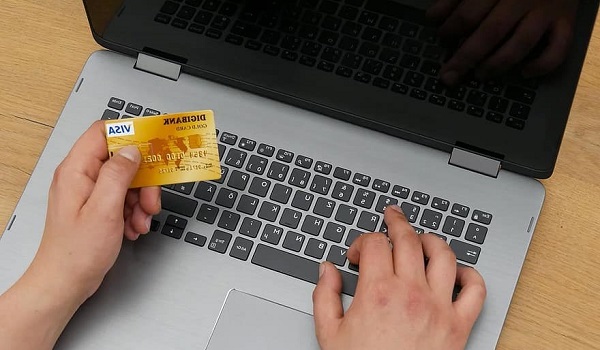
If you’re having privacy concerns with using Windows devices, it’s easy to put some settings in place to soothe your worries. We’ve created this guide to help you accomplish this, whether you believe Microsoft’s operating system violates your privacy or simply want to make sure you safeguard as much of your private life as you can.
So, keep reading to find out the top options you have to safeguard your privacy on Windows 10 devices.
Disable Ad Tracking
- Go to Privacy > General in the Windows 10 Settings program (by pressing the Start button in the lower-left corner of your screen, followed by the Settings symbol that resembles a gear).
- Under the heading “Change privacy options,” you’ll find a series of options, the first of which manages the advertising ID.
- You’ll need to move the slider from On to Off at this point. Your interests won’t be recorded anymore, and generic adverts rather than customized ones will still be served to you.
Go to the Ad Settings area of Microsoft’s Privacy Dashboard to be completely sure you aren’t tracked online while using Windows 10 and to turn off any other methods by which Microsoft will typically use your information to target adverts.
To do this:
- In the top right corner of the page, sign in with your Microsoft account
- Switch the slider from On to Off in the “See adverts that interest you” box at the top of the page.
Disable Location Tracking
Everywhere you go, Windows 10 is aware of your presence. Some people don’t mind this because it enables the operating system to provide you with pertinent information, such as the weather in your area, nearby dining establishments, and so on. However, you can instruct Windows 10 to cease tracking your location if you don’t want it to.
Open the Settings app, then select Location > Privacy . Click Change , then shift the slider from On to Off on the screen that displays under “Allow access to location on this device.” By doing that, you can stop location monitoring for all the users of the PC.
You can disable location tracking in individual apps rather than making it an all-or-nothing decision. Make sure location tracking is enabled and scroll down to the section that reads “Choose apps that can use your precise location” if you only want some apps to be able to use your location and not others.
Every Windows 10 app that can access your location will be listed for you to see. For the apps that you wish to enable to use your location, such as Weather or Maps, move the slider to On ; for the apps you don’t, move it to Off .
You should note that desktop programs are not covered by this setting. In order to allow desktop programs to access your location after you enable location tracking, click that option. A list of desktop applications that use location tracking appears once you do that. For each app you wish to use your location, slide the slider to On ; for each app you don’t, slide it to Off .
Restrict Cortana
Cortana is a voice-activated intelligent personal assistant, much like Apple’s Siri and Google’s creatively called Google Assistant. By using the Bing search engine of Microsoft, it can respond to questions and understands natural voice commands.
In addition to conducting searches, Cortana can store and access personal data including contacts, calendar dates, calendar reminders, and more.
The Cortana assistant’s ability to index and retain your data both locally and on the cloud is a significant downside. Also, Cortana can now synchronize data between all of your Microsoft devices.
It’s easy to restrict Cortana’s access to your personal information and modify its functionality so that it behaves more like the original Windows search bar.
You can stop it from logging information about your handwriting, speech, and previous text entry habits. Additionally, you have the option to disable the assistant’s sharing of your usage data among all of your Windows-based devices.
To limit Cortana’s access:
- Start the Cortana app by tapping the Cortana icon on the taskbar, and then select the menu button in the top-left corner of the Cortana window to access the settings.
- You’ll find a “Privacy” menu choice in the “Account” section of the Settings screen. Touch that.
- The Privacy settings screen will appear next. Here, you may check the information that Cortana has on you, manage her access to your calendar and email, delete all of her data, and delete her chat history.
You may also regulate Cortana’s access to information, what she knows about you in the cloud, and what information she can get from other services. You can also decide whether or not Cortana listens constantly for your summoning word.
Summarily , these settings will typically help you control your privacy, and some other methods you should consider trying include:
Controlling your camera and microphone access
Controlling app access to your contacts and account information
Limiting the usage data and feedback that gets sent to Microsoft
Don’t miss our mobile phone reviews .
Follow our news on Google News .
Join our WhatsApp Group , to be notified of the most important articles and deals,
Follow us on Instagram , Facebook , Twitter , and YouTube .
Author:Joan Agie
Add MobilityArena as a preferred source on Google
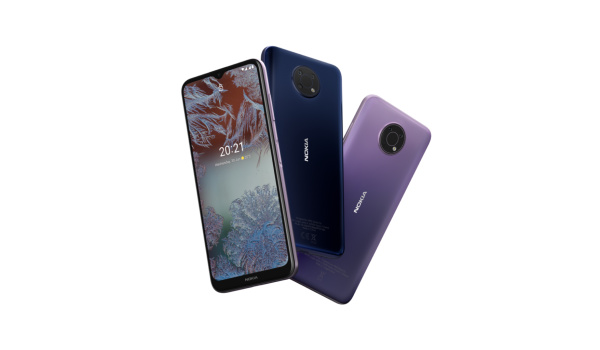
The Nokia G10 was launched in April 2021 as a budget smartphone. It is a simple but elegant device that has a 6.5″ screen, and a light but durable build. It has a MediaTek MT67626 Helio G25 processor and a Triple AI camera. It also comes with 2 years of security updates. The Nokia G10 has a 5050 mAh Li-Po battery that gives long-lasting power.
Now, are you looking to make your Nokia G10 run faster and smoother? Have you had problems with your phone being laggy and slow? Here are some ways to make your Nokia G10 perform much better and faster.
Delete Unused apps
The benefit of owning a Nokia smartphone, the G10 included, is that they do not come with bloatware and unwanted apps. Any smartphone user would love to have all their desired apps installed. This might lead to large amounts of apps piling up on the device, over time. It is important to form a habit of uninstalling unused apps and games. Having lots of these apps will hinder and slow down the performance of your device.
Especially when you have some of them running in the background. They also become so many and have so much data on each one of them, that there is barely any storage space left for your device to run as smoothly as you may have liked.
Clear App Cache
Cleaning the cache of the app on your Nokia G10 is important in terms of sending up your phone. Clearing the cache of an app can make that particular app run faster and smoother than it did before, and reduce possible lag. Clearing cache is also very important for entry-level devices too to help them improve their performance. As they are not as powerful as high-end devices. You can clear the cache of any app by long pressing the app icon, selecting App info, and then Storage. There will be an option to Clear cache. Select that and you’re good to go.
Updates
It is important to keep your Nokia G10 updated. This is because, with every new update, there might be security enhancements (which are crucial) but there might also be performance improvements added to the update that can make your overall experience, and device speed, better.
Restarting your Device
It is well known that any device can perform faster and better simply off of a restart. The same holds for the Nokia G10. Doing this should address most of the performance issues, as it deletes temporary files to speed up the phone and clears the phone’s memory.
Use the Lite Version applications
Lite versions of apps are the shortened versions of these said apps. Apps Tit Tok, Facebook, e.t.c. The lite versions are usually limited in comparison to the actual applications and don’t offer as many features. These lightweight apps, that do not work your device as hard as the main ones, are designed for entry-level smartphones and designed for users who want to keep their apps simple or use something simple. They help boost the performance of your device and lower your data and charges.
Hard Reset
If you are looking for a simple method on how to Make Nokia G10 Run Faster, it may be the most effective. If you do a hard reset on your Nokia G10, then all the phone data will be deleted, and the phone’s storage will be clean. At the same time, the random-access memory of your Nokia G10 will start working like new again. However, you need to back up all the data before performing a hard reset.
The main reason for this is a hard reset because all the data in your Nokia G10 storage will erase. This will increase the performance of your Nokia G10 phone compared to its previous state before the reset. But it bears too much of a cost for some. If you are fine with having all your data lost, you can go for this option. It will certainly improve the phone’s performance and feel like you just bought a new phone.
- Don’t miss our mobile phone reviews .
- Follow our news on Google News .
- Join our WhatsApp Group , to be notified of the most important articles and deals,
- Follow us on Instagram , Facebook , Twitter , and YouTube .
Author:Flamez
Flamez loves basketball, art, gadgets and cars.
