Add MobilityArena as a preferred source on Google
To record calls from your Samsung, you don’t need to download anything; simply follow a few simple steps. Don’t worry, you’re not the only one who has wanted to record calls from their Samsung. Samsung smartphones include features that allow users to record calls, but few people know how to use them. As a result, in this blog post, we will show you how to record calls on a Samsung phone.
Have you ever wanted to record some important phone calls on your Samsung smartphone? You’ve come to the right place. You’ll be surprised at how simple the process is once you figure out how it’s done. To learn how to record calls on your Samsung, you just have to follow the steps below.
- To Record Calls On A Samsung Phone
- How To Record WhatsApp Voice and Video Call
- Recording WhatsApp voice calls with Cube ACR
- Recording WhatsApp Video Call
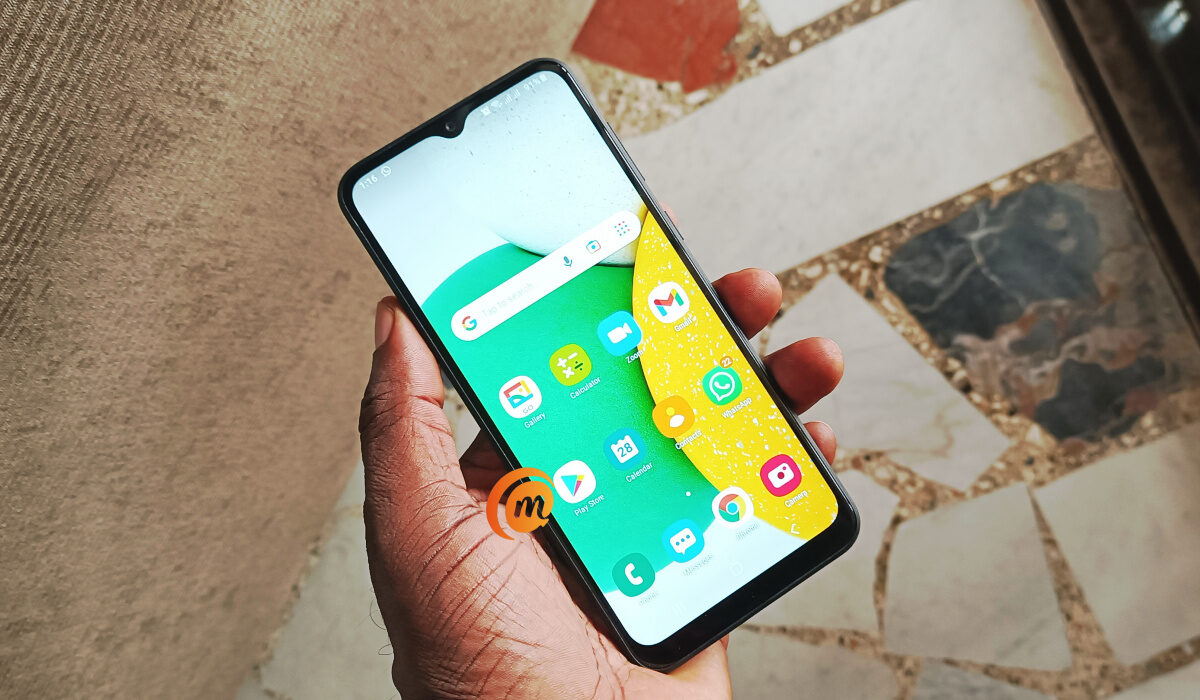
To Record Calls On A Samsung Phone
- First, open the Phone app on your Samsung.
- Then tap the three-dot menu in the top right corner.
- Next, go to Settings.
- Look for the Record calls option, it’s under the spam protection feature.
- Finally, you activate the feature by clicking allow.
That’s it! That is all you need to do to enable the call recording feature on your Samsung. As shown above, it is a simple process. However, there are a few things to keep in mind when recording phone calls.
If you don’t see this option, open the phone app and confirm that you want to use this feature as the default. If you have done all of this and still do not see the option to record calls, Samsung may have disabled this functionality in your country for legal reasons. If this is your situation, the only thing you can do is look into whether call recording is legal in your country or speak with a Samsung representative directly.
When you enable this feature, a call recording interface appears, from which you can begin a recording or schedule automatic recordings. This option has three modes:
- All calls,
- Call unsaved numbers and,
- Call specific numbers.
Keep in mind, however, that automatic individual call recordings can be combined with any of the other behaviors. Similarly, if your device does not ring, you will always have the option to review the settings.
Fortunately, you don’t need to install any third-party apps to record calls on your Samsung smartphone. Furthermore, the recorder works even when the battery-saving mode is enabled, which could be very useful when you need to record something but your phone’s battery is running low.
However, if your Samsung does not support this feature for whatever reason, you will need to download an app to record calls on Android. Although there are many on Google Play, we recommend ACR Call Recorder because it is effective and simple to use. This tool will automatically record your calls and save them in the app itself, so you never have to worry about anything again.
How To Record WhatsApp Voice and Video Call
According to Business of Apps data, approximately 55 million video calls are made through WhatsApp every day, totaling approximately 2,000 million minutes of duration per day. Because of this, WhatsApp is not only the most popular instant messaging app in the world, but it is also one of the platforms preferred by users for chatting with family and friends.
However, WhatsApp calls are not without flaws. There are missing features that could be helpful to everyday users. One of them is the ability to record calls, which has unfortunately yet to appear in the application. Fortunately, we can capture the calls we make through WhatsApp using third-party tools.
Recording WhatsApp voice calls with Cube ACR
Even though Google appears to be putting more and more obstacles in the way of call recording app developers, the vast majority of them can be used to record voice calls on WhatsApp without issue. Cube ACR is one of the most popular, with over 5 million installations on Google Play and a rating of 4.7 stars out of 4.
Although the app was designed to record traditional voice calls (those made over a mobile network), Cube ACR also allows you to record audio from calls made via a variety of apps, including Skype, Line, and, of course, WhatsApp.
All you have to do is download the app and then select which apps you want to record the audio from — in this case, WhatsApp. It will also be possible to enable automatic recording, which will eliminate the need to start recording manually every time a call is made.
Recording WhatsApp Video Call
When it comes to recording video calls, the process is simplified since all you have to do is use one of the many Android apps that allow you to record the screen, as well as the audio captured by the device’s microphone.
MNML Screen Recorder, a very simple application that allows us to capture the device’s screen as well as the external audio, was chosen in this case due to its ease of use and the fact that it is completely free.
To record WhatsApp calls with this app, you must start the screen recording just before entering the call. Fortunately, the app allows you to add a shortcut to the system’s quick settings panel, allowing you to start recording with a single touch.
Furthermore, for MNML Screen Recorder to record the voices of the other members of the video call (remember that WhatsApp allows you to add up to 4 participants), it is recommended that the volume of the device be turned up high enough so that the microphone can capture the audio. As you can see, even though it is not a direct option in the application, recording WhatsApp calls and video calls is not difficult. These solutions will also work in the vast majority of Facebook-compatible messaging and communication apps.
Author:Moses Udah
Creative, teacher, web content writer, copywriter, and student.
Add MobilityArena as a preferred source on Google
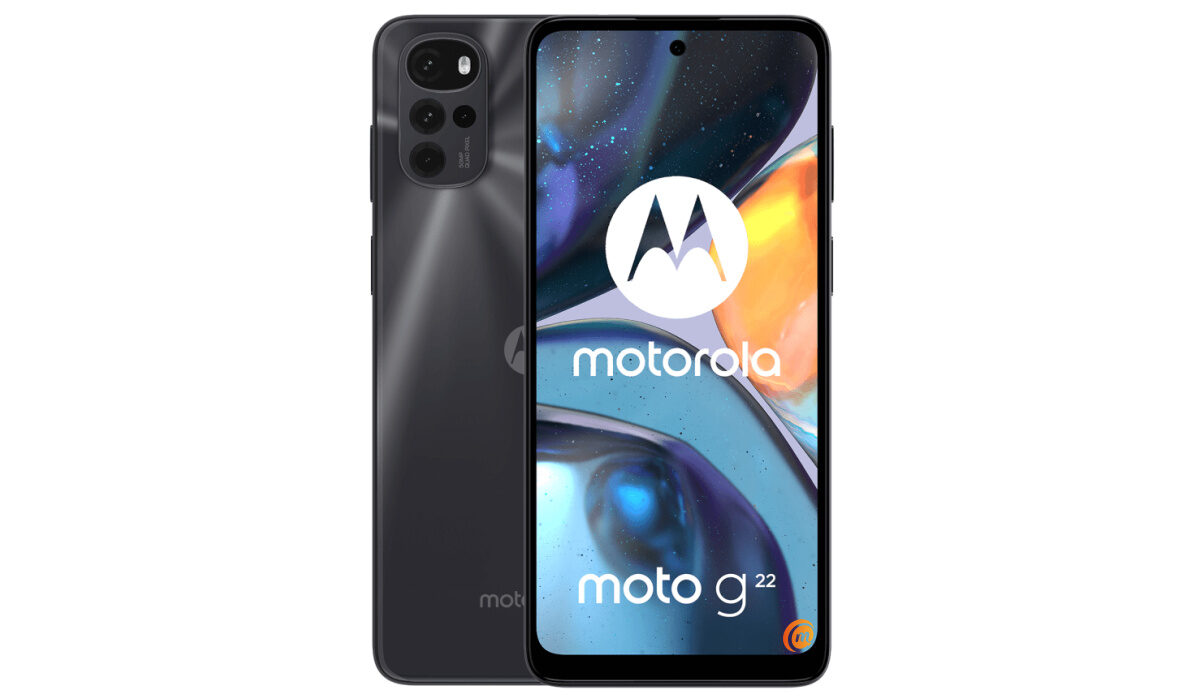
The Motorola Moto G22 is one of Motorola’s latest entry-level smartphones that was released on the 13th of March 2022. The processor in the Moto G22 is the Helio G37 SoC. It also has 4GB of RAM and 64GB of internal storage. This device is not meant for heavy gaming or multitasking. It might have great features but it remains a basic, budget device. As such, sometimes its resources are stretched thin and it begins to run slower than usual, maybe even enough to annoy you, which is why you are reading this article. Below, I share a few things you can do to make your Motorola Moto G22 faster.
The key thing you need to know are the two factors affecting your phone’s performance: the processor and RAM. The processor determines how powerful your device is, while the RAM determines how smoothly apps launch and run on the phone. RAM (Random Access Memory) is a temporary storage for running apps. We can’t do anything about the processor, but RAM usage can be managed. Now, if you are looking to make your Motorola Moto G22 faster and smoother, here are some ways to make that possible.
- Make your Motorola Moto G22 faster by deleting unused apps
- Make your Motorola Moto G22 faster by clearing the app cache
- Make your Motorola Moto G22 faster by installing any software updates
- Make your Motorola Moto G22 faster by restarting your device
- Make your Motorola Moto G22 faster by using Lite Version applications
- Make your Motorola Moto G22 faster with a Hard Reset
Make your Motorola Moto G22 faster by deleting unused apps
Any smartphone user would love to have all their desired apps installed. This might lead to large amounts of apps piling up on the device, over time. It is important to form a habit of uninstalling unused apps and games. Having lots of these apps will hinder and slow down the performance of your Moto G22.
Especially when you have some of them running in the background. They also become so many and have so much data on each one of them, that there is barely any storage space left for your device to run as smoothly as you may have liked.
Make your Motorola Moto G22 faster by clearing the app cache
Cleaning the cache of the app on your Moto G22 is important in terms of sending up your phone. Clearing the cache of an app can make that particular app run faster and smoother than it did before, and reduce possible lag. Clearing cache is also very important for entry-level devices too to help them improve their performance. As they are not as powerful as high-end devices. You can clear the cache of any app by long pressing the app icon, selecting App info , and then Storage . There will be an option to Clear the cache . Select that and you’re good to go.
Make your Motorola Moto G22 faster by installing any software updates
It is important to keep your Moto G22 up to date. This is because, with every new update, there might be security enhancements (which are crucial) but there might also be performance improvements added to the update that can make your overall experience, and device speed, better.
Make your Motorola Moto G22 faster by restarting your device
It is well known that any device can perform faster and better simply off of a restart. The same holds for the Moto G22. Doing this should address most of the performance issues, as it deletes temporary files to speed up the phone and clears the phone’s memory.
Make your Motorola Moto G22 faster by using Lite Version applications
Lite versions of apps are the shortened versions of these said apps, including Tit Tok, Facebook, e.t.c. The lite versions are usually limited in comparison to the actual applications and don’t offer as many features. These lightweight apps, that do not work your device as hard as the main ones, are designed for entry-level smartphones and designed for users who want to keep their basic Android phones running smoothly. They help lower the processing demand on your device and lower your data consumption and charges.
Make your Motorola Moto G22 faster with a Hard Reset
If you are looking for a simple method on how to make your Motorola Moto G22 faster, this last resort may be the most effective. If you do a hard reset on your Moto G22, then all the phone data will be deleted, and the phone’s storage will be clean. At the same time, the random-access memory of your Moto G22 will start working like new again. However, you need to back up all the data before performing a hard reset.
- Don’t miss our mobile phone reviews .
- Follow our news on Google News .
- Follow us on Instagram , Facebook , Twitter , and YouTube .
Author:Flamez
Flamez loves basketball, art, gadgets and cars.
