Add MobilityArena as a preferred source on Google
Losing useful files from your hard drive while using a computer is a terrible experience. It may ruin the whole day, or even a couple of days. Well, what can you do to recover lost files? We guess the best answer is taking measures in time to recover data from hard drive .
Classified by computer types, the hard drive can be divided into two categories: laptop hard drive and desktop hard drive.Just as the name implies, laptop hard drive refers to the hard drive used in laptops, while desktop hard drive is the main storage device of desktop computers.Considering laptop is used widely nowadays, we decide to put our focus on lost files on laptop. And we’ll show you the detailed operations of laptop hard drive data recovery
Lost Files on Laptop? Don’t Worry about It
Sometimes, you may make a mistake in deleting files from laptop hard drive that are still useful; sometimes, you may find some data are lost suddenly from laptop due to unknown reasons. No matter what the situation is, laptop data recovery won’t be too troublesome as long as it is still working properly.
Now, let’s see the specific steps to recover lost files from laptop hard drive.
Steps To Recover Lost Files
Step one : choose a reliable one from the many laptop hard drive recovery tools you can find on the internet. We discover a good choice – MiniTool data recovery , which has high security.
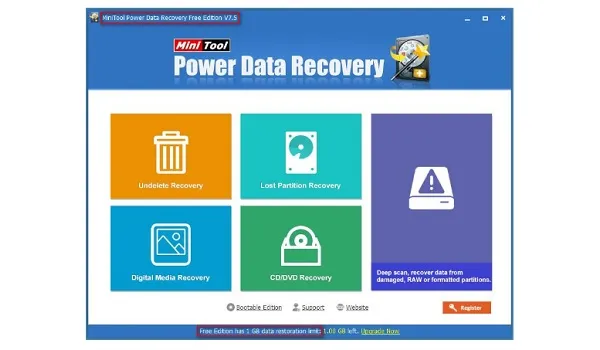
Step two : run the software and specify a proper function from the main interface shown below.
Tips for choosing a suitable function
- If you need to recover deleted data from laptop, please choose “Undelete Recovery”.
- To recover data from a missing partition, you should choose“Lost Partition Recovery”.
- If you want to recover data from laptop hard drive after you found it has been damaged, please choose“Damaged Partition Recovery”.
- As for multimedia files recovery (like photos and music), please select “Digital Media Recovery”.
Step three : select your hard drive/the specific partition and press “Scan”/“Full Scan” button to start searching for files.
Step four : browse and check files to recover at the end of the scan. Then, please click on the “Save” button to store those files to a safe location.
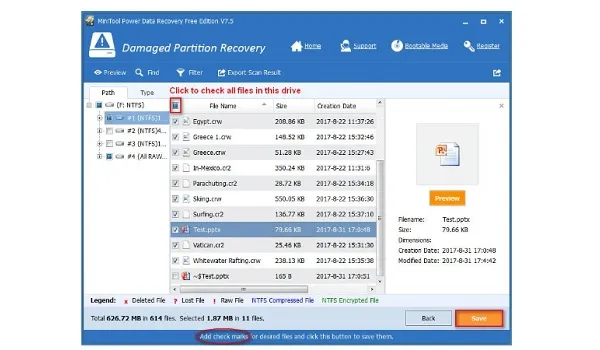
This is the whole demonstration on how to recover data from laptop hard drive by yourself. Considering that you may need to recover data after resetting a laptop sometimes, we advise you to read How Do You Recover Files after Factory Reset Laptop .
Attention : The most obvious difference between the free edition and other advanced editions is that– the former only allows you to recover no more than 1 GB of data, while the latter has no such limit. So please choose a suitable edition according to your own needs to recover data from laptop.
Reading here, you must have understood why we tell you not to worry about after you lost files on laptop. Just go ahead to solve your problem in person now.
- Don’t miss our reviews .
- Join our WhatsApp Group , to be notified of the most important articles and deals,
- Follow us on Instagram , Facebook , Twitter , and YouTube .
Author:Content Partner
Add MobilityArena as a preferred source on Google
If you regularly use navigational apps like Google Maps, you will know why geolocation on your smartphone is important. You could get lost if the location services on your device are not properly set up. This could be caused by faulty GPS signal reception on your smartphone. Also, Pokémon Go fans know all about the importance of GPS signal; it is the most significant factor of the game.
First of all, you need to know what GPS is. The acronym stands for Global Positioning System. It provides geolocation and time information to a GPS receiver anywhere on the planet. Your smartphone has a built-in GPS receiver, which is connected to your phone software through a driver. Now, three things can cause a faulty GPS signal in your device. They are:
- The number of GPS satellites in your location. You have to be in the line of sight of at least four satellites for you to get a correct signal.
- The quality of your smartphone’s GPS receiver.
- The implementation of the driver in your device’s operating system.
How to improve the GPS signal on your Android smartphone
If you happen to have any of these problems, you might get faulty GPS signals. Now, there are some things you can do to improve the GPS signal on your Android smartphone. Check these out:
- Switch on High Accuracy Mode. This would drain your battery faster, but it would help pinpoint your location better through use of your Wi-Fi and mobile networks. To enable High Accuracy Mode, go to Settings>Location, and make sure that your location services are on. Now, under Location, tap on Mode and set it to High accuracy.
- Your GPS could be turning off when you switch from app to app. To forestall that, you might need to install a GPS app. Note that this could drain your battery.
- Find out if the GPS issues on your device are caused by hardware issues or software issues. Download and install GPS Essentials . On the app, tap Satellites, and watch your device connect to the nearest satellites around the earth. If it doesn’t connect, then there is a hardware issue. Perhaps you have a metallic object somewhere around, or your phone case is interfering with the signal. If satellites appear, but your device still cannot connect, it is a software issue.
- Sometimes your device sticks to certain GPS satellites, even when they are out of range. To correct this, refresh your GPS data. Download and install GPS Status & Toolbox. In the app, go to Menu>manage A-GPS State>Reset. After that, go to Manage A-GPS State>Download. This would refresh your data and fix the faulty GPS signal.
- If all else fails, you can get an external GPS receiver. You can connect this to your phone through Bluetooth.
- Don’t miss our reviews .
- Join our WhatsApp Group , to be notified of the most important articles and deals,
- Follow us on Instagram , Facebook , Twitter , and YouTube .
Author:Mister Mobility
Digital Skills and Communication Coach | Mobile Phone Connoisseur since 2001 | Tech Blogging since 2004
