Add MobilityArena as a preferred source on Google
Frankly, one of the top ten things that can very easily disrupt a routine workday should be losing your login password. It happens even to the best of us, whether you took an old PC out of storage and forgot the login information, or you recently changed your Windows password and just can’t remember the new one.
Thankfully, even if you don’t have administrator privileges, there are ways to recover your Windows password on Windows 7 or 10 devices. We have compiled this guide to walk you through how to recover your Windows password with a password rest, and then securing your password to prevent future loss.
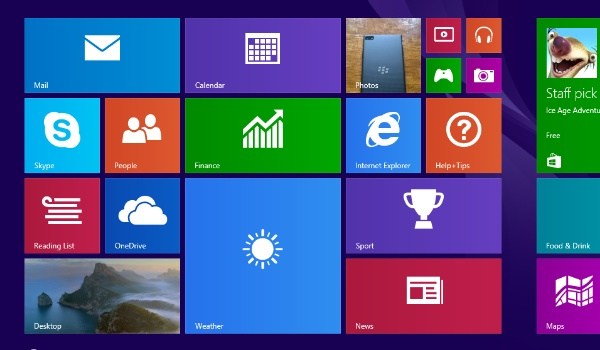
- How to Recover Windows Password on a Windows 10 PC
- How To Recover Windows Password on a Windows 7 PC
- How to Prevent Future Password Loss
How to Recover Windows Passwordon a Windows 10 PC
Users of Windows 10 devices are in a much better position when it comes to resetting passwords. While installing the new operating system, it essentially compels you to create a Microsoft account. With a few alternatives available, it’s extremely simple to recover a password if you have either a reset disc or a Microsoft account.
Make sure your computer is online because the Microsoft computer password reset process needs an internet connection. Resetting a Microsoft Windows password with Microsoft Login is simple:
- Click the I forgot my password link on the Windows 10 login screen.
- Enter the email address for your Microsoft account on the next screen.
- Microsoft then seeks to confirm that you are who you say you are. Microsoft will be able to issue you a code via email or SMS if you request it.
- Enter that code when you get it into the Windows login box. The procedure of creating a new (and hopefully more memorable) password will be explained to you.
How ToRecover Windows Password on a Windows 7 PC
If Windows 7 is what you’re using, you might not have as much luck as a Windows 10 user unless you’ve already made a password recovery disk. You should be proud of yourself if you were careful enough to make a USB recovery disk for your Windows 7 system. You’ve made it incredibly simple to recover your Windows password, just follow these easy steps:
- Click the Reset passwords button on the login screen.
- Connect your USB key (or floppy disk). Choose Next .
- Enter a password hint and your new password. Select Next .
- You’re all done!
Using the new password you set, you can now log back into your computer.
How to Prevent Future Password Loss
If you’d like to prevent the mental gymnastics that come with repeated prompts of “Incorrect password” when you try to log in to your Windows device, a good idea is to put a few steps in place to prevent future password loss.
Here’s how to guard against forgetting or misplacing your Windows account password:
- For Windows 7 devices, make a password reset USB drive or disk:
You can make a password recovery disk if you’ve decided not to use a Windows 10 Microsoft account or if your computer is still running Windows 7. This is how you make a disk:
- Connect a USB key to your computer or laptop. If your PC is still riding the retro wave, you can also use a floppy disk.
- Type in reset after clicking on the Start button.
- Select the item that says “Create a password reset disk.”
- On the initial screen, select Next. Choose a “disk” (which is a USB drive).
- Enter your present password and select Next once again. The creation of your disk takes a short while after this step. Ensure to keep it in a secure location.
- For Windows 10 devices, sign in to a Microsoft account:
Microsoft accounts are strongly encouraged in Windows 10 devices, and for valid reasons. A Microsoft account gives you access to its software store, allows you to synchronize settings from one laptop to another, and gives you the ability to reset your password quickly if necessary.
Here’s how to set it up (or verify if you already have one):
- To enter the Settings app, click the Start menu, followed by the tiny cog symbol.
- Select Account . If an email address appears underneath your user name and account picture, then you have created a Microsoft account in the past.
- If not, it means you are logged into a local account and you need to create a Microsoft account so that you may reset your password if you lose it or forget it.
- Click Sign in with a Microsoft account to accomplish that. By selecting Create one , you can sign up for an account. Simple signup requirements include using an existing email ID or creating a new Microsoft (@outlook.com) address.
- Enter your first and last name and a password. Using the email address and password you just chose, you can now sign in to your new account. Keep the login details in mind for future use.
Finally, all of your passwords can be securely stored in password managers, and many can even create strong passwords for you. As such, it’s a good idea to select a password manager that can sync across many devices, install it on both your PC and smartphone and then use it to save your Windows password. In this manner, all you have to do if you’re locked out of your computer is consult your password manager on your phone.
We’re sure you’ve found this article very helpful, so don’t hesitate to recommend it to your loved ones so they too can easily scale through password-related issues.
Author:Joan Agie
Add MobilityArena as a preferred source on Google
Everything is mobile nowadays, right? Every business, piece of technology or trend seems to involve mobile devices in some way, shape or form. And, it makes sense for this to be the case. In the last decade or so, video streaming has really come to the fore, and again this is an area where the future lies in the mobile arena. It might not be far-fetched to say that mobile devices are the future of video streaming.
Video streaming, in many ways, is a blanket term because there’s just so much to it when you break it down. For example, you can look at popular streaming services such as Netflix. People love nothing more than logging in and watching movies, TV shows and documentaries. But now they don’t have to be at home to do so. They carry on with the programme they’re binge-watching on their daily commute.
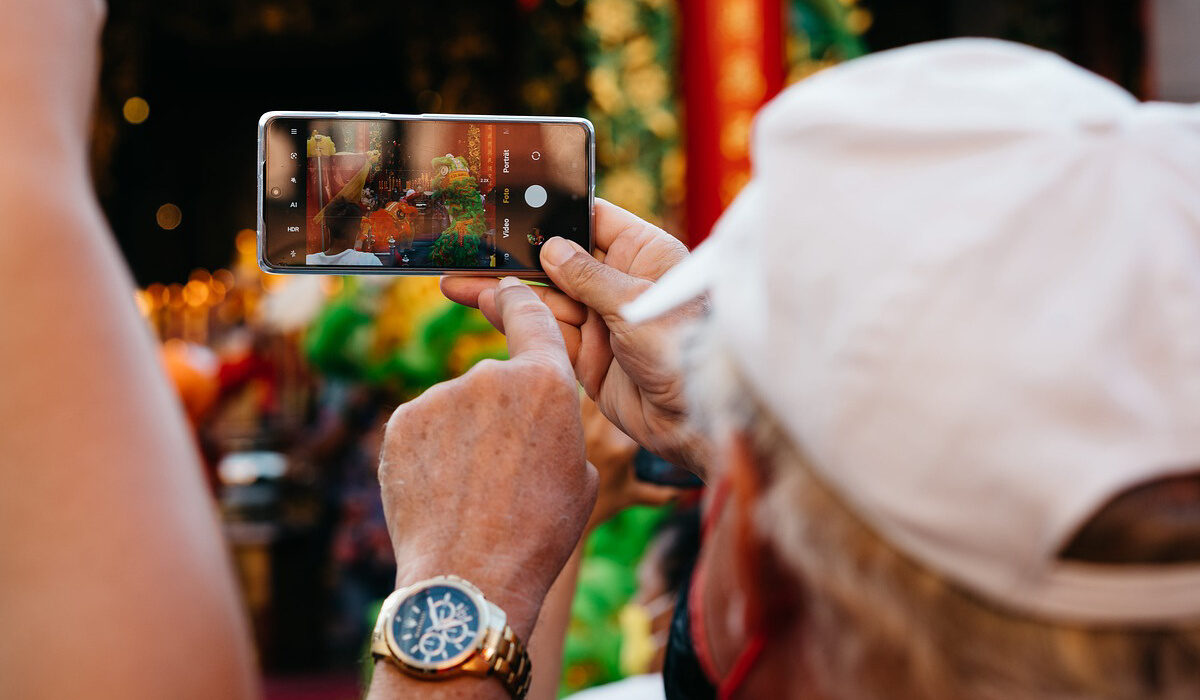
See, what video streaming on mobile has brought to the table initially is convenience. Users can stream whatever videos they like, from whichever services they prefer, wherever they are. And, there’s not going to be any compromising in quality at any point because of wifi and 5G connections; they’re reliable and blazing fast. And, 6G is already being spoken about too.
Another area of video streaming out there benefiting from smartphones being up to the job involved games and the like over on sites such as Twitch. Viewers can log on and interact with the broadcaster, in high-definition, with access to the full service, from their mobile device. And, it will come as no surprise that, as a result, the popularity of mobile gaming has risen considerably. Because if a gamer isn’t gaming, they’re going to be watching someone else game, and vice versa.
Perhaps what has become most important on the video streaming front, especially with its tie-in to mobile devices, is social media. Platforms such as Facebook, Twitter and Instagram all have video streaming options available, and they’re used by a lot of people every day. And, because of the dynamics involving social media, there is often the need to hop on a live stream in an instant, which is only possible when using a smartphone that is up to the task.
So, when you consider all of the above, it’s easy to see why mobile devices represent the future of video streaming . And there are reasons why this isn’t going to change anytime soon. Over time, smartphones, such as those from leading manufacturers like Apple and Samsung, are improving dramatically in terms of their capabilities. They’re more powerful than ever, delivering better performance and increased reliability.
With all that in mind, there won’t be a serious need to video stream via desktop computers or laptops because the difference in performance will continue to reduce over time. And when you factor in how convenient mobile devices are and how much freedom and flexibility they provide to users, maybe the future is already the reality in this space.
- Don’t miss our reviews .
- Follow our news on Google News .
- Join our WhatsApp Group , to be notified of the most important articles and deals,
- Follow us on Instagram , Facebook , Twitter , and YouTube .
Author:MobileChic
That motivated, gadget-loving geeky chic who tries to stay on top of things. Unapologetic iFan.
