Add MobilityArena as a preferred source on Google
iOS 26 is all about giving you more freedom to make your iPhone feel truly yours. With the new customization tools, you can redesign your lock screen to fit your style while making it more practical than ever. The real game-changer? You now have full control over Shortcuts and Controls in iOS 26, letting you decide exactly what’s at your fingertips the moment you pick up your phone. Instead of the same old lock screen, you can now turn it into a personalized command center. Whether it’s quick access to your favorite apps, toggles for daily essentials, or simply creating a cleaner look, the upgraded Shortcuts and Controls in iOS 26 give you the power to make your phone work the way you want. So, if you’ve ever wished your lock screen was less “just a screen” and more of a tool, this update is for you. With Shortcuts and Controls in iOS 26, Apple has turned that first glance at your iPhone into a smooth blend of convenience and style — making your everyday experience both fun and functional.

- What’s New in iOS 26 Lock Screen Customization?
- Step 1: Getting Started with Your Lock Screen Edit
- Step 2: Customize Lock Screen Shortcuts & Controls
- Step 3: Add or Adjust Widgets for More Info
- Step 4: Change Clock Style and Size
- Step 5: Save and Enjoy Your Brand-New Lock Screen
- Why You’d Like This
- Conclusion

What’s New in iOS 26 Lock Screen Customization?
Apple has amped up creativity and functionality with Liquid Glass effects, spatial wallpapers, resizable clock font, and most importantly, the ability to swap out default lock screen shortcuts (hello, flashlight and camera) for almost any Control Center control you want. This means faster access to whatever tools you use most, right from the lock screen!
Step 1: Getting Started with Your Lock Screen Edit
- Wake your iPhone and press and hold on the Lock Screen.
- You’ll enter the Lock Screen carousel . Tap Customize under your current lock screen or use the + button to create a new one.
- For new Lock Screens, browse wallpaper options like Photos, Photo Shuffle, Kaleidoscope patterns, or iOS 26’s Liquid Glass dynamic colors.
Step 2: Customize Lock Screen Shortcuts & Controls
- While in customization mode, look at the bottom corners of the screen. By default, the left is the flashlight and the right is the camera.
- Tap the minus (–) button next to any of these shortcuts to remove them. They transform into a plus (+) icon.
- Tap the plus icon to open a list of available Control Center controls you can add as your new shortcuts — things like Timer, Wallet, Magnifier, Voice Memos, Low Power Mode, Notes, or even Accessibility options.
- Pick your favorites to swap out those defaults. Remember: variety is the spice of life!
Step 3: Add or Adjust Widgets for More Info
- Tap the area just under the clock or the “Add Widgets” section to browse widgets.
- Choose from weather, calendar events, alarms, battery status, or third-party widgets.
- These widgets aren’t just for looks — they give at-a-glance info without unlocking your iPhone.
Step 4: Change Clock Style and Size
- Tap on the clock itself to open customization for font style, color, and size.
- iOS 26 lets you make the clock larger or smaller depending on your taste and wallpaper.
- Don’t be shy — get that clock looking exactly how you love it.
Step 5: Save and Enjoy Your Brand-New Lock Screen
- After personalizing, tap Done or Add on new lock screens.
- Swipe between your saved lock screens by pressing and holding the lock screen to switch quickly as your mood or Focus demands.
- Bonus: link lock screens to Focus modes, so your lock screen can switch intelligently based on where you are or what you’re doing.
Why You’d Like This
- Instant access to the controls you actually use makes the lock screen a multitasking launchpad.
- Widgets and clock customization offer gorgeous and functional faces.
- Dynamic Liquid Glass wallpapers interact with your device movements for a wow factor.
- The ability to save and switch multiple lock screens means your phone’s appearance can adapt as fast as your day.
Conclusion
Redesigning your Shortcuts and Controls in iOS 26 is one of the easiest ways to make your iPhone feel both smarter and more personal. With just a little tweaking, you can set up quicker access to the tools you rely on most while giving your lock screen a fresh look that actually fits your style. At the end of the day, updating your Shortcuts and Controls in iOS 26 isn’t just about convenience — it’s about creating a phone experience that works better for you. So take a few minutes to play around with your Shortcuts and Controls in iOS 26 , and watch how much smoother (and more fun) your daily routine becomes.
Author:Ifeoluwa Adeleke
Add MobilityArena as a preferred source on Google
If there’s one thing the iPhone’s Control Center has always nailed, it’s giving you quick access to the stuff you use all the time — no endless menu diving required. With the Control Center in iOS 18, Apple has turned that convenience up a notch (or three). Now you can tweak the layout to your liking, drop in your favorite shortcuts, and even set up multiple pages of controls to match your different moods or daily routines. Whether you’re organizing a “work mode” page or a “chill at home” setup, Control Center in iOS 18 makes it easier — and honestly, a lot more fun — to get things just the way you want them. So get ready to poke around and discover how much smoother life feels when Control Center in iOS 18 is tailored to you.
- What’s New with the Control Center in iOS 18?
- Step 1: Opening and Accessing Control Center Customization
- Step 2: Customize Your Grids and Controls
- Step 3: Play With Multiple Control Center Pages
- Step 4: Use Your Revamped Control Center Like a Pro
- Why Tech Enthusiasts Are Wooed
- Conclusion
What’s New with the Control Center in iOS 18?
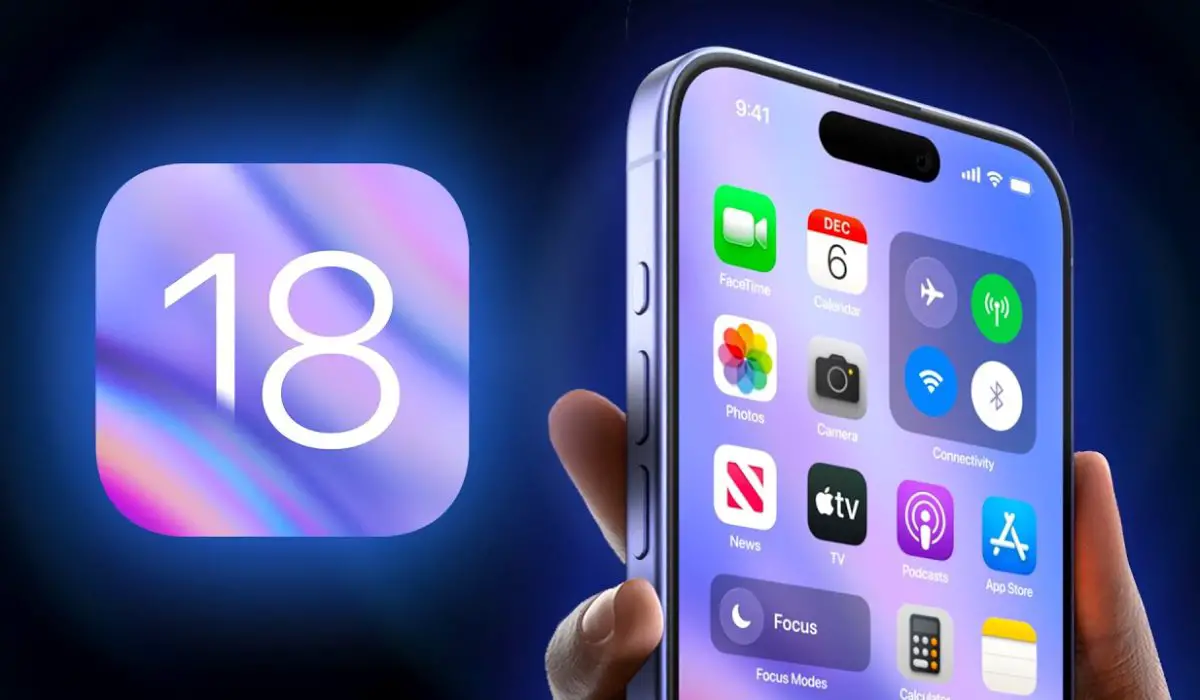
The Control Center overhaul brings unprecedented flexibility. No longer stuck with one static page of toggles, iOS 18 lets you:
- Create custom grids of controls, choosing how many and which controls appear.
- Add third-party app controls alongside Apple’s native ones.
- Build multiple pages, so you can swipe between different control setups dedicated to work, gaming, wellness, or whatever you fancy.
Step 1: Opening and Accessing Control Center Customization
- Swipe down from the top-right corner of your iPhone screen.
- To enter edit mode, press and hold the Control Center briefly, then tap Edit Controls or look for the + icon to add more.
- This opens up the customization panel.
Step 2: Customize Your Grids and Controls
- You’ll see a bunch of controls divided into “Included Controls” (currently in your Control Center) and “More Controls” (available to add).
- Tap the + next to any control from “More Controls” to add it. Popular picks include Low Power Mode, Sound Recognition, Accessibility Shortcuts, and third-party controls like music apps.
- To reorder, drag handles on the right side of included controls up or down to prioritize what’s easiest to reach.
- Pro tip: Add controls based on your lifestyle. Workaholic? Add Screen Recording and Focus modes. Fitness buff? Add Workout and Ambient Sounds.
Step 3: Play With Multiple Control Center Pages
- Create different pages by grouping controls logically and saving each as a page.
- To add a new page, look for the New Page option inside the customization menu.
- Swipe left or right between pages while in the Control Center — effortlessly switch between “Work Focus,” “Party Central,” or “Zen Mode.”
- It’s like having several mini dashboards, perfect for multitasking pros.
Step 4: Use Your Revamped Control Center Like a Pro
- Once set up, swipe down, then tap or long-press controls for advanced options.
- Enjoy expanded media controls with larger album art and progress bars for a better entertainment experience.
- Use enhanced connectivity toggles for Wi-Fi , Airplane Mode, VPN, and more without extra taps.
- Shortcuts integrated can launch your favorite automations or Apple Music playlists immediately.
Why Tech Enthusiasts Are Wooed
- Deep customization means the Control Center matches your habits, maximizing efficiency.
- Multiple pages mean no clutter and fast access tailored to context.
- Third-party control support brings more apps into the quick toggles mix.
- Bigger, visual media controls make music and video playback slick and stylish.
Conclusion
With Control Center in iOS 18, Apple has turned what used to be a quick shortcut tray into something far more powerful. Now, you can set it up exactly how you want — whether that means keeping it clean and minimal, loading it with advanced tools, or even spreading things out across multiple pages. The beauty of the Control Center in iOS 18 is that it adapts to your lifestyle, not the other way around. So go ahead, customize it to fit your flow — because with the Control Center in iOS 18, you’re truly in charge.
