Add MobilityArena as a preferred source on Google
In recent decades, smartphone technology has slowly but surely woven itself into every aspect of our lives. This is to such an extent that some people are now totally dependent on technology.
Being aware of this issue, Apple and Google have integrated digital wellness elements into their software. The Screen Time function, which is available on the majority of Apple devices, provides extensive statistics on how much time you spend using your iPhone, iPad, or Mac.
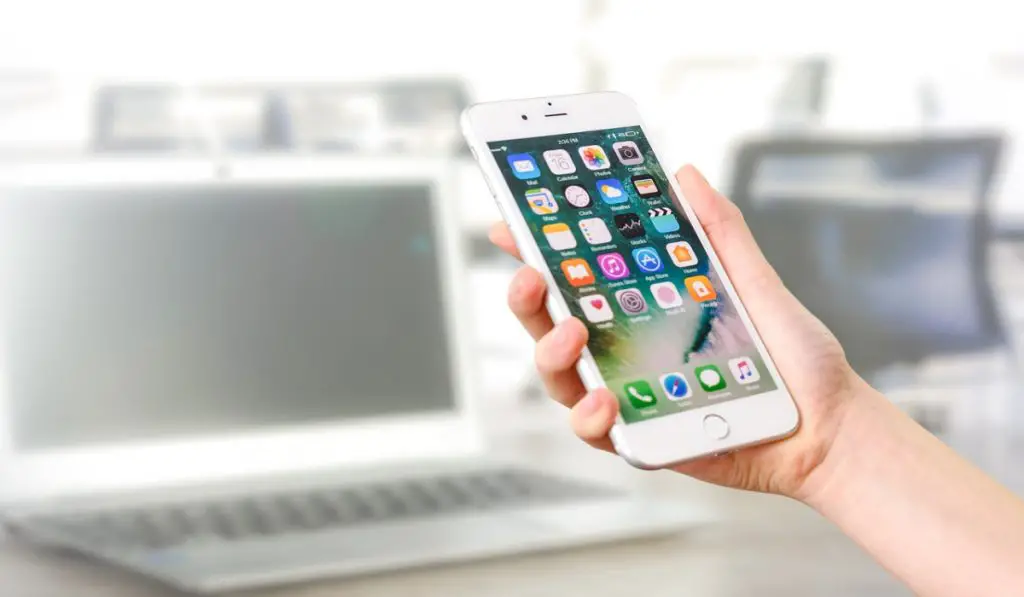
In this guide, we’ll show you how to use Screen Time to reduce iPhone usage. This feature is really beneficial for iPhone users looking to cut down their screen time. So, keep reading to find out everything about how to use Screen Time to reduce iPhone usage.
What is the Screen Time Feature?
Apple’s digital wellness tool, Screen Time, is a feature that keeps tabs on how often you use your devices, so you can use Screen Time to reduce iPhone usage. It provides a rundown of your daily (or weekly) device usage, the most-used apps, and other information. With Screen Time, it’s simple to evaluate and reduce your iPhone usage thanks to the graphical representation of your usage.
How to Use Screen Time to Reduce iPhone Usage
It’s easy to use Screen Time to reduce iPhone usage as long as you follow the right instructions. You can easily access Screen Time from your iPhone’s settings.
You’ll see a breakdown of your weekly consumption by tapping the See All Activity button. At the top, a graph depicting your phone’s active periods device will display along with the overall amount of time spent. Social Networking , Productivity , Entertainment , Reading & Reference , and other uses are just a few of the categories that the usage is typically broken down into.
Your daily or weekly most-used apps will be visible as you scroll down. You can identify the apps on which you use the most time from this page. Your usage is broken down by hour in the day view. You’ll see your daily consumption, the daily average, and the total number of notifications you received over the course of the week in the week view. With this information, you can then easily use Screen Time to reduce iPhone usage.
Below, we’ve described two different ways you can use Screen Time to reduce iPhone usage.
Customize Downtime with Screen Time
One good way to use Screen Time to reduce iPhone usage is by customizing Downtime. You can schedule a period of time during the day when you won’t be using your smartphone using the Downtime function in Screen Time. Downtime is best used in the evening or throughout the night, but you can use it whenever you want to reduce iPhone usage during a specific period.
The Phone app and the apps you choose to allow will be the only ones accessible while Downtime is turned on. The instructions listed below should help you enable Downtime on your iPhone:
- Tap on Downtime on the Screen Time settings page.
- Change the time when Downtime will be active by toggling the Downtime switch to On .
- On the Screen Time tab, select the Always Allowed section and then enter your preferences for the apps you want to be available during Downtime.
- By clicking on the green addition (+) icon next to the app name, you can add any apps you prefer to keep running when Downtime is in effect.
Now that you’ve adjusted Downtime’s settings, you can try to limit your phone use during the designated period. The Downtime settings will automatically apply to all of your iOS devices that have the same Apple ID as your iPhone enrolled into iCloud. Simply adjust the Share Across Devices setting in Screen Time to turn this off.
Customize App Limits With Screen Time
Another way to use screen time to reduce iPhone usage is by customizing app limits. This enables you to set limits on the use of specific apps, such as the excessive use of social media apps. You can choose to impose daily time restrictions on specific apps or app categories.
Setting app time limitations on an iPhone involves the following steps:
- Navigate to Screen Time and select App Limits .
- Choose the Add Limit option.
- Use the checkbox on the left part of the app list to select a certain category, or click the arrow to enlarge the list and choose a particular app to set a limit for.
- Specify the daily time limit for the app by tapping Next .
- You’ll see the limit appear after you tap Done .
The app will automatically close with a time restriction warning after the daily time limit has been reached and won’t be available again until the following day (the limit resets at midnight). This is another great way to use Screen Time to reduce iPhone usage.
In summary , if you’ve been having trouble taking time off your iPhone, it’s a good idea to use screen time to reduce iPhone usage. The instructions we’ve provided in this guide should help you achieve this easily, so follow them carefully.
Author:Joan Agie
Add MobilityArena as a preferred source on Google
Keeping in touch with people in recent times can seem like a chore, especially considering how many other things we have going on in our daily lives. However, sending text messages doesn’t have to be so stressful.
You can automatically send texts on iPhones simply by creating a shortcut that lets you send automated text messages at a predetermined time. This way, you get to automatically send texts to as many contacts as you’d like.
This works as an effective way to get in touch with people. It also works as a great marketing tool if you’re a business owner trying to reach out to more clients. Regardless of why you need it, we’ll show you how to automatically send texts on iPhones, so pay close attention to this guide.
- How Can I Automatically Send Texts on iPhones?
- Using Third-Party Apps to Automatically Send Texts on iPhones?
How Can I Automatically Send Texts on iPhones?
You’ll need to create a relevant shortcut if you’d like to automatically send texts on iPhones. We’ve described the steps to follow below:
Step 1 : Open Shortcuts on your iPhone
Launch the Shortcuts app on your iPhone to begin the process. You’ll need to download this app from the App Store if you accidentally deleted it or can’t find it on your device for some reason.
Choose Automation from the menu at the bottom once you’re in the app, then click on Create Personal Automation . This will begin creating a new automation for the iPhone shortcut automation.
Step 2 : Choose your preferred time and day
You can choose the time of day you’d prefer for this automation to take place once the menu has opened. You’ll therefore need to indicate the specific time and day that you want your iPhone to automatically send the text you’re setting up.
You can select the option to repeat daily, weekly, or monthly. After you’ve made your selections, hit Next to move forward.
Step 3 : Customize your message
When the time has been set, click on the Add Action button and choose Send Message . As a typical shortcut, Send Message could also be listed under Next Action Suggestions .
Next, you can customize your message and select the recipient from a list of contacts. Any contacts saved on the list can be selected. This is ideal if you typically use your iPhone for work because it allows you to distinguish between personal and professional contacts using groups.
Your phone will then automatically send a text at the specific time and day you chose after this is established, thus completing your automation. This shortcut lets you automatically send text messages on iPhones if your schedule is hectic or you frequently forget things.
Using Third-Party Apps to Automatically Send Texts on iPhones?
This is another great way to automatically send texts on iPhones. Follow the steps we’ve described below:
- Set up the Scheduled app on your iPhone after downloading it.
- If you want your planned messages to be sent automatically, select the paid Premium plan during setup. If you only want a reminder when the time to send your texts is near, use the free option.
- To add a new scheduled text, tap the “+” sign at the bottom of the Scheduled home screen.
- Enter the recipient(s) in the “To” field after choosing the messaging platform at the screen’s top. If you haven’t previously, you’ll need to give the app permission to access your contacts list at this point.
- Enter your message and any optional attachments, then click on Schedule date to choose the time and date at which it will be sent.
- The default choice is Don’t Repeat ; to generate a message that will send again, press Repeat and choose the proper option.
- You can now proceed by tapping Schedule Message at the bottom of the screen.
In summary , it’s a good idea to automatically send texts on iPhones if you typically have hectic days and you often forget to keep in touch. Feel free to use any of the two methods we’ve described in this guide to automatically send texts on iPhones with ease.
