Add MobilityArena as a preferred source on Google
One of the easiest things that can ruin your mood on a regular day is getting a message notification that reads “You have 0.8 GB remaining!” Perhaps you’re already racking your head for answers and asking rhetorical questions – “What did I download?”, “Didn’t I just buy this data yesterday?” – just to understand why your data is draining so quickly.
On days like this, you could wonder if there’s any way to actually cut down or reduce your mobile data usage to make your data last longer. Thankfully, such useful measures exist, and so we’ve created this guide to help you figure out ways to reduce your mobile data usage on your Android phone.
- Reduce mobile data usage by limiting app background data
- Reduce mobile data usage by restricting data usage in Settings
- Reduce mobile data usage by only updating apps with Wi-Fi
- Reduce mobile data usage by reducing streaming
Reduce mobile data usage by limiting app background data
Even when your device is not in use, there are still certain apps that continue to use mobile data. Typically, you can monitor and update your programs when you’re multitasking or when the display panel is off thanks to background data. However, not every app needs to constantly consume background data.
You can view the statistics for which apps are using how much data by going to Settings > Data Usage . You’ll be able to view the foreground and background data use for any given app by tapping on it. When an app is open and being actively used by you, it uses what is known as “ Foreground data ”
Conversely, when an app is operating in the background when you aren’t using it, “ Background data ” is being used. It happens automatically and with no effort on your part. This can include sync or automated app updates.
Select “ Restrict app background data ” if you discover that a particular app’s background data usage is too high and you don’t require the app to run continuously in the background. This makes sure that the app only uses data when it is opened and this way, it’ll use up less data overall.
Reduce mobile data usage by restricting data usage in Settings
The simplest thing you can do to prevent excessive amounts of data from being used up without your knowledge is to set a restriction on your monthly data consumption. The Settings app on your Android device should typically let you set a data consumption limit for your mobile device.
Select Data Usage > Billing Cycle > Data Limit and Billing Cycle from the Settings menu on your Android device. The maximum quantity of data you plan to consume per month can be set there. Additionally, you have the option to choose automatic network disconnection as soon as you meet the maximum data limit.
Reduce mobile data usage by only updating apps with Wi-Fi
You can turn off Google Play Store’s automatic app updates on your Android device, and this is one of the most beneficial ways to lower mobile data usage. Click Menu > Settings > Auto-update apps in the Play Store.
You’ll need to click on “ Auto-update apps over Wi-Fi only “. Alternatively, you can select “ Do not auto-update apps “, however, this is not advisable as you will need to remember to update your apps manually, as opposed to the update being automatic. As a matter of fact, you can switch to using Wi-Fi only and turn off mobile data completely, except for when you are outside of Wi-Fi coverage.
Reduce mobile data usage by reducing streaming
One activity that consumes so much data on mobile phones is streaming audio and video, along with high-resolution photos. If possible, stay away from these when you’re using mobile data. You can choose to download music and movies/videos only while you are connected to Wi-Fi or keep them locally in your storage.
You can also reduce the stream’s quality while streaming over mobile connection to save your data. When using your mobile data on your Android device to stream videos on YouTube, make sure to reduce the video resolution because YouTube uses a lot of bandwidth.
Numerous Android streaming apps, including Netflix and YouTube Go, provide data saver modes for mobile devices that significantly reduce data usage, so you can also take advantage of this to cut down on mobile data usage.
Monitor your Apps
Using bandwidth-hungry apps can significantly impact how much data you consume while connected to a mobile network. You might not be aware that every time you click a photo, the Google Photos app syncs it in the background. Data usage for social media apps like Instagram and Facebook is also quite high. You should thus avoid using those apps for online activities such as watching movies and GIFs.
You could also consider using alternative programs that can still do the necessary tasks while using less data. One such alternative option to the Facebook app is Facebook Lite. It reduces data consumption as well as saves battery life. A comparable choice for the Twitter app is TweetCaster. In essence, you get the same functions and expend way less mobile data!
The truth is, if you know where to look, you’ll be able to identify the activities and features on your device that suck up your data and make you feel like you’re subscribing every day. We’ve provided an insight into various ways to do this and cut down considerably on your data usage.
So, with the tips you’ve gotten from this article, you can say goodbye to quick data drain and enjoy longer-lasting data. We’re sure you’ll appreciate the insight in this article (you’re welcome!), so make sure to recommend it to your friends and loved ones so they can benefit from it too.
- Don’t miss our mobile phone reviews .
- Follow our news on Google News .
- Join our WhatsApp Group , to be notified of the most important articles and deals,
- Follow us on Instagram , Facebook , Twitter , and YouTube .
Author:Joan Agie
Add MobilityArena as a preferred source on Google
It is inevitable; all computers will eventually suffer slower speeds. Your PC’s performance will be significantly impacted by different changes as software gets more and more demanding. Other factors that can also make a difference are your current operating system and whether or not you decided to update to Windows 10. Eventually, you will need to do a few things to make Windows 10 faster .
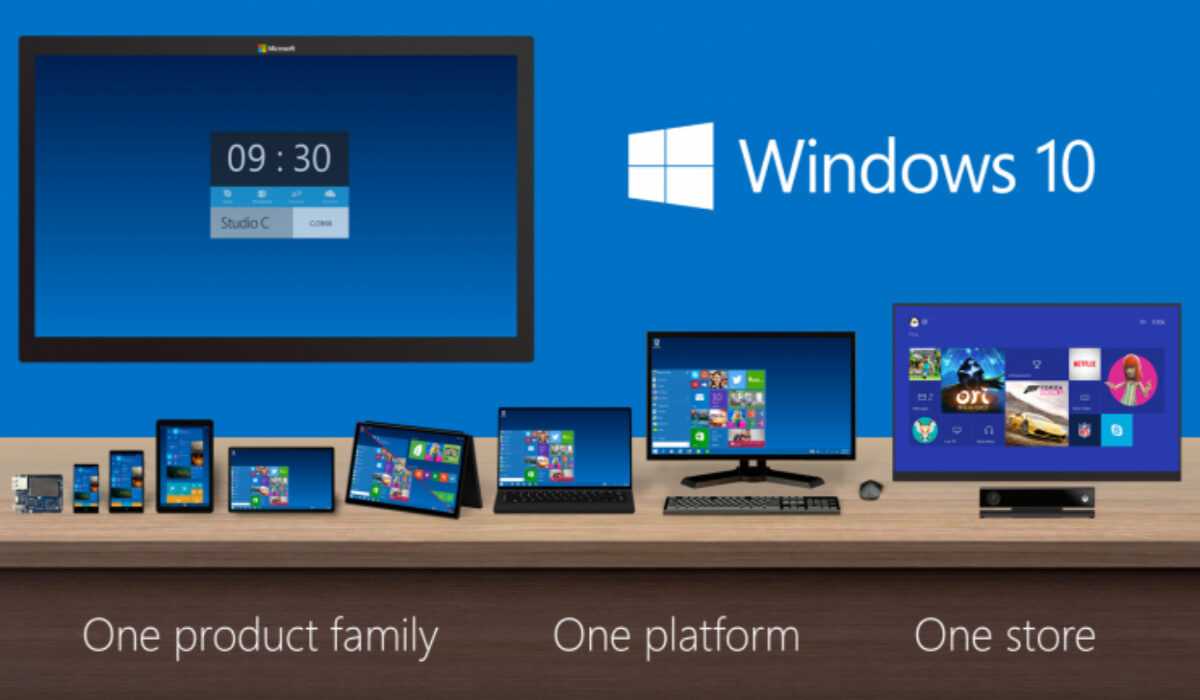
There are a few things you can do to make Windows 10 faster
- Make Windows 10 faster by adjusting your Power Settings
- Make Windows 10 faster by turning off Windows Tips and Tricks
- Make Windows 10 faster: Limit Programs that Run at Startup
- Make Windows 10 faster: Check for Viruses and Spyware
- Make Windows 10 faster by adding more RAM to your Device
Make Windows 10 faster by adjusting your Power Settings
Windows 10’s “ Power Saver ” mode will typically slow down your computer if you use it while working. In order to conserve energy, the setting is designed to lower the performance of your computer. You’ll see that your PC’s performance will immediately improve if you switch from “ Power saver ” to “ High performance ” or “ Balanced “.
Doing this is easy:
- Simply open the Control Panel , then choose Hardware and Sound > Power Options . The two choices you’ll see are “ Balanced ” (recommended) and “ Power saver “.
- At this point, you should look for the “ High performance ” option by clicking the downward pointing arrow next to “ Show additional plans .”
- Select your preferred choice, then exit the “ Control Panel ” to alter your power setting.
While “ High performance ” is the best setting, it also consumes the most power; “ Balanced ” strikes a balance between power consumption and improved performance, and the “ Power saver ” mode makes every effort to extend your battery life (especially at the expense of your PC’s performance).
There is no reason for desktop users to select the “ Power saver ” mode, and laptop users should think about selecting “ Balanced ” while the device is unplugged and “High performance” when it is plugged in.
Make Windows 10 faster by turning off Windows Tips and Tricks
Windows 10 monitors your activity while you use the computer and provides suggestions for things you might like to do with the operating system. These “tips” are only marginally helpful, and Windows having to track what you do and giving you advice might also slow down your computer.
Therefore, consider instructing Windows to cease offering you recommendations if you wish to speed up your PC. To do this, open the Settings icon from the Start menu, click Settings , and then pick System > Notifications & actions . Uncheck the box next to “ Get tips, tricks, and suggestions as you use Windows ” in the Notifications section by scrolling down. This should fix it!
Make Windows 10 faster:Limit Programs that Run at Startup
Another option is to control which programs start up as soon as your computer turns on. The Task Manager in Windows 10 has been improved to make it simpler to choose what you want to run in the background and what you may allow to start running independently.
- Press Ctrl-Shift-Esc to open Task Manager.
- You’ll see a box with a list of all the installed programs on your computer.
- Additionally, it provides a thorough breakdown of how much RAM each program takes when your computer first starts up.
- Simply right-click the application you want to make adjustments to, this will instruct it not to run until it’s instructed otherwise.
If you discover that an application that affects how you use your PC is no longer operating, you can always modify the settings. You should first restart your computer to test how it performs without specific applications running when it starts up.
Make Windows 10 faster:Check for Viruses and Spyware
When surfing the web, it’s nearly impossible to avoid picking up a virus at some time, but the new Windows Defender program has made it easier than ever to detect malware that could be seriously harming your PC. Third-party applications can be just as successful at eliminating any malware or viruses you might have acquired and are equally simple to install.
Some applications perform better than others and some may require more storage, which may in turn cause speed issues (the very same one you’re trying to fix). As such, it’s important to research carefully for good and effective software that wil thoroughly gets rid of malware while not taking up a lot of space on your PC.
Make Windows 10 faster by adding more RAM to your Device
Windows 10 utilizes less memory than earlier versions, but boosting RAM memory has long been a tried-and-true method of accelerating PC speed.
You’ll probably have to manage your RAM the way it is if you’re working with a convertible or detachable laptop. More RAM can be added to desktop computers much more quickly and inexpensively. Installing extra RAM takes around an hour for someone with a basic understanding of how a desktop tower works.
You can have more RAM installed on your computer by taking it to a qualified shop. Getting advice from a professional can also help calm your mind if you’re concerned about damaging your system or performing the procedure incorrectly.
Sometimes, speeding up your PC just takes a few quick and easy fixes and doesn’t require you to run around and spend unnecessarily. With the helpful suggestions we’ve provided above, you can get it done without stress and begin to enjoy optimum performance on your Windows 10 device right away.
