Add MobilityArena as a preferred source on Google
Typically, efficiency and speed are associated with computers in general, especially tablets, and smartphones, but regrettably, that’s not always the reality. You’ve probably personally discovered that your device sometimes gets strangely slow or that suspicious apps are operating in the background.
Typically, one of the causes of such problems is bloatware, a frequent but annoying problem for tech users. Bloatware tends to use up lots of useful resources. It impairs performance while running in the background of your smartphone, uses up memory and storage, and reduces battery life.
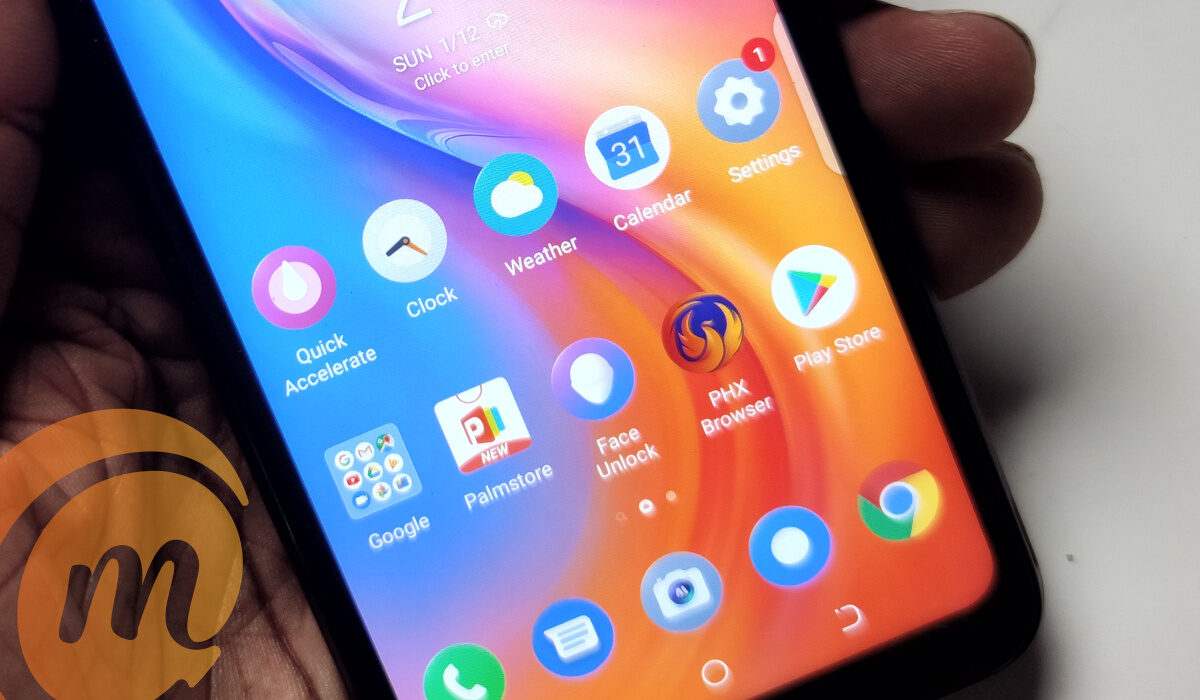
In essence, bloatware takes up space in your phone and uses up precious system resources, without delivering any value to you. As such, it slows down your device.
What is Bloatware in a phone?
Bloatware is essentially unwanted, obsolete software that makes your device slower (also known as potentially unwanted programs, or PUPs). It can also refer to installed but unused apps that consume a lot of storage space, memory, and power. These obsolete pieces of software are sometimes quite large, which makes them more of a liability than utility.
How to identify bloatware
Bloatware can be introduced into your supposedly secure device via one of two methods. On the one hand, it might be pre-installed on your tablet, PC, or smartphone by the manufacturer. It could also appear through applications that you have downloaded from the internet.
Pre-installed Bloatware
Devices are frequently sold by manufacturers with preinstalled software. By promoting extra products to you, like file managers, security suites, music apps, or other third-party software you might find interesting, their goal is to increase revenue.
Although pre-installed bloatware mostly just displays unpleasant adverts and is often harmless, you might not feel compelled to delete it straight immediately. However, the possibility of software like this being vulnerable to outside attacks exists as well.
Bloatware from Internet Downloads
Since part of it is designed to harm a device or its user, this kind of bloatware is regarded as being more harmful than the pre-installed software. Although the security risk is greater, note that not every downloaded bloatware is necessarily harmful.
This bloatware frequently originates from harmful websites, dubious links, or advertising. It might also be packaged with applications that you specifically requested to download.
How to Remove Bloatware in Mobile Phones
As we described above, bloatware manifests in different forms on mobile devices. Now, if at this point, you’ve discovered that your mobile device contains bloatware, it’s not the end of the world. Finding the cause of the symptoms is simple once you’ve identified the usual symptoms. You can also locate and manually remove it from your device.
How to Remove Bloatware in Android Phones
To remove bloatware in yourAndroid device:
- Go to Settings on your smartphone first. Either the App drawer or the Home Screen will help you get there.
- Find the Apps submenu by scrolling, then tap on it.
- Click on the app you wish to remove after finding it. Note that some applications, particularly those pre-installed by the manufacturer, cannot be removed.
- Slide the Switch to uninstall or disable the app after you get into the settings of the specific application you’ve identified as bloatware
Manufacturers will typically want some of those pre-installed programs to remain on your device, so this procedure we’ve described may not totally remove bloatware from your device. However, it should suffice to make the programs vanish from your device’s Main menu and stop them from running in the background even though they may still take up space on your phone.
How to Remove Bloatware in iPhones
- In Settings , select General .
- After that, check iPhone Storage .
- Click on the appropriate application.
- Select Offload App if you want to maintain the app’s user settings while removing it. If not, select Delete App to remove it entirely. Keep in mind that removing will always free up more space than offloading.
Even though iOS does not typically have as much bloat as Android devices, it is still a good idea to look for unneeded apps that are using up your phone’s precious resources from time to time.
In summary , besides identifying and getting rid of bloatware, it’s also good practice to take preventive measures. For instance, always make sure to download programs onto your device from official and trusted sites such as the Google Play store for Androids and the App store for iPhones.
Also, when you download something and begin the installation procedure, carefully read the material before clicking Agree . Additionally, make sure you are just installing what you require by reading the content in the checkboxes before ticking them.
We hope that you’ve found this article helpful, so make sure to apply all the instructions carefully to properly optimize your mobile device. Also, don’t forget to recommend it to your friends and loved ones so they can also benefit from it.
- Don’t miss our mobile phone reviews .
- Follow our news on Google News .
- Follow us on Instagram , Facebook , Twitter , and YouTube .
Author:Joan Agie
Add MobilityArena as a preferred source on Google
The OnePlus 9 Pro was released early last year as one of OnePlus’ latest flagship phones. It is a high-end phone that has the specs of everything you would expect from a phone of that caliber. As good as the device is, it is not immune to problems of its own just like any and every other smartphone. We are going to look at some of those problems today.

OnePlus 9 Pro problem:Screen Flickering
Some users have complained about a screen flickering problem with the OnePlus 9 Pro on Android 12 [OxygenOS 12]. This usually happens when one unlocks the device or is on the home screen display after installing the update. These flickers appear in white horizontal white bars running across the device’s screen.
A possible solution to this problem is to go to Settings, then to personalizations , tap on Always-on display, and then Display settings and pick a color . Another solution is to set the OnePlus 9 Pro’s screen resolution to Full HD+ instead of OHD+.
OnePlus 9 Pro problem:Notifications Issue
An issue that has been observed by some OnePlus 9 Pro users is the delay in notifications. Apparently, notifications only come in when they open the app. This is an issue that can be taken care of easily. Delayed notifications can be caused by the device’s battery optimization feature. Go to your Settings, tap on battery, and then on battery optimization. Locate the apps that this problem is present in, and tap on don’t optimize. If you want the apps to continue to run in the background, you can lock them and then launch the Recent apps page.
Users have also found that disabling the adaptive notifications setting works. Go to settings > Adaptive notifications and select none. Notification issues are software related, these issues are usually fixed when new software updates are released. So, be on the lookout for OS updates.
OnePlus 9 Pro problem: Camera issues
OnePlus 9 Pro users have noticed multiple problems with the camera after the Android 12 update. Images appear to be out of focus and hazy when zooming into any object. Here are some ways to potentially fix this issue.
•Clearing app data and cache can help restore the camera’s former state. To do this, go to Settings > Apps and notifications and open the app list. Select Camera App > Storage and Cache > Clear storage > and finally on Clear Cache.
• Some users have observed that going through a factory reset after installing the latest version of OxygenOS helps get rid of bugs. Although, you have to consider the fact that you are going to lose all your data and ask yourself if it is worth it. If you are experiencing far too many bugs after the update, not just camera bugs, then you should probably go ahead with it.
OnePlus 9 Pro problem: Overheating
Several OnePlus 9 or 9 Pro users have complained that their device overheats while engaging in different activities. For example, this can often occur when shooting 4K or 8K video, with the phone, it starts to feel a little hot after a few minutes of recording. Others have complained of heating problems occurring when taking normal still photographs.
There are multiple ways of improving overheating on your OnePlus 9 Pro. The problem may also be resolved on future software updates that OnePlus rolls out, so make sure you update your OnePlus as soon as a new update is available. Here are some of the potential ways of fixing overheating
•Avoid using the phone too much in high temperatures and direct sunlight. This may exacerbate any in-built tendencies the device has to overheat.
•Filming a video in 8K or 4K for too long can cause overheating. Reduce overheating by taking short breaks. Try shooting in standard (1080p) HD.
•Remove battery-draining apps from your phone. This means apps that claim to improve performance or battery life, as well as apps that run in the background (and you don’t use or need).
•Try clearing the cache for any app you believe may be causing the overheating. To do this, go to Settings > Apps & Notifications > See All Apps, and then tap the app you want and select Storage & Cache > Clear Cache.
These are some of the common problems that OnePlus 9 Pro users encounter while operating their devices. Comment down below on any problem you have that was not mentioned and we will get back to you.
- Don’t miss our mobile phone reviews .
- Follow our news on Google News .
- Join our WhatsApp Group , to be notified of the most important articles and deals,
- Follow us on Instagram , Facebook , Twitter , and YouTube .
Author:Flamez
Flamez loves basketball, art, gadgets and cars.
