Add MobilityArena as a preferred source on Google
App recommendations in Redmi phones are those annoying notifications that you get to install one app or the other on your phone. I am yet to meet one user who does not find those notifications annoying. Your user experience with a Redmi phone improves drastically once you remove those app recommendations.
I have owned, used, and reviewed a handful of Redmi smartphones, and I have experienced these app recommendations with each and every one of them. In this article, I walk you through how to remove or turn off app recommendations in Redmi phones .
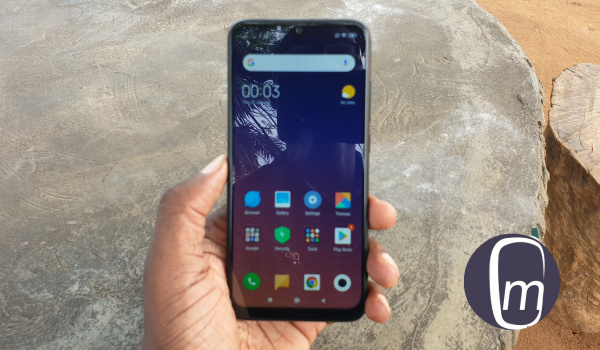
I was able to turn off app recommendations in Redmi Note 7 and other Redmi phones that I have used
MIUI 12 is the latest version of Xiaomi’s custom software that I have on my Redmi phone. As such, this guide is based on that version. The steps may differ slightly with newer versions of MIUI.
- What are app recommendations in Redmi phones?
- How to turn off app recommendations from the recent apps menu
- How to turn off app recommendations from the security app
- How to turn off app recommendations from the Themes apps
- How to turn off app recommendations from other MIUI apps
- How to turn off MIUI system ads
- How to turn off app recommendations in folders
What are app recommendations in Redmi phones?
App recommendations in Redmi phones are suggestions for features or apps that appear in some of the default MIUI apps, such as the recent apps menu, the security app, the themes app, and others. These recommendations are based on your usage patterns and preferences, and they are meant to enhance your user experience and discover new apps or services. If you want to remove app recommendations from your Redmi phone, you can follow these steps:
How to turn off app recommendations from the recent apps menu
To remove app recommendations from the recent apps menu, go to Settings > Home screen > Show suggestions and disable the toggle.
How to turn off app recommendations from the security app
To remove app recommendations from the security app, go to Security > Settings > Receive recommendations and disable the toggle.
How to turn off app recommendations from the Themes apps
To remove app recommendations from the themes app, go to Themes > My page > Settings > Recommendations and disable the toggle.
How to turn off app recommendations from other MIUI apps
To remove app recommendations from other MIUI apps, such as the file manager, the browser, the video app, and the music app, you can look for a setting that says “Recommendations” or something similar and disable it.
How to turn off MIUI system ads
You can also revoke the authorization for the MSA (MIUI system ads) app, which is responsible for displaying system ads on your Redmi phone. To do this, go to Settings > Password and Security > Privacy > Ad services > MSA and disable the toggle.
You may need to try several times before it works. This will prevent Xiaomi from collecting your personal information and showing you personalized ads. However, this may not remove all the ads from your phone, so you may need to disable them individually for each app as well.
How to turn off app recommendations in folders
Some promoted apps are displayed inside folders in the phone’s interface. To stop or remove those app recommendations, go to each folder where the promoted apps are showing. Open the folder and tap on the name. Right below the name will appear a “Promoted Apps” slider (as seen in the screenshot below). Toggle the slider to disable promoted apps and that’s it.
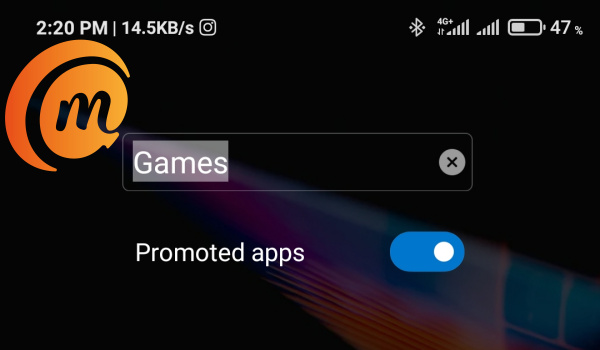
Be sure to repeat this process in every folder where those app recommendations are displayed. It is tedious doing it, but once you are done doing it, you will enjoy your Redmi smartphone much more.
- Don’t miss our mobile phone reviews .
- Follow our news on Google News .
- Follow us on Instagram , Facebook , Twitter , and YouTube .
Author:Mister Mobility
Digital Skills and Communication Coach | Mobile Phone Connoisseur since 2001 | Tech Blogging since 2004
Add MobilityArena as a preferred source on Google
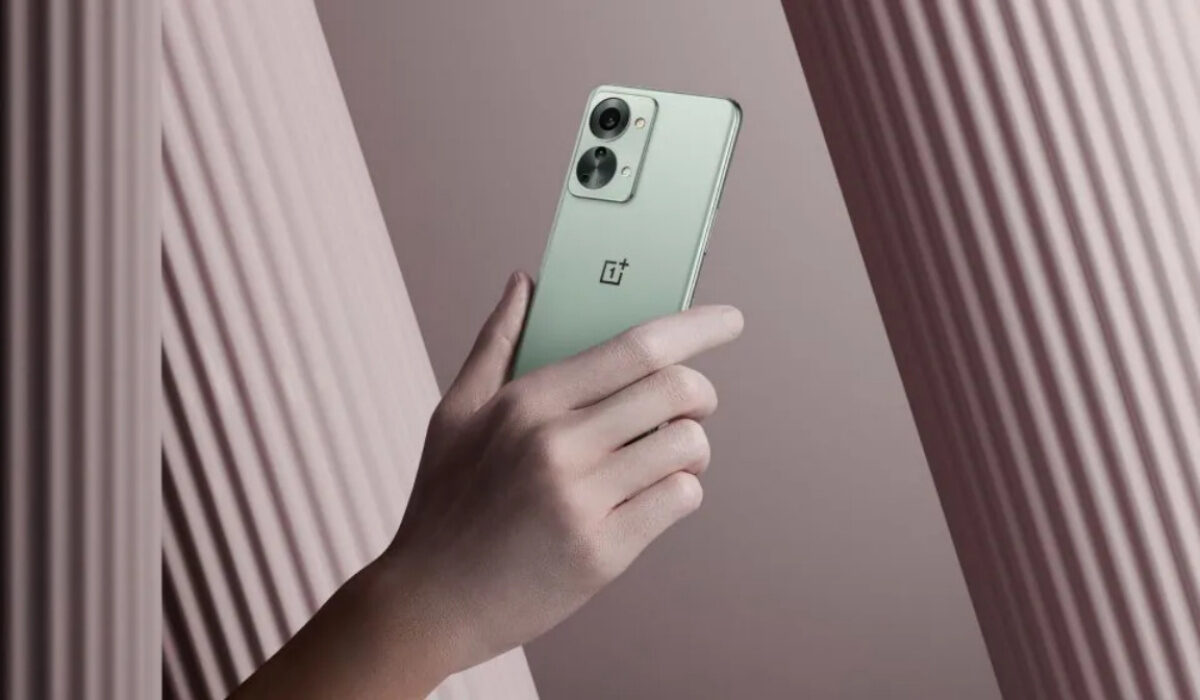
The OnePlus Nord 2T is a super mid-range phone that gives users an outstanding experience on a budget. It is one of those select mid-range phones that feel like a flagship . It performs well for the most part, but it has a few bugs and issues that need to be addressed. That is what this help article is about. Let’s jump right into it and help you fix those OnePlus Nord 2T problems.
- OnePlus Nord 2T Problems: Battery Draining Fast
- OnePlus Nord 2T Problems: Facial recognition Issue
- OnePlus Nord 2T Problems: Laggy Performance
- OnePlus Nord 2T Problems: Bluetooth Issue
OnePlus Nord 2T Problems: BatteryDraining Fast
The OnePlus Nord 2T might give you a full day’s worth of battery power in 15 minutes but some users have complained about the battery draining so fast that they have to charge it twice a day. Here are some ways to fix it.
• Use 4G instead of 5G
5G is all the rave these days. Unfortunately, it is fairly new technology with limited coverage, which means that your phone is constantly searching for a strong 5G network. This contributes to a fair amount of battery drain on the Nord 2T’s battery. Change your phone’s network settings to 4G instead for every day use. 4G LTE is fast enough for most tasks. For those odd occasions when you need super-fast speeds, you can temporarily switch to 5G.
• Remove Antivirus and Cleaning Apps
Having apps like phone cleaner or other antivirus-based apps on your device can drain your battery at an alarming rate. They run in the background and drain your device’s battery life. Make sure to uninstall these apps.
• Turn Down The Screen Brightness
Screen brightness is a factor that most smartphone users are aware of but some still set the brightness bar so high and wonder why their phone battery is getting drained. It does not just drain your battery it heats your smartphone too, and that can cause it to ultimately lag. You do not need to have the screen at its brightest setting to use the phone. Set the brightness lower to avoid these problems.
• Avoid Live Wallpapers
Live Wallpaper on your OnePlus Nord 2T might be beautiful and captivating to look at, I mean it is a cool feature to have on any smartphone but it will drain your device’s battery power faster than a normal wallpaper would because the processors on the phone are being engaged and having to light up bright images. So, you might have to sacrifice your precious live wallpapers if you want your battery to last longer.
• Multiple Running Apps
Another reason a lot of people aren’t aware of is leaving multiple apps open and running on your OnePlus Nord 2T. Honestly, it does not come to mind to clear them all up but they do drain the battery the longer you leave them. Clear all your apps on the app tab from time to time and how much smoother it is to run apps and games.
OnePlus Nord 2T Problems: Facial recognition Issue
Some users have complained about encountering problems with the face lock feature on the OnePlus Nord 2T. It successfully scans your face and unlocks the device but is stuck on the home screen. You are going to need to restart your device and check if that resolves it. If it doesn’t, disable Face lock and re-enable it. Remove your old face data and add a new one.
OnePlus Nord 2T Problems: Laggy Performance
OnePlus Nord 2T is equipped with a powerful processor, the Dimensity 1300 5G chipset. This chip is capable of handling all but the most demanding tasks. As such, there should be no lags or freezing from the phone in everyday use, unless there is a problem. Yet, according to some users, the OnePlus Nord 2T begins to lag after only a few weeks of use, as well as the frame rate dropping while playing games (especially large games). The factors listed below can be responsible for any lags you experience in the Nord 2T.
• Custom Theme
Using a custom theme on the phone could be the cause of the device slowing down or lagging. Going back to default settings might fix or improve the lagging on your OnePlus Nord 2T.
• Third-party Launcher app
If you use a third-party launcher app, it would cause your phone to lag seriously. To take care of the lag, you should uninstall the Third-party launcher and use the phone’s original System Launcher.
•Outdated Software
If your OnePlus Nord 2T’s software is outdated it could also be a contributing factor to why your device is lagging. If the latest software update is available on your phone, update it to the late version. This is because OnePlus is efficient when it comes to dropping software updates to enhance user satisfaction. These software updates will fix bugs and issues that your device might have. So it’s always good to check for updates if your phone is lagging or not.
To check for updates, go to Settings > System updates > Check for updates. If there is an update available, tap the DOWNLOAD & INSTALL NOW option.
•Outdated apps
Another reason why your OnePlus Nord 2T is lagging might be because you are running outdated versions of whatever app or game you have opened. You need to keep your apps and games, especially the large, powerful games, updated. You can do this by going to the Play Store app, tapping on Manage apps & device and you will see all the apps and games that have available updates. You can then go ahead and update them.
OnePlus Nord 2T Problems:Bluetooth Issue
There is an issue with the OnePlus Nord 2T where the Bluetooth can’t be turned on or off and blinks constantly. Go to Settings > Apps and notifications, see All apps, there will be 3 dots on the top right corner (show system apps). Tap on Bluetooth > Storage and Battery. Clear the cache and storage and restart your device.
P.S: Another issue that has been noticed Is the OnePlus Nord 2T going into Safe mode and staying in safe mode even after multiple restarts. It can be fixed by backing up and restarting all settings.
So there you have it, some major problems you might encounter while using your OnePlus Nord 2T. If all of these still don’t work, you might need to send a direct complaint to OnePlus or get the device itself replaced.
Author:Flamez
Flamez loves basketball, art, gadgets and cars.
