Add MobilityArena as a preferred source on Google
Being able to watermark the photos you take with your smartphone has its benefits. Like most phone brands, Samsung phones let you watermark your photos with the phone model name, date and time. I was able to do this on our Samsung Galaxy S23 review unit . Simply go to the camera settings and tap the Watermark toggle to enable it.
When you tap on “Watermark”, it also presents you with options to customise your watermark. You can change the text, choose whether to include a date in the watermark, choose a font, and select an alignment. But what do you do if you have taken some watermarked photos and you find that you need to remove the Samsung watermark from photos you have taken?
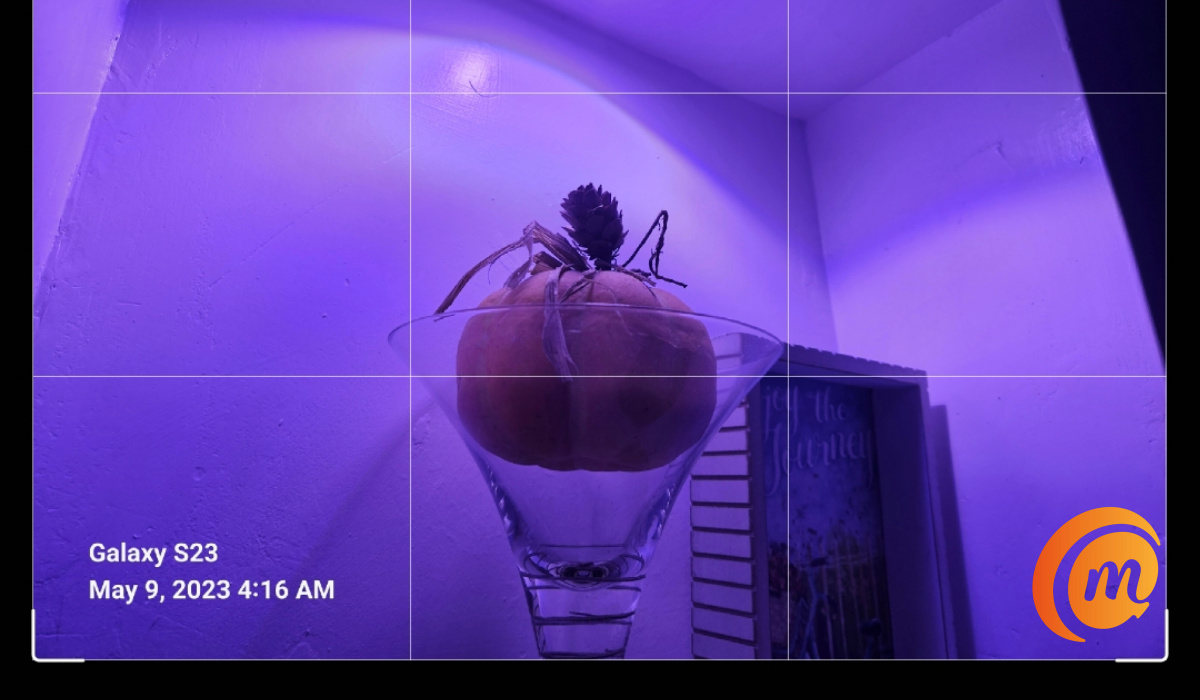
You can remove Samsung watermark from your pictures.
You do not need a third-party app to remove Samsung watermark from your photos. Neither do you need any complicated steps. I found that Samsung thought of this possibility that someone might need to remove those watermarks, and they made an easy way for it to be done.
- What to do to Remove Samsung Watermark from Photo
- To Stop Pictures from being Watermarked by your Samsung phone
What to do to Remove Samsung Watermark from Photo
Take the following steps to remove the Samsung watermark from any of your existing photos:
- Open the Samsung Gallery app.
- Select the watermarked photo that you want to modify.
- At the bottom of the screen, tap the edit icon (it looks like a pencil).
- At the top of the screen, you will now see “Revert” displayed. Tap on it.
- The app prompts you to confirm that you want to undo all changes and revert the image to its original version. Tap “Revert to original”.
- The watermark is immediately removed. Click “Save” at the top of the screen.
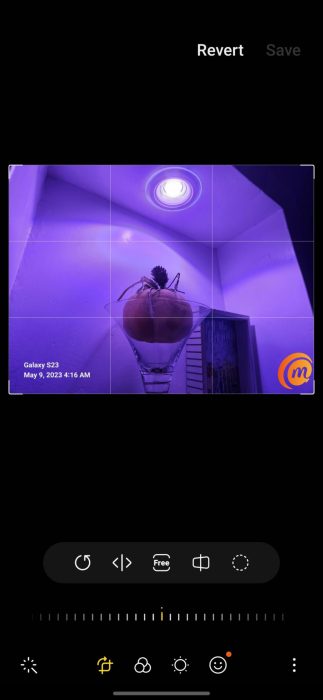
That is it: the image is now available without the Samsung watermark. You can now put it to use freely.
To Stop Pictures from being Watermarked by your Samsung phone
if you are removing watermarks from your existing photos, chances are that you no longer want your photos to be watermarked. Here is how to do that.
- Launch the Camera app.
- Go to camera settings (tap the wheel icon at the top of the screen).
- Tap on the Watermark toggle; it will grey out.
- Exit the camera settings. From now, any photos you take will no longer be watermarked.
Whether you are using a high-end Samsung Galaxy S23 or a lower-end Samsung A14 5G , you can add, edit, and remove the Samsung watermark from your photos.
Author:Mister Mobility
Digital Skills and Communication Coach | Mobile Phone Connoisseur since 2001 | Tech Blogging since 2004
Add MobilityArena as a preferred source on Google
If you often get paranoid about unauthorized access to your SIM card’s important data, I recommend a SIM card lock. SIM cards hold your phone number, billing information, and all your important contact details. Of course, your phone’s lock screen password offers some protection for your data, but it’s not enough to safeguard the SIM card loaded on your device.
That’s why in this guide, I’ll show you how to set up a SIM card lock on different smartphone devices. This way, you can lock the SIM card if someone tries to remove it after you’ve set it up on your iPhone, Android, or Samsung to protect and guard against unauthorized use of the data on your SIM card.
- How Can I Set Up A SIM Card Lock on iPhone, Android, and Samsung Devices? How to Set Up a SIM Card Lock on an iPhone How to Set Up a SIM Card Lock on an Android Device How to Set Up a SIM Card Lock on a Samsung Phone
How Can I Set Up A SIM Card Lock on iPhone, Android, and Samsung Devices?
Besides your lock screen password, you can set up a SIM card lock on your iPhone, Android, or Samsung phone to prevent anyone from using your SIM card on another device.
Note that you have to know your existing SIM PIN if you must set up a SIM card lock on your device. This information is normally available in the booklet that comes with your SIM card as well as on the carriers’ websites.
The default SIM PIN for most carriers is 1111, 1234, or 0000. However, before attempting to set up a SIM card lock on an iPhone, first look for the exact PIN for your SIM card. Avoid blind guesses because your SIM card will be disabled if you don’t get it properly in three attempts. Try using Google.com to look for your carrier’s website for confirmation.
How to Set Up a SIM Card Lock on an iPhone
You can use a SIM PIN to prevent others from using your SIM card for phone calls or cellular data. Your SIM card will automatically lock when you restart your device or take out the SIM card, and a notification that reads “ Locked SIM ” will appear in the status bar. Here’s how to set up a SIM card lock on your iPhone device.
- Choose Settings > Mobile Data/Cellular > SIM PIN . On the next screen, flip the toggle next to SIM PIN to the ON position (green).
- When you enable the SIM PIN option, you will get a pop-up prompting you to enter your current or default SIM PIN. Enter your default SIM PIN and press “ Done .”
- Your SIM PIN will now be activated once you enter the right default PIN. You must still change it to your personal PIN because you do not want it to remain as the default.
- Tap the “ Change PIN ” button.
- First, input the current PIN, which should still be the default.
- You must then enter and confirm your new PIN.
- After that, restart your phone. You should receive a notification indicating that you’ve successfully set up a SIM card lock.
Be aware that you only have three attempts to enter the right SIM PIN before your SIM is disabled and you must contact your carrier to get a new one. Make sure to create a PIN that is both easy to remember for you and challenging to decipher for unauthorized access.
How to Set Up a SIM Card Lock on an Android Device
You’ll also have to input the default passcode set by your operator when you want to set up a SIM card lock on Android. The default number should be printed on the back of your SIM card.
I’d therefore advise that you keep the SIM package in case you ever get locked out of your account, say after using a wrong SIM card PIN. To set up a SIM card lock on your Android phone, follow these steps.
- Select Settings > Security > More Security Settings from the menu.
- Select SIM card lock .
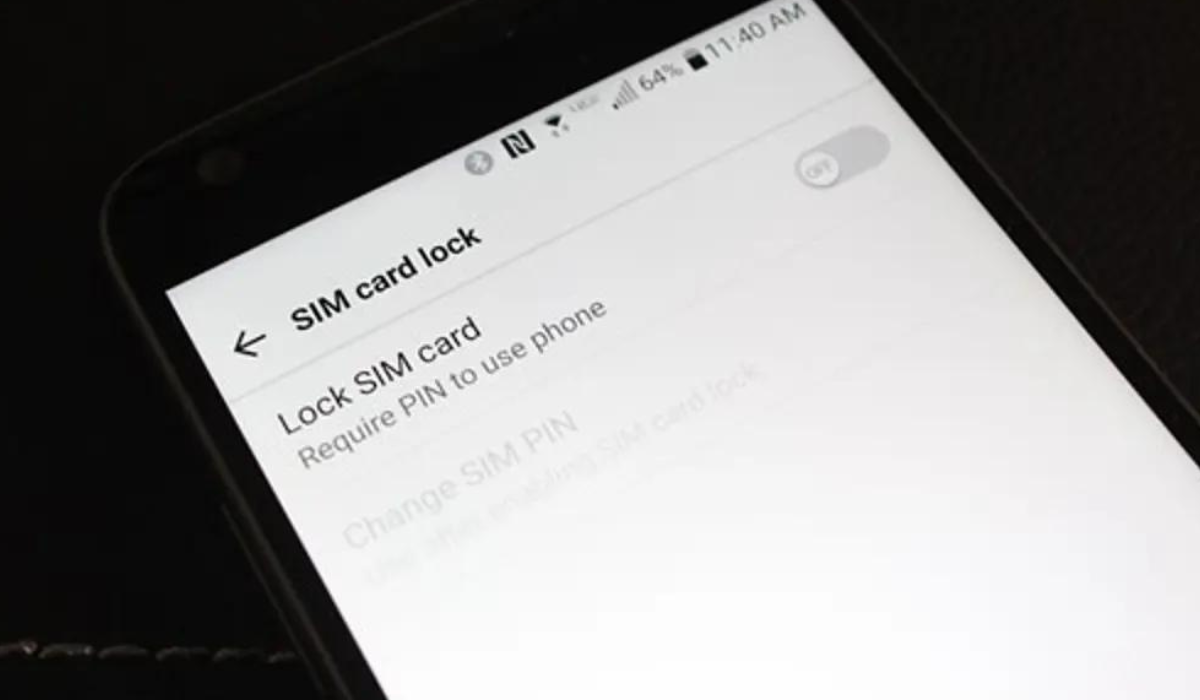
- If you’re using it for the first time, enable Lock SIM Card and enter the default PIN.
- When this option is enabled, press “ Change SIM PIN ” to modify the default PIN.
- Input your old PIN , then your new PIN , and then press OK . When entering your previous PIN, be careful not to enter the wrong PIN three times, else your SIM card will be disabled.
- Restart your phone to test the feature.
Keep in mind that the method required to set up a SIM card lock on Android phones may vary across models. So, to set up a SIM lock on a phone where you can’t find the option, use the search bar in the Settings app.
How to Set Up a SIM Card Lock on a Samsung Phone
On the top Samsung Galaxy models, Samsung employs the One UI Android skin. The software therefore has a different Settings app than standard Android devices. As such, you can set up a SIM card lock on your Samsung Galaxy phone by following the steps below:
- Navigate to Settings on your Samsung phone.
- Navigate to Biometrics and Security .
- Choose Other security settings .
- Select the option to Set up a SIM card lock .
- Turn on the Lock SIM card toggle.
- Enter your current SIM card PIN (as seen on your SIM card package). Choose OK afterward.
- To protect your SIM, select Change SIM card PIN and enter a new passcode.
Additionally, your phone will ask you to enter a Personal Unlock Key (PUK), an eight-digit number, if you unintentionally locked your SIM card after three unsuccessful tries. This number can be found on the box of your SIM card. If you don’t have the box, call your operator and verify your identity to obtain the PUK.
I should also warn you that when you set up a SIM card lock, it’s not going to stop your SIM card from getting stolen. However, you can be sure that your contact data will be safe from theft or any unauthorized access.
All in all, the SIM card lock on mobile phones is largely ignored, even though it has great importance. Using the tips I’ve suggested above, you can easily set up a SIM card lock as an added layer of security for your phone number and relevant contact details.
