Add MobilityArena as a preferred source on Google
In the past, it used to be time-consuming and tedious to remove backgrounds from images and you would typically need a PC and some significant Photoshop expertise. However, these are no longer necessary because it’s possible to remove the background from images on an Android phone.
In this guide, we’ll discuss a number of useful apps with various interesting features. These apps let you remove the background from images on an Android phone if you’re looking to achieve more professional-looking photos, or for any other related purpose.
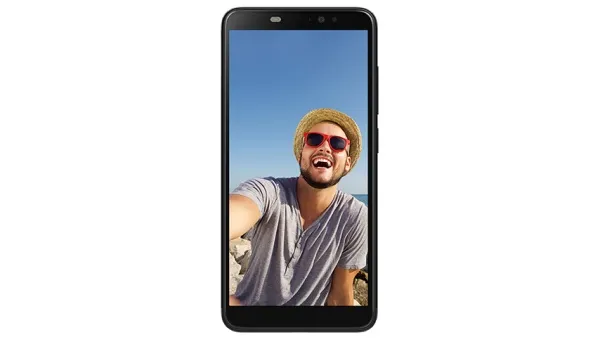
- What Apps Can I Use to Remove the Background from Images on Android Phones?
What Apps Can I Use to Remove the Background from Images on Android Phones?
There are several apps that come with certain features that make them useful when there’s a need to remove the background from images on Android phones. Consider the following apps:
PhotoRoom Studio
PhotoRoom is a good photo editing tool you can use to remove the background images on Android phones, especially since it has a dedicated feature for this function. It can therefore be used to generate professional photos for whatever purpose we need.
To get started, you may either select a template or start the editing from scratch. PhotoRoom offers an AI-powered backend that accurately recognizes the backdrop in photos. Once selected, you can delete, modify, or retouch it.
Within this app, you can also change the image’s brightness, warmth, and contrast. It also lets you apply effects to your photographs, like blur and filters.
Picsart
Picsart is another feature-rich image editing option that can also be used to remove the background from images on Android phones.
Picsart includes a variety of image editing and creation capabilities. It features an AI-powered background editing tool that works with very little input. The background can be blurred, removed, or replaced with a custom image.
You may also modify the image dimensions using the Ratio tool in the editing menu. Furthermore, its Select tool lets you delete certain things from your photographs, such as people, buildings, or structures you’d rather not have in an image.
Picsart’s background removal feature is comprehensive and includes numerous tools. However, saving the modified photographs requires the app’s premium edition.
Remove bg automatic
Remove bg automatic is a special app in the sense that it’s a tool whose sole purpose is to remove the background from images on Android phones and other devices. It has powerful tools for getting this task done quickly, such as an AI-based Auto Cut feature that finds and removes the backdrop automatically.
The app allows you to fine-tune its tools to your preferences, making the procedure easier and more accurate. If you make a mistake, you can always restore the image.
After you’ve removed the background, you can replace it with a different one; options include a gradient, a solid color, or a custom image. It also includes some simple photo effects, such as vintage, classic, and seasonal styles. After you’ve removed the background from images on an Android phone, you can post your modified image on various social media platforms directly from the app.
Photoshop Express
Photoshop Express is essentially the smartphone version of Adobe Photoshop, and it also does a good enough job to remove the background from images on Android phones. It is a strong image editing and creation app with background removal tools.
You can choose an image from your phone’s gallery and then, while in editing mode, click the Settings tab and choose Background. You can then make changes to the image background. Alternatively, you can manually select the backdrop, with options to remove or adjust the selection.
In summary , any of the apps we’ve described above will prove incredibly helpful if your aim is to remove the background from images on Android phones. With some of the listed apps, you’ll also have the option to make some further edits.
As such, feel free to select the option that works best for you to easily remove the background from images on Android phones.
- Don’t miss our mobile phone reviews .
- Follow our news on Google News .
- Join our WhatsApp Group , to be notified of the most important articles and deals,
- Follow us on Instagram , Facebook , Twitter , and YouTube .
Author:Joan Agie
Add MobilityArena as a preferred source on Google
People can now enjoy a variety of conveniences thanks to the evolution of smartphones. You get to easily perform many different tasks at home using your smartphones, including entertainment-related activities.
One way to take this experience to the next level is to connect an Android phone to a TV. With this set up, you get to watch movies, play games, and enjoy other entertainment forms on a larger screen. However, not everyone knows how to connect an Android phone to a TV for such purposes, therefore, we’ve created this easy guide.
This article will outline the materials and procedures needed to successfully connect an Android phone to a TV. Ensure to pay close attention to the contents of this guide so you can figure out the process easily.
How Can I Connect an Android Phone to a TV?
When you want to connect an Android phone to a TV, you can choose between establishing a wired or wireless connection. We’ve discussed several ways to achieve both options below.
Wired Options to Connect an Android Phone to a TV
The three main wired solutions to connect an Android phone to a TV are USB-C to HDMI, MHL , and SlimPort . You can check the list of MHL-compatible devices and the list of SlimPort-supported devices to discover which one your smartphone or tablet supports.
USB -C to HDMI
For USB to HDMI connections, support has increased recently. You’ll require a converter for this to transfer signals from the USB connector—either a micro-USB or USB type-C connector—to the HDMI cable and show the output on the TV or monitor of your choice.
Here are the steps that you need to follow:
- Connect the adapter’s USB-C end to your tablet or smartphone.
- Plug the HDMI cable into the adapter
- Connect the other end of the HDMI cable to an HDMI port on your TV or monitor if you haven’t previously done so. Typically, HDMI connectors are located at the back of TVs, monitors, and projectors.
- Navigate to the HDMI source on your TV or monitor.
After you’ve followed these instructions to connect an Android phone to a TV, you’ll be able to enjoy content from your phone or tablet as you please.
MHL
Many Android smartphones and tablets support MHL, which was one of the first significant wired standards used to connect an Android phone to a TV. It makes use of a sophisticated mechanism that enables power and audio/video to be transmitted through the micro USB port on your device.
All you need to do is purchase a micro USB to HDMI (passive MHL) cable and plug it into one of the special HDMI ports found on supported TVs, monitors, and projectors .
SlimPort
Another wired option that is similar to MHL is called SlimPort. The main distinction is the absence of power input. Your gadget won’t be recharged if no power is provided, but the HDMI link will continue functioning. Some modern smartphones, tablets, and laptops that support SlimPort include LG and Google devices.
You’ll need a SlimPort HDMI converter to use SlimPort. The USB connector fits into a powered USB port or wall adapter, the micro-USB plug into your phone, and the HDMI cable connects the adapter and TV.
Wireless Options to Connect an Android Phone to a TV
There are a number of wireless protocols available, and they all appear to contain the word “cast.” Here, we’ll examine a few of them.
Miracast Dongle
Many recent TV models have a wireless HDMI system called Miracast built in. Even if your TV isn’t Miracast compatible, your Blu-ray player or media center might be. If it doesn’t work, you can attach a cheap Miracast dongle to the HDMI connection on your TV.
Open Settings > Device connection > Screen mirroring and follow the instructions there to connect to a Miracast handset using a device running Android 6.0 Marshmallow or later. To enable wireless display on older devices, enter the menu and select Settings > Display > Cast screen.
Google Chromecast
The popular Google Chromecast Ultra is perhaps the easiest way to connect an Android phone to a TV. In essence, this is a mechanism for sending media or the screen from your phone to a TV. Both an HDMI and a USB power cable are included with the Chromecast (most TVs have a USB port that provides enough energy to power the device). It will be ready for use once it has been paired with your Android device.
All you have to do is locate the icon in your preferred apps or use the Cast command in Android’s pull-down Quick Settings menu. For instance, a Cast option exists in the mobile Chrome app.
Android Screen Mirroring
For those who have a recent Android device and a smart TV, this is a fantastic method to connect an Android to a TV. To access your notifications panel, simply slide downwards from the top of your phone’s screen. A screen mirroring option should be present here; it is known as Screen Cast (or Smart View on Samsung devices) . You can now select which TV or monitor you want to mirror your phone to.
If you don’t have access to this capability, you can still use screen mirroring by downloading the Google Home app. Once downloaded, select your TV or monitor by tapping the account button in the bottom right corner, then scroll down to “ Mirror Device.”
In conclusion , you may enjoy your Android phone or tablet’s high-quality output on your HDTV if you have the appropriate hardware. The possibilities are interesting once you know how to connect an Android phone to a TV, whether it be playing games, viewing images, enjoying music, or watching videos.
- Don’t miss our mobile phone reviews .
- Follow our news on Google News .
- Join our WhatsApp Group , to be notified of the most important articles and deals,
- Follow us on Instagram , Facebook , Twitter , and YouTube .
