Add MobilityArena as a preferred source on Google
If you recently purchased a used pair of AirPods or received them as a gift, they’ll most likely remain linked to the previous owner’s Apple ID. In this case, you’ll need to reset the AirPods from the previous owner – to remove the previous owner’s information – and set the AirPods up as your own.
In this article, I’ll walk you through how to reset AirPods from the previous owner and set them up with your Apple ID. Resetting AirPods is a straightforward process that you can complete in just a few steps, and it doesn’t require any special tools or technical expertise.
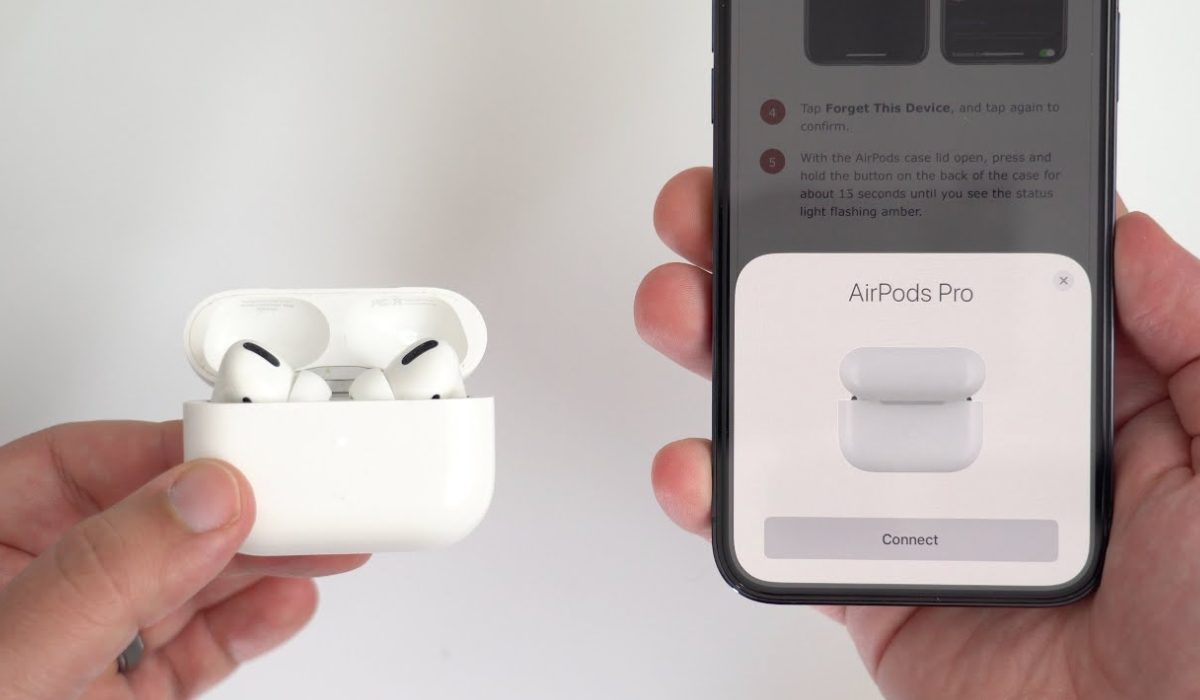
- How to Reset Airpods from the Previous Owner How to Reset AirPods From the Previous Owner Using an iPhone or iPad How to Reset AirPods From the Previous Owner Without a Phone How to Setup Your AirPods How to Remove Apple ID From AirPods
How to Reset Airpods from the Previous Owner
Whether you’ve received AirPods as a gift or purchased them secondhand, you’ll eventually need to reset the AirPods from the previous owner to ensure they work correctly and link to your Apple account. I’ve provided simple ways to accomplish this below. PS: these instructions also work if you need to know how to reset Airpods Pro from previous owner or how to remove previous owner from Airpods Pro without previous owner.
How toReset AirPods From the Previous Owner Using an iPhone or iPad
If you need to reset AirPods from a previous owner but don’t have access to the person’s Apple ID, you can still reset them to their factory settings. Here’s how you can reset your AirPods without the previous owner; note that these instructions work for AirPods Pro as well:
- Place both AirPods in their case and close the lid
- Wait for about 30 seconds, then open the lid
- Hold down the setup button on the back of the case until the amber LED light on the front of the case begins to flash.
- Release the button and then close the lid.
- On your iPhone, go to Settings > Bluetooth . Locate your AirPods in the device list and hit the “ i ” icon next to them.
- Next, select “ Forget This Device ” and confirm the action.
- Put your AirPods back in their case and keep the lid open.
- Hold down the setup button on the rear of the case until the LED light on the front of the case begins to flash white.
- Your AirPods have now reset and are ready to pair with another device.
Remember that resetting your AirPods will remove all saved settings and data, so you’ll need to set them up as new devices when you pair them with your iPhone or other compatible device.
How to Reset AirPods From Previous OwnerWithout Phone
Even if you don’t have your phone, it’s still easy to reset AirPods from a previous owner without having to unpair them from your phone.
To perform a factory reset and unpair your AirPods from all devices without using your phone, follow these steps:
- Put both AirPods in their charging cases. Open the lid.
- Find the Setup button on the back of your AirPods case.
- Hold down the Setup button for 15 seconds. The status light needs to change from amber to white.
- Put the lid back on. Your AirPods have completely reset.
That’s all there is to it; your AirPods have successfully reset. Place the AirPods near an Apple device to begin the setup procedure.
How to Setup Your AirPods or AirPods Pro
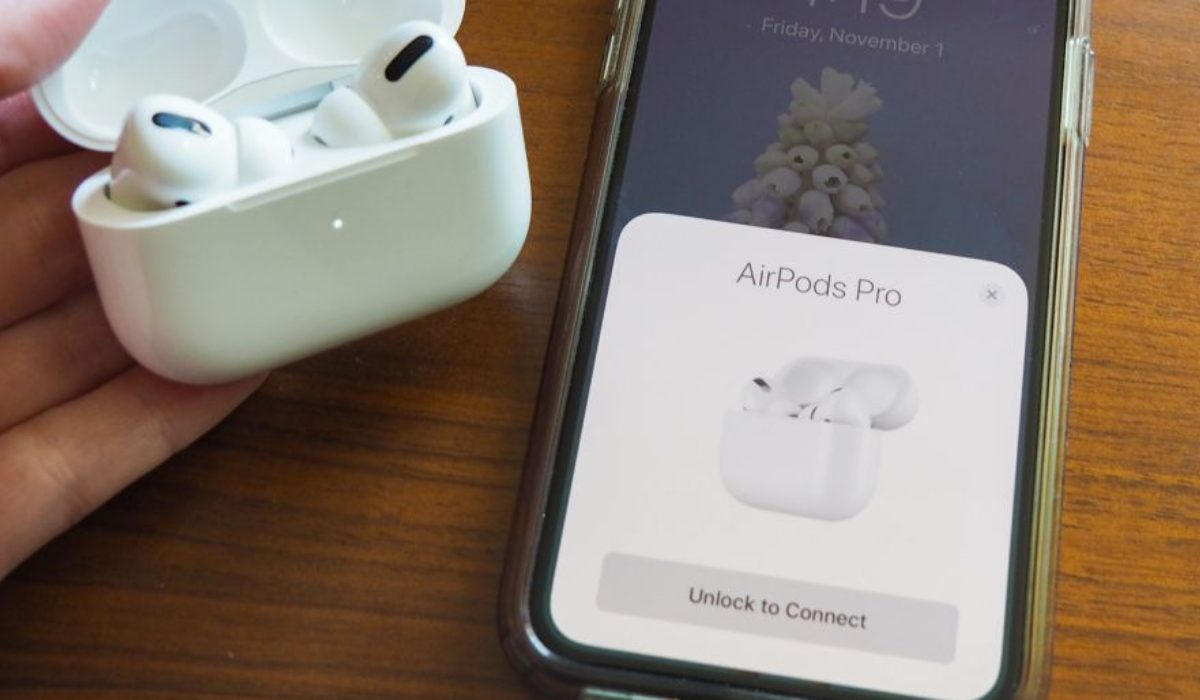
You can also set up your AirPods without the previous owner. To do this, follow these steps:
- Place your AirPods in their case and leave the lid open.
- Hold down the setup button on the case’s back until the status light begins to blink white.
- Go to Settings > Bluetooth on your iPhone and make sure to turn on Bluetooth
- Tap on your AirPods from the list of available devices.
- To finish the setup, follow the on-screen instructions.
If you’re having trouble connecting your AirPods to your iPhone, ensure that your iPhone is running the latest version of iOS and that your AirPods have a full charge. You can also contact Apple’s Help Centre to troubleshoot the issue.
How to Remove Apple ID From AirPods without previous owner
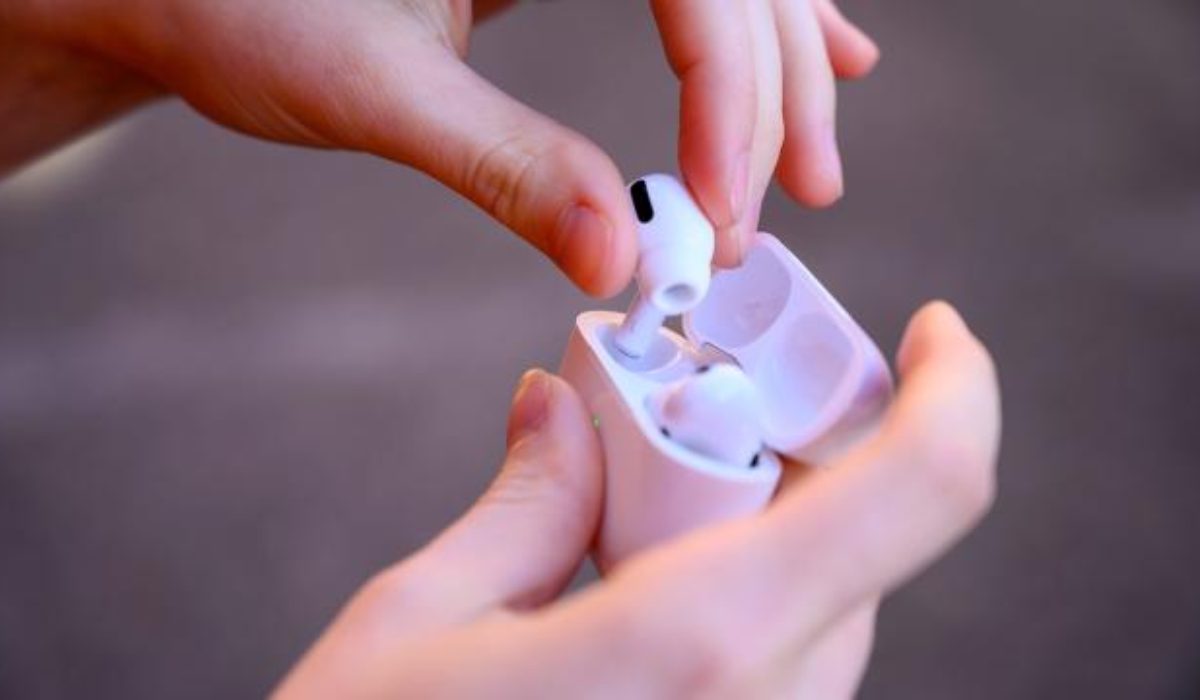
Apart from having to reset AirPods from the previous owner, you may also need to disconnect them from the former owner’s Apple ID details. Here’s what you need to do:
- Launch the Find My app on the associated iPhone, and navigate to the “ Devices ” tab at the screen’s bottom
- You will see your AirPods devices listed here. Swipe left on the name, then click the “ Delete ” button.
- Next, click the “ Remove ” option
- Now, type in your Apple ID Password and click “OK” at the screen’s top right corner
That’s all you need to remove Apple ID from AirPods without previous owner. After you’re done, you can reset them with the steps I provided earlier.
To conclude, it is quick and easy to reset AirPods from a previous owner, and you can complete the process with just a few steps. Make sure to follow the instructions correctly to properly remove the previous owner’s information and set up AirPods with your own Apple ID. If you need extra AirPods tips, check out this category .
Author:Joan Agie
Add MobilityArena as a preferred source on Google
As smartwatches continue to grow in popularity, more and more people are relying on their devices to stay up-to-date with the latest weather conditions. But with so many weather apps to choose from, it can be challenging to know which one is right for you.
In this article, I’ll explore some of the best weather apps for Apple Watch in 2023, highlighting their best features, user interface, and overall performance. Whether you’re a casual user or a weather enthusiast, you’ll surely find an app in this guide that meets your needs and keeps you well-informed about the daily weather.
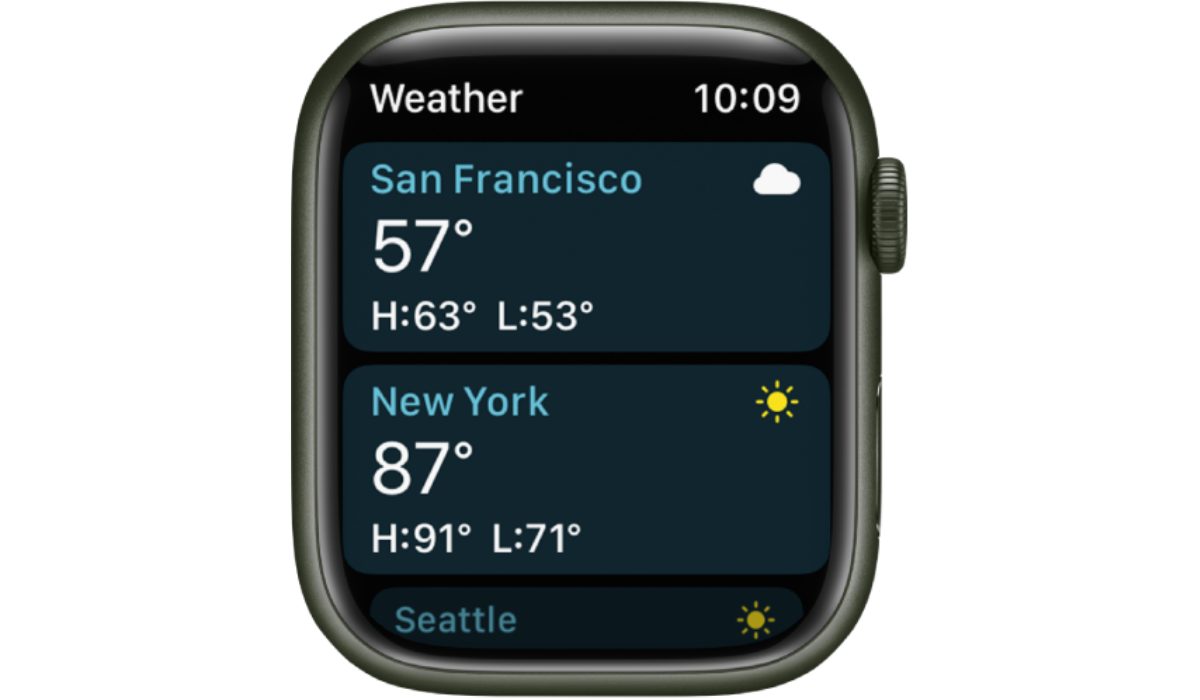
What Are Best Weather Apps for Apple Watch?
Even while your iPhone, iPad, and Mac have specific widgets to check the weather, having a weather app on your iWatch surely increases convenience.
If you use the right app, you can quickly access real-time updates on temperature, humidity, rainfall, wind speed, and more, all from the convenience of your wrist. Among all the popular options available, here are the best weather apps for Apple Watch in 2023.
Carrot Weather App
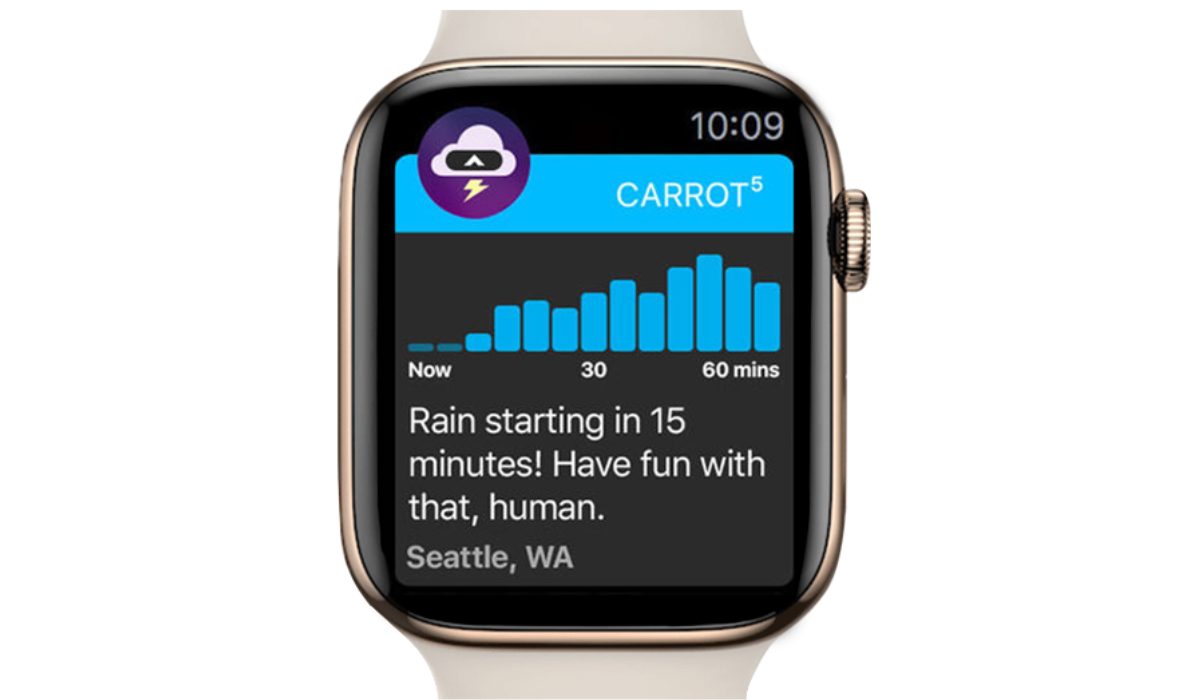
The CARROT Weather app is ranked second in the weather category, has won the Apple’s Editor’s Choice award on Mac and has been mentioned in publications such as CNN, The New York Times, Wired, Good Morning America, and more.
This is by far the best Apple Watch weather app, and it will keep you informed about anything from an eerie fog to intense downpours. Most users have faith in its radar and top-notch ability to accurately predict rain and snow. The app is compatible with all Apple Watch models as well as the most recent iOS smartphones.
Additionally, you can customize your search for over 60 street locations. The Carrot app includes current temperature and weather forecasts for the next 24 hours and up to 7 days. So by all standards, Carrot Weather app is top on my list of the best weather apps for Apple Watch.
AccuWeather
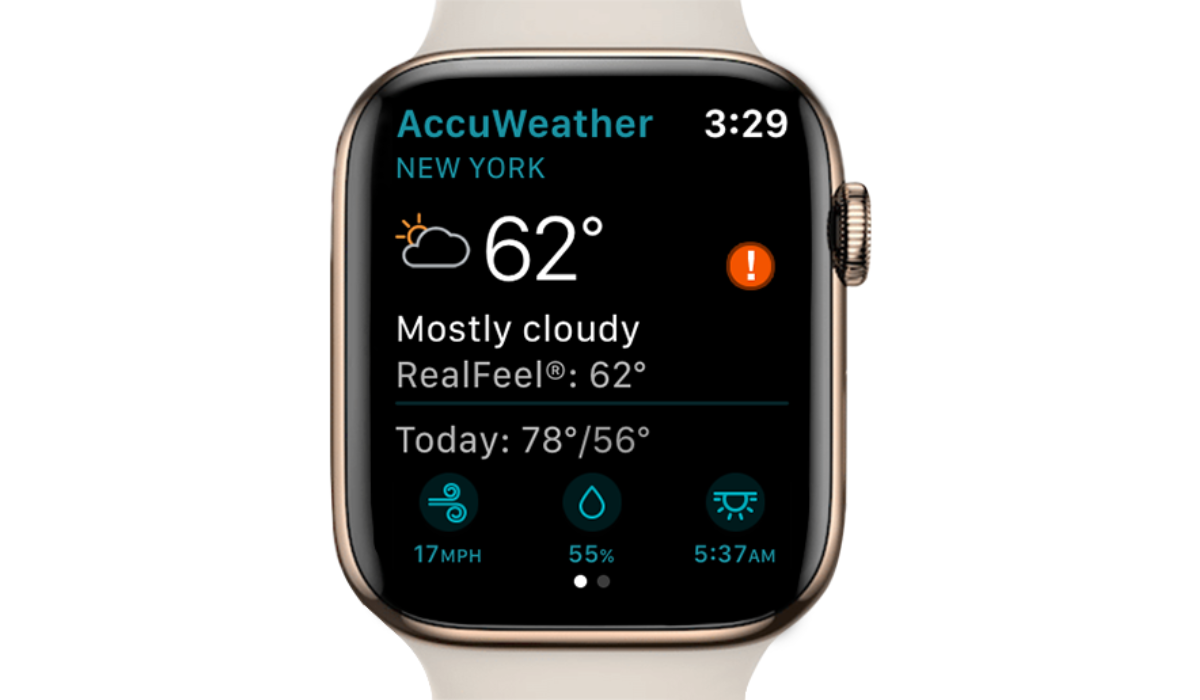
AccuWeather has an easy-to-use layout that provides detailed forecast news, the most recent updates, weather alerts, and much more. Not only does it track your location, but it also provides real-time global weather forecasts. You can also customize your experience based on your location and get a 45-day forecast.
In addition, you will have access to hyper-localized mapping layers, tropical storm radar, and a temperature contour map with UV index, precipitation, allergies, air quality index, dew point, and so on. So this makes AccuWeather another top option on this list of the best weather apps for Apple Watch.
RadarScope
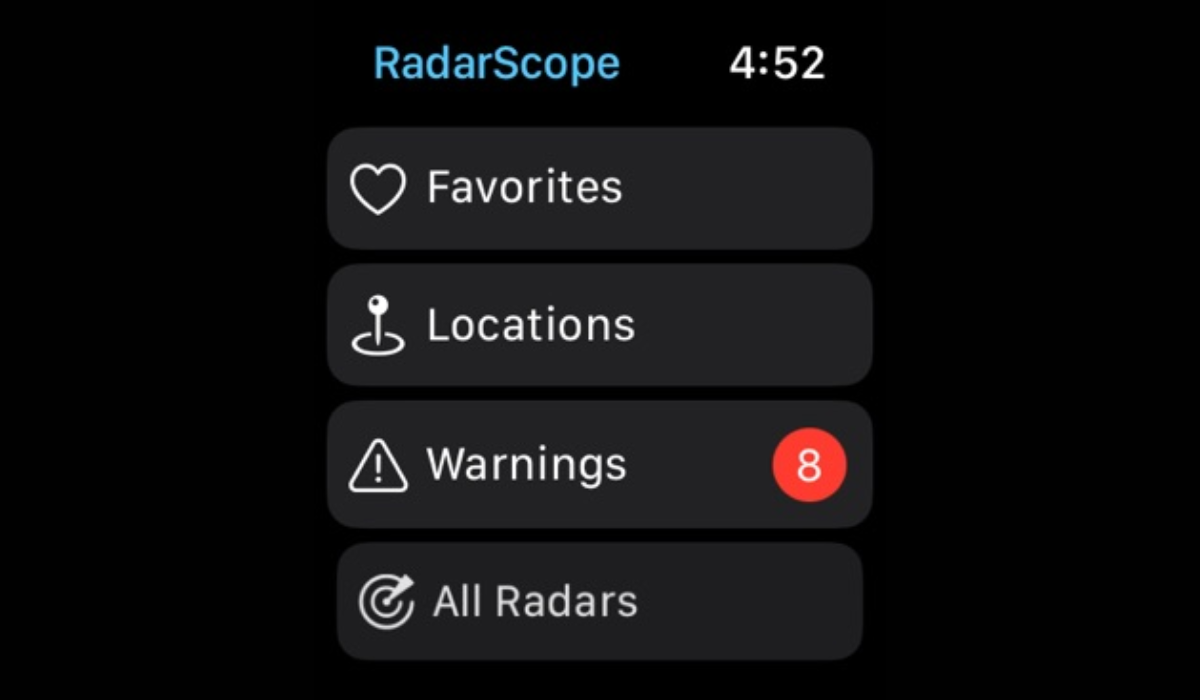
In the App Store’s weather category, the RadarScope app ranks third. It shows warnings from the U.S. National Weather Service for severe thunderstorms, tornadoes, flash floods, snow squalls, and special marine alerts.
You may pinch in and out to get more precise and transparent information thanks to the app’s user-friendly layout. Having said that, the app can undoubtedly provide you with a timely weather alert and assist you in making informed plans for your day or precautions. So if you’re on the lookout for the best weather apps for Apple Watch, this is definitely one to try.
Weather – The Weather Channel
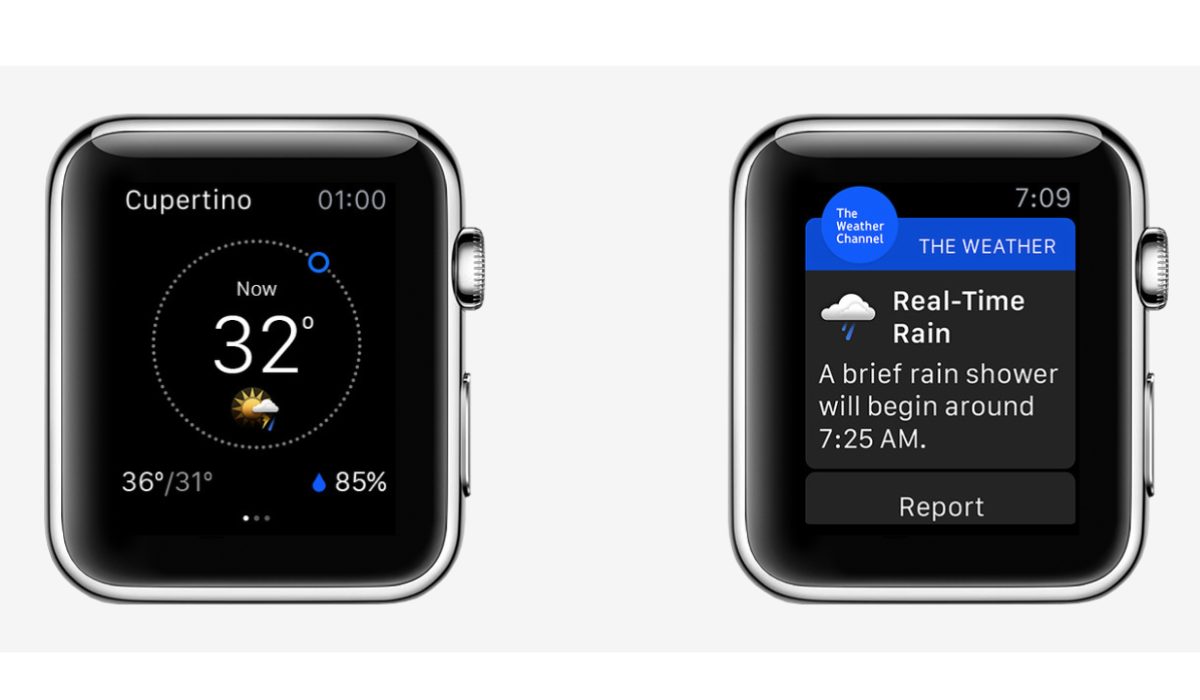
The Weather Channel is another app that is at the top of the App Store rankings and among the best weather apps for Apple Watch. It has the Feels Like feature, which provides hourly/daily forecasts as well as real-time rain alerts. You can also take a peek at your local radar, weather alerts in your neighborhood, and the prediction for the next three hours.
I’m particular about this app because it’s a great help to to plan your day without being impacted or delayed by the weather. Not only that, the app also notifies users of earthquakes and other natural disasters, so you can ensure that you and your loved ones are always safe and equipped with real-time information.
MyRadar Weather Radar
MyRadar Weather Radar is one of the most effective and user-friendly, and therefore on this list of the best weather apps for the Apple Watch. It has more than 50 million downloads. You can receive advanced rain alerts through the app, and it’s one of the apps that predicts rain the most accurately.
It can also provide environmental and weather notifications, such as tornado and severe weather alerts from the National Weather Service (NWS). With its upgraded edition, you can track hurricanes in real time and access more weather data.
All in all, there are plenty of great weather apps available for Apple Watch that can help you stay on top of the weather conditions in your area.
So if you’re looking for a way to stay informed about the weather while on the go, be sure to check out any of the above best weather apps for Apple Watch. If you’re a golfing enthusiast and Apple lover, here’s another guide I think you’ll love.
