Add MobilityArena as a preferred source on Google
There are not many things as annoying as not being able to connect to Wi-Fi, especially when you need to be online urgently. If the Wi-Fi connection on your Android device isn’t working, it may just be that you’re neglecting a straightforward setting on your device. Another possibility is that your router is having trouble, which prevents your devices from connecting.
Notwithstanding the cause, we’ve provided this easy guide to explain several troubleshooting steps you can take to fix a Wi-Fi connectivity issue and get your Android device connected to the internet again.
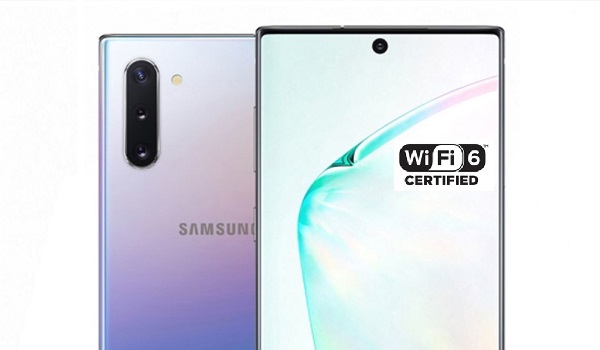
Restart your Device
Restarting your Android device may seem easy and like it won’t make much of a difference, but it can help fix Wi-Fi connection issues. Additionally, restarting typically makes troublesome apps to restart from scratch, and keeps them from getting in the way of a secure connection.
You can restart your Android device as follows:
- Select Settings > Connections to access Wi-Fi
- Select the SSID of the faulty Wi-Fi network, then hit Forget .
- Restart the computer.
- Re-select your network, then type the password.
Depending on your device, these instructions can be a little different, but most Samsung phones and tablets will typically have the same general settings
Verify Existing Settings on your Device
There are some settings on your Android device that are interfering with its connection to Wi-Fi. As such, you may need to check the following settings if your phone or tablet just won’t connect to Wi-Fi:
Flight mode
Drag down the notification bar on your Android’s home screen and make sure Airplane mode is switched off if your device is showing no internet connection at all. On the majority of Android phones, you can typically access Airplane mode via Settings > Connections.
Password manager
Another thing to consider is that your password manager might not be updated, especially if you’ve changed your Wi-Fi password recently. As such, you’ll need to re-enter the correct Wi-Fi network password into your password manager, if necessary.
Auto reconnect
Make it a point to enable automatic connection for trustworthy Wi-Fi networks; this way, your Android device will readily connect to Wi-Fi without any intervention on your part. Your Android may not be able to connect to Wi-Fi if Auto-reconnect is disabled. Every network will most likely have access to this setting.
You can also disable Auto-reconnect if your Android Wi-Fi keeps starting up even when you wish to use your mobile data instead.
Parental restrictions
Wi-Fi connection restrictions are among common parental controls to keep kids from accessing online content. You can check to see if you can connect to Wi-Fi again after disabling these settings on your device. If you need to reset the restrictions after fixing your Wi-Fi connectivity issue, check out how to configure parental controls on Android to turn the settings back on.
Location Settings
Your Wi-Fi connection is typically utilized by GPS tracking, and this tends to slow it down. Through Settings > Location , you can disable location tracking, as this may be what is preventing you from connecting to Wi-Fi.
Reset your Router/Modem
After completing all of the aforementioned steps, if your Android device still doesn’t connect to Wi-Fi, confirm that the connection on your router or modem works and attempt to reset it. After that, double-check every other network device’s connections.
Take note of these instructions to reset a router or modem:
- Unplug the modem or router, then wait for about 30 seconds.
- Reconnect the device and wait an additional 30 seconds.
- Verify that each indicator light is on.
- Check the internet connection again.
You should now be able to connect your Android device to Wi-Fi. Otherwise, there might be another network problem. A Wi-Fi network with too many devices connected to it may also make you experience connectivity issues on Android. To increase the number of devices your network can support, make sure to use a WAP (Wireless Access Point).
Change your Router or Modem’s Location
Move Wi-Fi network devices away from any interference-causing frequencies, such as Bluetooth or microwave frequencies. Ideally, you should change to a dual-band router that supports both 2.4GHz and 5GHz bands if your device detects your neighbor’s network on the same frequency. This can help free up some capacity.
Getting a Wi-Fi extender or physical Wi-Fi adapter for Android will also be beneficial if your Wi-Fi network signal is too weak; just make sure it’s compatible with Android’s 802.11 standards. Signal-boosting software is less dependable than these hardware devices.
Finally , to help you identify Wi-Fi connectivity issues, you could also get in touch with the Wi-Fi network host, your ISP, or visit a website like Fixwifi . You might also try performing a complete reset on your Android device.
We hope this article has been helpful to you, so don’t hesitate to recommend it to your loved ones so they can also benefit from it.
- Don’t miss our mobile phone reviews .
- Follow our news on Google News .
- Join our WhatsApp Group , to be notified of the most important articles and deals,
- Follow us on Instagram , Facebook , Twitter , and YouTube .
Author:Joan Agie
Add MobilityArena as a preferred source on Google
Typically, efficiency and speed are associated with computers in general, especially tablets, and smartphones, but regrettably, that’s not always the reality. You’ve probably personally discovered that your device sometimes gets strangely slow or that suspicious apps are operating in the background.
Typically, one of the causes of such problems is bloatware, a frequent but annoying problem for tech users. Bloatware tends to use up lots of useful resources. It impairs performance while running in the background of your smartphone, uses up memory and storage, and reduces battery life.
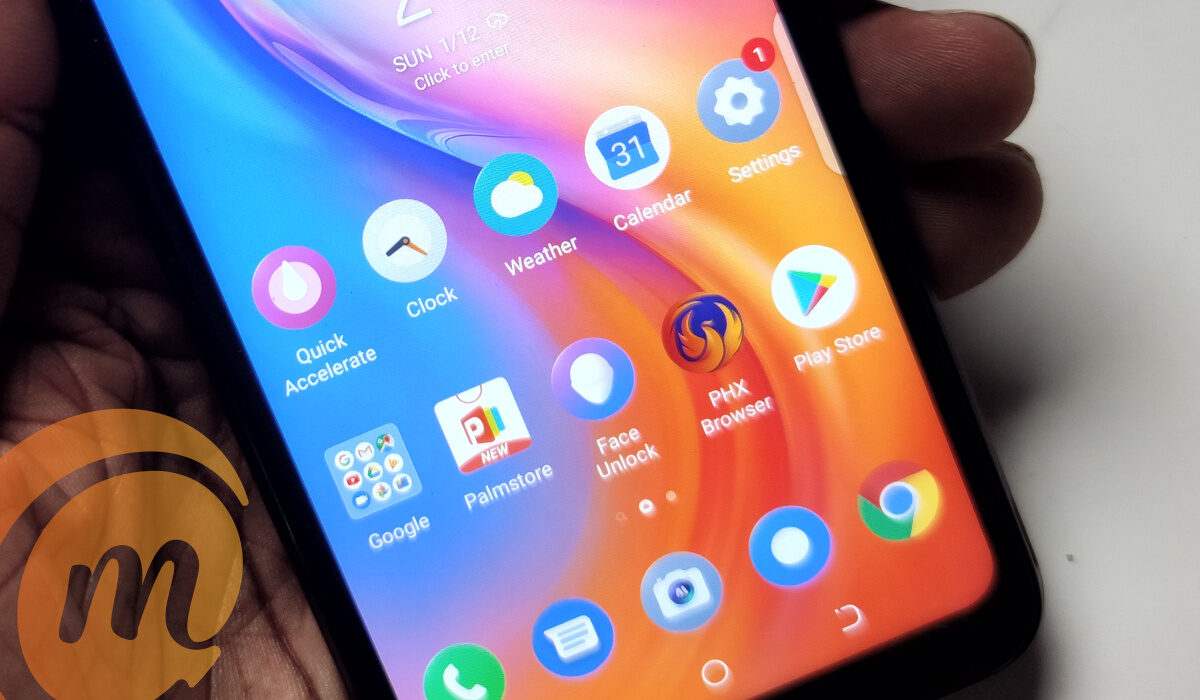
In essence, bloatware takes up space in your phone and uses up precious system resources, without delivering any value to you. As such, it slows down your device.
What is Bloatware in a phone?
Bloatware is essentially unwanted, obsolete software that makes your device slower (also known as potentially unwanted programs, or PUPs). It can also refer to installed but unused apps that consume a lot of storage space, memory, and power. These obsolete pieces of software are sometimes quite large, which makes them more of a liability than utility.
How to identify bloatware
Bloatware can be introduced into your supposedly secure device via one of two methods. On the one hand, it might be pre-installed on your tablet, PC, or smartphone by the manufacturer. It could also appear through applications that you have downloaded from the internet.
Pre-installed Bloatware
Devices are frequently sold by manufacturers with preinstalled software. By promoting extra products to you, like file managers, security suites, music apps, or other third-party software you might find interesting, their goal is to increase revenue.
Although pre-installed bloatware mostly just displays unpleasant adverts and is often harmless, you might not feel compelled to delete it straight immediately. However, the possibility of software like this being vulnerable to outside attacks exists as well.
Bloatware from Internet Downloads
Since part of it is designed to harm a device or its user, this kind of bloatware is regarded as being more harmful than the pre-installed software. Although the security risk is greater, note that not every downloaded bloatware is necessarily harmful.
This bloatware frequently originates from harmful websites, dubious links, or advertising. It might also be packaged with applications that you specifically requested to download.
How to Remove Bloatware in Mobile Phones
As we described above, bloatware manifests in different forms on mobile devices. Now, if at this point, you’ve discovered that your mobile device contains bloatware, it’s not the end of the world. Finding the cause of the symptoms is simple once you’ve identified the usual symptoms. You can also locate and manually remove it from your device.
How to Remove Bloatware in Android Phones
To remove bloatware in yourAndroid device:
- Go to Settings on your smartphone first. Either the App drawer or the Home Screen will help you get there.
- Find the Apps submenu by scrolling, then tap on it.
- Click on the app you wish to remove after finding it. Note that some applications, particularly those pre-installed by the manufacturer, cannot be removed.
- Slide the Switch to uninstall or disable the app after you get into the settings of the specific application you’ve identified as bloatware
Manufacturers will typically want some of those pre-installed programs to remain on your device, so this procedure we’ve described may not totally remove bloatware from your device. However, it should suffice to make the programs vanish from your device’s Main menu and stop them from running in the background even though they may still take up space on your phone.
How to Remove Bloatware in iPhones
- In Settings , select General .
- After that, check iPhone Storage .
- Click on the appropriate application.
- Select Offload App if you want to maintain the app’s user settings while removing it. If not, select Delete App to remove it entirely. Keep in mind that removing will always free up more space than offloading.
Even though iOS does not typically have as much bloat as Android devices, it is still a good idea to look for unneeded apps that are using up your phone’s precious resources from time to time.
In summary , besides identifying and getting rid of bloatware, it’s also good practice to take preventive measures. For instance, always make sure to download programs onto your device from official and trusted sites such as the Google Play store for Androids and the App store for iPhones.
Also, when you download something and begin the installation procedure, carefully read the material before clicking Agree . Additionally, make sure you are just installing what you require by reading the content in the checkboxes before ticking them.
We hope that you’ve found this article helpful, so make sure to apply all the instructions carefully to properly optimize your mobile device. Also, don’t forget to recommend it to your friends and loved ones so they can also benefit from it.
- Don’t miss our mobile phone reviews .
- Follow our news on Google News .
- Follow us on Instagram , Facebook , Twitter , and YouTube .
