Add MobilityArena as a preferred source on Google
Staying connected to the world is important and that’s why losing phone numbers from your contact list can be a frustrating incident. This is a common occurrence among Android users, and there are several similar reports on the internet, so you’re not alone.
In this article, I’ll show you some effective methods to help you recover your deleted contacts on Samsung and save you from the hassle of manually re-entering them. Whether you accidentally deleted your Samsung contacts, lost them due to a software update, or experienced a system crash, I’ve got you covered.
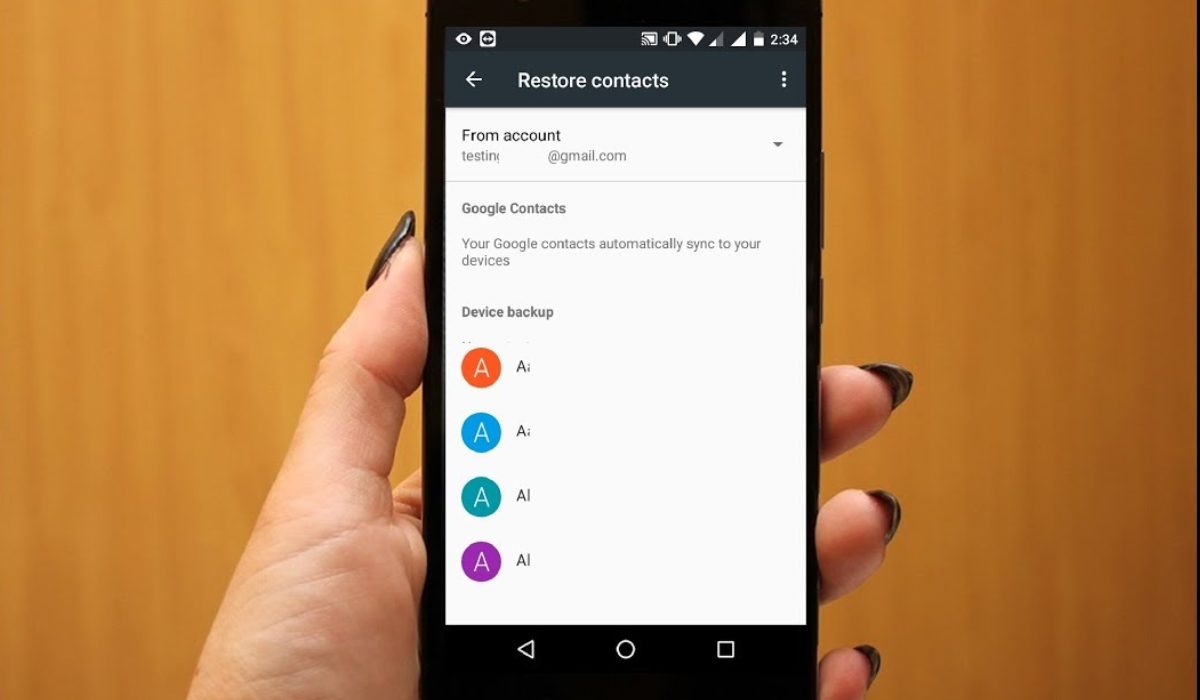
- How Can I Restore or Retrieve Deleted Contacts on Samsung Phones? Restore Contacts from Gmail Account (Google Contacts) Restore Deleted Contacts from Samsung Cloud Restore Deleted Contacts from SIM Card Recover Deleted Contacts from Internal Storage Recover Contacts from Backup in Samsung Smart Switch
How Can I Restore or Retrieve Deleted Contacts on Samsung Phones?
If you don’t have a backup, losing important contacts on your Samsung phone can be stressful. Luckily, there are several techniques to recover deleted contacts on Samsung phones. I’ve described different ways to restore or bring back deleted contacts on Samsung phones below.
Restore Contacts from Gmail Account (Google Contacts)
You can retrieve deleted contacts on Samsung from your Google account if you’ve previously synced your phone’s data with a Google account. Keep in mind that Gmail only keeps deleted content for 30 days.
Follow the steps below to restore deleted Contacts on Samsung from a Google Account:
- Launch your PC’s browser and sign in to the Gmail account you use to sync with your phone.
- Click on the 9-dotted icon in the upper left corner of the screen.
- Select Contacts , and then click the More icon to the left of Google Contacts .
- Now, choose Undo Change , select a time frame, and click the Confirm button.
- When the notification “ Your contacts list will be changed back to how it was on ” appears, click Redo .
- On your Samsung phone, open the Settings app.
- Tap Accounts , and then select Google .
- If you have multiple accounts, select the one with which your contacts are associated.
- Click Sync Contacts and then press Sync Now to sync and restore your deleted contacts to your device.
Restore Deleted Contacts from Samsung Cloud
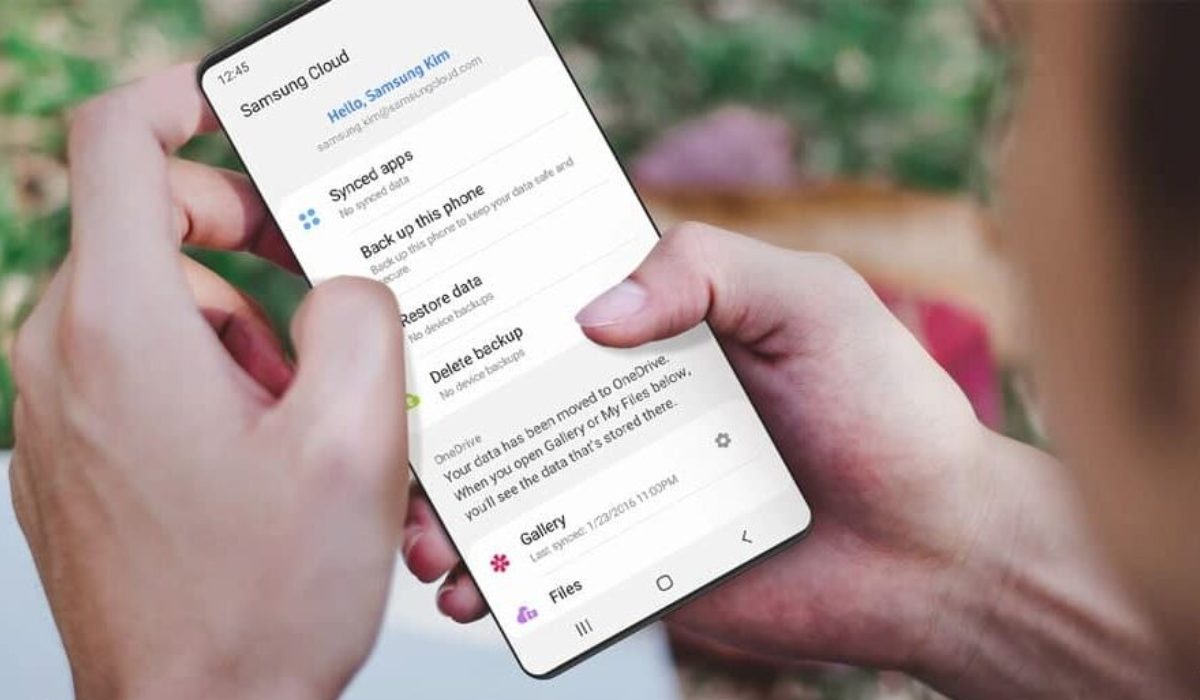
Samsung has a cloud option that allows you to back up the data on your phone. If the service was activated on your Samsung phone before the loss of your contacts, you can quickly recover them by restoring them from the Samsung Cloud.
The procedure to restore deleted contacts on Samsung device from the Samsung Cloud is as follows:
- On your Samsung phone, launch the Settings app.
- Tap Accounts and Backup in the settings menu.
- Then, select Backup and Restore
- Then, press Restore data from the Samsung Cloud section. Next, click on Contacts , and then select Restore Now , and your deleted contacts will be restored to your device.
Restore Deleted Contacts from SIM Card
If the methods described above didn’t help you restore deleted contacts on Samsung, you should try importing them from a SIM card. This option is available if you delete your phone numbers and have another copy of the contacts saved on your SIM card.
Here are the steps to recover deleted contacts from your Samsung SIM card:
- Launch the Contacts app from the home screen.
- Click on Menu in the top left corner and choose Manage contacts .
- On the following screen, select the Import or Export contacts option.
- Then, click Import , and a list of sources will appear if contacts have been stored on the SIM Card.
- Finally, choose the source and click the Import option.
Recover Deleted Contacts from Internal Storage
If you forgot to back up your contacts and are now wondering how to recover deleted phone numbers on Samsung without a backup, the best method is to use a recovery tool such as Android Data Recovery . This is a dependable and efficient tool for recovering deleted contacts on Samsung phones.
The steps below show how to recover deleted contacts on Samsung using the Android Data Recovery tool:
- Download and install the software on your PC.
- Connect your Samsung phone to your computer and enable USB debugging.
- Then, choose the data you want to recover, in this case, Contacts .
- The app will scan your phone for deleted contacts and display them.
- Choose the contacts you want to recover and press the “ Recover ” button and choose a location to save them on your hard drive.
You can also try other trustworthy tools, another good example is the Tenorshare Ultdata for Android . The steps to use it are the same as the ones I’ve described above.
Recover Contacts from Backup in Samsung Smart Switch
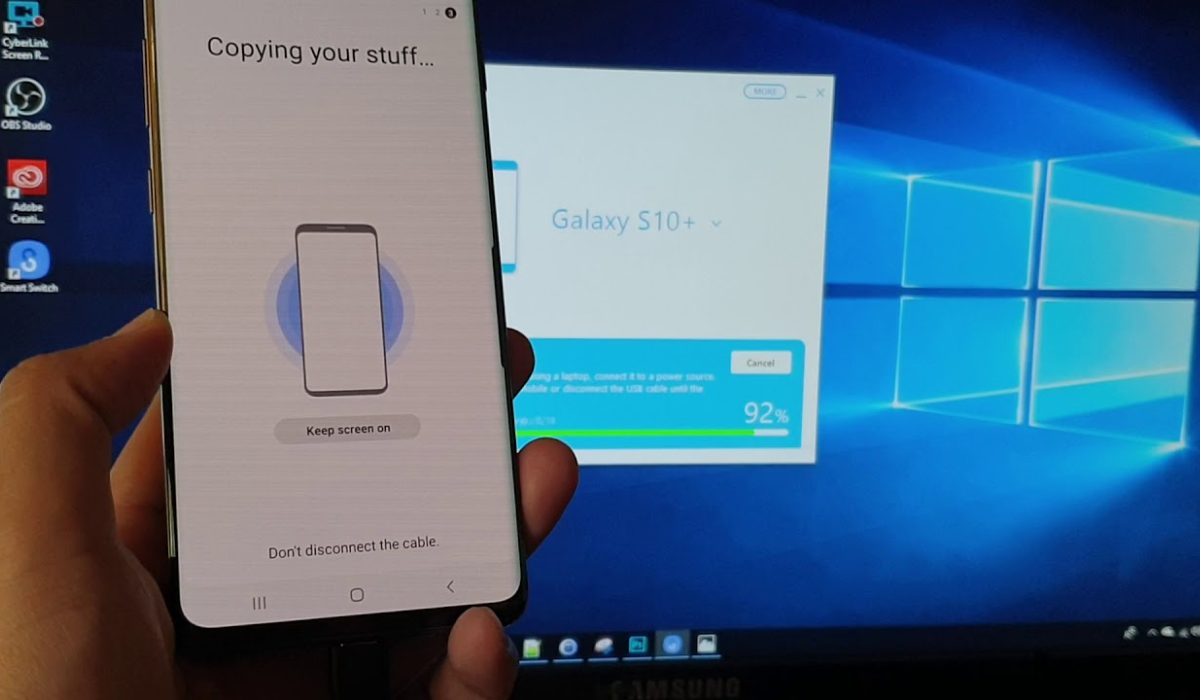
Samsung, like Apple, has its own media control application, Smart Switch , for Samsung phone owners. It allows you to synchronize contacts between devices and backup data locally easily. If you’ve already made a backup on your computer, recovering deleted contacts is an easy process.
To restore deleted contacts on Samsung from Smart Switch, follow the steps below.
- Connect your Samsung phone via cable to your PC and launch Smart Switch .
- Select Restore .
- If you have more than one backup, click the “ Select your backup data ” button.
- Choose a backup to restore.
- In Personal Content , select Contacts .
- Select OK .
- Now, select Restore .
To conclude , if you’ve accidentally deleted your Samsung contacts, I’m sure you’ll find this guide useful to retrieve them. With the included tips, you can restore your deleted contacts on Samsung and avoid manually re-entering them. Feel free to check out this Samsung category if you’re in need of more buying or troubleshooting guides.
Author:Joan Agie
Add MobilityArena as a preferred source on Google
Photos help us hold on to cherished memories, so losing photos can be sad, depending on the degree of importance. Fortunately, if you own a Samsung phone, there are several ways to bring back deleted photos, whether you accidentally deleted a photo or lost it due to a software glitch.
In this article, I’ll explore some of the most effective ways to bring back deleted photos on Samsung. So, if you’ve lost some precious memories and want to bring them back, keep reading to learn how to recover deleted photos on your Samsung phone.
How Can I Bring Back Deleted Photos on Samsung Phones?
Data loss occurs on all devices, including your Samsung smartphone. The loss of photos is the most common type of data loss problem. Fortunately, there are multiple methods for recovering deleted photos on Samsung. I’m sure you’ll find something that helps, regardless of the model you are using.
Use Samsung Cloud
You may be familiar with the built-in “ Samsung Cloud ” feature of your phone if you own a Samsung smartphone. This fantastic tool is primarily used to back up important data like pictures, videos, or other media assets. You can therefore restore your important photos from the Samsung cloud if you have backed them up there and the sync option is turned on.
Here’s how to use Samsung Cloud to recover deleted photos from your Samsung:
- Go to Accounts and Backup in the Settings app.
- Press Samsung Cloud and choose Backup and Restore .
- Select Restore data .
- Choose Gallery .
- Press Sync .
If you’re still missing essential photos, it’s possible that you deleted them accidentally without realizing it. Fortunately, Samsung Cloud includes its own trash folder. To get them back, go to Settings > Accounts and Backup> Samsung Cloud > Gallery > Trash . Select your photos and then tap Restore .
Use the Gallery App
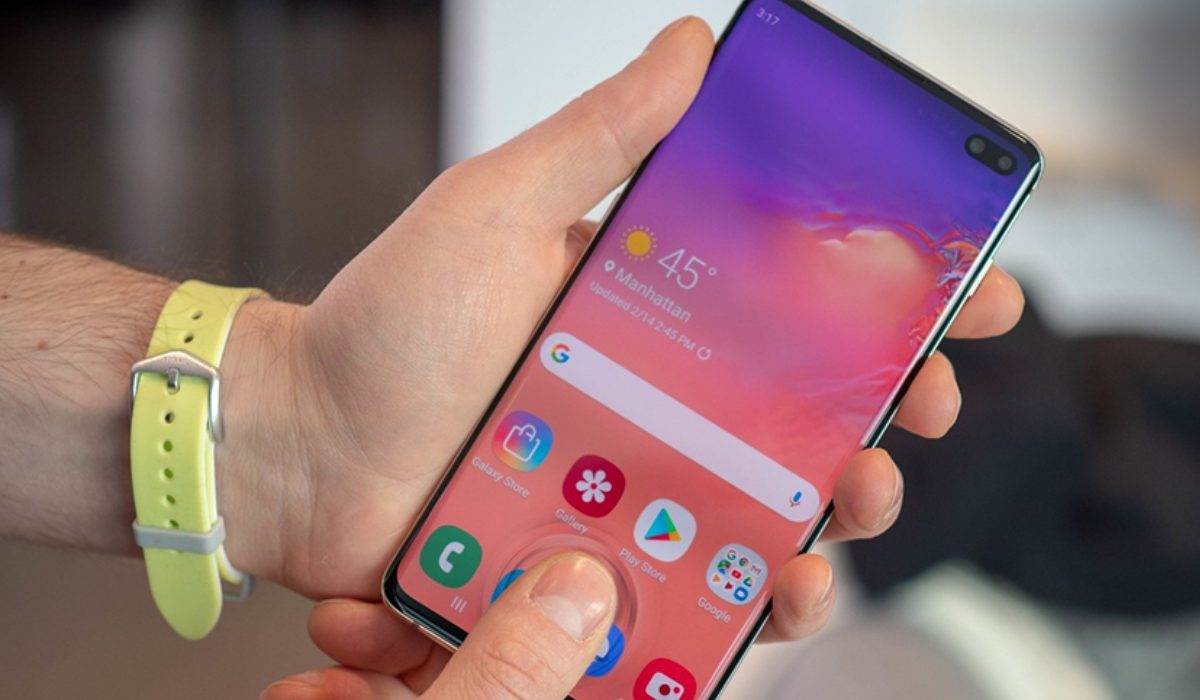
The default gallery app on Samsung mobile devices does a wonderful job of storing all deleted photos and videos for a period of 30 days in the Recycle Bin folder. Following that, the deleted photos are permanently removed from the device, therefore, you must act immediately and follow the procedures below to recover deleted photos on Samsung phones using Gallery:
- On your Samsung mobile, launch the Gallery app.
- In the top right corner of the screen, tap the three-dot menu icon.
- Select the ‘Recycle Bin ‘ option.
- Tap on the photos you wish to restore and select them.
- To retrieve the deleted photos, press the “ Restore ” button.
Use Google Photos
Another alternative for recovering permanently deleted photos from a Samsung phone is the Google Photo application. But in order to carry out Samsung Galaxy photo recovery using Google Photos, you must have the “ backup and sync ” feature enabled on your device. So, if you’ve previously activated this feature, follow the procedures below.
- Launch Google Photos on your Samsung device.
- In the top left corner of the screen, tap the three-line menu icon.
- Choose “ Trash ” from the dropdown list.
- Click on the photos you want to restore to select them.
- In the bottom right corner of the screen, tap the “ Restore ” button.
- The photos will be restored to thror original location in your Google Photos library .
It’s also important to note that Google Photos only stores photos for up to 60 days, so it’s best to restore your photos as soon as possible. Also, some photos may look like they disappeared because you are on a different account. Check your signed-in account.
Use Google Drive
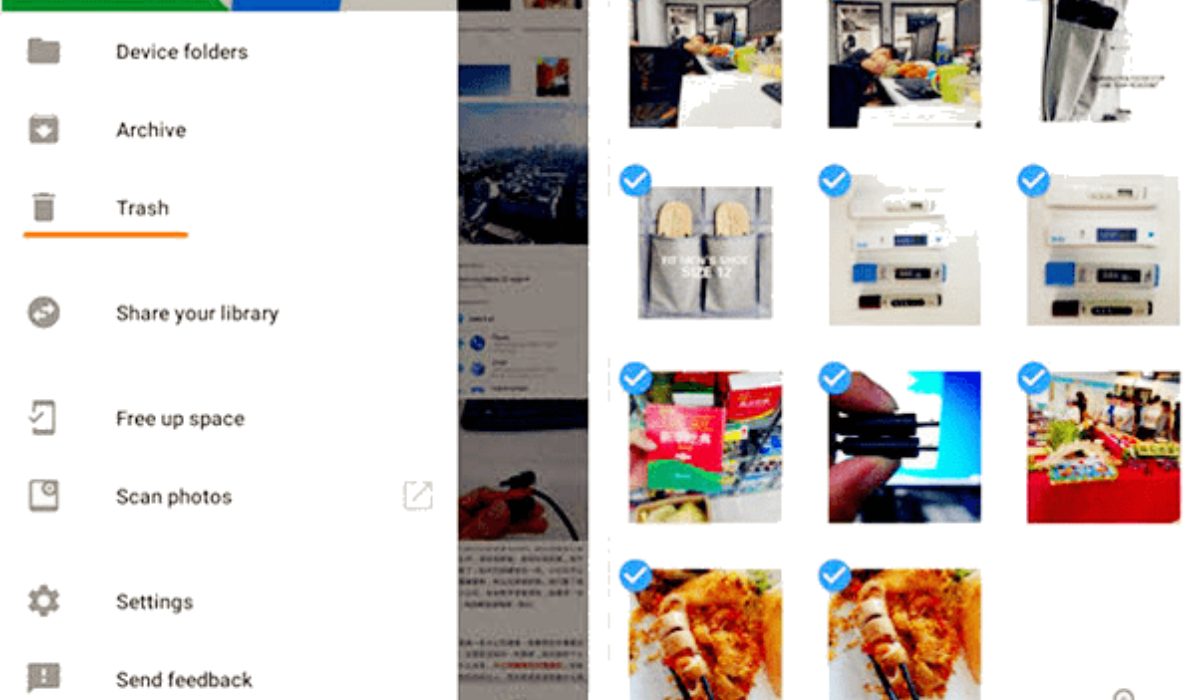
Google Drive is commonly used to keep files in the cloud, share media files, and sync them across devices. As a result, if you regularly upload media files to Google Drive, you can recover permanently deleted photos on your Samsung phone from there.
To try the instructions below, make sure you have a Google Drive application installed on your Samsung phone.
- Open the Google Drive app on your Samsung device.
- Sign in to your Google account , where you’ve previously created backup images.
- You will now see the pictures that you have uploaded or backed up.
- Select the images you want to recover and press the Download button.
Use Data Recovery Software
Using data recovery software, it’s often possible to bring back deleted photos on Samsung that are no longer in the Samsung Recycle bin. Such software can examine the internal storage of your mobile device and find deleted photos that haven’t been overwritten yet.
Here’s how to use data recovery software to recover deleted photos from a Samsung:
- Download reliable data recovery software such as EaseUS or DiskDigge r .
- Use a USB cable to connect your Samsung device to your computer.
- Open the data recovery software on your computer and select your Samsung device.
- Choose the file type you want to recover, in this case, Photos .
- Scan your device for deleted photos.
- Preview the deleted photos that were found and choose the ones you wish to recover.
- To save the selected photos to your computer, click the “ Recover ” option.
It’s important to note that data recovery software can’t guarantee the complete recovery of all deleted photos. The longer you wait to recover the deleted photos, the less likely you are to recover them. Therefore, it’s best to restore your photos as soon as possible.
To conclude, there are several ways to bring back deleted photos on Samsung phones. By following the steps above you can increase your chances of recovering your deleted photos successfully. It is also important to back up your photos regularly to avoid losing them in the future. Also check out this Samsung category to access useful purchase or troubleshooting guides.
