Add MobilityArena as a preferred source on Google
If you’re a Samsung user, you may have experienced the frustration of running out of battery life once or twice, at a rather inconvenient time. A dead battery can put a damper on your day, so it’s great that there are several ways to extend a Samsung’s battery life.
In this article, I’ll show you how to save battery on Samsung phones through some easy and effective ways. Whether you’re a heavy user or just looking to get a little more life out of your battery, this guide is for you. Now, you can stay connected with your device and extend productivity for as long as possible.
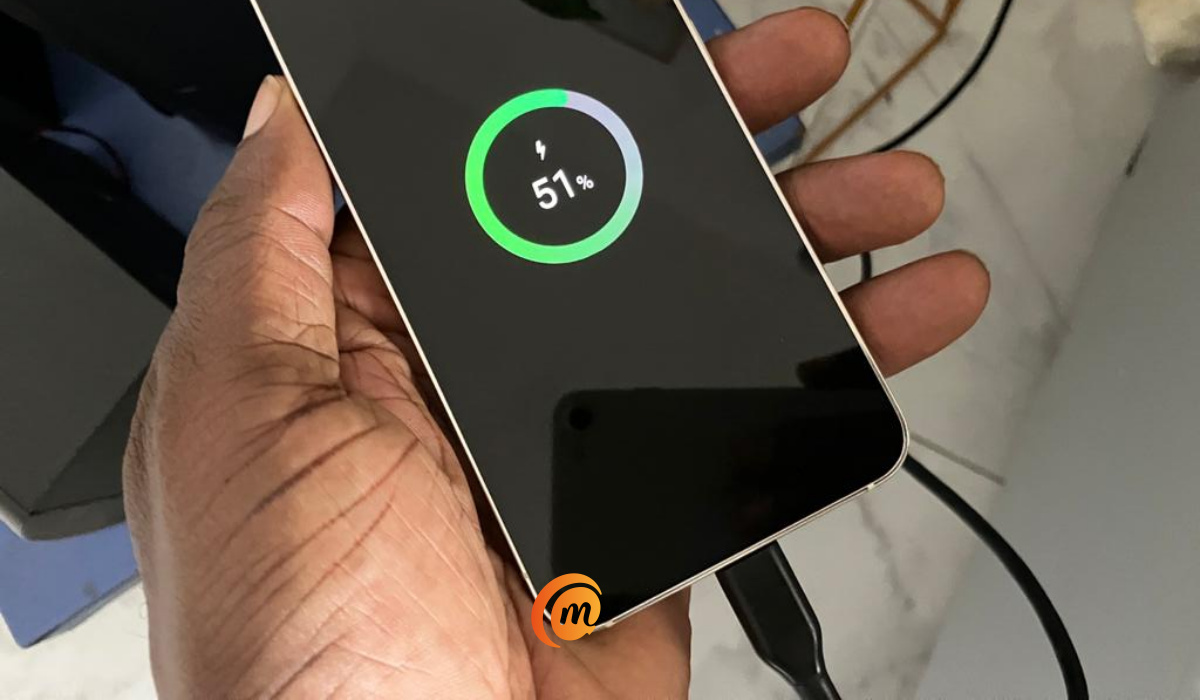
- How to Save Battery on Samsung Phones Turn off or Modify Always on Display Change the Display to 60Hz and HD+ Resolution Disable Unused Features Use Power Saving Mode Update Apps and Software Use Bixby Routines to Save Battery
How to Save Battery on SamsungPhones
Samsung phones are known for their long battery life, but sometimes they need a little help to last longer. So if you find yourself running out of battery life at the most inconvenient times, here are some things you can try to save your Samsung’s battery life.
Turn off or Modify Always on Display
Android devices have featured Always On Display for quite some time. As the name says, it keeps your Samsung device’s screen on, displaying the time, date, battery percentage, unread notification icons, and a gorgeous animation—albeit in a low-power state. It’s a convenient method to show the time and unread or missed notifications at a glance, but it degrades battery life.
Disabling Always On Display will dramatically improve the battery life of your Galaxy mobile. Simply go to Settings > Lock Screen and deactivate the feature. If you’d rather leave Always On Display enabled but you still want your battery to last longer, change the settings from Show Always to Tap to show for 10 seconds , or schedule it for new notifications. This will help your Galaxy device maintain longer battery life.
Change the Display to 60Hz and HD+ Resolution
Samsung provides many display options that you can change to improve your viewing experience. Motion smoothness and screen resolution settings are available on Galaxy flagships, whereas the former is only available on mid-range devices like the Galaxy A72 and Galaxy A52 5G. If you don’t mind the lower visual quality, you can just set Motion Smoothing to Standard and Screen resolution to HD+ . This will help conserve your Samsung battery at the cost of the visual experience.
To change the screen refresh rate to 60 Hz, go to Settings > Display > Motion Smoothness and choose Standard . Go to Settings > Display > Screen resolution and select HD+ for resolution.
If you have an LTPO display on your Galaxy S21 Ultra or Galaxy S22 Ultra, you won’t need to worry too much about the high refresh rate draining your battery. Depending on what you’re doing, both phones can adapt between 10-120 Hz and 1-120 Hz, respectively.
Disable Unused Features
There are many functions on a smartphone that you may rarely use, such as Bluetooth, WiFi, and GPS. If this is the case for you, turning them off when not in use is an easy and effective way to save battery on your Samsung phone. These features use a lot of battery power, especially when they are constantly searching for a signal.
To turn them off, swipe down from the screen’s top to access your Quick Settings and tap on the Wi-Fi , Bluetooth , or GPS icons to toggle them off. Alternatively, you can go to your phone’s Settings and turn them off. By doing this, you can extend your phone’s battery life.
Use Power Saving Mode
Nothing on your device can enhance battery life like power-saving mode. When enabled, it reduces background network consumption, syncing, and location checks and changes the refresh rate to 60 Hz. If you’re not quite satisfied with that, you can save battery life by turning on options to:
- Disable the Always On Display .
- Limit the CPU’s maximum speed to 70%.
- Reduce brightness by 10%
- Limit apps and home screen (restricts background activities, uses a simpler home screen, restricts available apps, and disables Edge panels).
To enable Power Saving Mode , go to Settings > Battery & Device Care > Battery > Power Saving . You can also enable it quickly by using the Quick Settings panel.
Update Apps and Software
By maintaining an updated phone, you can be confident that none of the outdated versions will affect its functionality. Outdated software can cause damage to your phone by depleting the battery, slowing the processor, and causing other issues. As a result, I recommend checking for updates on your Samsung. If the operating system is out of date, update it as soon as possible.
To download the latest software on Samsung, go to Settings > Software Update > Download and Install . If an update is available, simply press Install Now to get the updated software.
Use Bixby Routines to Save Battery
Samsung’s Bixby Routines provide a more advanced option for saving battery. These routines enable users to automate things such as turning on Power Saving Mode at night if the device is not plugged in, reducing screen timeout, and turning off Mobile Data or Wi-Fi . These routines can be adjusted based on everyday commutes or trips, offering numerous possibilities for saving battery.
To access Bixby Routines , navigate to Settings > Advanced Features > Bixby Routines on your Galaxy device.
To conclude, there are several simple ways to save battery life on your Samsung device. With the above tips, you can enjoy all the features of your Samsung phone and worry less about running out of battery. If you’d like more useful troubleshooting or buying guides for Samsung devices, check out this category .
Author:Joan Agie
Add MobilityArena as a preferred source on Google
I am Team Compact. Any phone screen that is significantly bigger than 6 inches is too big for me. As such, phones like Samsung S23 and Pixel 7A fall within my area of primary interest. They both have a 6.1-inch display, making them two of the best small Android phones you can buy today.
But size appears to be the only thing they share in common (apart from the fact that they are both Android smartphones). Samsung clearly knows how to make well-optimized smartphones, while Google is still struggling with it.
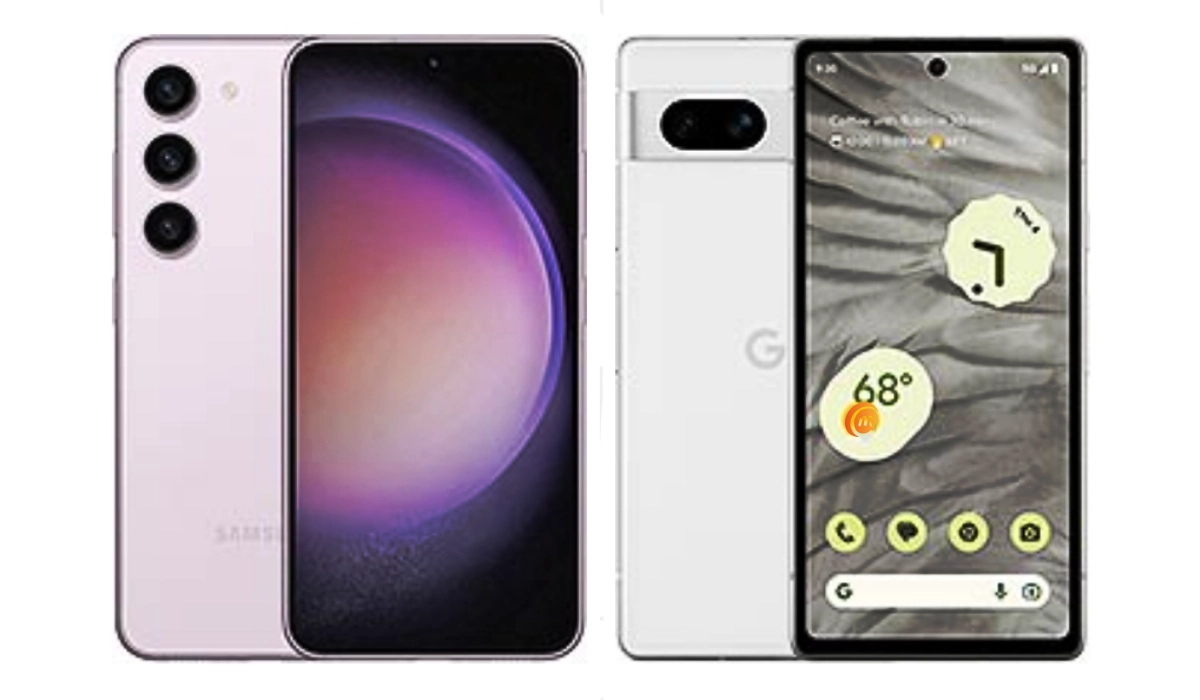
Samsung S23 vs Pixel 7A
Samsung S23 vs Pixel 7A
Let’s start with what we can see and feel: size and weight. Despite having the same screen size, the S23 is thinner, shorter, and narrower than the Pixel 7A. It is also 25 g lighter than the Pixel 7A. When you hold both in your hands, as a lover of compact phones, it is the Samsung S23 that you don’t want to drop.
I am not going to give the Pixel 7A slack for being trounced by the Samsung S23 when it comes to performance. The Tensor G2 does not hold a candle to the Snapdragon 8 Gen 2, and that is okay. The $200 price difference between these two phones has to come from somewhere, and things like performance and cameras are the easiest areas to cut costs. Which Google did nicely. The Pixel 7A is a solid phone for the person on a budget.
Where the Pixel 7A disappoints once more is in the battery performance, which should not be a surprise to anyone who is familiar with the antecedents of Pixel phones. But how bad it is really shows when the 7A stands beside the S23.
Pixel 7A has a 4385 mAh battery, compared to he S23’s 3900 mAh battery. It also has a less demanding processor than the S23. And it also has a less demanding screen. How is it then possible that it delivers only about 75% of the S23’s battery life? It doesn’t add up. In practical terms, it means that if you are browsing the web or social media, the Pixel 7A’s battery will empty 2 hours before the Samsung S23’s.
Of course, by comparison, the Pixel 7A’s battery life is still better than the iPHJone SE 2022, another compact smartphone that I have used (see the iPhone SE 2022 review ). But that is Aaples and oranges, if we are being honest. As I have said before, Google needs to develop or purchase the capacity to optimise their phones. The batteries of Pixel phones drain too fast.
As a matter of fact, iPhones and Pixel phones appear to be leading the cause of smartphone brands with poor battery life. And seeing how Apple is doing better these days, Google will likely take that crown. Every single Pixel phone I have used has had the worst battery life of its contemporaries from other brands. Every single one. And the Pixel 7A is following in that tradition.
Pixel phones have good cameras, but they keep falling short in the most important things. Google needs to hire people who know how to optimise phones. Your ability to enjoy taking photos with a good camera is severely hampered if battery life is poor. And I don’t even want to get started about the overheating issues , which also stems from poor optimisation.
The Pixel 7A has the same screen size as the S23, has a less powerful processor, has a bigger battery, yet the battery life is piss-poor, while the S23’s battery life is stellar. Make it make sense.
PS : Check out our Samsung Galaxy S23 review .
Author:Mister Mobility
Digital Skills and Communication Coach | Mobile Phone Connoisseur since 2001 | Tech Blogging since 2004
