Add MobilityArena as a preferred source on Google
QR codes are everywhere these days – on posters, websites, and even products. Scanning QR codes is a useful way to quickly access information or links. If you have an Android phone, you may be able to scan QR codes automatically with your camera app. This feature is available on many Android devices, and you’ll find it incredibly easy to use.
In this article, I’ll show you how to scan QR codes with Android, so you can access the information and links they contain seamlessly. I’ll also provide tips on different methods that are sure to make the process even smoother for you. So, whether you’re already used to this feature or a first-time user, this guide will help you get the most out of it.
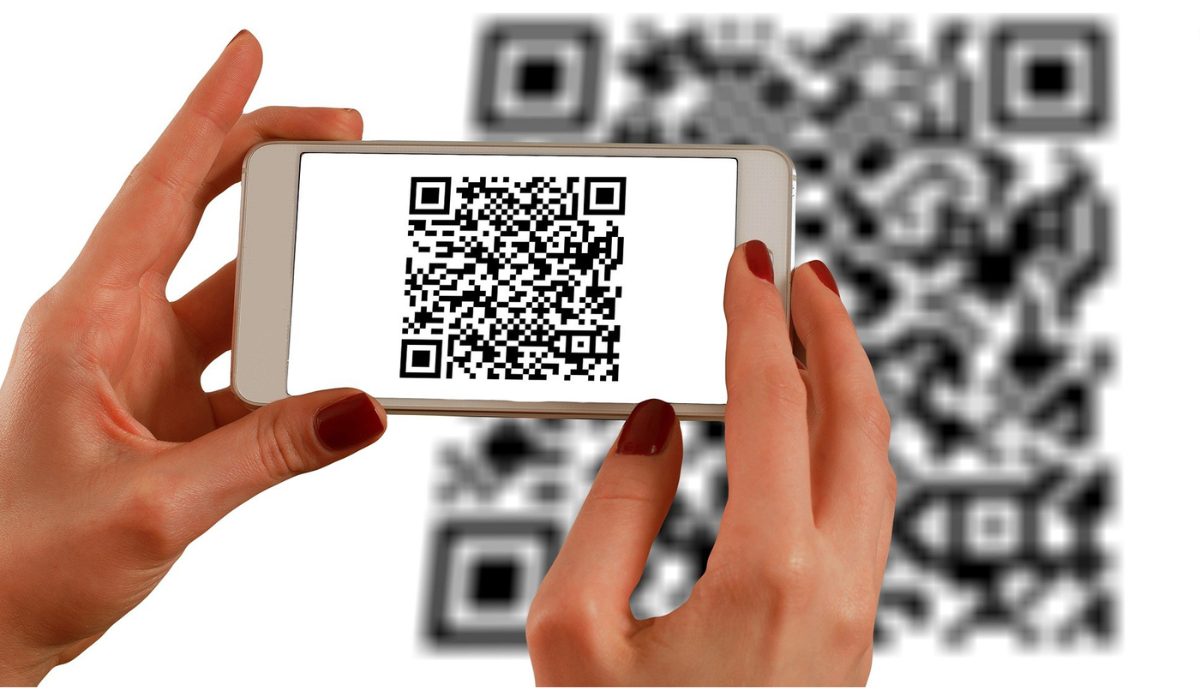
- How Do You Scan QR Codes on Your Android Phone? How to Scan QR Code With Android Using the Camera App How to Scan QR Codes on Android with Google Screen Search How to Scan QR Codes With Android Using Google Lens How to Scan QR Codes on Android With Third-Party Apps How to Scan a QR Code on a Samsung
How Do You Scan QR Codes on Your Android Phone?
In many cases, you should be able to scan QR codes automatically with the native camera app on your Android phone or tablet. If that’s not the case, however, you can also use dedicated third-party apps to achieve this. Below are several ways you can easily scan QR codes with just a few taps on your Android phone.
How to Scan QR Code With Android Using the Camera App
To use the camera app to scan a QR code on your Android device, follow these steps:
- Launch the Camera app on your Android.
- Point the camera at the QR code so that the whole of the barcode stays within the frame.
- Keep the camera pointed at the QR code for about 2-3 seconds
- If the code is scannable, you’ll see the website it links to appear at the bottom of the screen. You can click on this link to open the website or access whatever required content is contained in the link.
If you don’t see the code scanning option, you may need to activate QR Code scanning in your Settings app. If you don’t find this option in your settings, it means your device will not be able to scan QR Codes automtically. Not to worry though, I’ll go into more details below on other useful options to scan QR codes on Android.
How to Scan QR Codes on Android with Google Screen Search
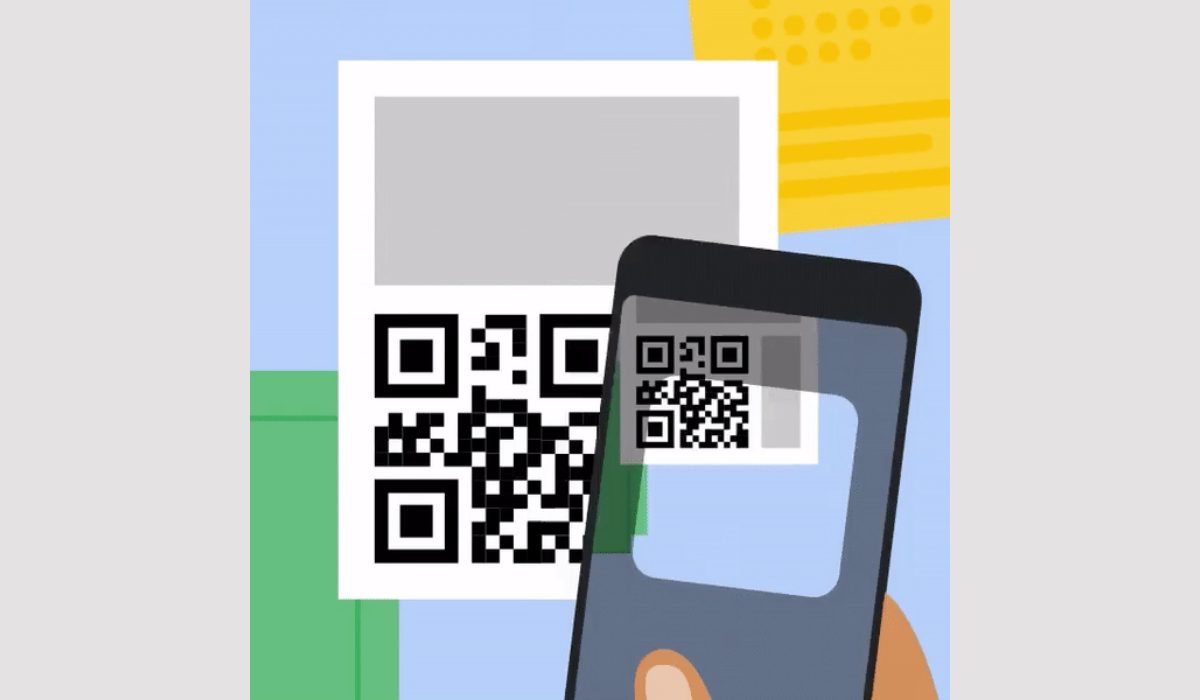
Androids running versions 8.0 or higher will typically be able to scan QR codes with the Google Screen Search feature. To scan a QR code with Google Screen Search, follow the steps below:
- Launch the camera and point it at the QR code.
- To display the options located beneath, long press the “ Home ” button and swipe upward.
- Click on “ What’s on my screen ?”
- Tap the link that shows up to access the contents of the barcode
Open the Google app and select Navigation if the smartphone’s screen search feature hasn’t been enabled yet. Enable Screen search permission in Settings .
How to Scan QR Codes With Android Using Google Lens
Google Lens offers another simple method to scan QR Codes on Android 8.0 and higher devices. Below are the instructions for using Google Lens in Google Assistant to scan a QR Code:
- To bring up Google Assistant , hold down the “ Home ” button.
- Depending on the version of Google Assistant you’re using, the Lens button may show automatically. If not, click on the bottom row of dots, and the Lens button will appear on the left-hand side.
- You must enable Lens to use your camera if you have never used it before. Direct your camera at the QR Code afterward to scan the QR code.
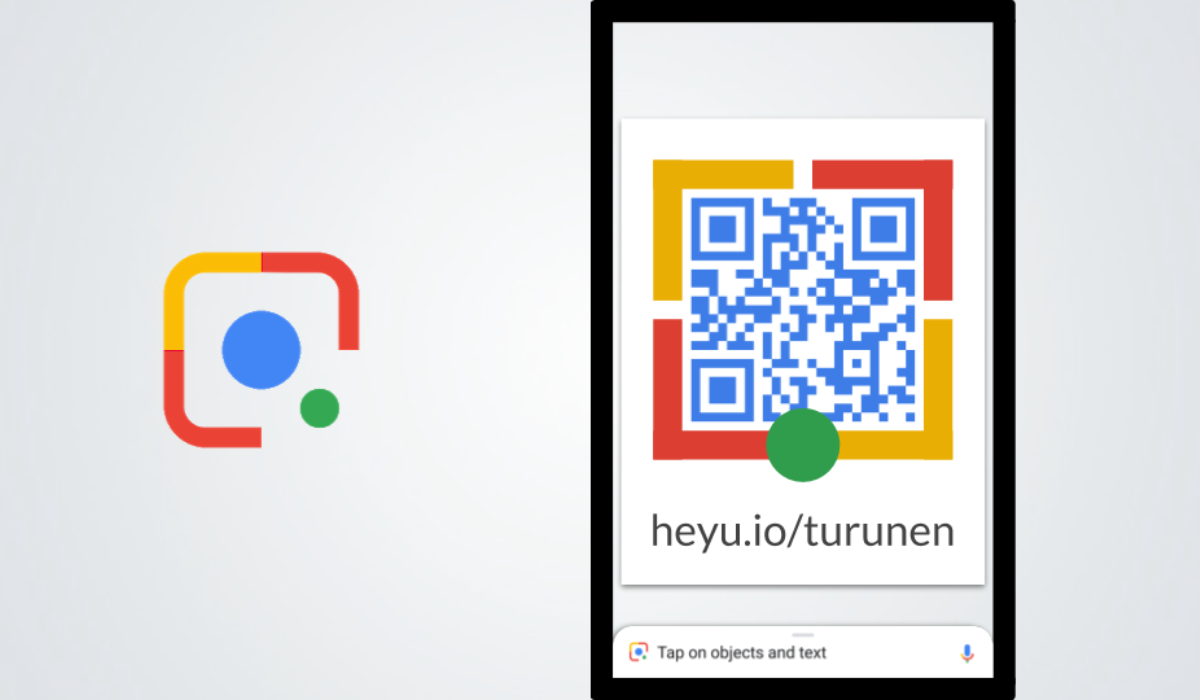
You can also use the Google Lens App to access Google Lens. To scan a QR code with the Google Lens app, you first need to download and install the app from the Google Play Store.
- Once you have the app installed, open it and point your camera at the QR code you want to scan.
- If your phone recognizes the code, it will display information about it on your screen.
- You can then tap on the information to open the link or access the associated content.
How to Scan QR Codes on Android With Third-Party Apps
Android smartphones running version 7.0 and below (excluding 6.0) do not allow for QR code reading via any of the methods described above. As a result, scanning QR codes on these devices will require the use of third-party programs, like QR Reader , Barcode Scanner . All you need to do is download your preferred app, then launch it immediately after to start scanning apps easily.
How to Scan a QR Code on a Samsung
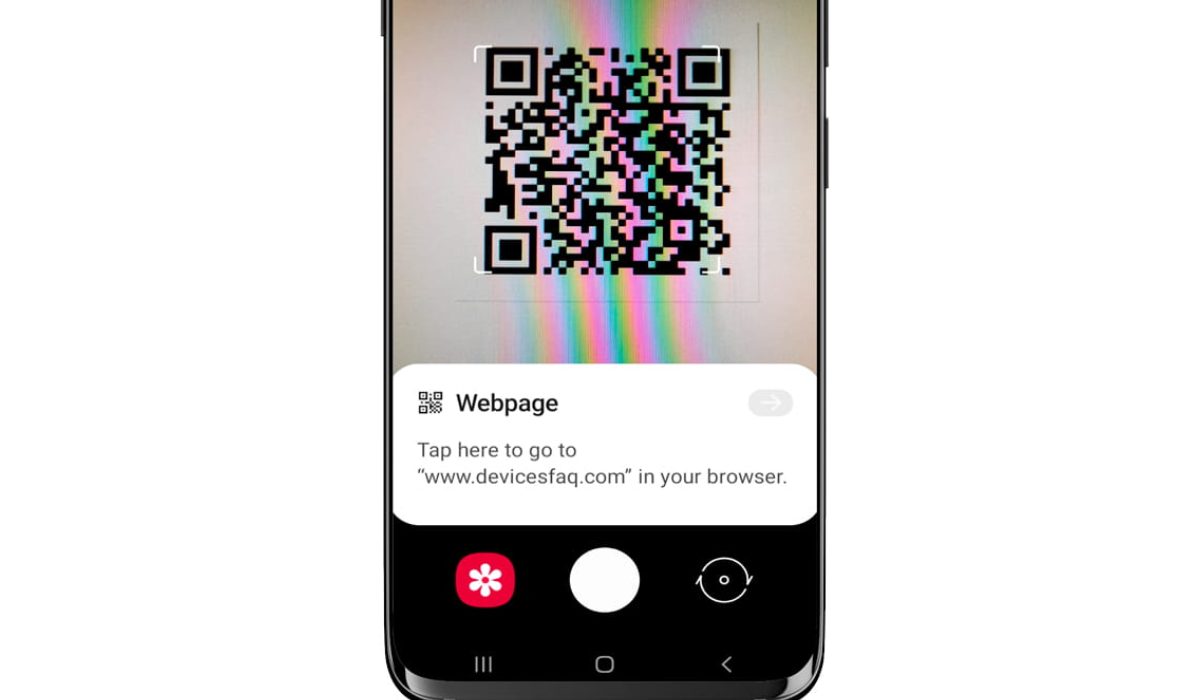
With a Samsung phone, there are a few different ways to scan QR Codes. It’s important to note that the Galaxy and OS versions may differ from one another in this regard.
Samsung QR Scanner
The dedicated app in the Quick Settings panel is the simplest way to scan a QR code on a Samsung phone. Follow these steps:
- To access your Quick Settings , swipe down from the notification panel and select Scan QR code .
- After launching the camera app, point your phone towards the QR code you wish to scan.
- Scan the code, then select your preference from options including View full text , Open in browser , Search web , or Copy . The options shown may vary depending on the information contained in the QR code.
Bixby Vision
You can also scan QR codes with Bixby Vision, follow these steps:
- Launch your camera app and click on Bixby Vision .
- Enable permission to use it if you haven’t used it before.
- Allow necessary permissions to enable Bixby Vision to take images.
- Scan the QR Code with your camera and click “ Go ” to see the QR Code’s content.
Gallery App
The Gallery app on Samsung devices also offer a QR code-scanning option. Follow these steps to use it:
- Open the Gallery app after taking a picture of the QR Code you want to scan.
- Choose the same QR Code picture.
- In the lower-left corner, press the Bixby Vision icon.
- Select “ Lens ” to enable Bixby Vision to read the QR Code.
To conclude , scanning QR codes with Android devices has never been easier. With the built-in camera app on most Android devices, you can quickly scan QR codes to access information, websites, and other digital content. Many third-party apps are also available that offer advanced features that let you scan multiple codes at once or save scanned codes for later use.
With the tips outlined in this guide, you’ll be able to scan QR codes quickly and easily, and take advantage of all the benefits this technology has to offer. If you’re in need of other useful Android tips, check out this category .
Author:Joan Agie
Add MobilityArena as a preferred source on Google
As mobile phones continue to evolve, camera technology remains a crucial feature for many users. With the increasing popularity of social media and the need for high-quality photos and videos, manufacturers are constantly improving the camera capabilities of their devices.
Regardless of which carrier you are on, I’ll show you some Android phones with the best camera technology available in 2023. I’ll explore the features, capabilities, and specifications of these devices to help you make an informed choice when it comes to selecting your next smartphone.
What Are The Android Phones with the Best Camera in 2023?
In 2023, Android phones with the best camera technology are in high demand. These devices offer advanced features such as high resolution, multiple lenses, and image stabilization, among others. Here are some of the Android phones with the best camera that you can use on Verizon, T-Mobile, and AT&T in 2023.
Samsung Galaxy S23 Ultra
The Samsung Galaxy S23 Ultra has a big sensor main camera, autofocus ultrawide, and two telephoto lenses, making it an ideal choice for high-quality pictures. Its 200MP Tetra2pixel sensor offers a wide dynamic range in both daylight and darkness, and the high-resolution imager allows for good 8K video capture. The S23 Ultra shines with zooms of 3x and higher, with both modules delivering excellent performance at native focal lengths and in-between magnifications.
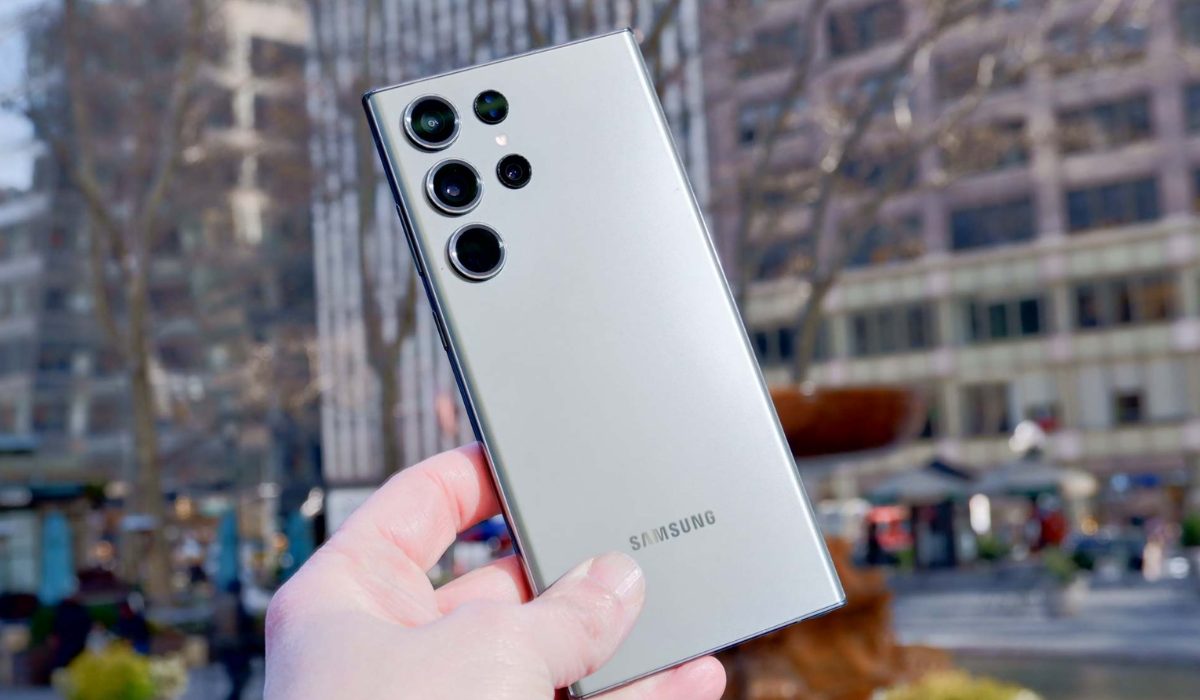
The ultrawide camera is one of the best from Samsung to date, providing even clearer photographs with sharpness and quality. The 12MP selfie camera shared with the S23 Ultra family might seem like a step down from the 40MP unit found on the S22 Ultra, but it produces similarly excellent selfies.
Overall, the Galaxy S23 Ultra is a true gem in the world of smartphones. It’s not just the best camera phone out there, but also one of the most impressive devices overall. With its exceptional features, it’s no surprise that it takes the top spot in its category with ease.
Sony Xperia Pro-I
A professional-grade imaging smartphone, the Sony Xperia Pro-I is an upgraded version of the Xperia Pro. It features a somewhat modified design, moving the camera array from the corner to the center to provide enough space for the large sensor to function. It also offers 512GB of storage and 12GB of RAM. With control over camera aperture and autofocus, the in-app settings and ZEISS optics feel like they were cut directly from a full-frame shooter. The Sony Photo Pro app requires the use of the hardware shutter button rather than the software version, which is uncommon in today’s smartphones.
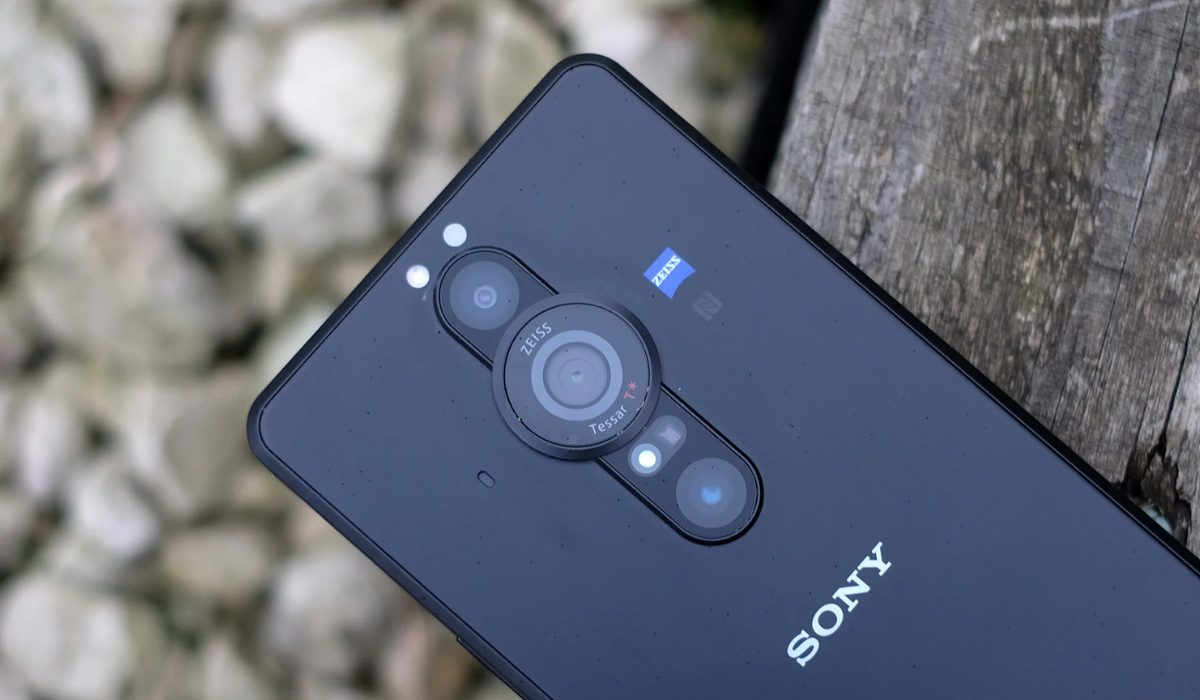
Sony also chose a large primary sensor, which allows for a lot of light and creates great bokeh in photographs. However, due to the phone’s small form factor, it can’t make full use of its large sensor, even though it looks fantastic on paper. In terms of actual performance, the Xperia Pro-I nearly matches the Pixel 7 Pro in terms of natural outcomes. The color recreation is extremely accurate, although it sometimes seems muted as a result. In essence, you can bring photographs to life if you’re willing to put in the editing effort. All in all, it’s a great phone with a great camera so I recommend it 100%.
Xiaomi 13 Pro
The Xiaomi 13 Pro , which uses Sony’s IMX989 sensor, is a popular choice for smartphones with a 1-inch sensor. The sensor, which was previously limited to China-only devices, now has a global audience, including the United Kingdom and Western Europe. In-depth testing has revealed that the bigger sensor provides photographs that are more detailed and less processed, with less noise and more natural bokeh. In fact, the Xiaomi 13 Pro’s sensor generates less noise and more realistic bokeh in low-light conditions than Samsung’s 200MP camera on the S23 Ultra.
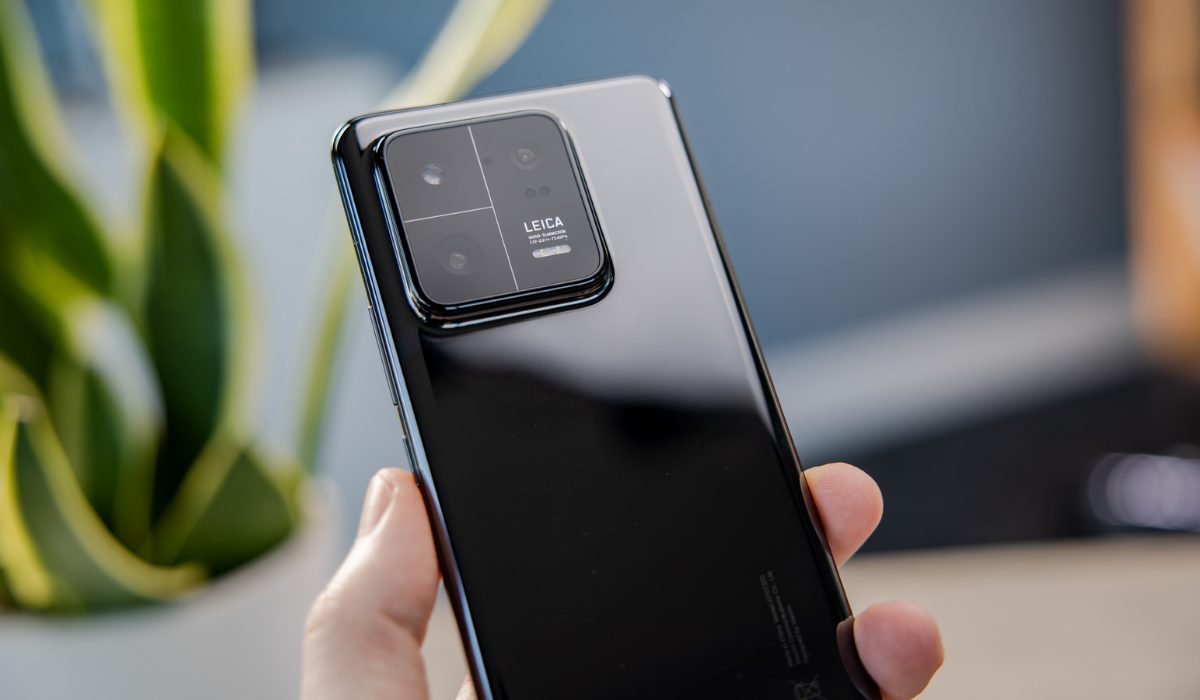
Xiaomi also collaborated with Leica to advance the color science of the 13 Pro, resulting in more organic, atmospheric photographs during the day. However, the ultra-wide camera can be considered subpar, and the software processing isn’t at Google’s level. Despite these, some experts still think the main camera produces the best-looking daytime images in point-and-shoot situations.
Pixel 7 Pro
The telephoto lens in Google’s newest flagship, the Pixel 7 Pro , has an amazing 5x optical zoom, outperforming its predecessor in several important ways. It has a 50MP main sensor and a 12MP ultrawide sensor, keeping the same 50MP main and 12MP ultrawide sensors as the Pixel 6 Pro.
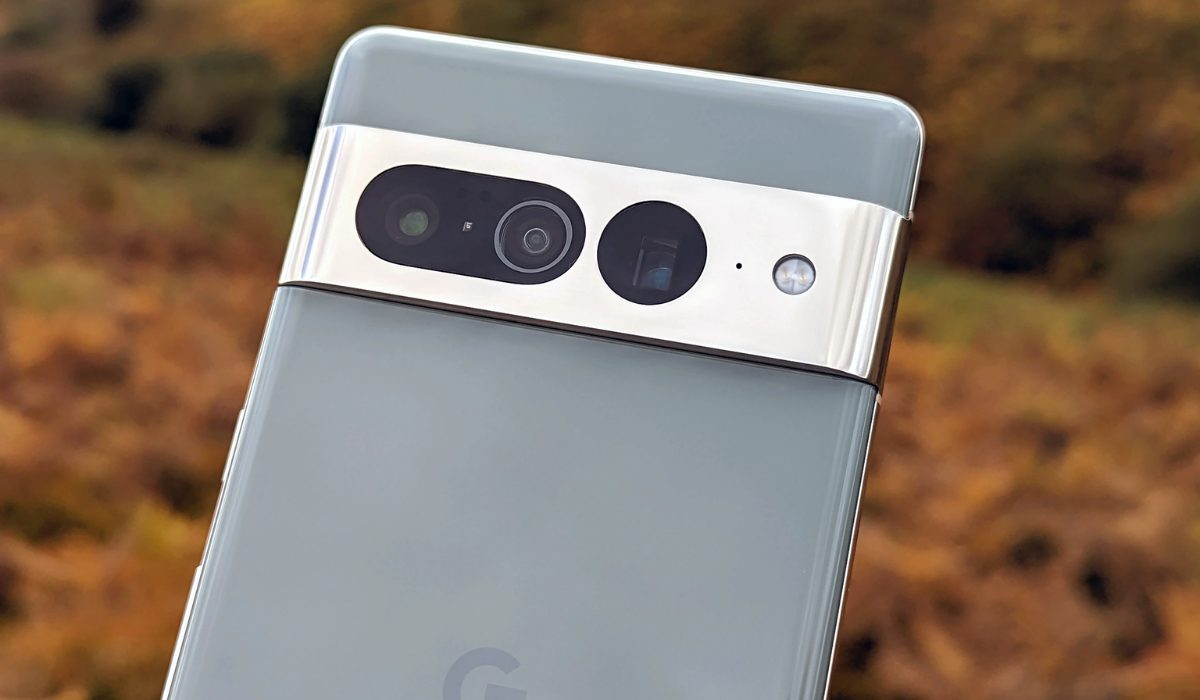
The Pixel 7 Pro’s camera technology meets or beats the new iPhone 14 Pro in a variety of settings. However, even though this Apple device only has a 3x optical zoom, it still has the edge in color reproduction in telephoto shots.
The Pixel 7 Pro’s 10.8 MP front camera again lags behind Apple, particularly in low-light conditions. Despite these drawbacks, the Pixel 7 Pro has a fantastic camera—it’s likely the best among Android phones.
Galaxy Z Fold 4
The Galaxy Z Fold 4 is a foldable phone with a big screen and Flex Mode, which allows it to function as a tripod on its own. This feature allows the phone to be positioned in an L-shape, similar to a laptop, on a flat surface for convenient photo and video shooting without the use of a tripod. A 50 MP main camera with a 1/1.56-inch image sensor, a 3X telephoto zoom lens equivalent to 70mm, and a 12MP ultra-wide camera comprise the phone’s triple camera array.
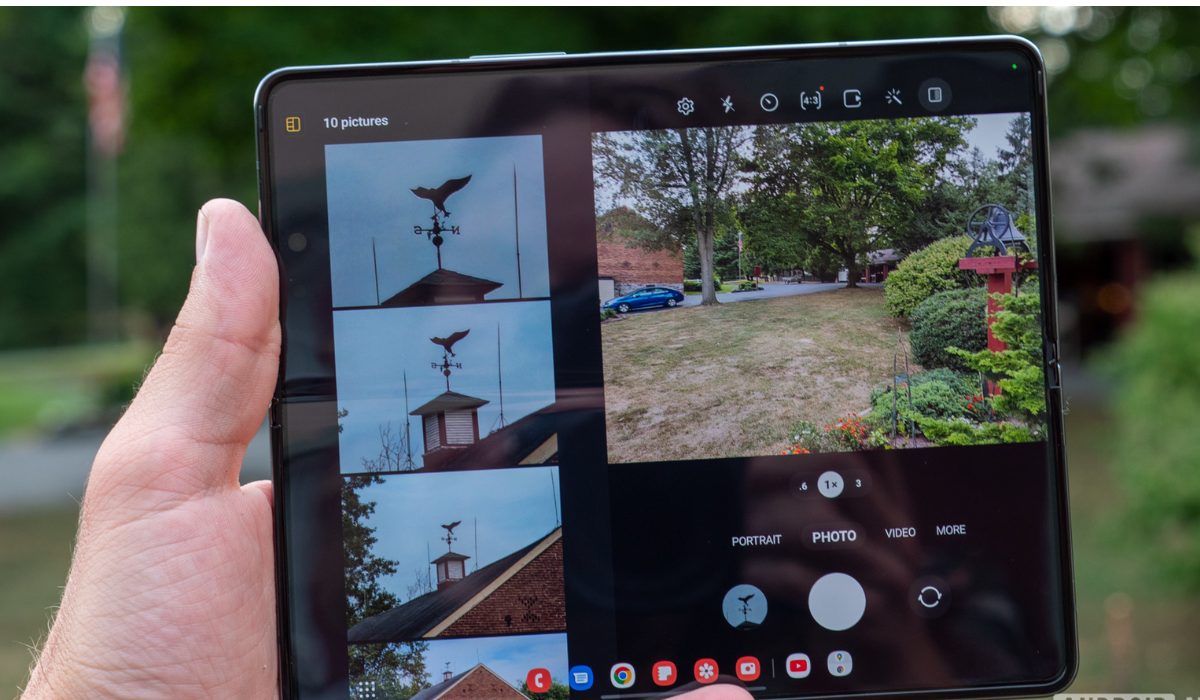
Also. the fully articulated hinge enables a wide range of framing options, making it ideal for group shots and time-lapse recordings. However, as compared to the S23 Ultra, the phone has smaller sensors and a limited zoom range. Nonetheless, the camera quality is great enough to get it on this list, so I’ll still recommend it.
To conclude, by selecting any of the Android phones with the best camera technology in 2023, you can capture stunning photos and videos on the go, and share them with your friends and family.
Whether you’re a professional photographer or just someone who loves to take quality pictures, these devices are sure to deliver the quality and performance you’re looking for. If you need more smartphone recommendations based on other relevant criteria, be sure to check out our dedicated guides .
