Add MobilityArena as a preferred source on Google
There are many scenarios in which scheduling messages is a big advantage. Whether you need to send your coworker a message at a predetermined time, or send a reminder to your friends and family, it’s a helpful feature.
In this guide, you’ll learn how to schedule WhatsApp messages on iPhones. WhatsApp doesn’t have a scheduling option, but there is an effective workaround for this on iPhones. All you have to do is create a personal automation, and I’ll show you how to do this easily.
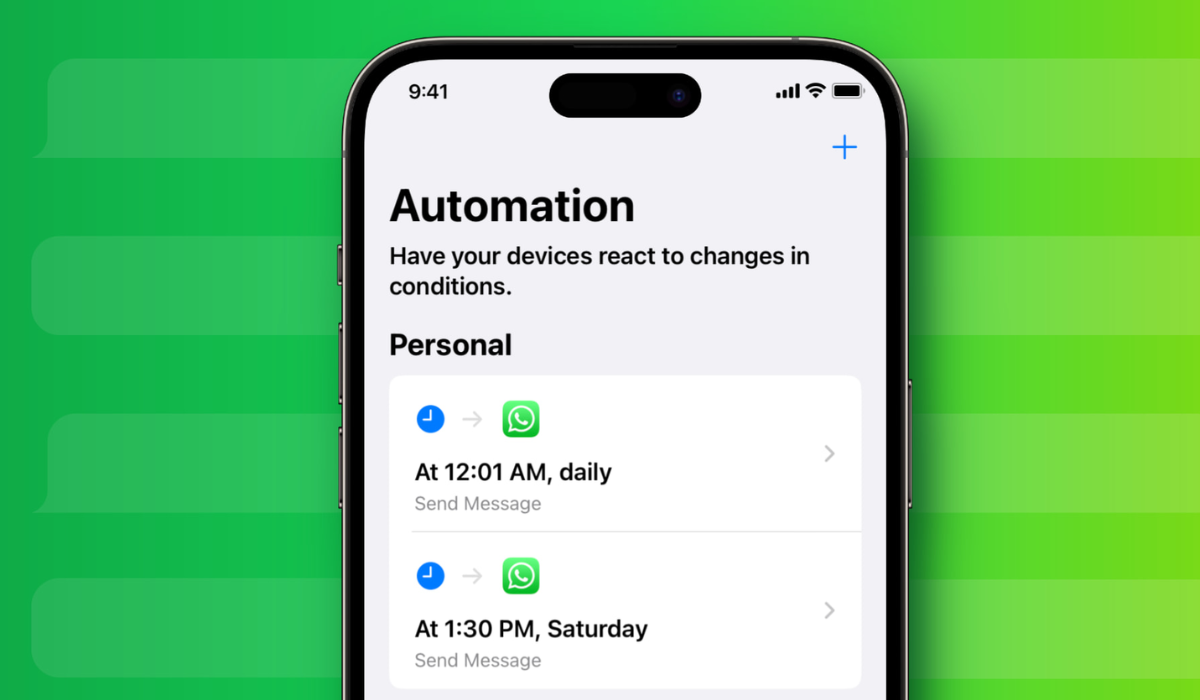
- How Can You Schedule WhatsApp Messages on iPhones? Use Personal Automation to Schedule WhatsApp Messages on iPhones How to Modify the Personal Automation Turn off or Delete the Personal Automation
How Can You Schedule WhatsApp Messages on iPhones?
Although WhatsApp does not come with a built-in message-scheduling capability, there is a workaround available. This solution makes your life easier if your job demands timely communications with clients or if you wish to go offline for a while but still need to send messages for birthdays, holidays, or other significant occasions. Below are the instructions you’ll need to schedule WhatsApp messages on iPhones.
Use Personal Automation to Schedule WhatsApp Messages on iPhones
Before you attempt to use Personal Automation to schedule WhatsApp messages on iPhones, ensure that the Shortcuts app is first installed on the device. On iOS devices, it comes pre-installed; however, if you’ve previously uninstalled it for any reason, you should reinstall it on your iPhone.
To begin, turn off Screen Lock if you’ve previously used it to lock your WhatsApp to protect your WhatsApp privacy . This is because Screen Lock prevents Shortcuts from accessing WhatsApp. As such, if the automation tries to send a scheduled message, an error could occur.
To achieve this:
- Launch WhatsApp and navigate to the Settings tab.
- Choose Privacy and then Screen Lock
- Disable the option Require Face ID or Require Touch ID .
After that, set up the Personal Automation to schedule WhatsApp messages on iPhones by following these steps:
- Start the Shortcuts app.
- Navigate to the Automation tab and then click Create Personal Automation . If you’ve already created one before, tap the plus ( + ) sign in the top-right corner and select the Create Personal Automation button.
- Choose the Time of Day trigger.
- Set the time that you want the automation to run using the timer field on the next screen.
- Then, choose Daily, Weekly, or Monthly under REPEAT and press Next to set the message frequency. (There’s no need to worry if you’d rather not send the message more than once).
- Press the Add Action button. Scroll down in the Apps menu and select the Send Message action.
- Enter your message in the Message field.
- In a similar manner, select Recipients and input the phone number of the person to whom you wish to send a message. Alternatively, click the plus ( + ) icon and select a contact from your list.
- Tap Next , turn off the Ask Before Running button and click on the Don’t Ask option when you’re prompted on the next screen.
- Click the Done button to save the automation.
This is basically how you schedule WhatsApp messages on iPhones through Personal Automation . Shortcuts will automatically launch the automation at the time scheduled and send your message to the designated contact via WhatsApp.
How to Modify the Personal Automation
After you schedule WhatsApp messages on iPhones, you could also want to change the automation or modify it for a different use case. The following are the steps to take in this case:
- Open Shortcuts , then head to the Automation tab.
- Choose the automation you want to change.
- Now, if you want to modify the time that the automation runs, tap on the schedule that is located below When and make the necessary changes to your specifications.
Turn off or Delete the Personal Automation
If you only want to send an automatic message once after you schedule WhatsApp messages on iPhones, you might want to turn it off after the first time to prevent it from going off again. To do this, follow these steps:
- Launch Shortcuts and navigate to the Automation tab.
- On the next screen, tap on your personal automation and turn off Enable This Automation .
- Click Done .
Additionally, if you want to remove the automation, return to the Automation menu, swipe left on the automation, and then select Delete .
Shortcuts are the simplest way to schedule WhatsApp messages on your iPhone. It’s free, quick to set up, and dependable, so you can be confident that your message will be sent at the scheduled time without fail; simply follow the steps above to set it up on your iPhone.
Author:Joan Agie
Add MobilityArena as a preferred source on Google

Once upon a time, the only channel to watch movies on was the television. Then came along digital technology to change that. Today, there are digital apps and websites where you can watch movies online from the comfort of your home or when out and about.
If you are exploring this new experience of streaming movies online, there are a few things you need to know to get started.
- What you need to watch movies online
- Where to watch full movies online?
- Where can you stream movies for free?
What you need to watch movies online
To watch movies online, you will need a few essential things. Here is a detailed explanation of what you need:
- Internet Connection : A stable and reliable internet connection is the most crucial requirement to watch movies online. It is recommended to have a high-speed broadband connection to ensure smooth playback and prevent buffering issues. Generally, a minimum internet speed of 5 Mbps is required for standard definition (SD) streaming, while high-definition (HD) and 4K streaming may require faster speeds. You can connect using your mobile data or a wireless hotspot (WiFi).
- Device : You will need a viewing device to watch movies online. This could be a computer, laptop, smartphone, tablet, smart TV, or streaming media player. Ensure that your device meets the minimum system requirements for streaming platforms and is compatible with the streaming service you plan to use.
- Streaming Service : Choose a reputable streaming service that offers a wide selection of movies. Some popular options include Netflix, Amazon Prime Video, Hulu, Disney+, and HBO Max. Each service has its own subscription plans, content libraries, and user interfaces, so you can select the one that best suits your preferences.
- Subscription or Rental : Most streaming services require a subscription to access their content libraries. You will need to sign up for an account and choose a subscription plan that fits your needs and budget. Some platforms offer a free trial period, allowing you to explore the service before committing. Alternatively, certain movies may be available for rental or purchase individually through platforms like Google Play Movies or iTunes.
- Payment Method : To subscribe to a streaming service or rent movies, you will need a valid payment method. This can be a credit card, debit card, or digital payment service like PayPal. Ensure that your payment method is accepted by the streaming service you choose.
- Software, Apps or Website : Depending on the device you are using, you may need to install specific software or apps to stream movies. For example, on a computer or laptop, you can access streaming services through a Web browser like Google Chrome, Mozilla Firefox, or Safari. But if you want to watch movies online on your smartphone, tablet, smart TV, or streaming media player, you will need to download the respective apps from app stores such as Google Play Store or Apple App Store.
- Accounts and Profiles : Once you have chosen a streaming service and subscribed, create an account and set up user profiles if available. User profiles allow you to personalize your viewing experience, create separate watchlists, and receive recommendations tailored to your preferences. Some services allow multiple simultaneous streams on different devices, so you can share the account with family members or friends.
- Optional : Additional Hardware or Accessories: While not mandatory, you may consider some optional hardware or accessories to enhance your movie-watching experience. For example, a large-screen TV or a home theater system can provide a more immersive experience. Additionally, some streaming devices, such as Roku or Chromecast, can make it easier to stream content and watch movies online from your device to the TV.

Where to watch full movies online?
Where can you stream movies for free?
Some websites also offer free access to watch movies online. I am not talking about just trailers or snippets, but free full movies. Some of these are legal and some are not. Remember to always abide by copyright laws and use authorized streaming services to access movies. Illegal streaming or downloading of copyrighted content is against the law and can result in legal consequences. Have a look at our list of 5 Best Free Movie Streaming Sites And Apps With 100% Legal Content .
Author:Mister Mobility
Digital Skills and Communication Coach | Mobile Phone Connoisseur since 2001 | Tech Blogging since 2004
