Add MobilityArena as a preferred source on Google
With the increasing popularity of remote work in recent years, many people – web developers, gamers, and graphic designers, to name a few – have grown quite fascinated with dual monitor setups. Unarguably, standard computer settings are primarily fine for daily tasks. Nevertheless, once you realize all the advantages of having multiple screens, you wouldn’t want to have any less.
Since most computers only have one screen, very few individuals are familiar with how to build these innovative systems. This is why we have provided this guide to help you conveniently set up your dual monitor system with your Windows device in your workspace.
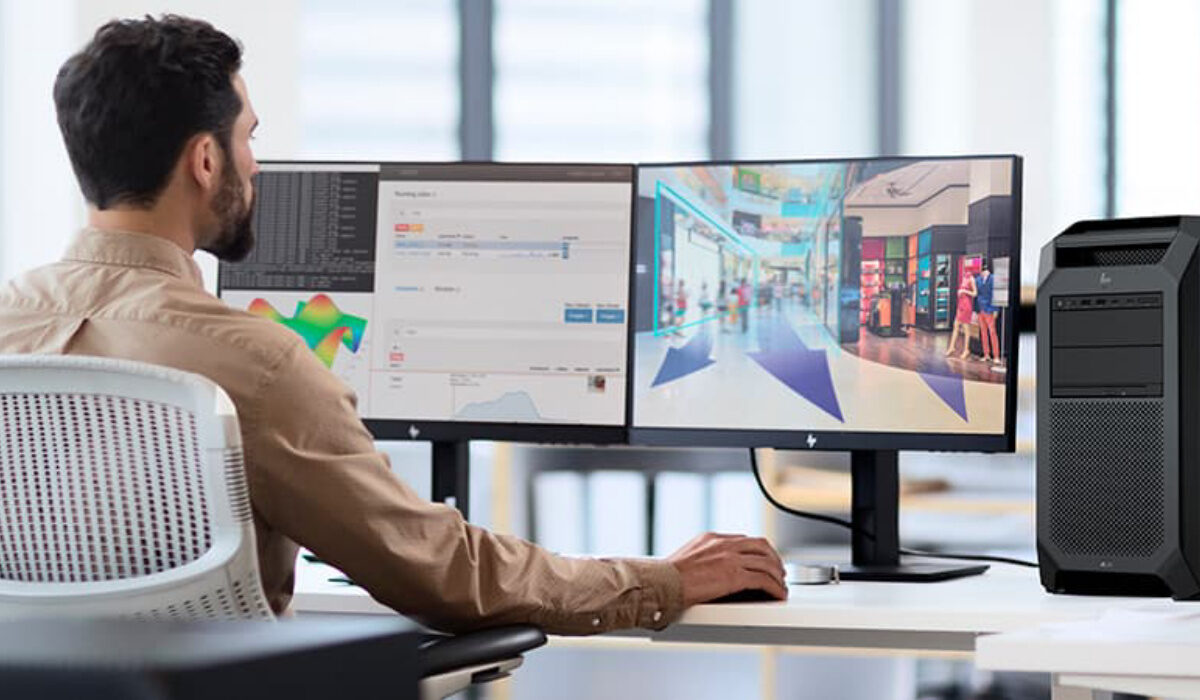
A Dual Monitor System. Image courtesy of HP.
We’re providing this guide on the assumption that you already have all your components (monitors, monitor stands, etc.) ready for the setup process. As you shop for the components you’ll need for your setup, keep in mind that you’ll need to conduct your research on some technical issues (especially device compatibility) that you need to be aware of. To make the process much easier, ensure that you already have all of your cords and tools close at hand.
Find the perfect spot
Finding the ideal spot for both screens is the first step in setting up your dual monitor system. You’ll need to be a little inventive and rearrange all the other components of your workspace till you’re happy with it because most workstations are not made to support two monitors. Remember that you can very easily purchase additional monitor stands to assist with this setup process.
Plug in your Monitors
Making sure to position all of your cables correctly is the next step. You can have different cable management systems to help you accomplish this and keep your workspace as organized as possible. Once everything is in position, plug all the cables into the appropriate outlets. However, before you do this, please check to ensure they are all securely connected to prevent power loss during your working or gaming sessions.
You can now power on your gadget to check that everything is operating as it should.
Set up your Monitors in Windows
You can quickly set up a second monitor if you have a Windows device because all you need to do is locate the taskbar, which will walk you through the setup procedure. Only a few simple actions need to be taken to make sure everything goes as smoothly as possible.
After confirming that your computer can see both monitors, you must access the desktop and locate the display settings. Then, a window with many controls will appear, allowing you to use your screens and select from a variety of display options. The following list includes some of the more popular display types:
The most typical sort of display simply designates each monitor with a one or a two, as appropriate, so that you always know which one you’re using.
The multiple display option with which you can show one of the following displays:
Show identical pictures on both screens
Make the image bigger and the two screens work as one.
Use only one of the monitors.
Adjust the Positioning
It’s time to use the box at the top of the window to move your monitors into position. This enables you to move your mouse between both monitors. As such, it is ideal if you arrange your monitors to match your display position because this will make it much more intuitive for you and cut down on the learning curve.
Note that you can drag the boxes to reposition them whenever you’d like until you reach a position that feels natural.
Determine your Primary Monitor
The final display setting is to choose a default monitor to serve as the main screen on which all programs will be shown. It will also include all of your gadgets, including your clock and other taskbar icons.
By combining dual-monitor choices with your standard monitor settings, you can still use one monitor. To meet your preferred visual experience, each monitor can have various resolutions and general settings.
If you don’t have a Windows device…
You can set up your two-monitor laptop system with alternative third-party software if you don’t have a Windows device. The most popular methods for doing this use graphic card providers and apps of a similar nature. These will let you put different settings on your monitors to make sure they’re functioning properly.
Finally, it is good for you to know that dual-monitor configurations may also be installed on iOS, Android, macOS, and Linux devices, because we are aware that not everyone uses Windows-based computers. Additionally, these operating systems have quite similar installation procedures, although the specifics will typically vary based on the device you’re using. We’re sure you’ll find this article very helpful, so don’t hesitate to recommend it to your friends, family, and colleagues.
- Don’t miss our reviews .
- Follow our news on Google News .
- Join our WhatsApp Group , to be notified of the most important articles and deals,
- Follow us on Instagram , Facebook , Twitter , and YouTube .
Author:Joan Agie
Add MobilityArena as a preferred source on Google
Every time there is a new upgrade to the existing operating system, there are typical complaints regarding battery life and quick battery drain, and the iOS 15 is no exception. With each subsequent point release since that of iOS 15, there have been even more reports of battery life problems.
Some of the causes of the battery life problems that iOS 15 faces include software bugs, excessive GPS use, and system-demanding games and apps, among other factors. Granted, if a software bug is the reason for your battery life problems, there’s nothing to do until Apple releases an update to resolve it, so that’s out of your hands.
Regardless of the cause, however, there are some helpful actions you can take personally to improve your battery life and reduce hidden factors that may be causing excess drainage. We have prepared this guide to show you just that, so take advantage of the following helpful tips to improve the battery life of your iOS 15 device.
Activate the Low Power Mode
Since the Low Power Mode became available (a few years now), it has been the best setting to activate if the battery life of your device is a problem. Background downloads and other activities are reduced, and the brightness of your screen is reduced more rapidly after inactivity.
When the iPhone’s battery is 20% full, a pop-up asking you to activate Low Power Mode will appear. However, you can do so whenever you want by touching the battery symbol in Control Center or by asking Siri to do so. You may also find it in the Settings app.
- Launch Settings.
- Tap Battery after swiping down.
- Toggle the Low Power Mode setting.
Your iPhone’s battery symbol will become yellow when Low Power Mode is activated, alerting you to its presence. Despite the fact that Low Power Mode automatically switches off once the iPhone is being charged, some users actually choose to leave their iPhones in this state all the time to help their batteries last longer.
When possible, use Wifi
Apple suggests using WiFi whenever feasible to connect to the internet since it consumes less power than a cellular connection and can help extend battery life. For instance, WiFi should be turned on at home or at work to conserve cellular data and prolong battery life.
Manage Apps that Drain your Battery
To ensure that nothing is covertly depleting your phone’s battery without your notice, the iPhone lets you know which apps use the most energy. By launching the Settings app and selecting the Battery option, you can view your battery usage statistics.
You can view charts that show your battery level over the previous 24 hours or up to 10 days, as well as the apps that consumed the most battery life. You can then uninstall any apps you deem to be unnecessary and that appear to be consuming an excessive amount of battery.
You could also limit how frequently you use the apps you do need to save battery use.
Verify your Battery’s Health
An old battery that isn’t performing at its best may be the cause of your battery’s quick drain. These steps will help you determine your battery’s condition:
- Launch the Settings app.
- Tap Battery after swiping down.
- Click on Battery Health
You will find a measurement of the battery’s capacity in relation to when it was new in the Battery Health section under the heading “Maximum Capacity.”
If the capacity is less than 80%, it could be worthwhile to look for a replacement battery. Under the terms of the one-year warranty or AppleCare+, Apple will replace any battery that has less than 80% of its original capacity free of charge.
You should consider enabling Optimized Battery Charging in the Settings app’s Battery Health section to ensure that your iPhone battery lasts longer. The iPhone can learn your charging routine thanks to optimized battery charging, allowing it to wait until you want it to charge past 80%. For instance, if you charge your phone at night, the Optimized Battery Charging setting may keep the iPhone at 80% charge, recharging it just before you wake up to slow down battery aging.
There are several different ways to help the battery life of your iOS 15 device last longer, it just takes a bit of intentionality on your part. Pay attention to the tips we’ve provided for you above, and you’ll be well on your way to achieving better results with your device. If you’ve found this article helpful, remember to share it with your loved ones so they can benefit from it too.
- Don’t miss our reviews .
- Follow our news on Google News .
- Join our WhatsApp Group , to be notified of the most important articles and deals,
- Follow us on Instagram , Facebook , Twitter , and YouTube .
