Add MobilityArena as a preferred source on Google
Two-factor authentication works as an additional layer of security for your Apple ID that ensures you are the only person who can access your account, even if someone else happens to know your password.
With all the valuable information on your Apple devices these days, you want to make sure no one can reset it. Thankfully, two-factor authentication ensures the complete protection of your Apple ID accounts, so take a moment to set it up now and protect your account.
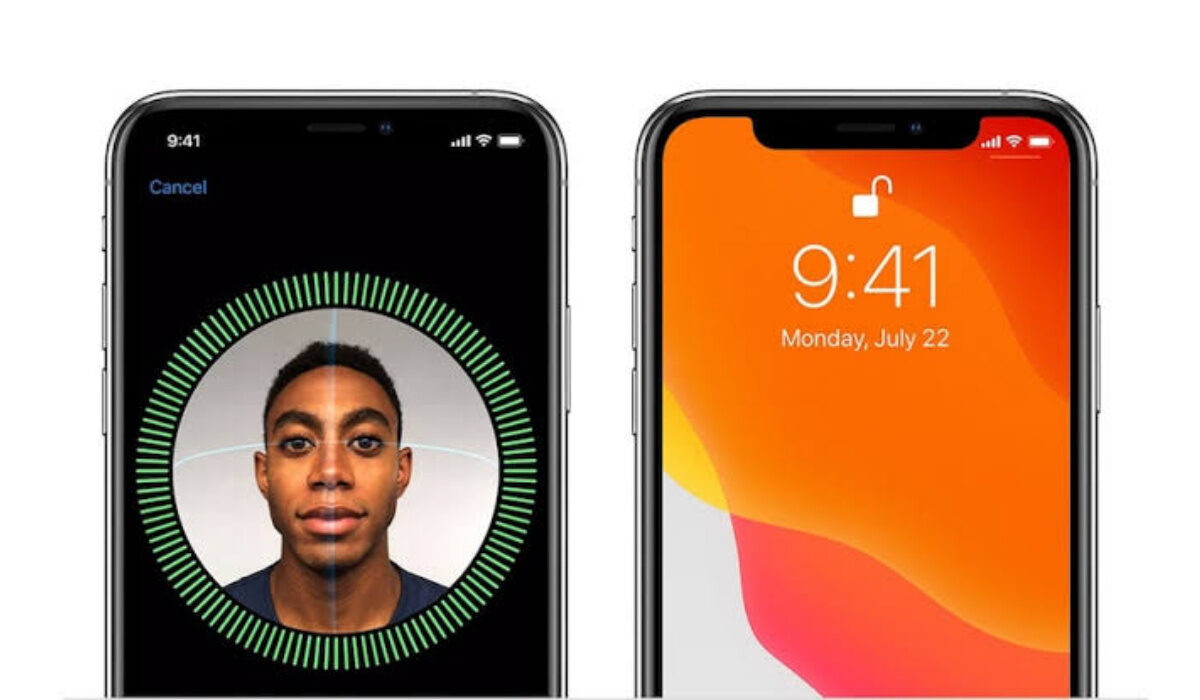
In this guide, we’ll walk you through how to set up two-factor authentication for Apple ID accounts.
How Can You Set Up Two-Factor Authentication for Apple ID accounts?
It’s possible to set up two-factor authentication for Apple ID accounts on your iPhone, iPad or Mac device. We’ve described the steps to follow below.
Setting Up Two-Factor Authentication for Apple ID accounts on iPhones and iPads
You won’t need to download any third-party apps to set up two-factor authentication for Apple ID accounts if you have an iPhone or iPad. Apple has a built-in authenticator to help secure websites or apps that support the feature. Here’s how to do it.
Step 1: Go to Settings and enable two-factor authentication
Follow these steps if you have iOS 10.3 or later:
● Open the Settings app.
● At the top, tap [your name] or your Apple ID profile as you’ll see on devices running iOS 14.5 or later. Make sure you’re logged in to the account that you want to secure with two-factor authentication.
● Select Password & Security .
● Locate the Two-Factor Authentication setting and enable it.
● Press Continue .
If you’re using iOS 10.2 or earlier, follow these steps:
● Navigate to Settings > iCloud .
● Tap your Apple ID and then select Password & Security .
● Turn on two-factor authentication by tapping the button.
● Press the Continue button.
You may be asked to provide answers to your Apple ID security questions.
Step 2: Enter and confirm your reliable phone number
● When you sign in, enter the phone number with which you want to receive verification codes. You can receive the codes via text message or automated phone call.
● When you click on the Next button, Apple will send a verification code to the specified phone number.
● You’ll receive a text message or call, and the next screen will prompt you to enter the six-digit verification code.
● Tap “ Didn’t get a verification code? ” to send or resend a verification code.
That’s all! It’s pretty easy to set up two-factor authentication for Apple ID accounts on your iPhone or iPad through the steps outlined above.
You will only be asked for a verification code again on your iPhone if you sign out completely, erase your iPhone, sign in to your Apple ID account page in a web browser, or change your Apple ID password for security reasons.
Setting Up Two-Factor Authentication for Apple ID Accounts on Mac
The process of setting up two-factor authentication for Apple ID accounts on a Mac is nearly identical to setting it up on an iPhone or iPad. Here are the steps to follow if your Mac runs macOS Big Sur 11.3.1.
● Navigate to System Preferences .
● Click on Apple ID in your profile at the top.
● It should launch the Apple ID pane. Click Password & Security in the left column.
● Locate the Two-Factor Authentication setting , then enable it
● You may be asked to confirm your identity by answering security questions.
● Enter a phone number to receive verification codes and select whether you want text messages or phone calls.
● To complete the process, enter the code sent to you immediately.
If, on the other hand, your Mac runs macOS Mojave or an earlier operating system, follow these steps to set up two-factor authentication for Apple ID accounts:
● Navigate to System Preferences .
● Select iCloud .
● Press the Account Details button and, if prompted, sign in.
● Click the Turn on two-factor authentication button on the Security tab . Read the message and then press the Continue button.
● Answer your security questions to verify your identity.
● Enter a phone number to receive verification codes and select whether you want text messages or phone calls.
● To finish, enter the code that was sent to you right away.
Please note that you should add more than one trusted phone number in case you lose access to your primary trusted phone number.
In summary , use the instructions in this guide to set up two-factor authentication for your Apple ID account on your iPhone, iPad or Mac.
Author:Joan Agie
Add MobilityArena as a preferred source on Google
PDFs present documents in an orderly manner, but a notable downside is that they can be challenging to edit. As such, when you want to edit a PDF, it’s common practice to convert it first.
Truly, there are numerous tools available to help convert PDF files to Word documents. However, why download apps you’re not even sure will work when Google Drive is a much better solution?
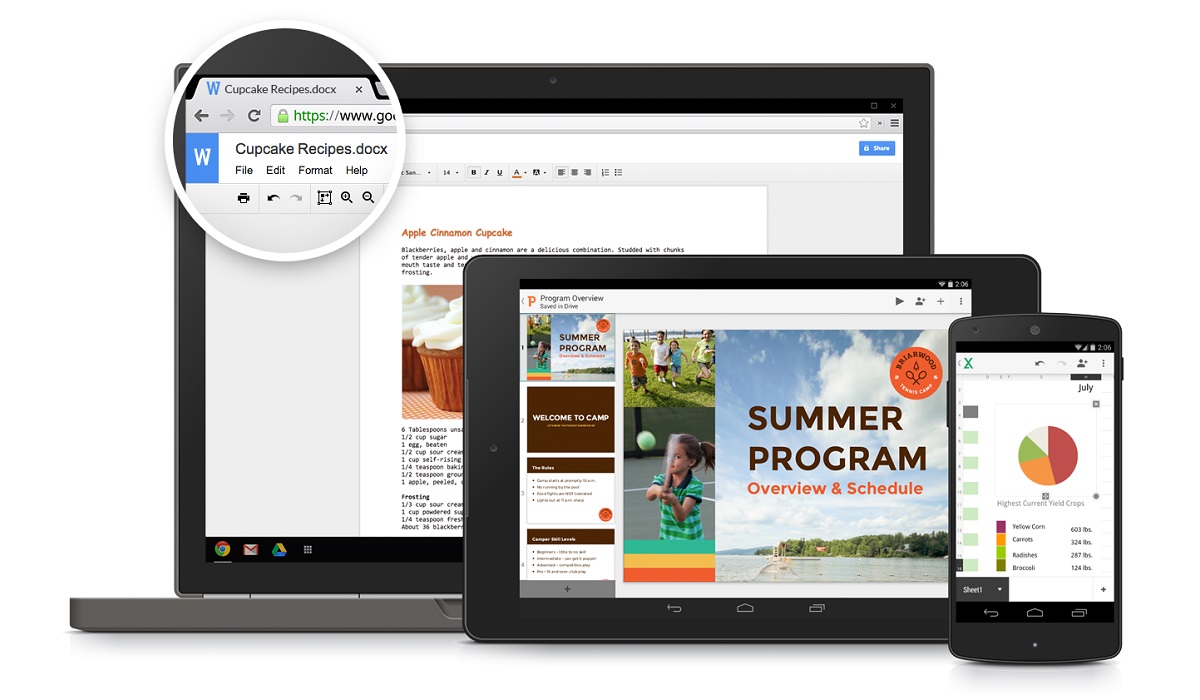
Anyone can easily convert PDF files to Word using Google Drive. This way, there would be no need for converter apps or websites. If you don’t know the steps involved, keep reading this guide to learn how to convert PDF files to Word using Google Drive.
How Can I Convert PDF Files to Word Using Google Drive?
It’s pretty easy to convert PDF files to Word with Google Drive, as long as you’re following the right steps. Note though that to convert PDF files to Word using Google Drive, you’d first need to convert the PDF file into a Google Doc before downloading it in a Word document.
Your conversion might be quicker if you convert your PDF into a Google Doc without keeping the document’s original formatting because if you transfer the original formatting, the conversion may take longer to complete. Below are the instructions you need to get it done:
Step 1: Save the PDF file
First, the PDF document you want to convert should be saved on your computer’s hard drive. To save a PDF, click the “ Save ” button located at the top-right corner of the PDF document.
When saving the file, ensure that to name it in a way that makes it easy for you to locate when you’re uploading it to your Google Drive account.
Step 2: Sign in to your Google Account
Next, log into your Google Drive account; you’ll need to do this before you start converting the PDF file to Word. You’ll be able to execute the conversion through your account, and you also get a location to save the converted file once you’re done.
Step 3: Upload the PDF file
Upload the PDF file to your Drive account after you’ve logged into your account. To do this, choose the “ New folder ” tab. After that, select the “ Upload files ” button.
Next, select the option to upload a document from your PC afterward. Look for the PDF file in question, then click on it to upload it to Google Drive.
Step 4: Open the file with Google Docs
Right-click the file once it has been uploaded to your Drive. You’ll then be given a drop-down selection of options. Choose “ Google Docs ” from the drop-down menu after clicking the “ Open with ” button.
When you click it, the process of converting the PDF file to Word with Google drive begins. Depending on the size of your document, this can take some time. For instance, very large documents could take several minutes. But after it’s done, you ought to have a text-editable version of your PDF.
Step 5: Check and Download the File
As soon as you’re done converting the PDF File to Word using Google Drive, it automatically downloads to your Google Docs account. It appears as an editable document in your Docs account. Verify your account to make sure the PDF is converted properly.
You could also choose to tidy up some of the document’s content. This method of converting PDFs to Word documents using Google Drive can sometimes produce odd outcomes, such as badly aligned texts or misspelled words. So if you prefer, you may manually tidy this up, or you can just leave it the way it is.
It’s okay to stop here if you prefer for the document to be a Google Doc rather than a Word document. You will need to download it, though, in order to use it offline. By selecting the desired file format under File > Download , you can download it easily. The .docx format is the one you should use if you intend to open the document with Microsoft Word.
In summary , the procedure to convert PDF files to Word using Google Drive is rather easy, you just need to make sure to follow the instructions correctly.
- Don’t miss our mobile phone reviews .
- Follow us on Instagram , Facebook , Twitter , and YouTube .
