Add MobilityArena as a preferred source on Google
Even the best of us run out of battery at crucial times, and it’s worse if you don’t have a charging cable or a portable charger handy. If you own a Samsung device though, you may already have a quick solution at hand. With the Wireless PowerShare feature, you can share a Samsung phone’s battery with another device wirelessly. This is a rather convenient way to keep devices charged on the go and a useful feature in urgent low-battery situations.
In this article, I’ll discuss how to share battery on Samsung with Wireless PowerShare. Whether you’re looking to charge a friend’s phone for an urgent call, your Galaxy Buds, or other accessories, this guide has got you covered.
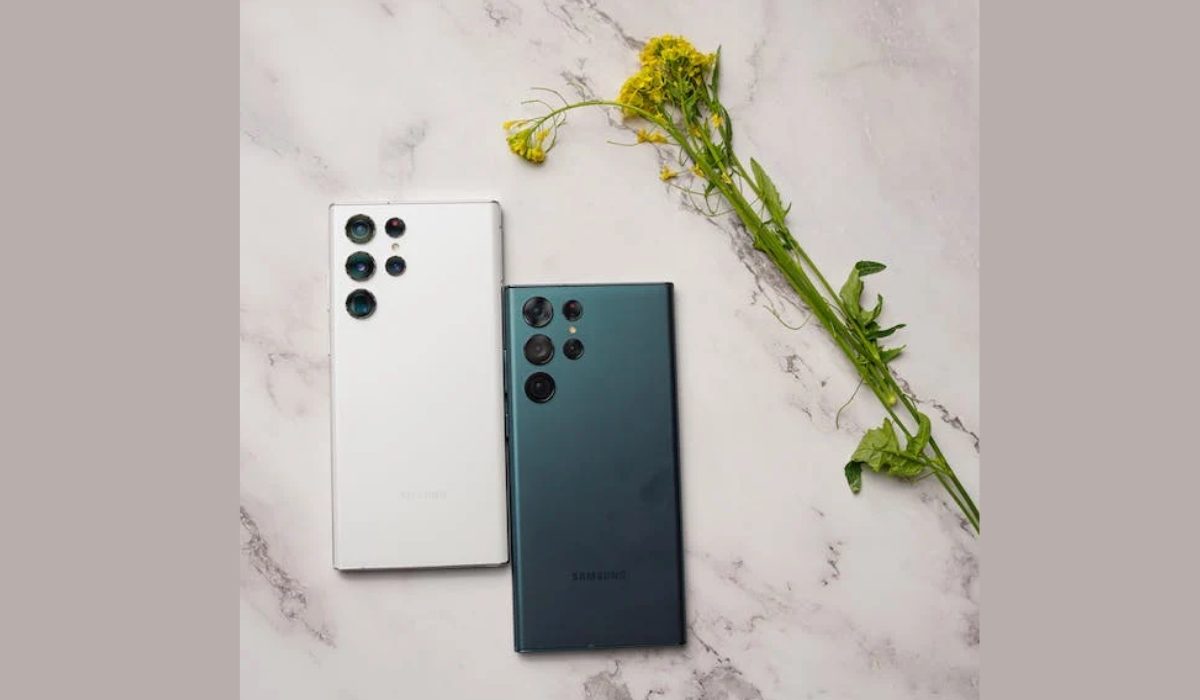
- What is Wireless PowerShare? Which Samsung Phones Support Wireless Sharing? How to Share Battery on Samsung With Wireless PowerShare Is Wireless PowerShare Safe to Use? What to Do If PowerShare Is Not Working
What is Wireless PowerShare?
Wireless PowerShare is a reverse-charging feature available on select Samsung devices that allows you to share the phone’s battery with other devices wirelessly. With this feature, you can charge other phones, earbuds, or even smartwatches that support Qi technology by simply placing them on the back of your Samsung device. It’s a convenient way to keep your devices charged on the go without needing a charging cable or a portable charger.
Here’s all you need to know about Wireless PowerShare, from how to use it to the devices that support the feature.
Which Samsung Phones Support Wireless Sharing?
Wireless PowerShare is available on all the major Samsung flagships released in the last few years. Some of the devices that support it include the following:
- Galaxy S10 series
- Galaxy Note10 series
- Galaxy S20 series and S20 FE
- Galaxy Z Flip/3 and Fold/2/3
- Galaxy Note20 series
- Galaxy S21 and S21 FE series, as well as the Galaxy S22 series.
Regardless of this list, it’s still a good idea to check your device’s specifications to see if it supports Wireless PowerShare.
How to Share Battery on SamsungWith Wireless PowerShare
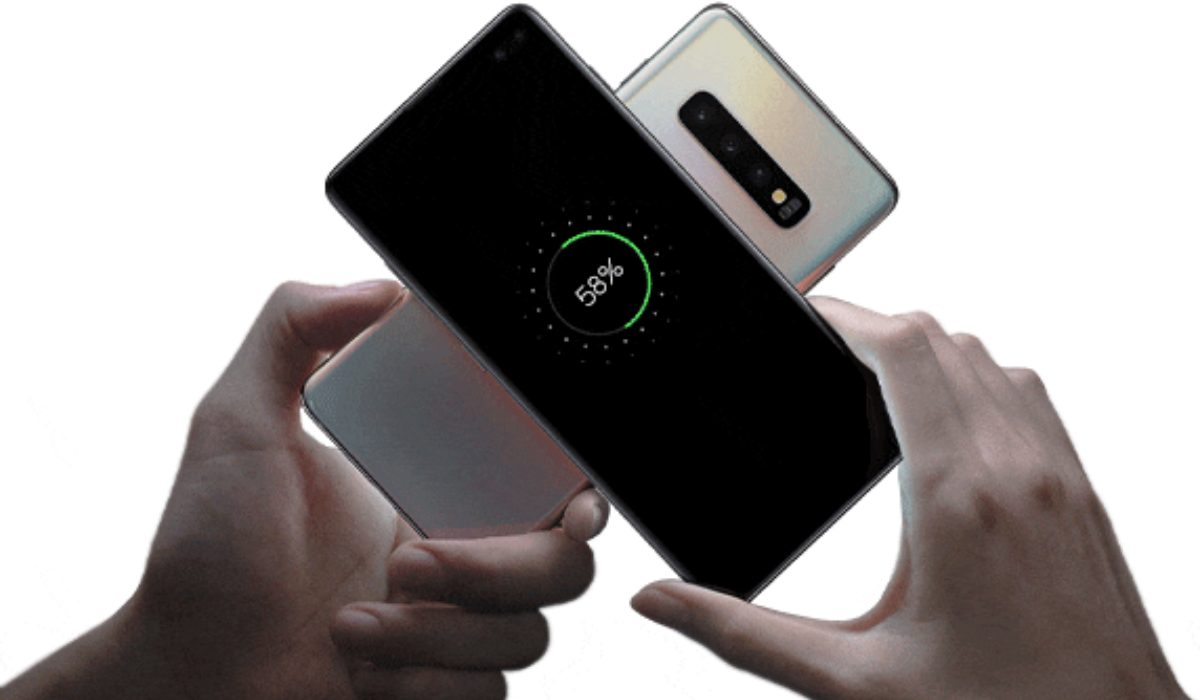
Using Wireless PowerShare to share your Samsung phone’s battery with other devices is easy and convenient. Here’s how to use it:
- First, open up your device’s Settings .
- Then, scroll down until you see the Battery and Device Care option and select it.
- From there, click on Battery .
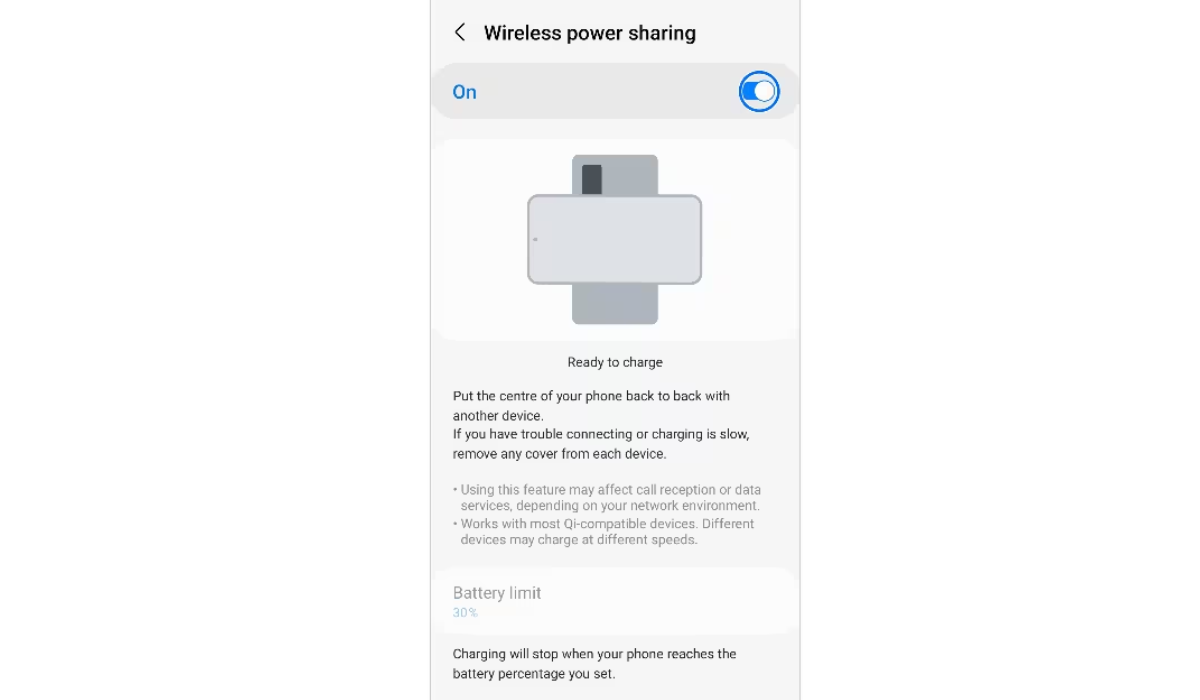
- Choose the Wireless Power Sharing option and enable it.
- Carefully position the Galaxy phone on its face down. At this point, place the Bluetooth accessory or the other smartphone you want to charge in the center of your Samsung device.
- It’s important to make sure that the charging coils of both devices align perfectly for the wireless power transfer process to function.
- If you run into any problems, try removing the case from both devices and aligning them again.
- Once everything is properly aligned, the charging process will start automatically.
Note that if the devices are not aligned properly, the charging process may not function as effectively as it should. As such, be sure to double-check the positions of both devices.
When sharing your Samsung’s battery, keep in mind that the battery loss on the Samsung won’t be proportional to the battery gain on the other device. What I mean is if, for instance, the Samsung device loses a 10% charge, it doesn’t mean that the other device will gain a 10% charge.
Also, reverse charging with the Wireless Powershare feature is not as fast as conventional wired charging, so I’d advise that you only use it as a last resort and there are no other options.
Is Wireless PowerShare Safe to Use?
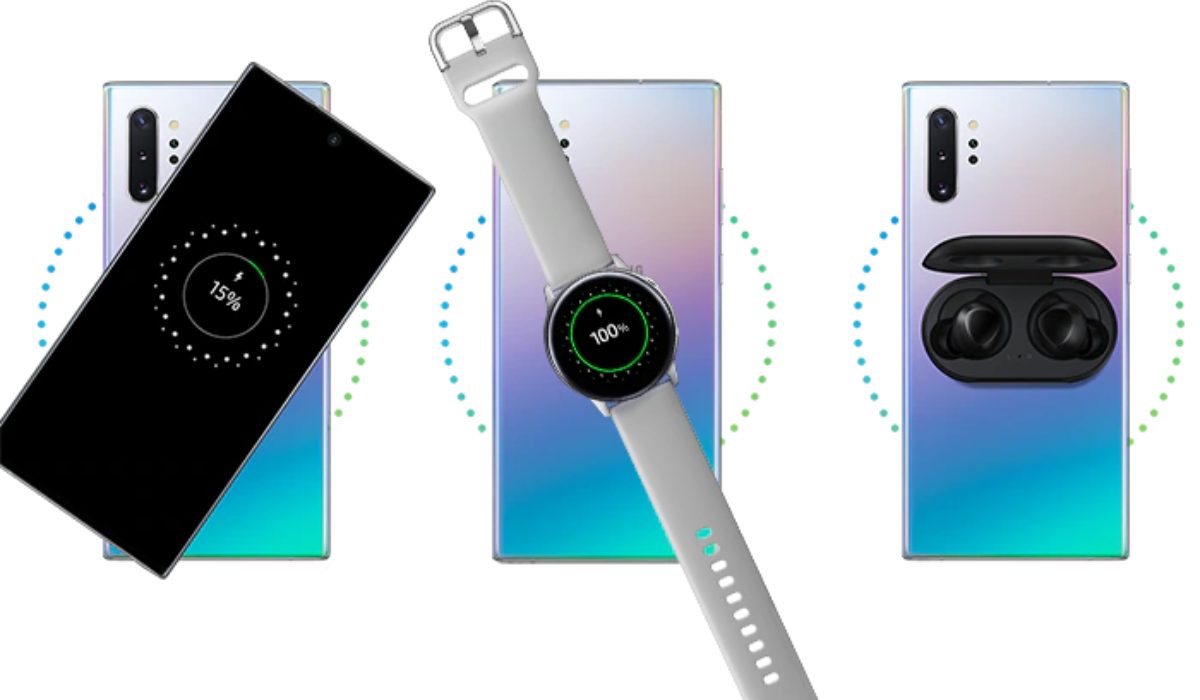
Yes, Wireless PowerShare is a safe feature, but there’s a caveat. The reverse-charging process generates some heat that could wear down a device’s battery, so it’s best to avoid using Wireless Powershare for extended periods. Also, the excessive battery loss it generates means that it’s not practical for daily use to charge your smartwatch, wireless headphones, or phone.
However, using it once in a while to charge your earphones or watches while traveling or in an emergency shouldn’t cause any major issues.
What to Do If PowerShare Is Not Working
If you’re having trouble getting Wireless PowerShare to work, there are a few things you can try.
- Check device compatibility: Samsung wearables and all WPC Qi-certified smartphones support Wireless PowerShare. Ensure that the feature is compatible with both devices by checking it.
- Make sure you enable Wireless PowerShare on your Samsung device
- Check the battery level: Wireless PowerShare requires a sufficiently charged phone to function. Wireless PowerShare won’t activate if the battery life of the phone sharing power is at or below 30% and it is not plugged in.
- Remove the case or cover: The Wireless PowerShare features may not function properly depending on the accessory or cover you are using on your smartphone. Before using this feature, it is advised to take off any accessories and protective phone cases.
- Before using Wireless PowerShare, make sure that the backs of the devices are clear of moisture, dust, and other impurities.
- Reposition the devices by setting them on a flat surface with lots of space.
- The distance between the inbuilt charging coils in the devices affects how effectively wireless charging works. Until the devices are correctly connected, you might need to move them around.
- You can also try restarting both devices to see if that resolves the issue.
If none of these steps work, it’s possible that there’s a problem with one of the devices or with the Wireless PowerShare feature itself. In that case, you may need to contact Samsung customer support for further assistance.
So, whether you’re entirely new to the Wireless PowerShare feature or just looking to get the most out of it, this guide has everything you need to know. If you need more useful Samsung tips, make sure to check out this category .
Author:Joan Agie
Add MobilityArena as a preferred source on Google
Apple’s App Store is home to millions of apps that are designed to work exclusively on iOS devices. However, as an Android user, you might be wondering if it’s possible to download your favorite Apple apps on your device. The good news is that there are ways to do this.
In this article, I’ll show you how to download Apple iOS apps on Android. There are several ways to achieve this, so let’s dive in and explore different ways to get iOS apps on your Android device.
- How Can I Download iOS Apps on Android? Use A Browser-based App to Run iOS Apps Use the iEMU Emulator App for Android Run iOS Apps on Android Using Cider
How Can I Download iOS Apps on Android?
Most of us either use iOS or Android devices. However, you can find yourself in a situation where you only have an Android device but would like to use a specific iOS program. It’s possible to use iOS apps on an Android device, though it’s not as simple as it sounds. The majority of emulators aren’t actively supported, and many iOS apps may not function properly on Android even if you do manage to get them. Nonetheless, below are different ways to download iOS apps on your Android device.
Use A Browser-based App to Run iOS Apps
Using Appetize.io in your phone’s browser is one of the simplest ways to run an iOS app on an Android device without installing any additional software. This technique makes use of the browser-based program Appetize.io. This configuration allows you to use iOS apps through a web browser rather than actually allowing you to install iOS apps on an Android device.
iOS app developers typically use the Appetize.io tool to test their applications when they can’t use an iOS device directly. However, with a bit of expertise, you can tweak its function to access iOS apps directly from your Android device’s browser.
You should note, though, that in order to use Appetize.io to launch an iOS app, you must have a.zip or.tar.gz file containing the app bundle. They can be found on the APK Pure website.
This is how you can use this browser to run iOS apps:
- First, launch your Android device’s web browser and then open the Appetize.io website.
- Next, find the upload button by clicking on the menu button in the top right corner.
- Go to the dashboard option to view your application after uploading the app bundle for the iOS file you wish to launch.
- You should now be able to use the Appetize.io web tool’s virtual iOS device to run your iOS application.
One of the coolest features of this online tool is that it’s not just for iOS apps – you can also use it to run Android apps by simply uploading the .APK file. As long as you have a reliable internet connection, you’re good to go with Appetize.io!
Also, you don’t have to worry about whether it will work with your Android device’s version. However, it’s worth noting that the emulator may not always offer immediate support for the latest iOS apps.
Use the iEMU Emulator App for Android
iEMU will no doubt be the first option for many people when seeking the most popular iOS emulators for Android. You can install iOS apps and games easily with this emulator, and it will give you a virtual iOS experience on your Android device. The best part is that real apps can be launched on the emulator even if it takes up a lot of storage space to install it. Running games is, of course, a little stressful, and, to be quite honest, many iOS games may not work at all.
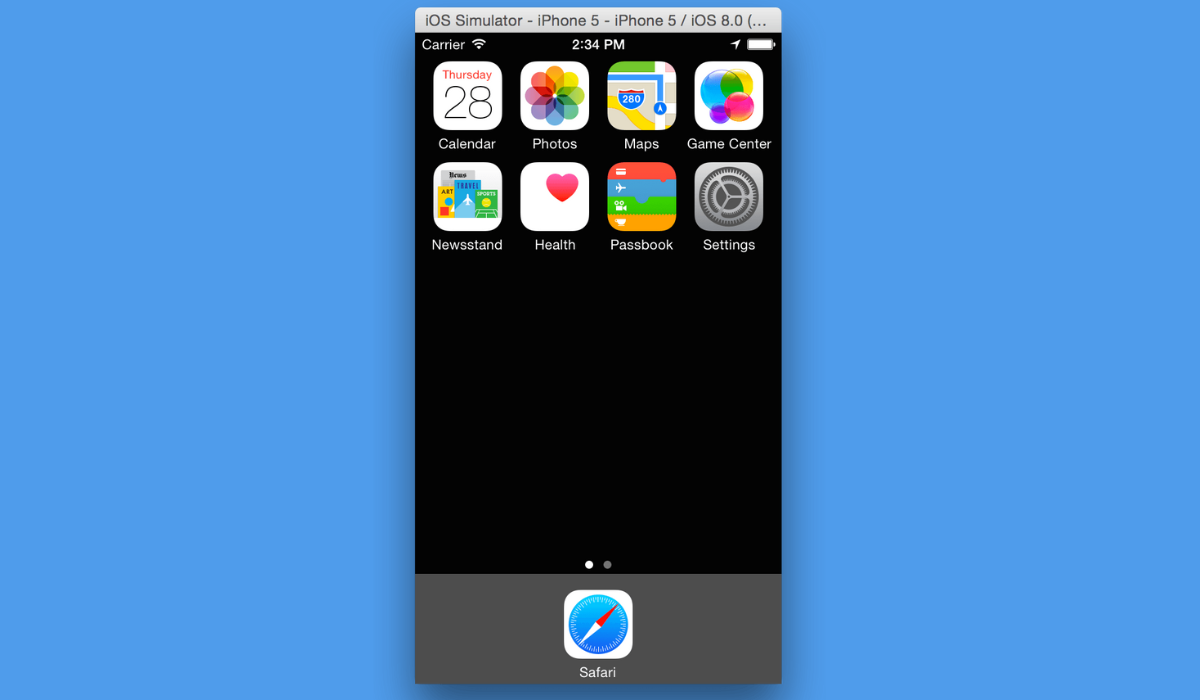
One of the most exciting things about this emulator is that it’s open source and constantly being improved by a team of talented developers. Of course, with any emulation software, there are bound to be some bugs, but overall it’s a fantastic tool that you can install on any Android device to start using iOS apps. Here’s how you can get started with this emulator to get iOS apps on Android devices:
- First, download the APK file .
- After the download is complete, tap the download notification or use a file explorer to locate it.
- When you tap on the APK file, you’ll receive a notification that it’s not secure to install. Don’t worry – you can easily bypass this by navigating to your System Settings > Security and enabling the option to “ Allow the Device to Install Applications from Unknown Sources .”
- After you’ve done that, the APK will install iEMU on your Android device in just a few seconds.
- Once it’s installed, you can find the emulator app in your app drawer under the name “ Padiod .”
- All that’s left to do is launch the app and start using iOS apps on your Android device.
Run iOS Apps on Android Using Cider
Cider, another iOS emulator program, is one of the simplest ways to run iOS apps on Android devices. This program emulates an iOS application on an Android device.
Although the app isn’t available on the Google Play Store, you’ll have to download its APK and sideload it. To install such apps, you must permit app installation from unknown sources on your Android phone. Simply go to Settings > Security and enable “ Allow the Device to Install Applications from Unknown Sources ” on most phones.
Once that is done, go to the steps below to install and use the Cider app:
- Get the Cider APK file
- On your Android smartphone, use the file explorer app to find the newly downloaded APK file, or just tap the notification in your Notifications menu.
- Then click the “ Install ” button, and the app should install in a few seconds.
- To access iOS apps from this point, locate the IOS EMULATOR app in the app gallery and click on it. You’ll have access to the iOS app you need.
Keep the following in mind before using any of the above methods:
- Make sure your device has enough storage for the process to run smoothly.
- Disable any Android launchers on your device to ensure a unique iOS experience.
- As with any significant changes you make to your device, I should caution you that you do so at your own risk.
To sum up , Apple apps are unfortunately not available for direct download and use on Android devices. However, you can use third-party apps like Cider or iEMU or browser-based tools like Appetize.io to run iOS apps on Android devices. Keep in mind that these options are still in the advanced research stage and may not work on all Android devices. If you need other useful Android tips, check out this category .
