Add MobilityArena as a preferred source on Google
Sharing your location can come in handy in many situations, such as when meeting up with someone new or trying to locate an unfamiliar place. Fortunately, sharing your location on Android is easy and can be done in just a few steps.
In this article, I’ll show you how to share location on Android. Whether you’re an Android expert or a beginner, you can follow along and master this essential feature in no time. So, let’s get started!
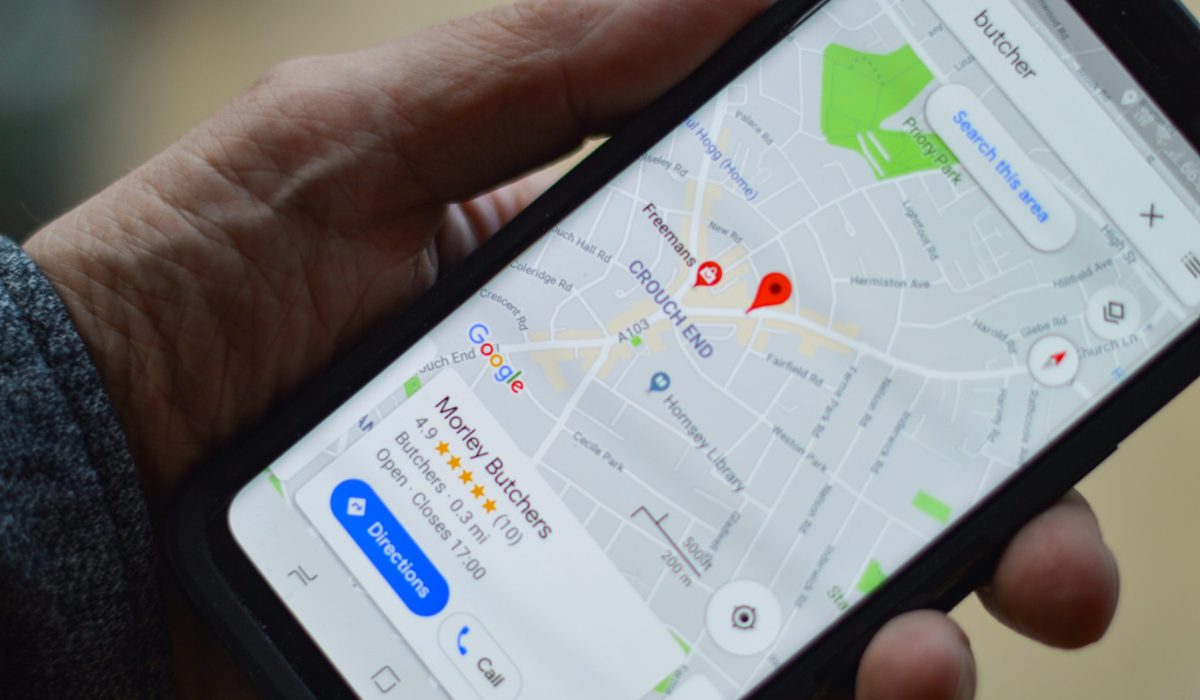
How Do I Share My Location on Android?
Have you ever needed to send your location to a friend or family member, but didn’t know how? The steps below will guide you through sharing your location on Android, so you can stay connected with your loved ones and stay safe.
How to Share Location on Google Maps Android
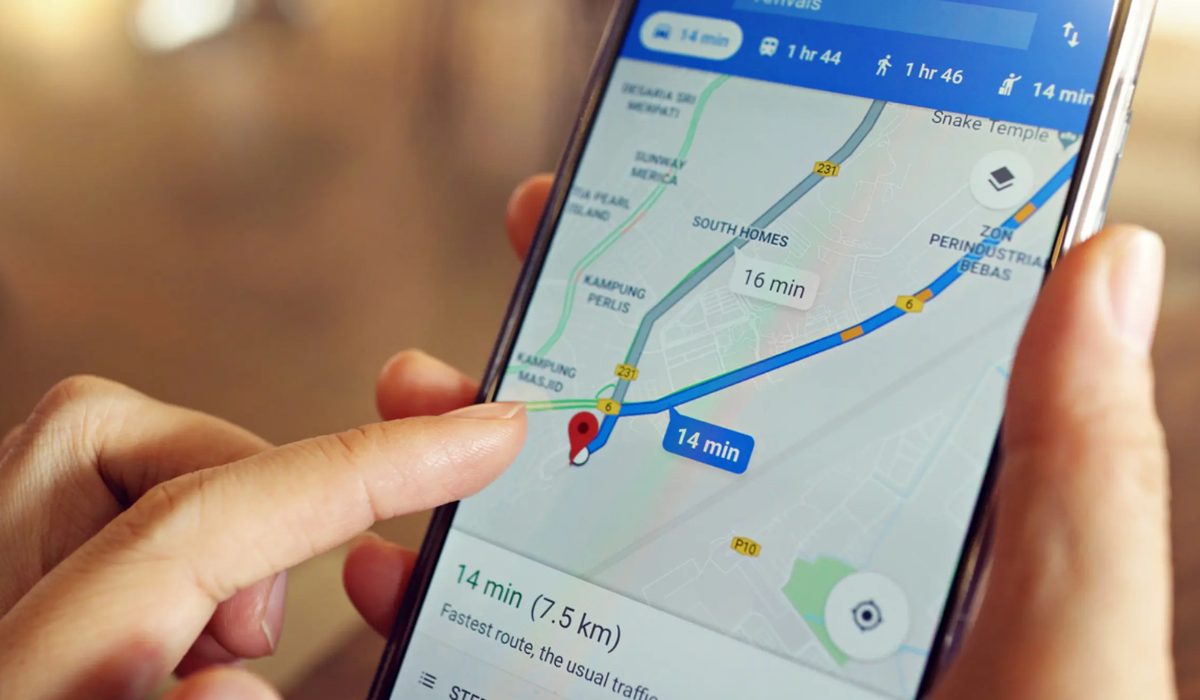
Google Maps provides a feature that lets you share your Android device’s location with your contacts. Whether or not your contact has a Google account, you can share your location with any of them. However, note that how to turn on location sharing via Google Maps varies.
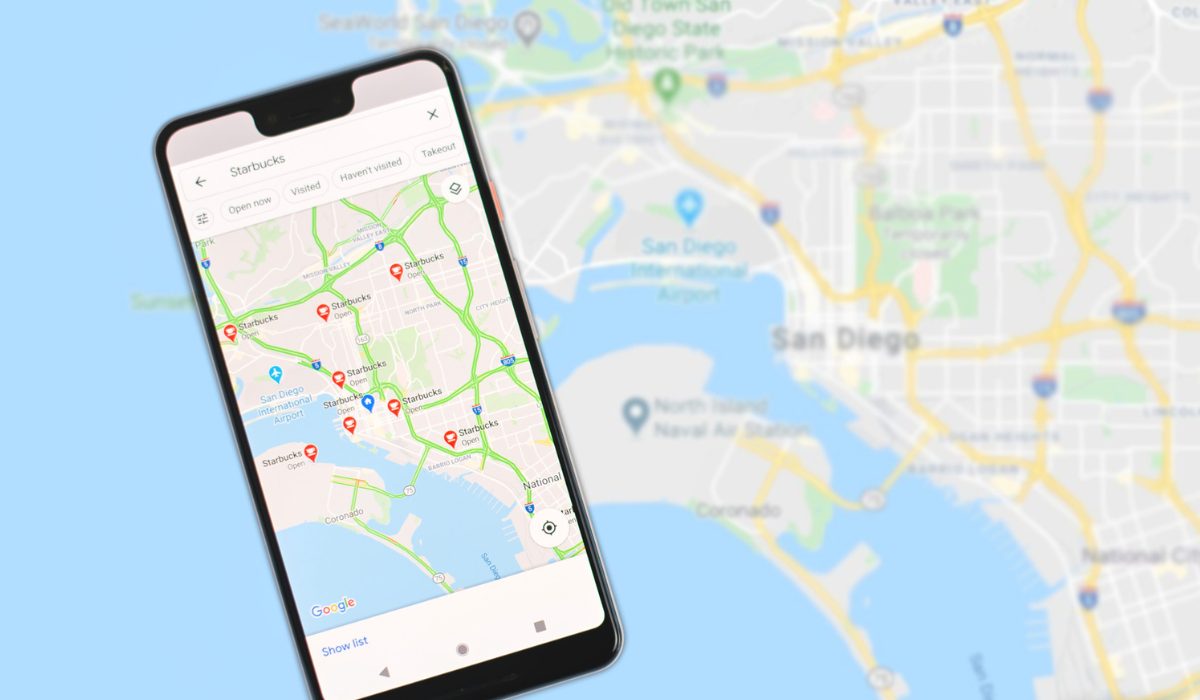
If your contact has a Google account:
- Launch Google Maps on your Android device. Log in to your Google account if you haven’t already.
- To open the menu, tap the icon with three vertical lines in the upper-left corner of the screen.
- Then select Location sharing .
- Click Get started .
- Choose the duration of time for which you wish to share your location. By selecting the + and – buttons, you can choose a specified duration, or you can select Until you turn this off to enable location sharing indefinitely.
- To share your location with a contact, tap on the contact and then Share .
Your contact can open their Google Maps app and locate where you are on the map. If you want to stop sharing your location, go back to the Location Sharing menu and click on the X icon next to the person you shared your location with.
If your contact does not have a Google account:
In a case where your contact doesn’t have a Google account, they won’t be visible among your contacts on Google Maps. In this scenario, follow the steps below:
- Scroll through your contacts until you find the More icon. Tap it.
- Click on Copy to clipboard .
- Tap the paperclip icon next to your profile’s avatar.
- Click on the link that shows up in the center of the screen. This will copy the link, allowing you to paste it anywhere.
- You can share the link with your contact through email or any messaging app of your preference. Once the recipient opens the link, it will direct them to Google Maps where they can view your location. This method is also helpful if you want to notify someone that you’ve shared your location with them.
To stop sharing your location, go to Location Sharing from the Menu and click on the X icon next to the contact(s) with whom you want to stop sharing your location.
How to Share Location on Android using Google Messages
You can also share your location with anyone who uses an Android or iPhone using Google Messages , including your current location and any other location. However, the downside is that Google Messages does not allow you to send your real-time location. For that, you need to use Google Maps, which I discussed above.
- Launch the Google Messages app and choose the contact to which you wish to send the location.
- To open the menu, tap on the Plus icon in the bottom left corner.
- Choose the Location option here.
- Your present location will be noted on the following page. To send it, simply click on the Send icon next to it. (Keep in mind that you are only sharing your current location and not a live one).
- If you’d rather send a different location, click the search icon in the upper right corner, input the location name, and then select the location you want to send.
- To send the selected location, click the Send icon.
You can also send the encrypted location if both you and the receiver have enabled RCS. Your location will also be sent as a link that the recipient can open in the Google Maps app.
How to Share Location on Android Via WhatsApp
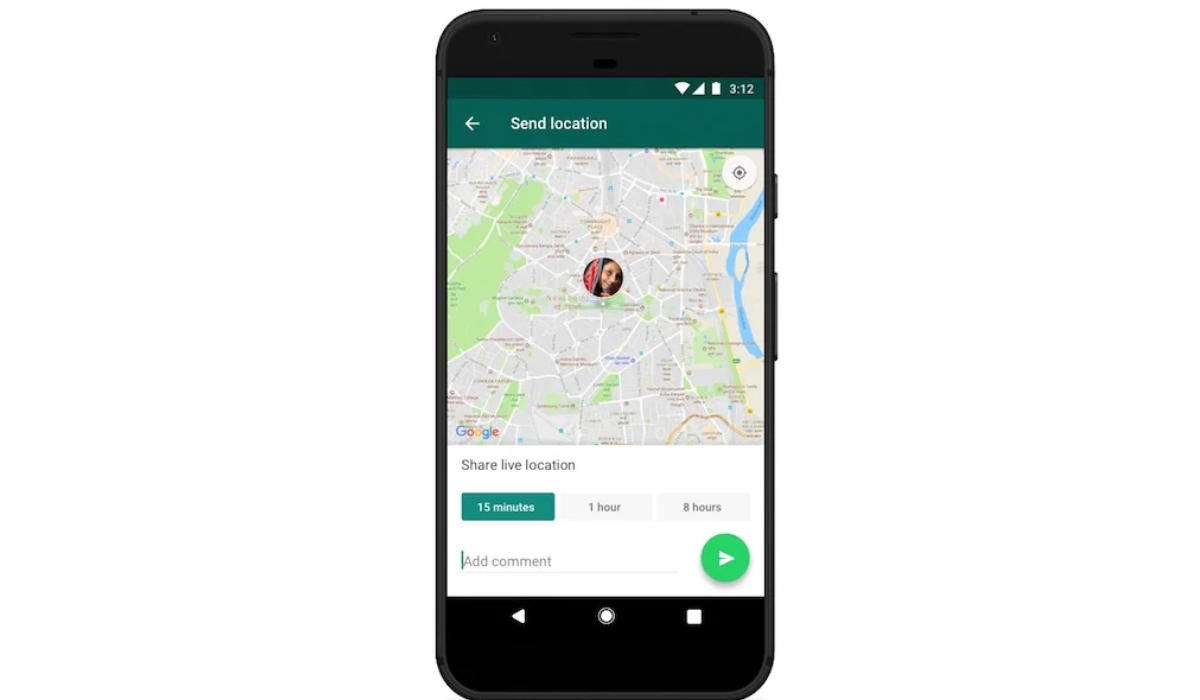
WhatsApp has more features than Google Messages and is used by more people worldwide. You can share both current and live locations on WhatsApp. The other person can also track your current location directly in WhatsApp rather than viewing the link in another map application. Follow the steps below to share your location on Android through the WhatsApp app:
- Start WhatsApp and choose the contact that you want to send the location to.
- To open the menu, click on the paper clip icon in the message box.
- Here, select Location .
- Simply tap on the Send my current location option to send your current location.
- To send any other location, press the search icon in the upper right corner, type the name/address, and then choose the location to send it immediately.
- On WhatsApp, you can also send a live location for a specific period of time. To do so, select the option to Share live location . Now, select the time period for which you wish to share your live location and press the Send icon to send it.
- To stop sharing live locations, click the Stop sharing option.
To conclude, knowing how to share your location on Android is a helpful function to inform your loved ones of where you are at any time. By following these simple steps above, you can easily share your location on Android and keep your loved ones updated on your whereabouts. In need of other useful Android tips? Check out this category .
Author:Joan Agie
Add MobilityArena as a preferred source on Google
Wireless charging has become increasingly popular in recent years, and Samsung has been at the forefront of this technology. With the release of their latest smartphones, Samsung has made wireless charging more accessible and convenient than ever before. However, finding the right wireless charger for your Samsung device can prove daunting, since there are several options available on the market.
In this article, I’ve compiled a list of the best wireless chargers for Samsung devices, based on factors like charging speed, compatibility, and design. Read on to discover the best wireless chargers to maintain optimum charge for your Samsung device.
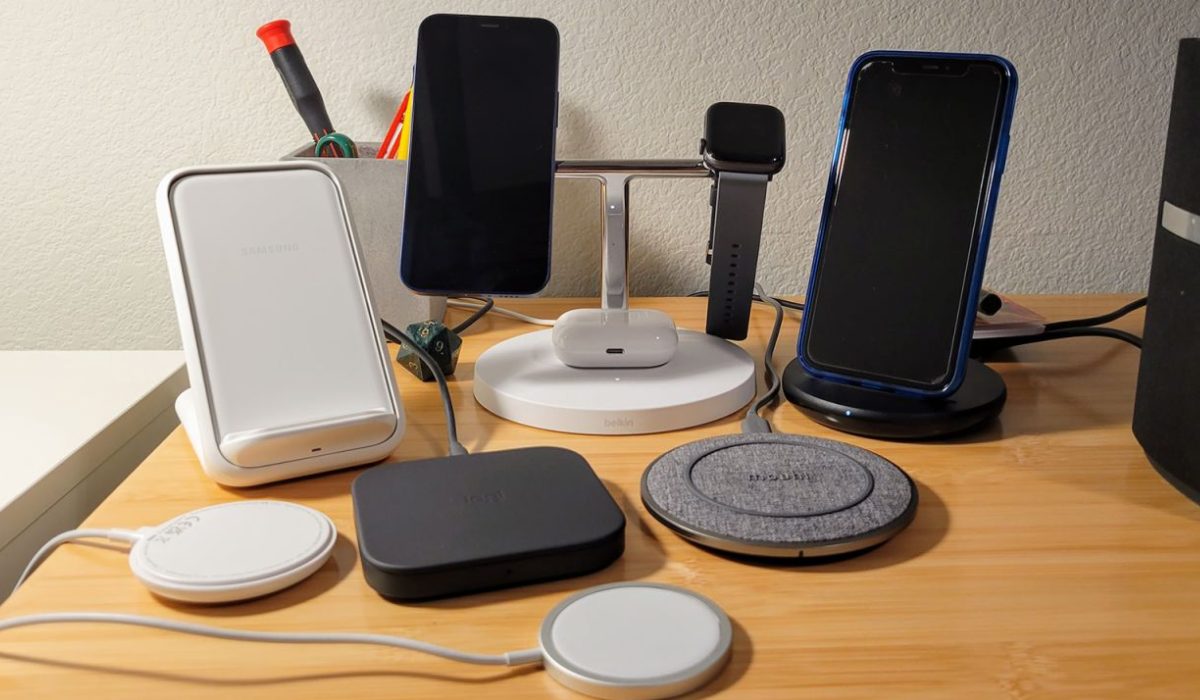
What Are the Best Wireless Chargers for Samsung?
Wireless charging is a convenient and hassle-free way to charge your Samsung phone. With the right wireless charger, you can easily recharge your phone’s battery without having to fumble with cables and connectors. Here are some of the best wireless chargers for Samsung, including options for both home and on-the-go charging.
Samsung Fast Charge Wireless
The Samsung Fast Charge Wireless Charging Stand is the best Samsung wireless charging accessory overall because it combines speedy charging with convenience and efficiency. It uses a tabletop stand with both micro USB and wire connectivity, as well as a wireless charging pad.
The Samsung S22 Ultra wireless charger is a lightweight, adaptable option with a 0.8-ounce weight and is compatible with various Samsung Galaxy phones like the Note 5 and S6 Edge+. It has passed a lab test to be Qi-certified, ensuring compliance with global standards.
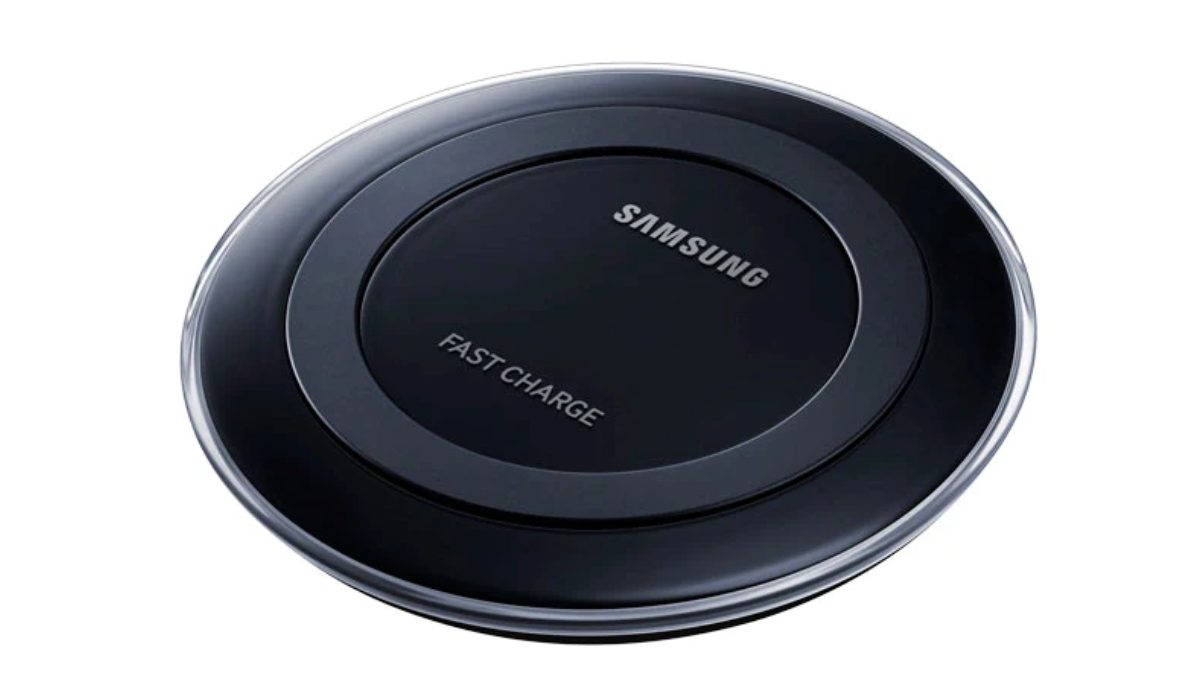
The stand allows for wireless charging without a cable, with Samsung’s Fast Charge technology ensuring 1.4 times faster charging than standard wire chargers. Although some models have slower charging times and cheaper alternatives, it is a great choice for those seeking the best wireless charger for Samsung S22 Ultra devices.
Anker 313 Wireless Charging Stand
The Anker 313 Wireless Charging Stand is another great wireless charger for your Samsung S22 Ultra. If you want to power your Samsung device while still using its UI in both landscape and portrait positions, the Anker 313 Wireless Charging Stand makes this possible while still guaranteeing quick charging.
The Anker 313 will charge through any rubber, plastic, or TPU-lined case as long as it is 5mm thick or less, thanks to PowerWave technology. Note, however, that Anker cautions against magnetic or metal case attachments since they interfere with charging.
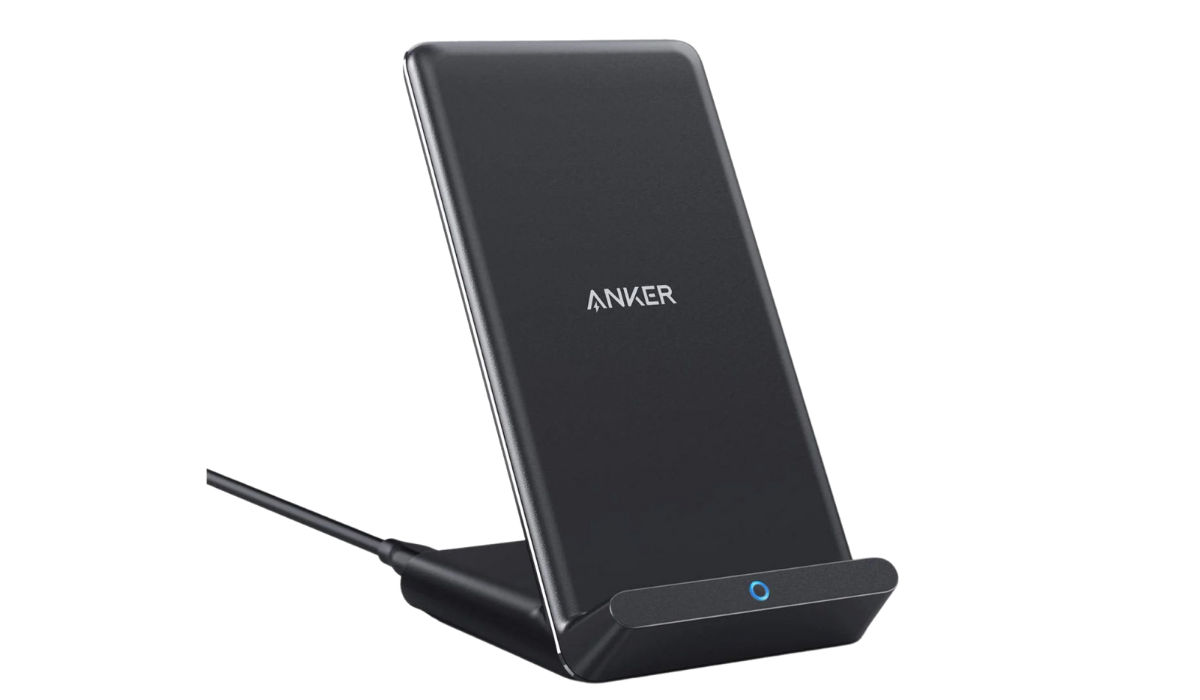
This charger can charge your device at 10 watts for extra-fast charging and is compatible with several Samsung Galaxy and Google Pixel phones in addition. However, it only works with cases that are less than 5 mm thick and is incompatible with USB-C wall chargers. With micro USB connectivity, no AC adapter is required.
Yootech Wireless Charger
The Yootech Wireless Charger is a low-cost wireless charging adapter for Samsung that provides 10-watt charging for fast-charging phones like the Galaxy S22 Ultra and Galaxy Note. It is compatible with both iPhones and Samsung phones and it offers simplicity via magnetic connection.
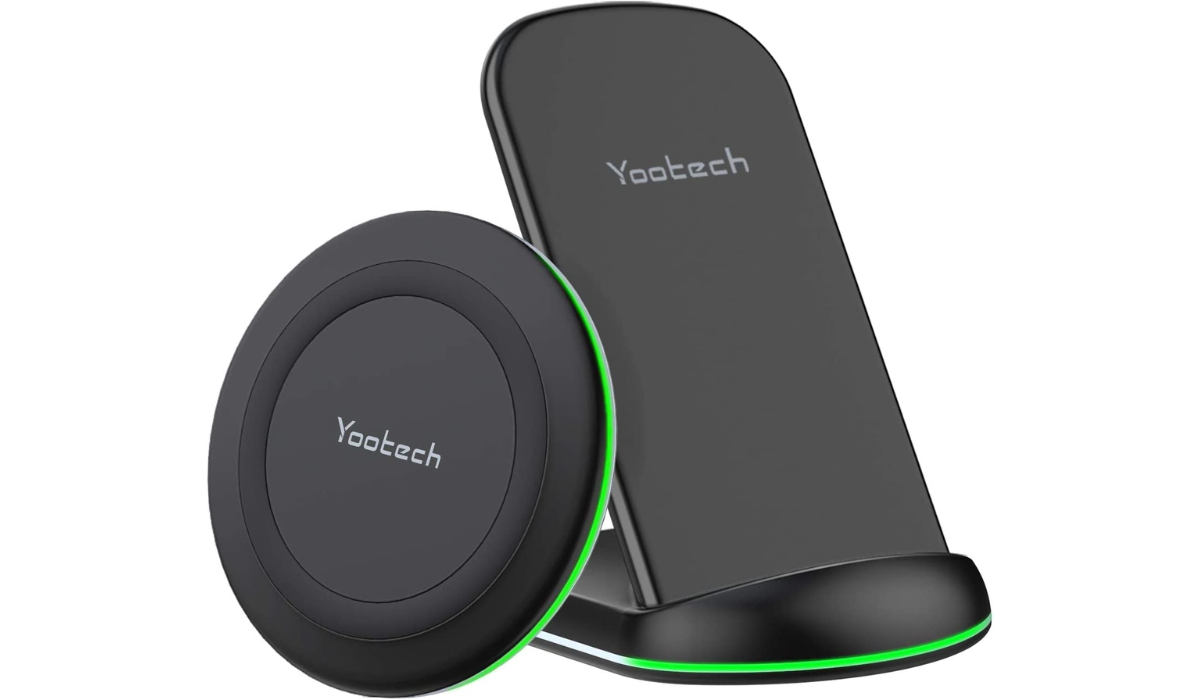
The Yootech wireless charger also has Intelligent Protect Technology for superior surge protection and short-circuits prevention, making it an excellent value for anyone searching for a trustworthy wireless charging solution.
Samsung Wireless Charger Trio
The Samsung Wireless Charger Trio is one of the best wireless charging stations for Samsung devices. This charger supports up to three devices, including the Samsung Galaxy Watch and Galaxy earbuds, with six separate coils and cutouts for easy alignment.
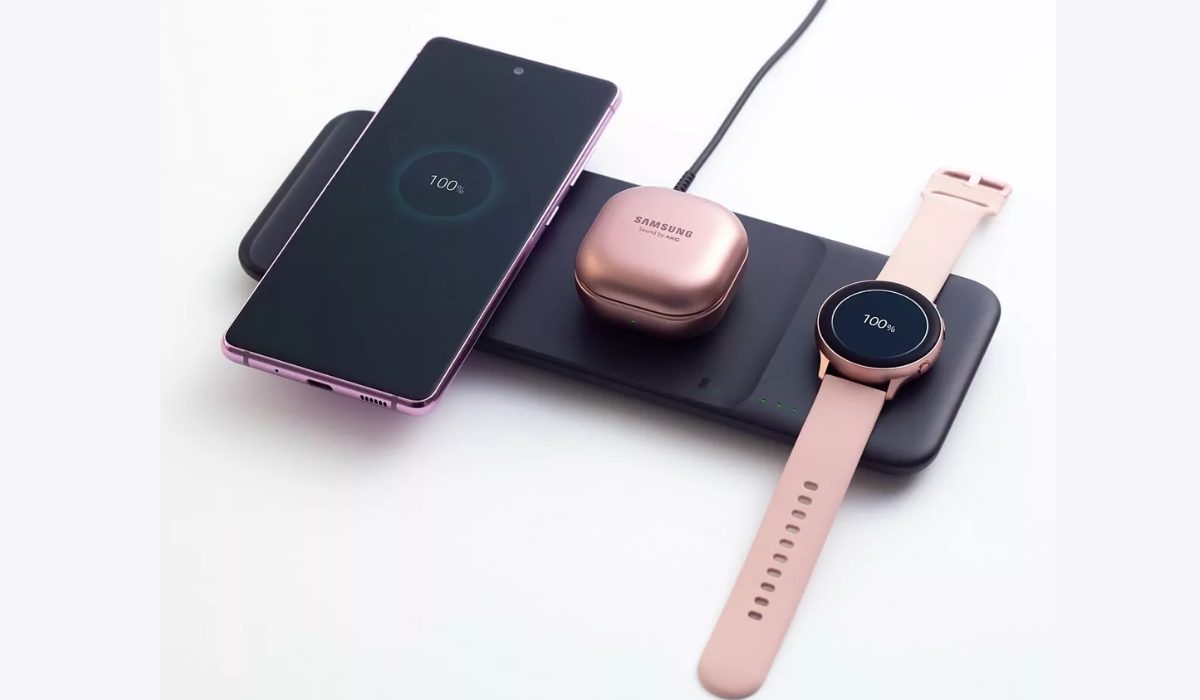
It has a 9W power output, a 25W power adaptor, and Qi charging technology for secure, quick charging. Additional features include USB connectivity and USB-C charging.
iOttie iON Wireless Duo 10W Stand
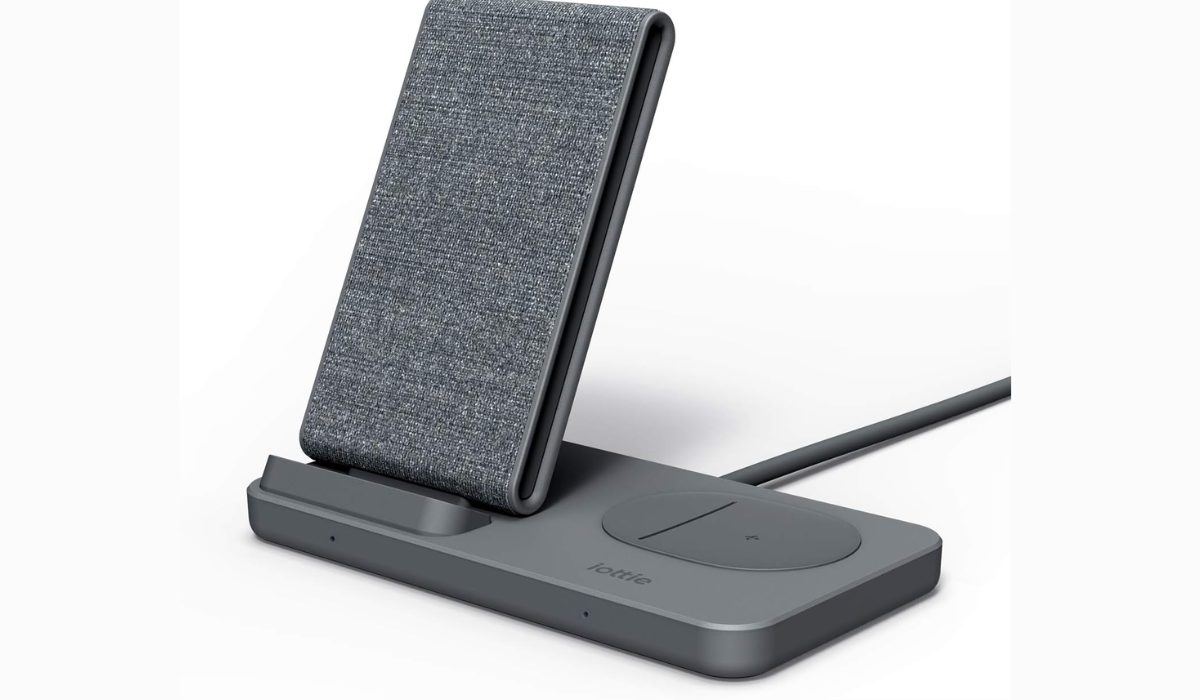
The iOttie iON stand is the best S22 third-party wireless charger. It’s designed as a pad-stand that can charge two devices at 10W each at the same time. It also comes with a barrel-DC adapter, so you won’t have to worry about finding the right adapter to plug it in. However, keep in mind that there is a dark gray variant with different features. So, if you want to use it with your S22, get the light gray version.
To sum up, even though there are several great wireless chargers for Samsung phones, using the suggestions in this guide will make it simpler to pick the best one. With the right wireless charger, you can easily charge your Samsung phone without having to deal with cables and connectors. Also, make sure to check out the best Samsung devices you can purchase in 2023.
