Add MobilityArena as a preferred source on Google
Have you ever picked up your laptop so eager to dive into work only to be delayed by a slow booting process? If you’ve experienced this, you’ll be able to testify to how frustrating this can get sometimes. This is especially true if you’re in a hurry to get started on work or simply need to access files quickly on your device.
Over time, all computers tend to boot up more slowly, but you should still be able to enjoy fast booting on Windows devices. This is why we’ve compiled a few simple strategies and changes to help you speed up the booting process for your Windows device.
Activate Fast Startup Mode on Windows
Fast Startup is a Windows feature that performs exactly what its name implies, so it makes sense to start here. In essence, this mode sits somewhere in between hibernation and shutting off. Although it won’t preserve your open programs as hibernation does, the underlying OS will enter hibernation mode to help you start up more quickly and with a clean state.
To activate Fast start up on your Windows device:
- Locate Power Options in the Control Panel of your device, click on it, then select Choose what the power buttons do .
- Next, you’ll see Turn on fast startup with a tick next to it in the list of choices. To activate the Fast Startup function if it is grayed out, first, select the option to Change settings that are currently unavailable link at the top of the window. When you’re done, make sure to click on Save changes .
Upgrade to an SSD
Slow boot times can occasionally be caused by hardware issues. An older hard drive (HDD) loads Windows much more slowly than a newer, quicker solid-state drive (SSD). As such, an SSD upgrade will greatly accelerate Windows 10 or 11 boot speeds.
One of the main advantages of using an SSD over an HDD is the speed differential. You may easily replace your present computer’s hard disk with an SSD if you’re satisfied with the computer and would rather not change it. If it’s time for a new computer, however, you can simply get an SSD since the majority of more recent PCs and laptops already have them.
Apart from speeding up the booting process, 100% disk use in Windows is another performance issue that can be resolved by upgrading to an SSD. Stress-test your CPU after switching to an SSD to see how much faster your PC is.
Upgrade to Windows 10 or 11
Windows 7 and earlier versions are more likely to boot up more slowly than Windows 10 and Windows 11 devices. While speeding up the boot process in Windows 7 or Windows 8 will help you to an extent, upgrading to a more recent version of Windows, such as Windows 10 or 11, will improve your computer’s performance even further.
To upgrade to Windows 10 or 11:
- Make a backup of your data on an external device or cloud storage platform. Your hard disk can also be duplicated.
- Visit the Software Download page for Microsoft.
- To download and install Windows, select Windows 10 or Windows 11, then follow the on-screen directions.
A license for the Windows version you’re trying to install must already be on your device. If you require one, go to Microsoft’s Windows page and select the desired Windows OS from the drop-down option. Windows can be directly downloaded and installed from this page as well.
Reduce Start-up Programs
Your computer will typically take longer to start up and become functional the more apps you have configured to launch at startup. While it may be necessary to run many of your startup programs constantly, some others may be unnecessary,
You should find out which apps typically run immediately you switch on your PC and close some that aren’t so necessary. Follow these steps to accomplish this:
- Press Ctrl + Shift + Esc to access the Task Manager and view the startup programs that are launched when you turn on your device.
- Go to the Startup tab by clicking More details at the bottom. A list of your computer’s startup programs will be shown to you, along with an estimation of their impact on boot time from Windows.
- The option to launch a program with Windows should be unchecked if you see any on this list that you don’t need to run at the start-up point, especially if it has a high initial impact. For instance, Dropbox is worth the startup impact because you want it to be active constantly, but a Game Launcher will most likely not need to start with your PC.
If there isn’t a setting for that program in the startup options, you can also disable it from the Task Manager window to stop it from starting when the computer boots up. You may also disable anything you don’t want to launch at startup by going to Settings > Apps > Startup .
In conclusion , there’s nothing quite like enjoying optimum performance when using your PC. If delayed booting is one of the issues you encounter often with your Windows device, you’ll find the fixes we’ve provided in this article helpful.
Also, make sure to recommend this article to your loved ones so they can also benefit from it.
- Don’t miss our mobile phone reviews .
- Follow our news on Google News .
- Join our WhatsApp Group , to be notified of the most important articles and deals,
- Follow us on Instagram , Facebook , Twitter , and YouTube .
Author:Joan Agie
Add MobilityArena as a preferred source on Google
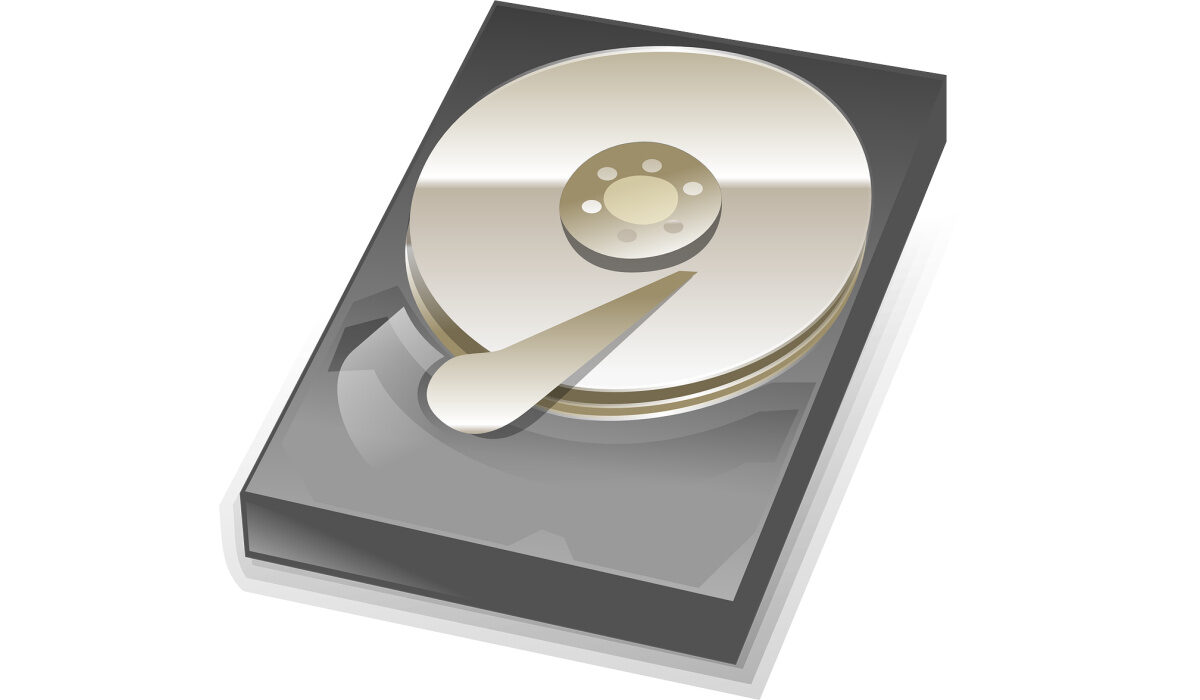
In certain situations, it may become necessary to clone your hard drive. One of such situations is when you need to switch from a 500GB to a 2TB hard disk for more storage. You could also just be interested in enhancing the performance of your PC by switching from your conventional hard-disk drive (HDD) to a solid-state drive (SSD).
Whatever the reason, cloning your hard drive is not an impossible task, as long as you have the right instructions at hand. We’ve put this article together with that in mind, to guide you through the process of cloning a hard drive successfully on a Windows 10 device.
Before the Cloning
Before you start cloning your hard drive, you must take a number of crucial preparatory steps:
- You’ll need to back up crucial data to an external drive. This is important because, throughout the cloning procedure, all the data on your original hard drive will be overwritten. If anything goes wrong, you don’t want to lose your data.
- Make sure there is enough space on the hard drive you are copying to store all of your data.
- When the cloning is finished, you’ll need a screwdriver handy to open your device and replace the hard drive.
- Additionally, if your laptop only has one hard drive slot accessible, be sure to have a SATA to USB connection on hand to use throughout the cloning process to connect the new hard drive to your device.
The Cloning Process
Even though it may seem complex and a bit frightening, cloning a hard drive is a simple procedure. To make sure you do it correctly and avoid losing your data, there are a few procedures to follow. This is how it goes.
Launch the System Image tool or a Third-Party Software
A built-in tool called System Image is included in Windows 10 to assist with hard drive transfers. You’ll not be able to use System Image to copy hard disk partitions; it only functions when you are copying your entire hard drive to a larger hard drive. Additionally, a technique known as imaging is used, which differs from hard drive cloning in a number of ways. It does not make a 1-to-1 duplicate; instead, it creates a backup disk.
You might want to use an independent disk copying software in place of System Image due to these restrictions. As a result of the process’ simplification, less experienced PC users should find this to be a much better choice. There are a few good third-party drive cloning software solutions, like Macrium Reflect Free and AOMEI Backupper Standard.
Begin the Cloning Process
You can now begin the cloning procedure using either Macrium Reflect or AOMEI Backupper Standard. Make sure your laptop is plugged into an outlet and getting power, then start the process:
- Select your primary hard drive, this is also sometimes referred to as the “Source disk.”
- Next, choose the “Destination disk,” a fresh hard drive that you will use for the clone.
- In AOMEI Backupper Standard, click “Start Clone,” and in Macrium Reflect, click “OK.”
- Click “Finish” to wrap up the procedure once it is finished. The partitions on the new hard drive can, however, be resized before the process is finished.
Depending on the size of the drives, the operation can take several hours. Your PC needs to have sufficient power so that the cloning operation completes without any problems. Make sure to wait until the cloning procedure is finished before turning off your device.
Connect your New Hard Drive
You must manually swap out your hard disk after you have copied your data to it. To do this, open your laptop or desktop and insert the new drive into the available hard drive slot.
If this seems difficult, consider the following advice to make it much simpler: Before you remove your computer’s hard disk, take a picture of how it now appears inside. When connecting your new drive, this will help you understand where the wires should go.
You might want to keep your first hard drive attached if your computer has more than one hard drive slot. In the event that something goes awry and you need to reinstall a backup, this will be useful. You can accomplish this using an external USB device, which is what we advise keeping handy before starting the cloning procedure.
Change your Hard Drive’s Boot Priority
Adjusting the boot priority of the hard drive is the last step in successfully cloning it. This enables Windows and other programs to launch directly from your freshly cloned hard drive and it will also make this hard drive your primary drive.
To alter your system’s boot priority:
- Restart your computer.
- At startup, press the F2 key to access BIOS.
- Select the new hard disk as the first boot device once the BIOS has loaded by going to the boot option.
- To save changes, click on the F10 key.
- You can now exit
You should now have a hard drive that has been successfully cloned if you have followed this procedure exactly.
In summary , cloning your hard drive is not as complicated as it may sound, and your device will benefit a lot from the process in terms of extra storage space and improved performance.
Follow the steps we’ve provided in this guide correctly, and the process should be a breeze. If you’ve found this article helpful, don’t forget to share it with your loved ones so they also benefit from it.
- Don’t miss our mobile phone reviews .
- Follow our news on Google News .
- Join our WhatsApp Group , to be notified of the most important articles and deals,
- Follow us on Instagram , Facebook , Twitter , and YouTube .
