Add MobilityArena as a preferred source on Google
The iPhone’s straightforward user interface is one of its major attractions; it just works great. However, while we can expect the iPhone to frequently surpass its rivals in terms of features and user experience, all devices will eventually start to lose speed as they get older.
The double-edged nature of new iOS updates can occasionally make older iPhone devices even slower. And in the end, seeing your once-new, lightning-fast iPhone start to stutter to a slower speed can be quite annoying.
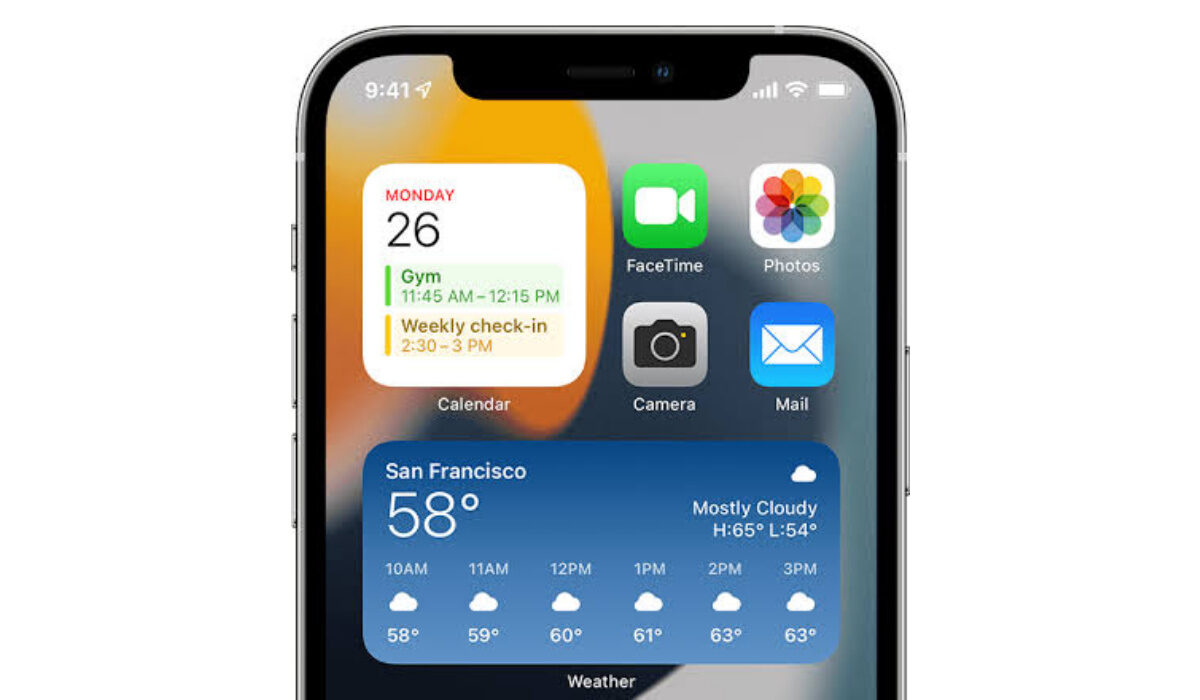
If you’re looking for ways to speed up your slow iPhone device, then keep reading through this guide. We’ve provided some helpful tips below which should get your iPhone to optimum performance.
Adjust Transparency and Motion Settings
Although visual enhancements may be attractive on an iPhone device, there is processing overhead that may slow down the device in the long run. By turning them off or lowering them, you can slightly increase the speed of your phone.
To do this:
- Open the Settings app, then look for the Accessibility option under Settings .
- Decide on the text size and display.
- Toggle Reduce Transparency to On.
- You can also try a different approach which entails selecting Reduce motion under Settings > Accessibility > Motion .
After adjusting these settings, it’s a good idea to restart your device so that your device recognizes the newly-adjusted settings. Afterward, the performance should now be much better than before.
Restart your iPhone Device
The hardware support staff will most likely present these straightforward instructions as a tried-and-true opening gambit for most issues. This is because restarting your device frequently solves general issues with your device and improves performance.
To turn off your smartphone and turn it back on:
- Simply press and hold the Sleep/Wake button on the device and then slide the switch that shows up on your screen after this action.
- After that, hold down the Sleep/Wake button once more until the Apple logo appears.
Restarting your device might seem like a rather minor and insignificant step, but this is the easiest fix for many issues with mobile devices.
Get Rid of Apps You Don’t Use Frequently
Another thing to do is examine every app and game on your iPhone, then remove any one of them you don’t use frequently. Ensure to be thorough during the process because as these apps run and update regularly in the background, they may use up resources and take up space that is much needed for optimum performance.
On an iPhone, you can delete apps by tapping and holding until they all enter a jiggling mode or by simply tapping and holding the icon of the app you want to get rid of and selecting Delete app from the popup menu.
Update your iPhone to the Latest iOS Version
Apple constantly releases fresh versions of iOS, not only to provide new features and increase security but also to enhance overall speed.
As such, it’s smart advice to always verify if a new iOS update is available, so that you can update as necessary, take advantage of new features and enjoy a general improvement in your iPhone’s performance.
To update your iPhone:
- Go to Settings > General > Software update to accomplish this.
- If an update is available, your iPhone will check for it and prompt you to download and install it.
It’s also a good idea to set up your iPhone for automatic iOS updates so that you don’t have to remember to do it every time.
Turn Siri Off
Although Siri, Apple’s personal assistant, can be useful to iPhone users, there are a few functions that you may want to disable to improve speed and performance on your device.
In iOS 9 and later devices, Siri can automatically offer resources when you search, but this capability can also cause your iPhone to lag. To turn it off, simply Go to Settings > Siri and Search to turn it off.
Another feature; you can call Siri up at any moment if you have an iPhone 6S or later by saying “Hey Siri.” This feature also affects performance drastically.
By going to Settings > Siri , searching for “Hey Siri” and switching off the option to Listen for Hey Siri , you can disable this feature. After that, tap on the Siri off button.
Disable Automatic Downloads
You might want to turn the automatic download feature on if your iPhone is the sole device connected to your Apple ID, but the truth is this is not exactly necessary..
If you own other Apple devices, your iPhone may unintentionally be downloading additional apps and information that you didn’t approve from another device.
In any case, you can easily disable background automated tasks to enhance the speed of your iPhone.
To do this:
- Find the Automatic downloads section under Settings > App Store .
- Next, turn off Automatic updates
At this point, you should restart your device and evaluate your phone’s performance if it has gotten any better.
Clear Browsing History
Safari is one application where getting rid of unnecessary files is comparatively simple. Given that your iPhone may need to cache websites you visit again, this could initially slow down browsing, but there will likely be a net speed benefit in clearing away the rubbish.
Simply go to Settings > Safari and select “ Clear browsing data .”
Other steps you can take include:
- Performing a hard reset on your device
- Adjusting settings to Low Data Mode
- Turn off background app refresh
- Delete old files
In summary , the different steps we’ve described above will help you optimize your slow iPhone to work faster. So, try one or more of them on your device and watch your phone’s performance speed up remarkably.
- Don’t miss our mobile phone reviews .
- Follow our news on Google News .
- Join our WhatsApp Group , to be notified of the most important articles and deals,
- Follow us on Instagram , Facebook , Twitter , and YouTube .
Author:Joan Agie
Add MobilityArena as a preferred source on Google
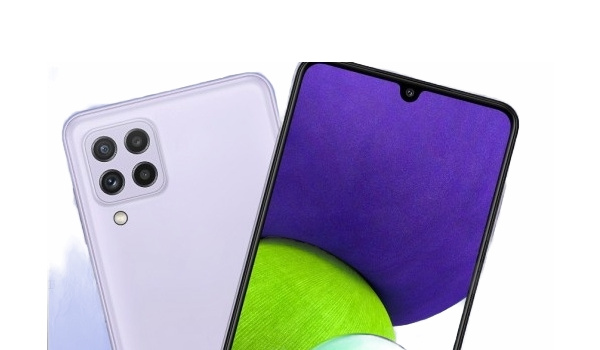
The Samsung Galaxy A22 is a mid-range smartphone that was released around the middle of last year. It’s a phone that has left lots of users satisfied, with very few, if any, complaints. But like every other smartphone, it does have its problems. We’re going to be looking at those problems and how you can fix them, today.
Samsung Galaxy A22 problem: Display not responding
There have been a couple of reports about the Samsung Galaxy A22 getting stuck or freezing while on an app or roaming the device. This is a bit different from lag. The device just stays stuck in whatever app or activity you are engaging in. When you press the power button, the phone stays on the lock screen. It’s a horrible situation.
To solve his problem, hard restarting can help fix this problem. Because your phone can not respond to touch, you have to try to restart the phone using some other means. Which is making use of your phone’s buttons. To hard restart your device, long press the power button and the volume up or volume down for about 10 seconds. This will force your device to restart and possibly fix this issue. If this option doesn’t work, you should consider taking it to a professional to address the problem or take it to Samsung to repair it for free for you if you are still within your warranty.
Samsung Galaxy A22 problem:Battery Drain
Some users have observed that the battery of the Samsung Galaxy A22 drains faster than it used to after updating to Android 12. There were not a lot of complaints about battery drain before this update but the complaint rate has increased since.
When you install a new software update on your device (any device), it takes time for the device to adjust to some of the new features, adjustments, or improvements. So, your device’s battery will drain faster than it did before the new update, adjust with time and get better. But if the issue persists after a couple of days and weeks, here are a few solutions you can try before taking the device to get checked and fixed.
•Clear unused apps running in the background of your Samsung Galaxy A22, these contribute a lot to how fast your battery drains.
•Having apps like Cleaner and Antivirus drain your device heavily and cause it to heat. If you have any of these installed, delete them immediately.
•Screen brightness is another factor that could be adding to how fast your battery drains. Reduce the brightness as much as you can. Leaving it on high brightness volumes will not only drain your battery but heat your phone.
Samsung Galaxy A22 problem: Lagging
There have been quite a few reports about lagging on the Samsung Galaxy A22. This is a common issue among different smartphones, even some high-end ones. Sometimes, it might seem like a little problem but it gets gradually annoying over time. Here are some ways to fix this issue.
•Clearing the cache of apps in the settings can also help reduce and possibly fix lag on your device. A lot of users underestimate how important clearing the cache of apps can be, try to clear it from time to time.
•Downloading the latest software update can help fix lagging on your device.
•If the problem persists, you can try a factory reset to solve this issue.
•Lack of storage space on your device could also be the reason. Try as much as possible to delete unused apps, videos, pictures, and documents. Things that you can do without.
Samsung Galaxy A22 problem: Lock mode
The Samsung Galaxy A22 (as well as some other Samsung devices) has a problem, according to users, with the device going into lock Mode and being unable to unlock it. Some users say the device starts to ask for passwords they never set. To solve this problem, you need to hard start/reboot your device. If this doesn’t fix it, try a factory reset, this might solve the issue.
These are the most common problems with the Samsung Galaxy A22. Follow these instructions and you just might be free of some of these issues. If you have other problems that were not mentioned, comment on them down below and we will get back to you with feedback.
- Don’t miss our mobile phone reviews .
- Follow our news on Google News .
- Join our WhatsApp Group , to be notified of the most important articles and deals,
- Follow us on Instagram , Facebook , Twitter , and YouTube .
Author:Flamez
Flamez loves basketball, art, gadgets and cars.
