Add MobilityArena as a preferred source on Google
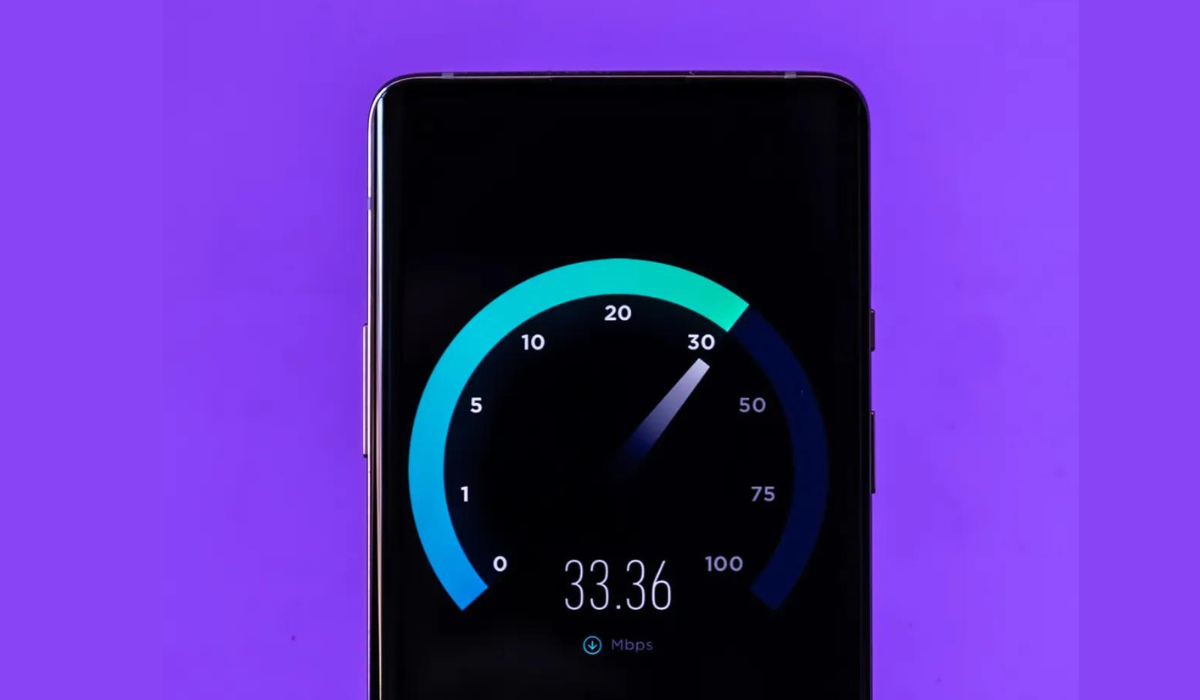
Whatever I try to do with slow mobile data mostly ends up leaving me frustrated. Working with a slow data connection is incredibly inconvenient, no matter what you’re trying to do. Many times, a slow data connection could be due to location or network congestion.
I’ll show you how to speed up your mobile data in this guide, so you can finally say goodbye to slow downloads, streaming, or whatever purpose for which you need a mobile data connection. You can achieve this through different ways, and I’ll demonstrate these techniques in detail in this article.
- How Can You Speed Up Your Mobile Data? Restart Your Phone Update and Deactivate Network-Heavy Apps Disable Data Saver or Low Data Mode Disconnect from your VPN Change Your Location Check your Data Usage cap Reset the Network Settings on Your Phone
How Can You Speed Up Your Mobile Data?
My downtimes are mostly filled with surfing and binge-watching, so you can imagine my annoyance when slow internet speeds try to ruin that. Sometimes, slow internet even affects crucial tasks like transactions or sending essential emails or texts.
If you’re currently experiencing this, try these easy suggestions to speed up your mobile data.
Restart Your Phone
This is the most cliche solution, but it usually works. Restarting your phone can help speed up your mobile data, particularly if you haven’t turned off your device in a while. If you’re in a hurry, you could just put your phone in Airplane mode. However, a complete restart is usually a good idea.
It’s easy to restart your phone. Follow these steps:
Press and hold the Side button and the Volume Up or Volume Down button if you’re using an iPhone without a Home button. Do this until the Slide to Power Off screen appears. Hold the side button again after powering off your iPhone to turn it back on.
Hold the side button (typically on the right side of the phone or the top of older devices) until Slide to Power Off shows on the screen if you have an iPhone with a Home button.
To restart most Android phones, you can hold the power button down until the power options display on the screen, then tap Restart . If you don’t see Restart , choose Power Off , then hold the Power button again to turn on your phone.
When your device is back on, check if this worked to speed up your mobile data, and proceed to the next tip if necessary.
Update and Deactivate Network-Heavy Apps
Sometimes, certain apps could slow down your entire browsing experience by using up all of your data connection. In such cases, it becomes important to investigate what, if anything, is consuming your internet speed. If something is wrong, you can either disable or delete the app’s access to your cellular data connection so that you can successfully speed up your mobile data.
Go to Settings > Cellular on your iPhone when the internet connection is slow and use the list to prevent any app from using your cellular data connection.
Go to Settings > Network & Internet > Mobile network (called SIMs on Android 12 ) > App data usage to view data usage for specific apps on Android. To block an app from using data in the background, tap it and then slide the Background Data slider off.
Additionally, always keep an eye out for app updates. App developers frequently provide updates to fix bugs, some of which may address issues that can help speed up your mobile data, increase network performance, or curtail excessive data usage.
Disable Data Saver or Low Data Mode
Modes for reducing data usage are available on both Android and iPhone devices. These are helpful if you only have a limited amount of data available, but could also make your mobile connection seem slower than it actually is. Disabling these modes will speed up your mobile data and make your browsing experience faster.
On Android, select Settings > Network & Internet > Data Saver . On an iPhone, go to Settings > Cellular > Cellular Data Options > Data Mode to access a similar feature called Low Data Mode .
Remember to turn these back on after a while if you’re concerned about how much data you use. You should ideally be able to determine whether or not this setting slows down your mobile data.
Disconnect from your VPN
VPNs provide additional privacy and allow you to circumvent geo-restrictions, but they might also slow down your mobile connections due to added overhead. As a result, if your phone is linked to a VPN and you need to speed up your mobile data, unplug from the VPN first.
When you disconnect, you should notice an instant improvement. If that does resolve the issue, you can increase the speed of your VPN when you reconnect.
Change Your Location
Sometimes the solution needed to speed up your mobile data is as easy as changing locations. Since your current location’s service may be subpar, moving to a location with a better service connection will help speed up your internet connection.
Check your Data Usage cap
When trying to speed up your mobile data, it’s also a good idea to double-check your data cap on your phone plan. Even if you have an unlimited data plan, your data often has a limit beyond which the pace slows. If you’re not sure what your data limit is, contact your mobile data provider.
If you’ve used all your limits, you’ll have to either wait until your bill cycle resets or purchase more high-speed data.
Reset the Network Settings on Your Phone
Resetting your network settings is a more dramatic solution for a poor mobile data connection. This resets everything connected to networking to its factory settings. This includes removing your Bluetooth devices, Wi-Fi access points, and similar gadgets. It’s not the end of the world if you lose these, but you’ll have to reconnect to stored Wi-Fi networks and re-pair your Bluetooth devices later.
To reset an iPhone’s network settings in order to speed up your mobile data, go to Settings > General > Transfer or Reset iPhone > Reset > Reset Network Settings . Your phone will ask you for your passcode if you have one before restarting to finish the procedure.
Navigate to Settings > System > Advanced > Reset Options > Reset Wi-Fi, Mobile, and Bluetooth if you’re trying to speed up your mobile data on an Android device. This can be in a different location depending on the brand and Android version of your phone. If you can’t locate it, try typing “ reset ” into the Settings search bar.
To conclude, most cellular data speed issues are temporary and usually have simple fixes. I’m sure that at least one of the suggestions described above will speed up your mobile data without requiring you to contact your carrier.
However, if none of the above work, the problem could be something on your provider’s end that you can’t fix. You may also be dealing with a general network outage, in which case you can connect to someone else’s Wi-Fi and check Down Detector to confirm.
Author:Joan Agie
Add MobilityArena as a preferred source on Google
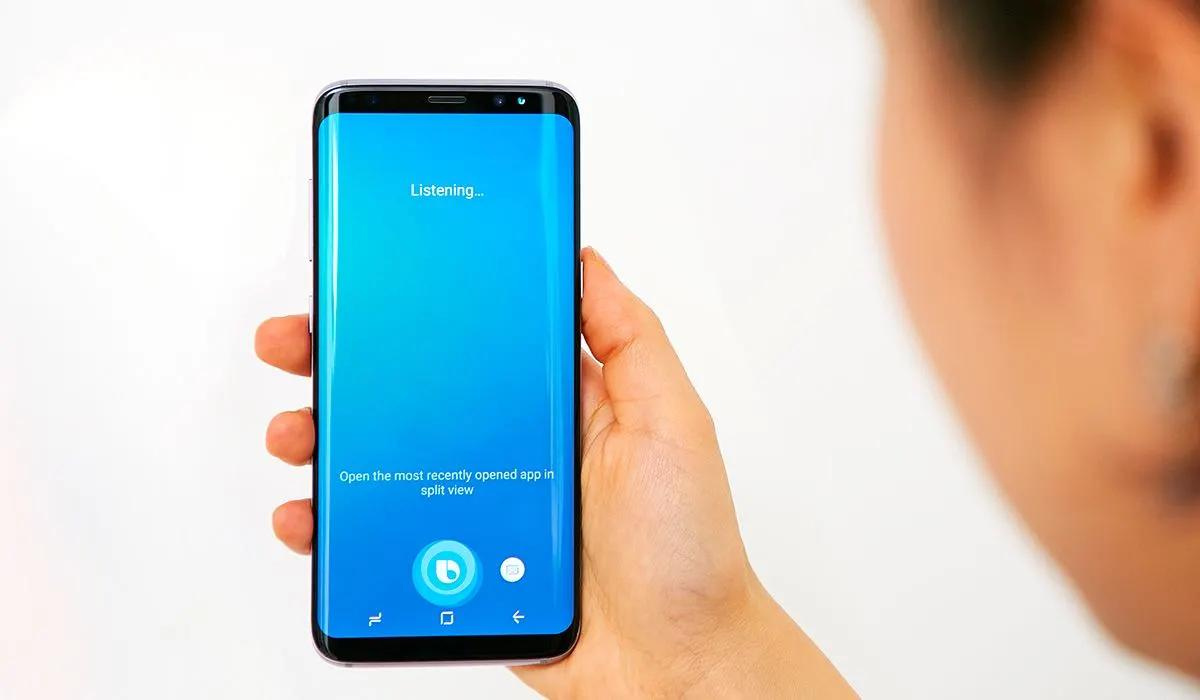
Bixby is Samsung’s intelligent virtual assistant, and all its modern devices have it installed to help Samsung users. You may find Bixby to be a useful assistant (it has some neat features, including the new Bixby text calling feature), but not everyone would agree — some may even want it entirely removed. Thankfully, it’s possible to disable Bixby on Samsung Galaxy phones through a few simple steps.
In this guide, I’ll show you how to disable Bixby on Samsung Galaxy phones, along with all of its features, such as Bixby Voice and Bixby Vision. If your phone has a Bixby button, I’ll show you how to change it to do something different.
- How Can You Disable Bixby on Samsung Phones? How to Disable Bixby on Samsung Galaxy Phones How to Hide the Bixby App from Your App List How to Turn Off the Bixby Side Key Shortcut How to Disable the Bixby Button on Older Samsung Galaxy Phones How to Turn Off Bixby Home/Samsung Daily/Samsung Free
How Can You Disable Bixby on Samsung Phones?
Since Bixby is a system program, it cannot be removed entirely from your device; you can only disable Bixby on Samsung Galaxy phones or just hide it. In order to stop using Bixby, you must disable the service and delete all of your personal information related to it. If you want to use Bixby again in the future, you can always enable it again.
There are two tasks you must first complete before you can disable Bixby on Samsung Galaxy phones. To begin, ensure that your Galaxy device is up to date so you can avoid inconsistencies in system navigation. Navigate to Settings > Software Update > Download and install , to check for available updates.
After that, turn off voice recognition to prevent Bixby from responding to your voice when you say the popular phrase “ Hi Bixby .” To do so, follow these steps:
- Navigate to Settings > Apps > Bixby Voice > Bixby Voice Settings .
- Select Voice wake-up , and then select Respond to my voice .
- Tap Delete voice wake-up recordings and confirm with Delete .
- Return to the previous screen and deactivate Voice Wake-Up .
How to Disable Bixbyon Samsung Galaxy Phones
When you say the hot word after carrying out the above actions, Bixby will no longer summon itself because it has forgotten your voice. So now, let’s look at how you can permanently disable Bixby on your device. Follow these procedures to disable Bixby on Samsung Galaxy phones:
- Navigate to Settings > Apps > Bixby Voice > Bixby Voice Settings .
- Scroll down and select Leave Bixby , then select Leave Bixby again and select OK .
- You’ll need to be certain that Bixby does not turn itself on again in the future, so return to its app info page and select Storage > Clear data > Delete . Then select Disable > Disable app .
At this point, you’ve been able to successfully disable Bixby Voice on Samsung Galaxy phones.
How to Hide the Bixby App from Your App List
As a system app, if you disable Bixby on Samsung Galaxy phones, it could cause other Samsung services to crash or stop functioning. To avoid experiencing this issue, you can hide rather than disable Bixby on Samsung Galaxy phones.
Follow these instructions to hide apps from your Apps screen, also referred to as the App Drawer:
- Navigate to Settings > Home Screen > Hide apps on the Home and Apps screens .
- From the list, choose Bixby and Bixby Vision . Bixby Vision is Samsung’s version of Google Lens, the built-in image recognition feature of the Google app and Google Photos.
- To confirm, tap Done .
Your phone’s Bixby and Bixby Vision apps should now be hidden.
How to Turn Off the Bixby Side Key Shortcut
On Samsung phones, holding the power button (also known as the side key) launches Bixby by default. This is inconvenient because the power button should be used to access the power-off menu, not to summon a voice assistant. So, to disable Bixby on Samsung Galaxy phones in this regard and prevent Bixby from waking up, navigate to Settings > Advanced Features > Side Key . Tap the Power Off menu beneath Press and hold .
You’ll now be able to shut down, restart, or enter emergency mode by holding down the power button to access the power-off option. This is one of the initial steps in configuring your Samsung phone.
How to Disable the Bixby Button on Older Samsung Galaxy Phones
The physical button used to launch Bixby on older Samsung smartphones, such as the Galaxy S8, S9, S10, Note 8, and Note 9, was disliked by users. You can’t completely disable Bixby on Samsung Galaxy phones that are older, but if you have one of these models, you can change the button to do something other than summon Bixby.
Below are the instructions you’ll need, but keep in mind that they are intended for older Galaxy devices with a dedicated Bixby button.
- Navigate to Settings > Advanced Options > Bixby Key . Before you can modify the settings here, you must log into your Samsung account if you aren’t already. If so, you must tap the Get Started icon that is located at the top. Once you’ve completed the process, go back to the settings page.
- Click the option to Double Press to open Bixby . Although this does not totally disable the Bixby button, it does reduce the likelihood of accidentally activating Bixby.
- Tap Use single press to remap the Bixby button for a different purpose.
- Next, switch the top toggle to On, then select either “ Open app ” or “ Run quick command .” You can now select the required app or command.
How to Turn Off Bixby Home/Samsung Daily/Samsung Free
A panel called Samsung Free can be found to the left of your home screen. If you don’t have the most recent Samsung device or One UI update, an alternative name for it can be Samsung Daily or Bixby Home.
The panel functions as a feed aggregator, displaying cards from various apps and services, similar to how Google Discover works. To avoid mistakenly swiping across to the panel (also known as the media page), you can disable it.
To accomplish this, navigate to Settings > Home Screen > Add Media Page to Home Screen and turn it off. As an alternative to turning off the feature, you can select “ Google Discover .”
To conclude, despite the stunning design and excellent user experiences of Samsung smartphones, many people consider Bixby to be a subpar alternative to Google Assistant. If this is you, follow the steps in this guide to successfully disable Bixby on Samsung Galaxy phones.
