Add MobilityArena as a preferred source on Google
Have you ever retrieved your iPhone from your pocket only to discover that it is on a call, or that it had made an accidental call? This is known as pocket dialing, what many of us call butt dialing, and it is a common but easy to prevent occurrence.
In this article, I’ll show you some basic techniques and procedures you can try to stop your iPhone from pocket dialing. Now you can prevent unintentional calls while your phone is in your bag or pocket.

- 4 Ways To Prevent iPhone from Pocket Dialing Set the Auto-Lock to 30 Seconds Set a Passcode Disable Raise to Wake Turn Off Lock Screen Access
4 Ways To Prevent iPhone from Pocket Dialing
The ultra sensitivity of touchscreens on Apple devices is useful in most circumstances, it can be problematic for you when your device is in a confined space. Accidental touches and swipes on your phone’s touchscreen when it’s in your pocket or purse can sometimes result in humiliating situations. Imagine dialing your boss’s number unknowingly and having them listen to all that background noise for nothing.
Thankfully, the different sets of instructions below can help you stop your iPhone from pocket dialing. So follow these steps if your iPhone keeps making calls while it’s in your pocket.
Set the Auto-Lock to 30 Seconds
Setting your iPhone to automatically lock after 30 seconds of inactivity may be helpful if you constantly forget to lock it before placing it in your pocket or bag. When you don’t engage with your iPhone for 30 seconds, it will darken its display and finally lock. To do so and therefore stop your iPhone from pocket dialing, navigate to Settings > Display & Brightness > Auto-Lock .
On the other hand, doing so may cause your iPhone to lock in instances where you don’t want it to, such as while reading on your phone or navigating using Maps. To get around this, you can temporarily set the iOS Auto-Lock option to Never while you’re actively using your phone. Change the setting back to 30 seconds once you have completed the activity.
Set a Passcode
If you leave your iPhone unprotected by a password such that it can unlock without needing your authorization, pocket dialing usually happens. When your iPhone is unlocked, any accidental touch might initiate a call while it is in your pocket.
So, to stop your iPhone from pocket dialing, go to Settings > Touch ID & Passcode/Face ID & Passcode to set up a passcode on your iPhone. Then, to generate and verify your new passcode, press Turn Passcode On .
Disable Raise to Wake
The iPhone’s Raise to Wake function is useful when you need to use your phone, but it can also cause your device to misinterpret any movement as a signal to wake up.
When you walk with your phone in your pocket or purse, the movement action of your legs might wake the lock screen and cause you to make emergency calls unintentionally or even capture images.
The simple approach to stop your iPhone from pocket dialing in this case is to disable the Raise to Wake function. To accomplish this, navigate to Settings > Display & Brightness > Raise to Wake .
Turn Off Lock Screen Access
Even when your iPhone is locked, the iOS Lock Screen allows you to easily access frequently used functions. Replying to messages and returning missed calls are examples of these features. Despite how useful this tool is, this is a significant drawback.
By default, your iPhone may return calls without first unlocking it, making your passcode useless against pocket dialing. You can therefore stop your iPhone from pocket dialing by disabling Lock Screen access . Follow these instructions:
- Launch the Settings app.
- Go to Face ID & Passcode or Touch ID & Passcode , depending on the model of your iPhone.
- Scroll to the bottom and look for the list of features under the Allow Access When Locked tab.
- Search for the Return Missed Calls option and turn it off.
To prevent your iPhone from sending unwanted messages to your contacts while it’s in your purse or pocket, I also advise disabling the Reply with Message option.
All in all, I’d say that pocket dialing is more common among users that don’t use a passcode on their iPhones. Sometimes, though, it may still be an issue even if your phone has a passcode. Nonetheless, I’m sure you’ll find one of the tips in this guide useful to prevent pocket dialing.
If you’re unable to stop your iPhone from pocket dialing with the instructions above, there might be a problem with the touchscreen. In such a case, take it to the closest Apple Store for assistance. You can also try out our dedicated tips to disable touchscreen input on your iPhone.
Author:Joan Agie
Add MobilityArena as a preferred source on Google
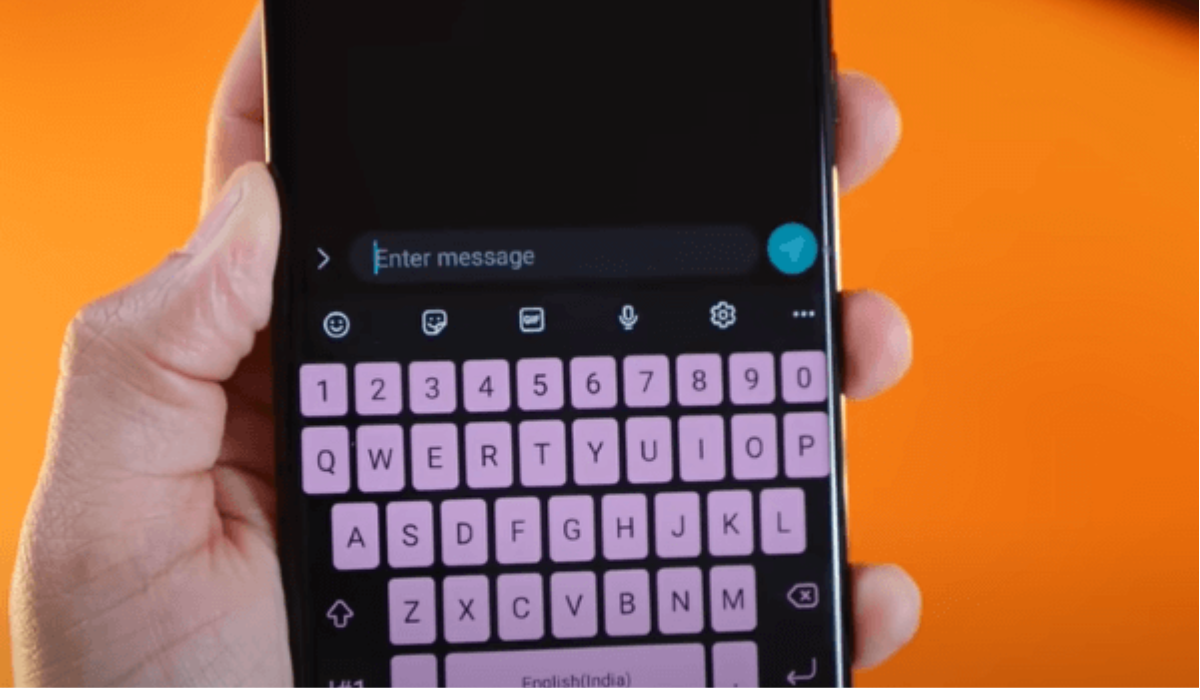
The keyboard on your Android phone is designed to get used to your writing patterns and style. It does this to make typing more convenient for you, essentially by saving unfamiliar words and providing them as suggestions while you type.
In this article, I’ll show you how to remove learned words from your Android keyboard so they don’t appear again. Sometimes, we mistype words and the Android keyboard still saves them and suggests them to us while typing. So to find out how to remove learned words from your Android keyboard, keep reading.
- How Can You Remove Learned Words From Your Android Keyboard? Remove Learned Words From Gboard Remove Learned Words From SwiftKey Remove Learned Words From Your Samsung Keyboard How to Prevent Your Keyboard From Saving Words
How Can You Remove Learned Words From Your Android Keyboard?
Based on your writing style and language, most Android keyboards recommend words and phrases that you are likely to enter next. However, this might become an issue if your mistyped words continue to surface as suggestions on the top bar of the keyboard, making your typing slow and choppy.
Here are a few easy procedures to remove learned words from your Android keyboard. These instructions will work for most Android keyboards including Gboard, SwiftKey, or Samsung Keyboard.
Remove Learned Words From Gboard
Assuming that you use the default Gboard app, below are the instructions you’ll need to remove learned words from your Android keyboard.
- From your phone’s top navigation bar or the gear icon, go to Settings , then click on System
- Navigate to Languages & input > On-screen keyboard > Gboard
- Choose Dictionary > Personal dictionary .
- Choose the language from which you want to delete words. Click the All languages option to see all saved words, or choose a specific language to get results for only that language.
- Click the word you’d like to remove and press the trash icon in your screen’s top-right corner. Keep repeating this for every word you want to remove from your dictionary.
Another easy method to remove learned words from your Android keyboard if you’re using Gboard is to wait until the word appears in the suggestions while you type. Tap and hold the word until the option to remove the suggestion appears. By doing this, you’ll stop accumulating weird and misspelled words.
Remove Learned Words From SwiftKey
Another popular third-party keyboard for Android is Microsoft’s SwiftKey . You can also remove learned words from your Android keyboard if you use SwiftKey, just like with Gboard. You can delete individual words or clear all the words in your personal dictionary in one go.
Here’s how you can remove all the words in your personal dictionary:
- Head to Settings > System > Languages and input .
- Choose On-screen keyboard > Microsoft SwiftKey Keyboard .
- At the top, select Account . Select Delete personalized dictionary backup from the option that appears. This will remove learned words from your Android keyboard.
Don’t forget that you can also delete learned words one at a time, here are the instructions you’ll need:
- Launch SwiftKey from any app that has a text input window.
- Begin entering the term you wish to remove from your dictionary. Long press on the word when it appears in the prediction bar.
- A dialog box will appear asking if you’d like to prevent the term from showing up as a prediction suggestion in the future. Confirm your choice by clicking OK .
- A toast message confirming the word’s removal from your personal dictionary will appear at your screen’s bottom.
Remove Learned Words From Your Samsung Keyboard
There are two ways to remove learned words from your Android Keyboard if you own a Samsung. Just like with Gboard and SwiftKey, you can remove your entire personal dictionary or individually remove undesired words.
Use the steps below to remove your whole personal dictionary of words from the Samsung Keyboard:
- Access the Settings and go to General Management > Samsung Keyboard Settings .
- Scroll to the bottom and choose Reset to default settings , then Erase personalized prediction .
- Confirm your choice by clicking Erase in the dialog box that appears.
The technique for deleting misspelled words individually is the same as it is for SwiftKey and Gboard. Open a text input box and begin typing. When the word you’d like to remove shows up, hold it down and click the Remove option from the pop-up dialog box.
If you regularly make typos and don’t want them to be added to your dictionary, consider changing the autocorrect settings on your Android or Samsung phone.
How to Prevent Your Keyboard From Saving Words
There is no sure way to totally prevent your Android keyboard from learning your typing habits. You may, however, limit how much it learns by modifying the settings or turning off certain features.
For example, almost all Android keyboards have functions such as word prediction, auto text correction, spell checking, and voice typing among others. For you to have the best typing experience, these features use a lot of your data. So, disable these functions on your device if you’re willing to give up accessibility to prevent your Android keyboard from learning words and your typing pattern.
To conclude, there’s no need to get frustrated when previously mistyped words keep appearing in your Android Keyboard’s suggestion bar. Simply use the instructions I’ve provided in this guide to remove learned words from your Android keyboard.
