Add MobilityArena as a preferred source on Google
Samsung’s custom user interface for Android, One UI, has an aggressive battery management system. This is the reason why you experience apps being shut down in the background when you switch away from them. If you find this annoying, you have probably wondered how to stop your Samsung phone from killing apps in the background.
Samsung Mobile is one of the worst smartphone brands in terms of killing background apps and has gotten worse in recent times. It is actually rated as the most aggressive. This defeats the whole purpose of multitasking, if you ask me. Thankfully, there are steps you can take to stop Samsung from shutting down apps in the background.
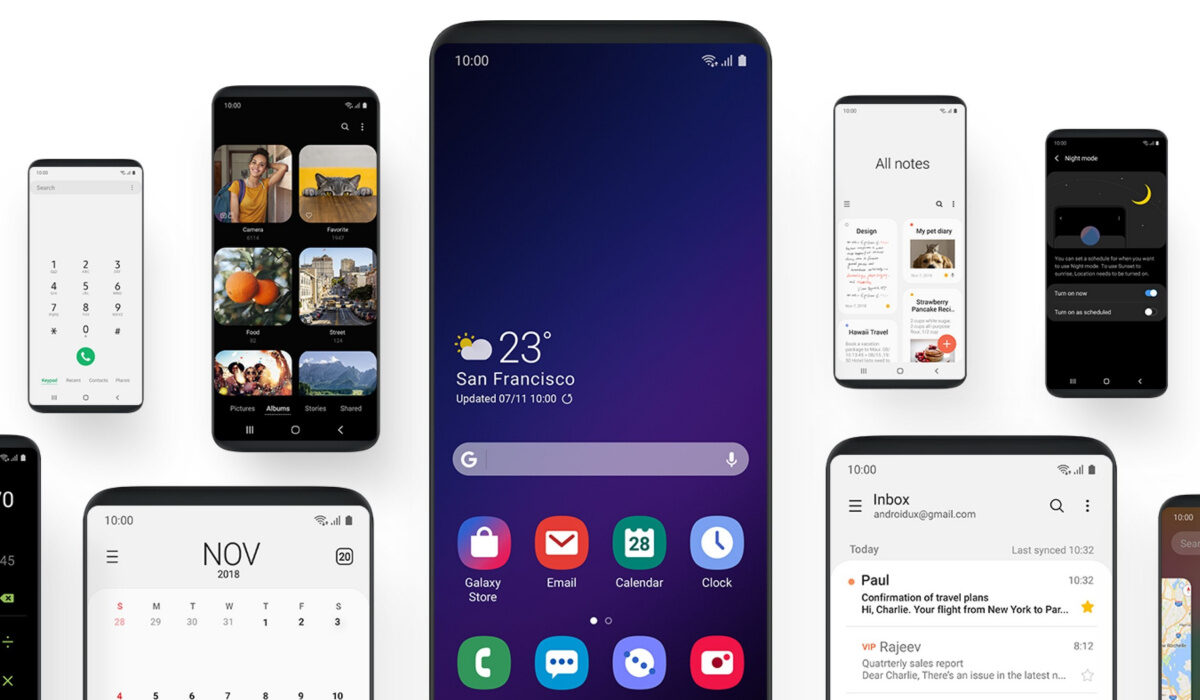
You can stop your Samsung phone from killing apps in the background
Steps to take to stop your Samsung phone from killing apps in the background
To keep your apps running in the background on your Samsung smartphone, do the following:
Go to: Settings -> Apps -> Your App -> Battery -> Battery optimization -> All apps -> Your app -> Don’t optimize .
You have to repeat this for as many apps as you want excluded from being closed in the background. I recommend that you repeat this for only the most important apps that you use.
Author:Mister Mobility
Digital Skills and Communication Coach | Mobile Phone Connoisseur since 2001 | Tech Blogging since 2004
Add MobilityArena as a preferred source on Google
Among Android phone brands, OnePlus sits with Samsung and Xiaomi at the top of the group of manufacturers whose custom user interface (in this case, OxygenOS) aggressively shuts down background apps to conserve battery power. You could be using a few apps and when you switch back to one of them, you notice that it has been closed in the background and is now starting afresh. So much for multitasking; right?
But we Android lovers choose it for its multitasking abilities, among other reasons. So, can you stop OnePlus from closing apps in the background? The answer is a Yes. You can prevent OxygenOS from killing apps in the background.
There are two settings that you need to modify to stop OxygenOS from killing background apps so aggressively. One is a generic feature, while the other requires you to modify the settings for each app you want to exclude.
How to prevent OnePlus from closing apps
- Go to Settings -> Battery
- Battery Optimization
- Advanced battery optimization (tap on the three dotted menu in top right corner to see this)
- Disable Turn on adaptive battery .
- Disable Sleep Standby Optimisation .
- If enabled, also disable Optimise App Power Consumption .
After you have done this generic procedure, it is time to modify the optimisation settings for each app you want to exclude.
Go to your OnePlus phone’s system Settings >
- Select Apps and notifications (or Applications , on older models)
- Tap on See all apps
- Select the app you want to exclude
- Tap on Advanced and under that, on Battery
- Pick the “ Don’t optimise ” option.
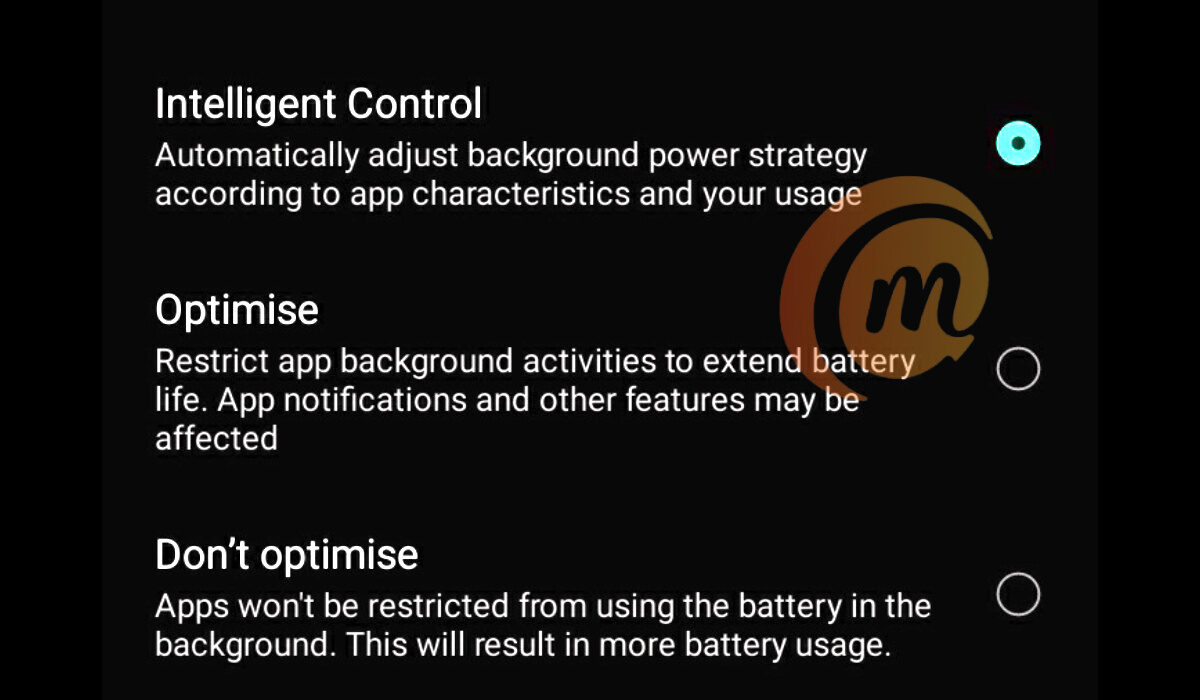
Change this to “Don’t optimise” to stop your OnePlus from closing apps in the background
That app is now free from OxygenOS’ optimisation. Repeat this for as many apps as you want to keep running in the background. I recommend that you do it for the most critical apps to you.
You have now prevented OxygenOS from killing these apps in the background. Note that depending on the size of your phone’s RAM, the resource needs of the apps in question, and the number of apps you have running, sometimes, these apps might shut down of their own accord if the phone runs out of RAM. But the experience is definitely different from the aggressive behaviour of OxygenOS.
- Don’t miss our reviews .
- Join our WhatsApp Group , to be notified of the most important articles and deals,
- Follow us on Instagram , Facebook , Twitter , and YouTube .
Author:Mister Mobility
Digital Skills and Communication Coach | Mobile Phone Connoisseur since 2001 | Tech Blogging since 2004
