Add MobilityArena as a preferred source on Google
Imagine you have a PDF file that spans over a hundred pages. You need to read through the file and present the key information in your next client meeting. The only catch? Your meeting starts in about an hour and you are just getting started! Frustrating, right?
But don’t worry. With UPDF AI, condensing lengthy and intricate data is a feat of a few seconds! This powerful AI assistant lets you summarize PDFs , explain complex data, translate languages, brainstorm ideas, and write anything you want, all within your documents!
The best part? You can ask questions and chat directly with your PDFs! Knowing its versatile capabilities, let’s explore the generative power of UPDF AI to summarize your PDFs.
- What Can UPDF AI Do?
- What Can UPDF AI Summarize?
- How to Get a Document Summary Fast with UPDF AI? Steps to Summarize a Whole PDF Steps of Summarizing a Specific Page Step to Summarize a Scanned PDF or Image
- Benefits of Summarizing PDF with AI
- Other Features of UPDF – It is More Than a Powerful AI Assistant
- Conclusion
What Can UPDF AI Do?
UPDF AI offers a full suite of solutions to handle your PDF document more productively. Let’s briefly look at its capabilities.
- Summarize PDF: UPDF AI lets you summarize any type of lengthy document within seconds both by selecting text and through prompts.
- Explain PDF: If you are dealing with intricate data and technical terms, let UPDF AI give explanations to get a better command over your documents.
- Chat with PDF: UPDF AI lets you chat with your PDFs about key conceptions and objectives of the document.
- Translate PDF: When dealing with PDFs in a foreign language, let UPDF AI translate from over 38 different languages!
Apart from this, you can also brainstorm ideas, rewrite, and explore topics beyond your documents with UPDF AI.
What Can UPDF AI Summarize?
When it comes to condensing lengthy documents, there is no limit to UPDF AI’s powerful capabilities. Whether it’s an educational document or a professional one, UPDF AI will quickly sum up the main idea of the PDF.
Just ask UPDF AI to summarize the data charts, tables, or certain concepts mentioned in the PDF and it does it in a snap! You can also use its deep textual understanding to summarize research papers, textbooks, eBook novels, website pages and so much more!
Ready to try UPDF AI to sum up your PDF documents? Let’s explore how fast and easy it helps you do it!
How to Get a Document Summary Fast with UPDF AI?
UPDF AI is the key to boosting your work productivity. You can ace through your PDF tasks with its advanced PDF summarizing capabilities. From condensing a whole PDF to extracting text from specific pages, UPDF AI handles it all. Let’s start with how to use it to summarize PDFs in simple steps!
Steps to Summarize a Whole PDF
Lengthy documents. Complex data. Short on time. Not the best combination for productive workflows. But worry not! Let UPDF AI handle your daunting PDF tasks so you can focus on faster turnarounds.
Whether it’s the complex data charts taking up your time or the lengthy text giving you a headache, UPDF AI tackles them all.
Let’s dive in and find out how to use this AI to summarize PDFs on Windows or Mac.
Step 1
Download and install UPDF on your Windows and Mac devices. Then launch the program and click on “Open File” to import your document.
Step 2
Head over to the lower right side of UPDF’s interface and click on the icon labeled “UPDF AI.”
Step 3
Select the “Ask PDF” mode and click on “Get Started” to upload your imported document to UPDF Cloud.
Step 4
UPDF AI will automatically process your document and quickly generate a summary highlighting key information in bullet points.
Step 5
Now you can further sum up specific information in the document by giving relevant commands to UPDF AI. For instance, you can ask it to condense the information in bullet points to summarize the PDF.
Alt text: Refine the summary with specific commands.
That’s all! You are done summarizing your lengthy document. With UPDF AI, it is fast and efficient. No more spending hours struggling with technical jargon and complicated data. Let UPDF AI summarize PDFs and experience the most productive solutions right at your fingertips.
Steps of Summarizing a Specific Page
Are you agonizing over that one PDF page with intricate details, charts, and data? Don’t let it stress you out. Let UPDF AI summarize it! Here’s how to do it in simple steps.
Upload your file to UPDF AI. Type in the prompt to summarize a specific page in the PDF. You can ask “Summarize page number 10 in 3 bullet points” or to summarize specific content on a page. And UPDF will summarize the page in line with your prompt.
That was easy, right? UPDF makes it quick and effortless, generating accurate summaries in a few clicks. And to take it up a notch, it can also summarize scanned documents! Let’s explore how to do it below.
Step to Summarize a Scanned PDF or Image
Don’t let scans and image-based documents slow you down! UPDF’s powerful tool with OCR capabilities lets you convert your scans into an editable and searchable document. Then, you can use UPDF AI to summarize the PDF, be it the text, page, or the whole document!
Let’s find out how to summarize scanned PDFs in easy steps.
Step 1
Click on “Recognize Text Using OCR.” on the right-side panel and select the document type as the “Searchable PDF.”
Step 2
Choose your desired layout for OCR among the three different layout options. Then define the “Document Language” and configure other settings such as “Page Range” and “Image Resolution.”
Step 3
Click on the small gear icon next to “Layout” to configure advanced “Layout Settings.” Once you are done, click on “Perform OCR to convert your scanned document into an editable and searchable PDF.
Step 4
Once the OCR is completed, select the text you want to sum up and click “Summarize” in the revealed toolbar. UPDF AI will quickly generate an in-depth summary.
Step 5
If you want to summarize a PDF entirely, simply upload it to UPDF AI as mentioned earlier. UPDF will automatically sum up the PDF or you can provide a prompt to summarize a specific page of the PDF.
Now you’re all done learning how to summarize PDF with AI. It was easy, right? UPDF makes it a cakewalk to sum up lengthy and intricate data with its lightning-fast speed and versatile PDF solutions. Now, let’s look at how AI can transform your PDF workflow!
Benefits of Summarizing PDF with AI
Here are some key benefits of using AI to summarize PDFs.
- Get Instant Summaries: AI tools offer a time-saving solution to summarizing lengthy documents when you’re running to meet deadlines.
- Extract Key Information: You can use AI summarizing tools to extract specific ideas from hundreds of pages without manually reading through each page.
- Process Large Volumes of Data: AI can be used to summarize various documents at once. This aids immensely in processing large amounts of data adding a boost to productivity.
- Analyze Complex Data Charts: Document summarizing AI can help you quickly analyze intricate data charts and tables providing an infallible way to get accurate analysis.
Knowing the benefits of AI, let’s explore what else the AI-powered UPDF has to offer.
Other Features of UPDF – It is More Than a Powerful AI Assistant
UPDF’s productive solutions are not limited it its reliable AI assistant. It offers a full suite of advanced PDF solutions to help you manage all elements of your documents. Whether it’s editing PDF files, collaborating with seamless sharing, or protecting your documents, UPDF handles it all!
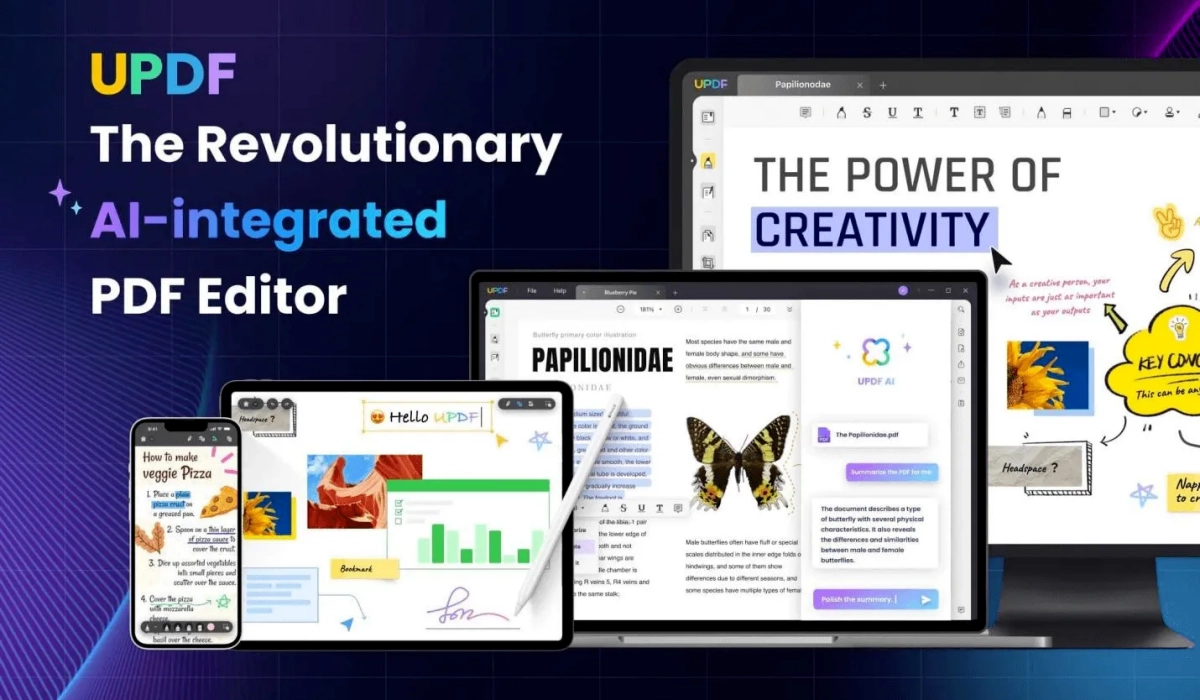
Let’s peel back the curtain and explore the standout tools UPDF has to offer!
- Edit PDFs Fully: UPDF lets you edit all elements of your PDFs such as text, images, links, backgrounds, headers, footers and so much more.
- Convert Reliably: Need to convert PDF to or from another file format? No worries! UPDF lets you convert PDF to and from Word, Excel, PPT, PNG, JPEG, TIFF and more!
- Annotate Delightfully: Showcase your collaborative essence with delightful annotation tools! You can add comments, sticky notes, highlights, shapes, stamps, stickers, and more!
- Batch Process Efficiently: Supercharge your document management by handling PDFs in batches. You can batch convert, combine, insert, print and even batch encrypt PDFs!
- Protect PDFs Precisely: Secure your file sharing by protecting your PDFs with passwords, watermarks, redaction, and download and print limits!
Conclusion
Say goodbye to spending hours reading through complex documents! With UPDF AI by your side, you can breeze through your PDF tasks in a snap!
With this powerful AI tool , you can not only summarize PDFs with AI but also explain, translate, write, and rewrite anything you want! No need to switch to separate platforms. UPDF provides all AI tools and powerful PDF solutions right within your documents.
The best part? Get UPDF now and enjoy a massive 62% off with the biggest sale of the year! Now is your golden chance to get full access to UPDF’s powerful PDF tools at an incredibly low price!
Author:MobileChic
That motivated, gadget-loving geeky chic who tries to stay on top of things. Unapologetic iFan.
Add MobilityArena as a preferred source on Google
Old flip phones have been around since the Motorola StarTac (released on 1996), and most were boring. I wasn’t one to be excited about the fact that I could flip a phone open. My interest in cell phones was deeper; I wanted the most advanced functionality possible.
I used my first cell phone in 2001, so I have been around a while and was here during the exciting years that flip phones became popular. I was not a huge fan of traditional flip phones and so, I only owned a few of them. But I did love the early forefathers of the modern smartphone which came in the same clamshell form factor of flip phones.
My adventures with old flip phones began with the Motorola Accompli 008. Released in 2002, it had a stylus-supported touchscreen and advanced email and internet capabilities.
The next one was the Ericsson R380s, followed by the Ericsson T28. Ericsson was the champ of old flip phones in the earliest years of the 2000s. It wasn’t until the middle of the decade that Motorola jumped in with the Razr V3 and its offsprings.
- Motorola A008 Accompli
- Ericsson R380s
- Ericsson T28
- Motorola Razr V3
- Which Old Flip Phones Did You Own?
Motorola A008 Accompli
Apart from the Nokia Communicators , the Motorola Accompli 008 was one of the most advanced cell phones in the market in 2002 when it was released. It was unique and striking, and it had capabilities that most other phones at the time only dreamed of.
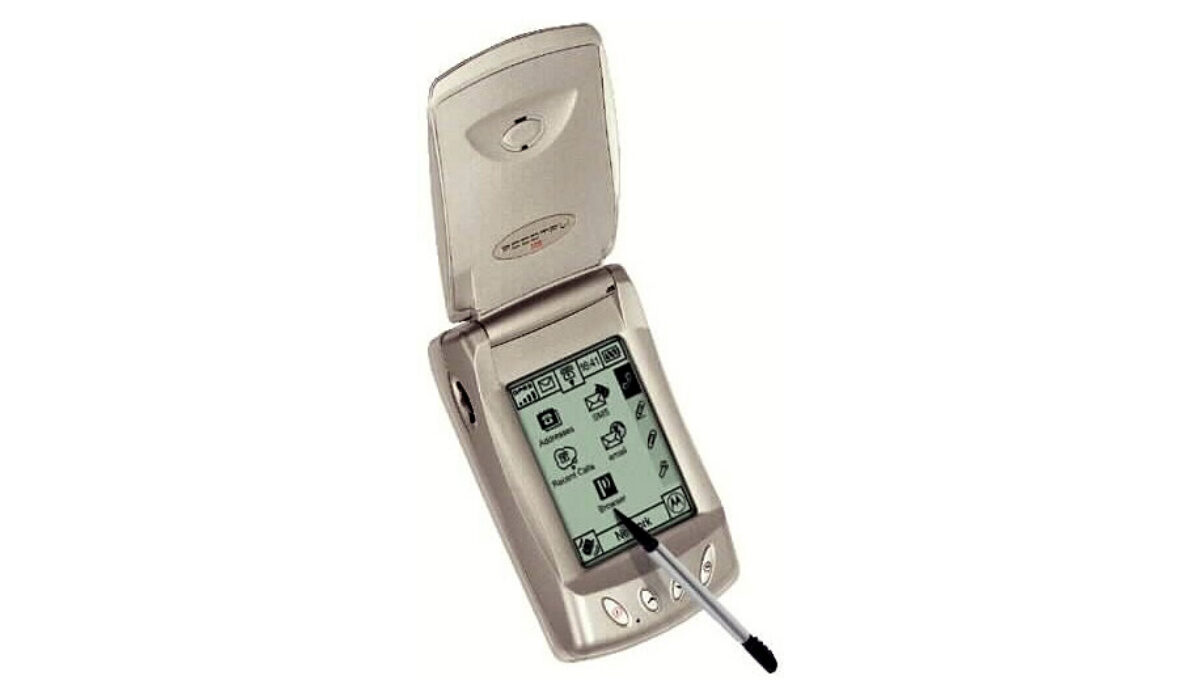
It had a superior WAP browser and an email client, and did I use them! Note that this was in the days when Circuit Switched Data aka cellular dial-up was the most only means of going online on a cell phone. But I used it successfully for managing my business email communications.
Ericsson R380s
The R380s was released in the year 2000, a year before I used my first mobile phone, but it was love at first sight and I was determined to own one.
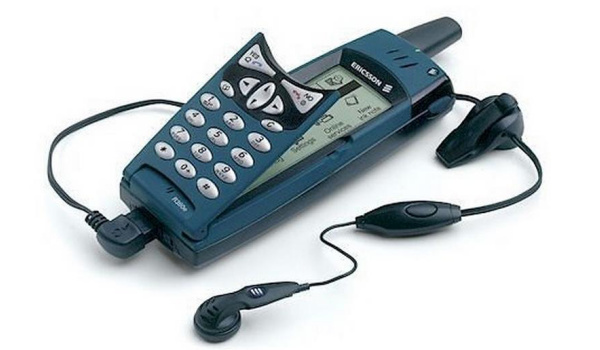
What was not to like about a phone that looked like something out of a science fiction movie when compared to the average cell phone at the time? The fact that I could use it as a regular phone, then open it up to reveal that large touchscreen was captivating. Touchscreen phones didn’t work with fingers back then, so it came with a stylus for writing or pecking on the screen, whichever you preferred.
Like the Motorola A008, the Ericsson R380s was a forerunner of modern smartphones. As a matter of fact, it was the first mobile phone to be referred to as a smartphone. Never mind that it had no way to install apps. You were stuck with whatever features it came with – and it came with plenty for the time.
Ericsson T28
Released in 1999, the Ericsson T28 wasn’t quite special in any way apart from the fact that it was compact. Perhaps it was it’s compact size that attracted me, or perhaps I was just bored, but I bought one.
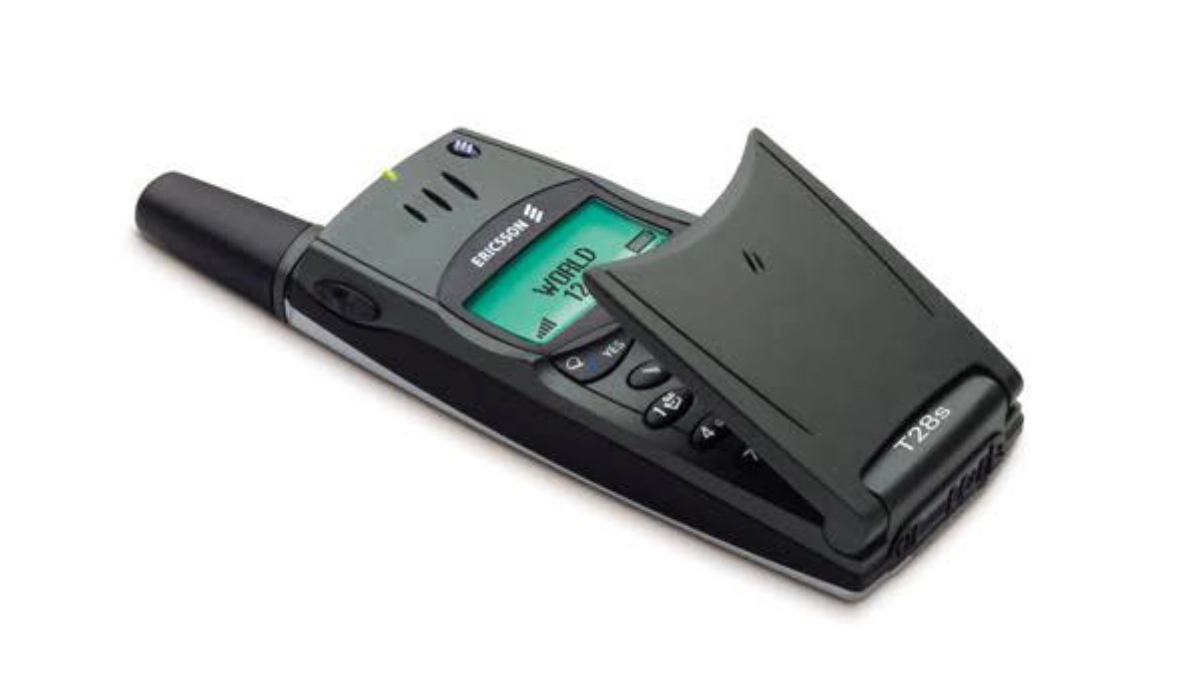
Boy! Was it tiny! The tiny screen was no joy, though. But I loved the tactile feel of the alphanumeric keypad.
Motorola Razr V3
Released on 2004, the Razr V3 went on to become the most popular of these old flip phones, especially in the United States. This was the phone that made flip phones hip.
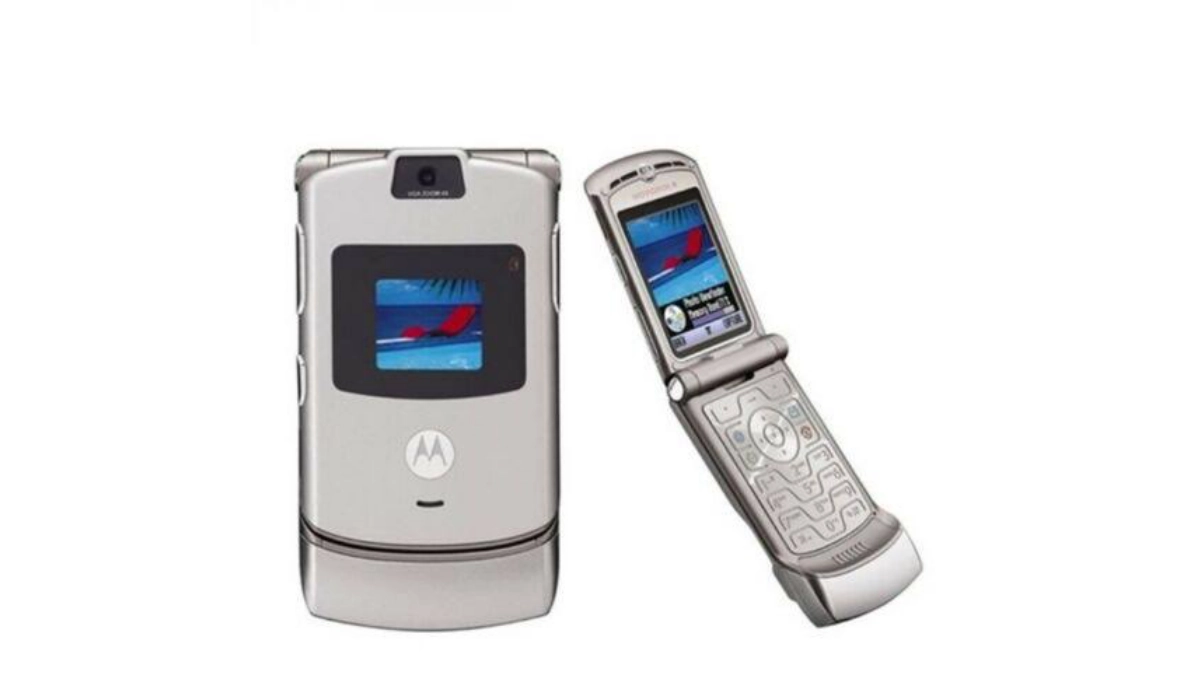
The Razr V3 didn’t have any super features to wow users. It was the super-slim design and build materials that did the magic, and millions of people bought it in droves. It was beaten to the title of the best selling phone released in 2004 by the Nokia 2600 but remains the world’s bestselling clamshell phone to date.
The Motorola Razr V3 was so successful that Motorola designed its modern touchscreen Razr after it. I have a copy in the Mobility phone museum; it still works.
Which Old Flip Phones Did You Own?
If you were already using a mobile phone between 2000 and 2005, did you use any old flip phones? If you did, which ones? Do share you story with me in the comment section below.
Author:Mister Mobility
Digital Skills and Communication Coach | Mobile Phone Connoisseur since 2001 | Tech Blogging since 2004
