Add MobilityArena as a preferred source on Google
Screenshots are necessary to record a variety of important data, such as concert tickets, flight information, or relevant messages. There are different ways to take a screenshot on a Samsung device and if you’re not familiar with them, this guide is for you.
As a matter of fact, there are at least 7 ways to take a screenshot on a Samsung mobile device, whether it is a Samsung Galaxy A03 , Samsung Galaxy A03 Core , or a Samsung Galaxy A04e . In this article, we’ll walk you through each of these different ways to take screenshots on your Samsung phone or tablet.
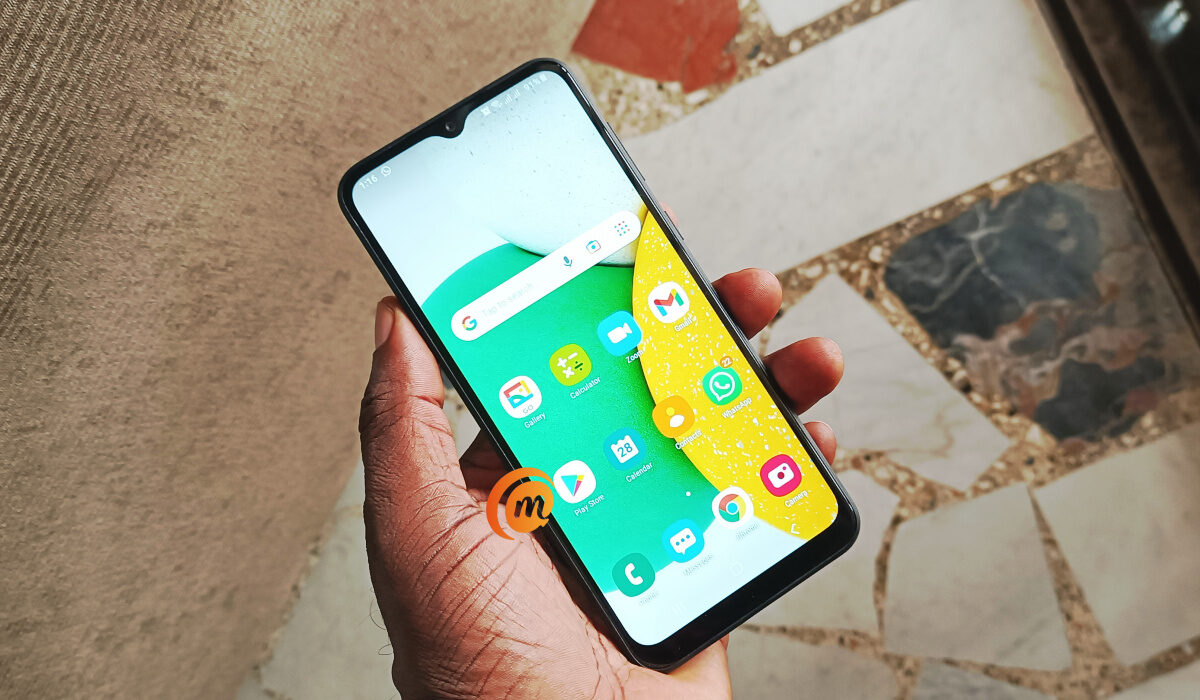
How To Take a Screenshot on a Samsung Phone or Tablet
- How To Take a Screenshot on a Samsung Phone or Tablet Use the Volume Down and Power Buttons Capture with a Palm Swipe Using the Smart Select Edge Panel Use of the Quick Settings Panel Ask Google Assistant or Bixby Use the S Pen Use Screenshot whole pages with Scroll Capture
- How Do I Access My Samsung Screenshots?
How To Take a Screenshot on a Samsung Phone or Tablet
The steps for taking a screenshot on Samsung devices are similar regardless of which Galaxy phone or tablet you have. However, they may still differ slightly depending on the type of device you have. Here are a few options to take screenshots on Samsung phones or tablets.
Use the Volume Down and Power Buttons
For most people, this is the simplest way to take a screenshot on a Samsung device. Simply hold down the Power (or Side ) and Volume down buttons at the same time.
The precise location of these buttons will be determined by your device. Both of these buttons are located on the right side of the Samsung Galaxy S22. The Volume button is on the left and Power button is on the right of the Samsung Galaxy S8.
Holding these buttons for a second or two is all that is required. When you take a screenshot, the screen will flash white. You can watch a video demonstration of this here on YouTube .
Capture with a Palm Swipe
Another way to take a screenshot on a Samsung device is by swiping your palm across the screen. Palm swipe to capture can be turned on under Settings > Advanced features > Motions and gestures . To take a screenshot, swipe the edge of your hand across the screen from left to right.
Note, however, that this technique is a little tricky and takes a few tries to master, not to mention how messy your screen gets if your hands are not dry.
Using the Smart Select Edge Panel
Edge panels on Samsung devices can be set up and used for a variety of tasks. One of these tasks is taking screenshots on Samsung devices. To take screenshots using the edge panel, do the following:
● Toggle it on by going to Settings > Display > Edge panels .
● Choose the Smart select panel from the Panels menu. Open the edge panel after adding it and swipe until you reach the Smart select panel.
● Choose either Rectangle or Oval , then drag to select the area to screenshot. Tap the Done button, then the Save button (the down arrow).
Use of the Quick Settings Panel
One of the updated features in One UI 5.1 is the one-tap ability to take screenshots directly from the Quick Settings panel, which is probably simpler than the previous method.
To do so:
● Customize the Quick Settings panel and add the Take screenshot button from the available buttons grid to it.
● After you’ve added it, press the button to take a screenshot.
● To view screenshot settings you might want to modify, you can also long-press the button.
Ask Google Assistant or Bixby
Google Assistant is standard on all Android phones, but Samsung phones also include Bixby, an alternative voice assistant. To take a screenshot on Samsung devices without having to use your hands, you can simply say “Hey Google, take a screenshot” or “Hey Bixby, take a screenshot,” and the assistant will do just that.
Use the S Pen
You can also take a screenshot with a Samsung phone that has a S Pen stylus built in, such as the Galaxy S22 Ultra or the Galaxy S23 Ultra .
Take the S Pen out of the device, select Screen write by tapping the Air command menu icon. This will result in a full screenshot. The screenshot can then, if desired, be edited using the tools on the screen. When finished, press the Save button.
Use Screenshot whole pages with Scroll Capture
You don’t have to take multiple screenshots on a Samsung device if you want to capture a long webpage or app. Instead, you can create a single large screenshot using Samsung’s Scroll Capture Feature.
A screenshot toolbar will show up at the bottom of the screen after taking a standard screenshot. Tap the Scroll Capture icon (two downward arrows that bounce) on this.
With a single tap, the page is scrolled down once and the screenshot is stitched to the bottom of the first. Continue tapping the icon until you’ve captured everything you want on the page.
How Do I Access My Samsung Screenshots?
After taking a screenshot on your Samsung phone or tablet, you may be wondering where it is saved and how you can access it. This is not difficult at all.
Open the Gallery app and choose Albums from the bottom menu. You will then see a Screenshots album, which you can manage just like any other photo album.
In conclusion , we hope you now understand how to take a screenshot on a Samsung phone or tablet. Choose the method that is the simplest and quickest for you, as they all produce the same result.
Author:Joan Agie
Add MobilityArena as a preferred source on Google
Using mobile devices for online activities is more common than ever before. You have a whole online world at your fingertips at any given moment and you can have fun. We all know that there are a lot of different benefits here. Some of you will know that there are some risks here as well. Below, we are going to discuss all of these and reveal each one you need to know about.
- The Benefits of Using Mobile Devices for iGaming Activities It Is Convenient to Gain Access to Information and Online Services You Can Multitask and Boost Productivity Much Better Social Communication And Connectivity
- The Risks of Using Mobile Devices for Gambling Activities Possible Issues With Storing Financial Information Issues With Addiction And Its Effect On Mental Health Lack of Physical Activity
- Strategies for Mitigating Risks and Maximizing Benefits of Mobile Devices for Online Gambling and Activities
- The Future of Mobile Devices and Online Activities
- Conclusion
The Benefits of Using Mobile Devices for iGaming Activities
The benefits here are impressive and something you will want to hear about right now. The even more important thing is that each of the benefits is massive and impressive for lack of a better word. Although there are countless benefits, most of them can be a part of the 3 mentioned below.
It Is Convenient to Gain Access to Information and Online Services
The main benefit here is the ability to gain access to all online services and all information online instantly and at any time. You have a phone, and you can visit any website, play games, use services, read useful articles and so much more. You can get all of that when you are travelling, while at work, or while waiting for a friend at a park. In simple terms, you have a lot of options available to you.
You Can Multitask and Boost Productivity
Using a smartphone can be ideal if you want to boost your productivity. There are many apps that help you to focus . You can multitask and complete a few tasks at the same time. You can complete any task in less time than ever before. All of this suggests that an average person will be more productive. This has a huge effect during education, while at work, and in countless other examples.
Much Better Social Communication And Connectivity
A huge advantage of using a smartphone is connectivity. You will be connected to your friends always. You can get help or just have fun with them. There is no need to be alone in this world. Most people use smartphones only for this reason but soon they will discover other ones mentioned here and enjoy those as well.
The Risks of Using Mobile Devices for Gambling Activities
Using a smartphone for online activities is not without any risks. There are some issues we would like to explain here. Each one can be a severe problem and can cause a lot of complications.
Possible Issues With Storing Financial Information
You will use your phone to make online payments. If you are doing that at unsafe and problematic websites, you can end up in a lot of problems. You can lose the data which is a huge problem.
Issues With Addiction And Its Effect On Mental Health
You can end up with addiction. This is closely related to gaming online or social media platforms. The risk is much higher than when using computers because you have access all the time.
Lack of Physical Activity
Because you will spend a lot of time online, you will lack physical activity which has been a huge problem for the modern generation. You will spend the whole day online instead outside.
Strategies for Mitigating Risks and Maximizing Benefits of Mobile Devices for Online Gambling and Activities
There are some things you can do to boost the benefits mentioned above and decrease the risks. One thing you can do is limit screen time using an app. When the time is up, you will want to go outside and do something else.
If you play games online, you can try GamStop. This is a platform used by gamers in the UK. You can create an account, which is 100% free and you will self-exclude yourself from online gaming for up to 5 years if you like. Players who decide to do it, can’t play on many sites after the registration and use NonGamStopBets ways that describe how to avoid GamStop and continue playing. Obviously, you cannot remove self-exclusion which makes GamStop an ideal option and many people do not gamble until the end of the exclusion period.
You can also try to download an app for exercising or simply measuring your physical activity. Some of these apps will help you be more active and also productive. Physical activity can boost your mental health as well.
The Future of Mobile Devices and Online Activities
All we can add here is that the future of smartphones and online activities is bright. We can see more capable devices, the presence of VR and AR that are powered by smartphones, and also more options.
Yes, we can see a lot more games as well. Some players prefer mobile games due to the fact they are more versatile and more advanced than ever before. Some developers and manufacturers are working on making smartphones more focused on physical activity benefits and overall health.
Conclusion
Using smartphones is loaded with benefits. You can always be connected and enjoy all the games and services online and you can do all of that whenever you like. All of this will become more common and more versatile in the near future. Just make sure to find a balance between the benefits and risks mentioned above.
