Add MobilityArena as a preferred source on Google
A scrolling screenshot is a screenshot with which you can capture content outside of what you can visibly see on your screen. For instance, you are viewing a document/content on a site and you screenshot it all. Instead of taking multiple screenshots, one after the other, from top to bottom, you can take a scrolling screenshot that covers all, or most, of the content in one single long screenshot.
If you own a Google Pixel, there are scenarios in which this comes in handy. For example, you might want to take a screenshot of a long Web page. This is one of the most common use cases for taking a scrolling screenshot.
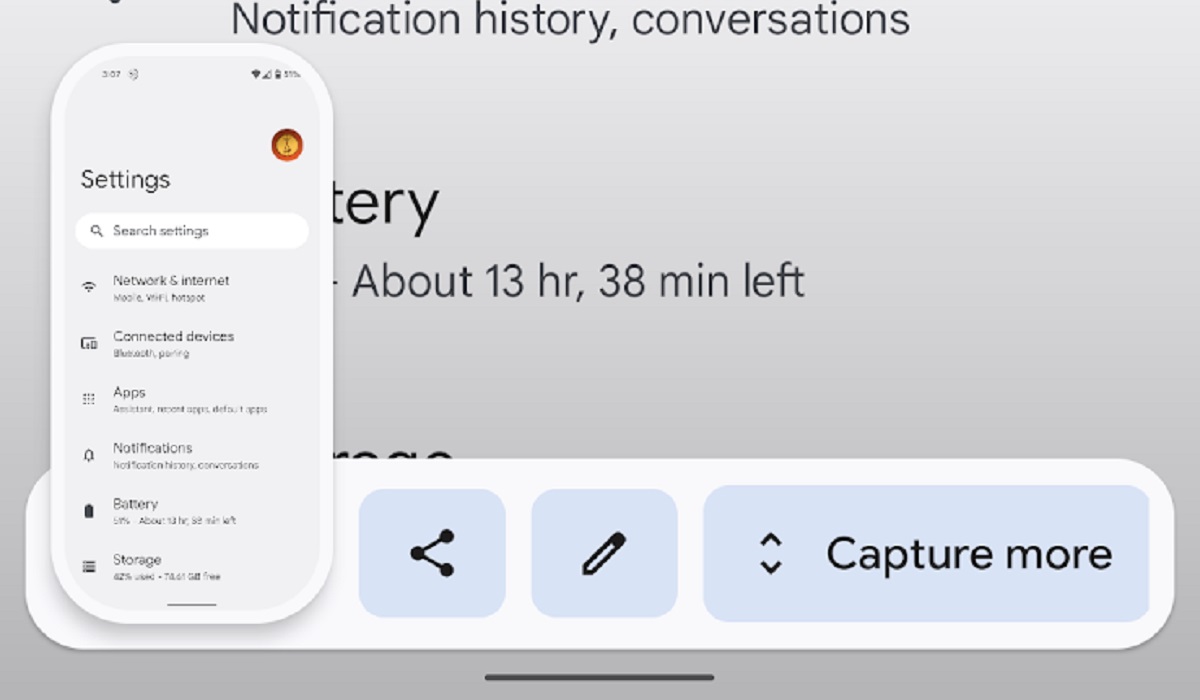
The scrolling screenshot is a feature that not a lot of users know about but can be very useful, as well as time and space efficient in multiple situations. Let’s take a look at how to take a scrolling screenshot on Google Pixel smartphones.
How to take a scrolling screenshot on Google Pixel smartphones
Note : These steps work on phones running Android 12 and newer, on most screens that allow you to scroll. If you have an android version below that, you, unfortunately, can not use this feature.
To take a scrolling screenshot, follow these steps:
- Head to the screen/content that you want to capture.
- Press the Power and Volume down buttons at the same time briefly.
- At the bottom of your screen, tap on Capture more.
- To select the content you want to capture, simply adjust the crop measurements to cover as much content as you want to screenshot, and save.
The long screenshot is saved to your device and you can edit and/or share it as you wish. That is everything you need to know about taking a scrolling screenshot on your Pixel smartphone. It is a stress-less feature that should be used more often by users. Enjoy.
- Don’t miss our mobile phone reviews .
- Join our WhatsApp Group , to be notified of the most important articles and deals.
- Follow us on Instagram , Facebook , Twitter , and YouTube .
Author:Flamez
Flamez loves basketball, art, gadgets and cars.
Add MobilityArena as a preferred source on Google
One way to understand the functionality of a smart TV is to define it as a television that doubles as a desktop PC. That definition paints a clear and bright picture of the kind of things that you can do with one.
As a television, you can watch both terrestrial and satellite broadcasts on it, and connect it to a media player (CD/DVD player) or home theatre to playback video and audio content.
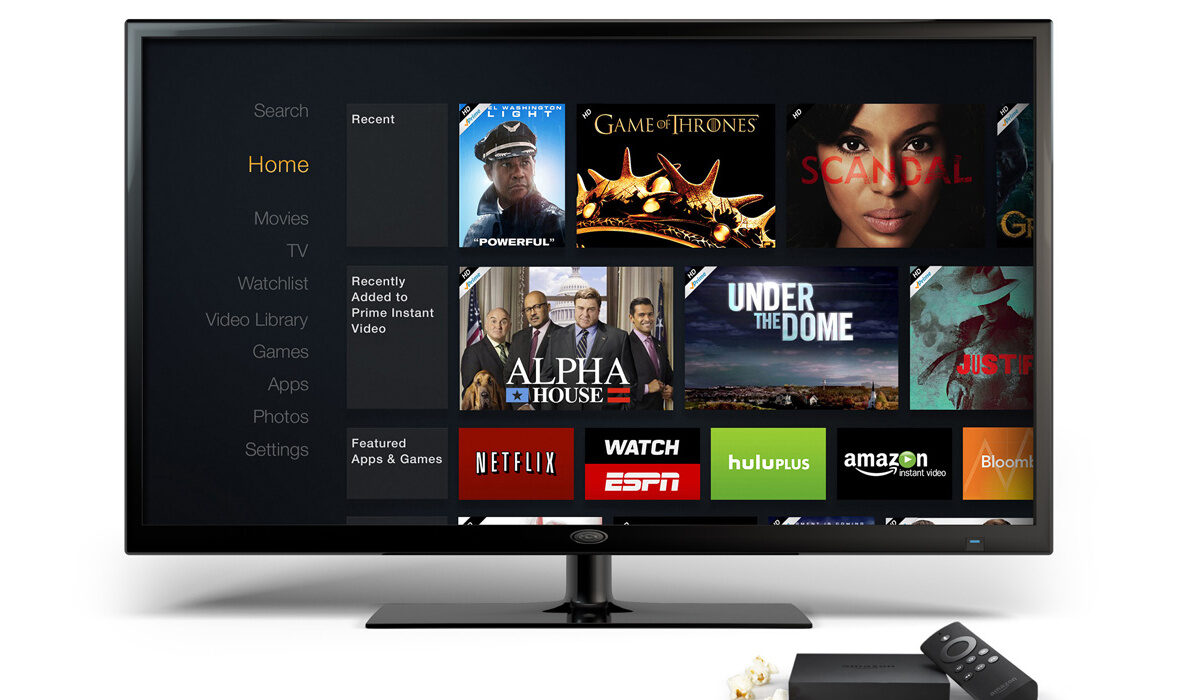
You can also connect your smartphone or gaming console to it in order to “cast”. That means, you can use it as a big screen for devices with smaller screens.
What is a smart TV? Definition
As I have already explained, a smart TV is an Internet-connected television that doubles as a big screen computer. As a connected device, it needs an Internet connection. Note that you do not need an Internet connection in order to watch regular TV, but if you want to take advantage of the connected PC side, an Internet connection is essential.
- What is a smart TV? Definition
- How to connect a smart TV to the Internet
- What brands make smart TVs?
- What operating systems do smart TVs use?
How to connect a smart TV to the Internet
Connecting a one to the Internet is a simple and straightforward process. It is a process that you are already familiar with: use Wi-Fi. All smart televisionss are Wi-Fi-enabled. Simply connect it to your home or office Wi-Fi and you are ready to start streaming and browsing and downloading.
Here is a guide showing you How to connect your Smart TV to the Internet in 2 easy ways . If you run into trouble and it fails to connect, here is an article to help you figure out why your Smart TV is not connecting to the Internet .
What brands make smart TVs?
Almost every brand that makes traditional television sets now makes smart TVs. In addition, being new technology, there are new players making them as well. The leading smart television brands are Samsung, Sony, and TLC. Others include: LG, Hisense, Vizio, Panasonic, Philips, Sharp, and Toshiba.
What operating systems do smart TVs use?
As we have already established that a smart television is pretty much a computer, it shouldn’t be difficult to understand that they run an operating system. The operating system in use differs from one brand to another, but the capabilities are the same/similar. There are three major operating systems in use by smart TV brands.
Android TV is the most widely used operating system for these new, advanced television sets, and it is deployed by brands like Sony, Sharp, Toshiba, and TLC. Note that Android TV is set to be replaced with Google TV . Samsung TVs use Tizen OS , which Samsung has successfully pulled back from the brink of extinction and put to good use. LG uses WebOS , another operating system from the past that has found a new lease of life in the world of smart television.
Other operating systems include Roku, Fire TV, and Apple TV operating system.
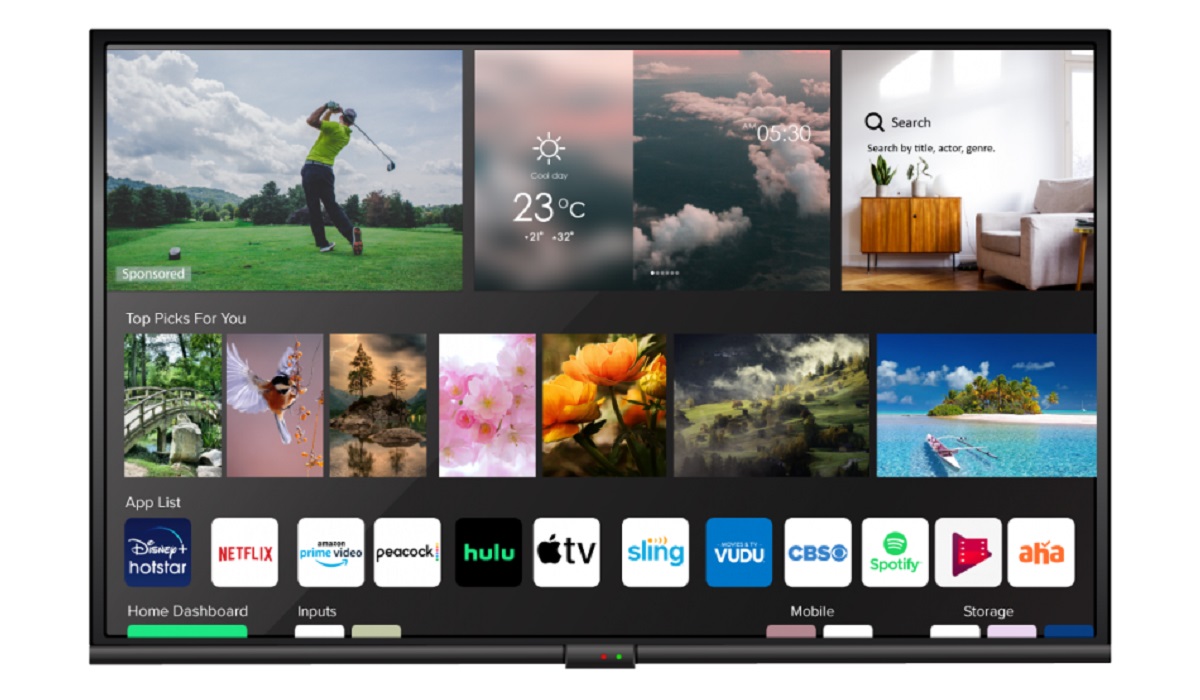
A smart television running WebOS operating system
In closing, a smart TV is an advanced, Internet-connected television set that allows you to watch traditional television channels and broadcasts, as well as download and install apps to use online streaming services, message, access social media, browse the web, play online and offline games, and even control your TV with your voice or your smartphone. You can also connect other devices to it to extend its capabilities.
Author:Mister Mobility
Digital Skills and Communication Coach | Mobile Phone Connoisseur since 2001 | Tech Blogging since 2004
