Add MobilityArena as a preferred source on Google
Screenshots are my go-to tool for any piece of information I’d rather not forget. In fact, I’m a little embarrassed at the number of screenshots I take daily—that’s how useful I (and many others, I’m sure) find the screenshot function.
In this guide, I’ll go over some of the best ways to take screenshots on Android. You’ll find this guide useful because it can be difficult to sort through all the options to find the best technique for your specific device. So, here’s what you need to know about taking screenshots on Android, keep reading.
- What Are The Best Ways to Take Screenshots on Android Phones? Using the Android Screenshot Shortcut Using the Manufacturer’s Shortcuts Using the Gestures Using the Quick Settings Ask Google Assistant to Take a Screenshot Using Third-Party Apps Screenshot Easy Super Screenshot
What Are The Best Ways to Take Screenshots on Android Phones?
Taking a screenshot on Android is actually quite simple, at least on paper. However, you can take a screenshot on Android phones through different ways, which is where things become complex because many Android devices include OEM-specific customizations.
Some of these methods depend on specific apps from the Google Play Store, while others are operating system-wide, manufacturer-specific, or both. Not to worry though, I’ve described the best ways to take screenshots on Android phones below.
Using the Android Screenshot Shortcut
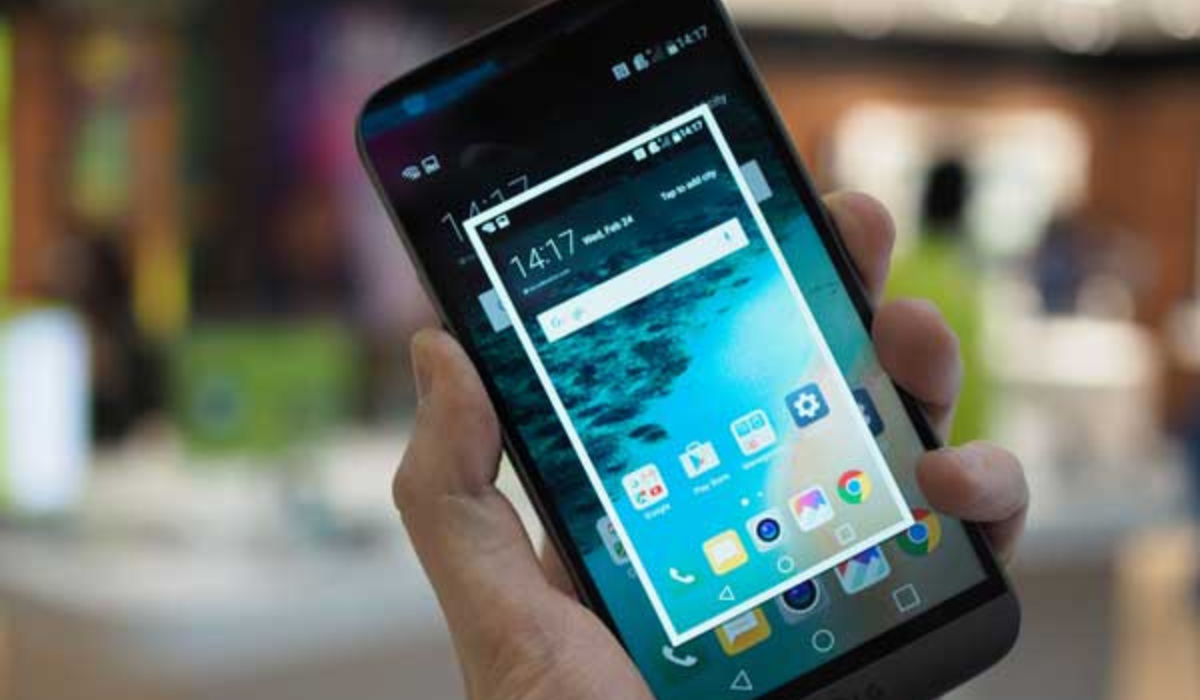
On most Android phones, there is a very quick and easy way to take screenshots. When you simultaneously press and hold the Power and Volume Down buttons, a brief animation will appear on the screen, and the notification bar will confirm that the screenshot was captured successfully.
Getting the timing right takes practice. If you press the power button too quickly, your device’s screen could lock instead of taking a screenshot. Also, if you press the volume button too quickly, you will change the volume. If you find it more handy, Android Pie has a shortcut to take a screenshot in the power menu. This method is one of the best ways to take a screenshot on Android because it’s easily accessible and quick to use.
Using the Manufacturer’s Shortcuts
Not all phones use the usual Android technique. For instance, newer Samsung models now use the Power + Volume Down approach to take screenshots, as opposed to earlier models that still required you to click the Power + Home buttons.
Following that, the procedure is the same. You’ll receive an on-screen confirmation, and the photo will appear in your gallery app. Some phones use the standard method, but they also have other options.
For instance, on some Sony devices, you can get to the Options menu by pressing the Power button. From there, you can take screenshots and record the screen of your Android device. Motorola and Google phones employ the usual technique.
Using the Gestures
Taking screenshots on many Android devices no longer requires pressing buttons; instead, you can use gestures. On Samsung phones, for example, you can activate Palm Swipe to Capture by going to Settings > Advanced Features > Motions and Gestures .
To take a screenshot after enabling the function, simply swipe your hand across the screen at a 90-degree angle. This method is rather sophisticated, and that’s why I think it’s among the best ways to take screenshots on Android. Motorola has a similar feature, and when activated, you’d only need to tap the screen three times to snap a screenshot. To see if your model has a comparable feature, check its user manual.
Using the Quick Settings
In the Quick Settings menu on Android, some manufacturers have added a screenshot button, and it’s another option among the best ways to take screenshots on Android. Swipe down from the top of the screen to get to the menu. Screen Capture , Screenshot , or something similar should show up as an option here.
It’s possible that the choice is hidden if you don’t see it. In that instance, tap the pencil icon to customize the Quick Settings window. You can choose which shortcut buttons appear on the menu here.
Ask Google Assistant to Take a Screenshot
By asking Google Assistant to take a screenshot for you, you may capture a screenshot on your Android device without having to use your hands. This is another option among the easiest and best ways to take screenshots on Android. You’ll particularly love it if, like me, you prefer doing as much as you can on your smartphone without lifting a finger.
Simply say “ Hey Google ” to wake up the assistant, and then “ Take a screenshot ” to capture it. You might prefer using Bixby over Google Assistant if you’re trying to take a screenshot on a Samsung phone. Some users say that Google Assistant doesn’t save screenshots in the gallery of Samsung devices and only allows instant sharing, but this is not the case with Bixby.
Using Third-Party Apps
All of the options I’ve described above are great, but third-party apps are also among the best ways to take screenshots on Android. I’ve described some of the best third-party screenshot apps below. Note that they offer some cool extra features that are not natively available, but their basic functionality is the essentially same as the stock method.
Screenshot Easy
Screenshot Easy has excellent usability features—for instance, you can take pictures using a screen overlay button, or a notification bar button, by shaking your device, or through a widget.
There are also some fantastic post-screenshot options. You can change the colors, add time and date stamps, zip your screenshot files, and crop them. Images can be saved in either PNG or JPG format. Finally, Screenshot Easy supports screen recording, as well as scrolling screenshots.
Super Screenshot
Super Screenshot is a free screenshot app that is simple to use. Perhaps its most useful feature is the ability to crop screenshots before saving them to memory.
It also allows you to resize screenshots, write on them, add text notes, and apply filters to them. If you wanted the same results with the native Android technique, you’d need to download a photo editing app. Extra perk — you can save images directly to your phone’s SD card to save space!
To summarize , taking a screenshot on an Android phone is a fantastic experience that has improved and gotten more convenient. I hope you now understand how to advantage of the best ways to take screenshots on Android phones. Choose the method that is the simplest and quickest for you, as they all provide the same result.
Author:Joan Agie
Add MobilityArena as a preferred source on Google
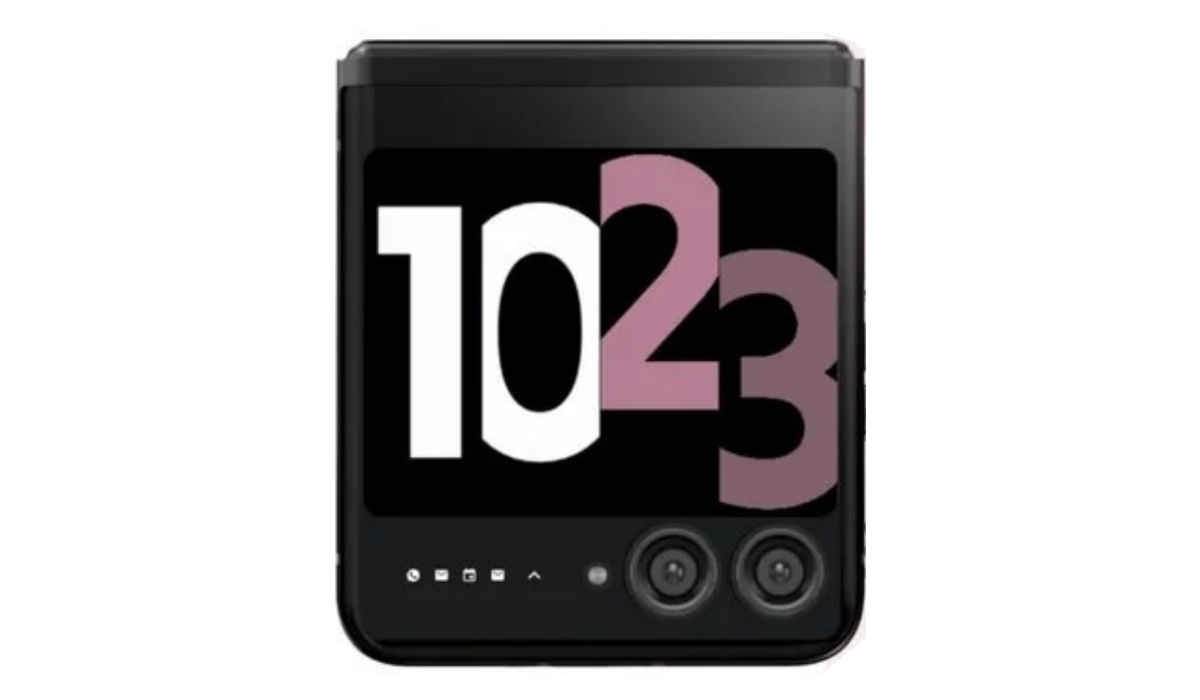
Motorola Razr 40 Ultra Is the 2023 flip form-factor foldable from Lenovo’s subsidiary, Motorola. This model breaks new ground in its category with a large 3.6-inch cover display.
The specs sheet of the Moto Razr 40 Ultra includes the full Qualcomm Bluetooth audio suite of Snapdragon Sound with aptX Lossless, aptX Adaptive, aptX HD, and aptX.
Motorola Razr 40 Ultra: brief information
- OS: Android 13
- Release Date: 2023
- Network Type: 2G/3G/4G/5G
- Main Display: 6.6-inch, 1080 x 2400 pixels resolution
- Processor: Snapdragon 8+ Gen 1
- Selfie Camera: 32 MP
- Rear camera: 12 MP dual
- RAM: 12 GB
- ROM: 512 GB
- Battery: 3800 mAh
- Detailed specifications
- Prices in the USA, UK, and EU Does Motorola Razr 40 Ultra have Google Play Store? Will Motorola Razr 40 Ultra work in the USA?
Detailed specifications
Mobile Wireless Network and Software
- 2G mobile network bands : GSM, GPRS, EDGE 850 / 900 / 1800 / 1900 MHz.
- 3G mobile network bands : UMTS, WCDMA, HSDPA 850 / 900 / 2100 MHz
- 4G mobile network bands : LTE.
- 5G mobile network bands : NSA/SA
- SIM Type : Nano-SIM, Dual SIM, eSIM
- Software / OS : My US based on Android 13
Design, Form Factor, Appearance
- Dimensions : Unfolded: 170.8 x 74 x 7 mm. Folded: 88.4 x 74 x 15.1 mm.
- Weight : 184.5 g or 188.5 g
- Cover Display : 3.6-inch, 1056 x 1066 pixels
- Inner Display : 6.9 inches, 1080 x 2640 pixels, 165 Hz refresh rate, 20:9 aspect ratio, AMOLED screen. Gorilla Glass Victus protection.
- Colors : Infinite Black, Glacier Blue, Viva Magenta, Peach Fuzz.
- Physical Build : Glass front, aluminum frame (7000 series), hinge (stainless steel). Water-repellent coating
Internal Hardware Specs
- CPU/ Processor : 64-bit, 3.2 GHz Octa-core
- Chipset : Qualcomm Snapdragon 8+ Gen 1 (4 nm)
- GPU/ Graphics Processing Unit : Adreno 730
- RAM : 8 GB / 12 GB.
- Extended/Virtual RAM :
- Internal Storage : 256 GB / 512 GB
- External Storage : No.
Photography, Video Recording
- Main Camera : 12 MP main sensor + 13 MP ultrawide angle lens, autofocus, dual LED flash, 4k @30fps, 1080p@30fps video recording. HDR10+, gyro-EIS.
- Front Camera : 32 MP, fixed focus, Face Recognition, 1080p@30fps video capture
Audio, Video Playback
- Music Support : PCM, AAC / AAC + / eAAC + / MP3 / AMR – NB / WB / APE
- Audio :
- Loudspeaker : Stereo speakers
- Video Support : H.264/MP4/MPEG4 player
- FM Radio : No.
Phone Sensors
- Digital Compass : Yes.
- Accelerometer : Yes.
- Proximity Sensor : Yes.
- Ambient Light Sensor : Yes.
- Barometer : No.
- Pedometer : No.
- Heart Rate Monitor : No.
- Gyroscope (G-Sensor) : Yes.
- Fingerprint Scanner : Yes; side-mounted.
- Face Unlock : Yes.
- Iris Scanner : No.
- Motion Sensing / Gesture Control : No.
- Voice Control : No.
- Intelligent Digital Assistant : Yes; Google Assistant.
- Infra-red Blaster : No.
Connectivity Options
- Bluetooth Version : 5.3
- Bluetooth Profiles : A2DP
- Bluetooth Audio Codecs : Snapdragon Sound with aptX Lossless, aptX Adaptive, aptX HD, aptX
- WiFi : Wi-Fi 802.11 a/b/g/n/ac, hotspot
- GPS : Yes, A-GPS, GLONASS, BDS, Galileo
- USB : microUSB v2.0. Type-C. USB-OTG.
- NFC : Yes.
Miscellaneous Specs and Features
- Battery Type and Capacity : Non-Removable Lithium-Polymer 3800 mAh
- Battery Charging : 30W fast charging
- Wireless Charging : 5W.
- Reverse Charging : No.
- Model Version/Number : XT2321-3, XT2321-1, XT2321-2
Launch/Release Dates and Information
- Announced : June 2023
- Release Date : June 2023
Pricesin the USA, UK, and EU
- USA : $324 for the 8GB/256GB variant.
- Canada : C$ 1,148.39 for the 8GB/256GB variant.
- United Kingdom (UK) : £500 for the 8GB/256GB variant.
- European Union (EU) : €715 for the 8GB/256GB variant.
The above prices may change with time from country to country, as market forces and economic policies influence product price movements.
Does Motorola Razr 40 Ultra have Google Play Store?
It supports Google Services and software applications, including Play Store and Maps, Gmail, YouTube, and others.
Will Motorola Razr 40 Ultra work in the USA?
This is a GSM phone and is supported on US GSM carriers like AT&T and T-Mobile and other networks riding on their networks. It does not support CDMA networks. Do make inquiries from your carrier to know what bands/frequencies are supported on their service.
MobilityArena Buyer’s Guide Verdict
Not available.
Our Buyer’s Guide Verdict is a recommendation based on the specifications of the device and is a general guide to help you understand how much value a device offers for its price. It is not an endorsement of the device. Ask questions and use your judgement when buying any device; MobilityArena takes no responsibility for your buying decisions .
