Add MobilityArena as a preferred source on Google
A standard iPhone screenshot captures the full contents of your screen, nothing more and nothing less. However, there’s a chance that such screenshots won’t always be adequate, especially if you’re attempting to record something that goes way beyond your phone’s screen.
Thankfully, iOS has a feature called “Scrolling screenshots” that lets you take a single screenshot while scrolling through numerous pages. A scrolling screenshot makes the procedure simpler than using third-party tools to combine multiple screenshots into one larger one.
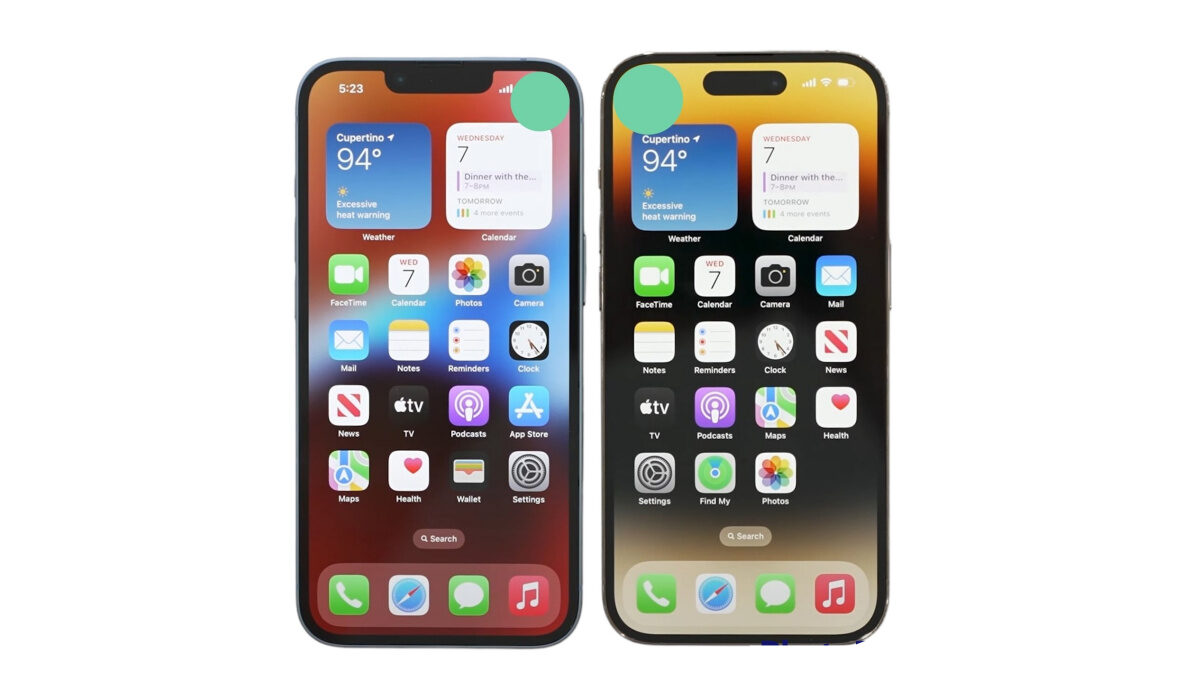
In this guide, we’ll show you how to take scrolling screenshots on your iPhone device if you’re not already familiar with the process. So, keep reading to find out the different ways to get this done.
What is a Scrolling Screenshot?
A full-page screenshot, also known as a scrolling screenshot, lets you take a single screenshot that will cover the entire page of a webpage, document, or email. For instance, you would only need to take one screenshot to get the complete 116-page document on Safari if you wanted to screenshot it.
This totally eliminates the need to capture multiple screenshots and have to go through the stress of combining or joining them.
How Do I Take A Scrolling Screenshot on iPhone?
To take a scrolling screenshot, there are some things you must first be aware of. For one, this feature only functions (as of the time of writing this article) with screenshots taken using the Safari web browser. Also take note that scrolling screenshots, which are typically saved as a PDF, can only be saved using Apple’s Files app.
Follow these steps to capture a scrolling screenshot:
● Start by taking a standard iPhone screenshot. Press the Side button and the Volume up button quickly if you have FaceID. Home button plus side/top buttons are required for Touch ID.
● Click on the screenshot preview; you’ll see it in the lower-left corner. It will only be there for about five seconds, so you’ll need to move swiftly.
● After that, select Full Page . A preview of the complete scrolling screenshot is displayed beneath Full Page , coupled with a larger preview in the center. In case the scrolling screenshot is too long, you also have tools to crop it.
● Click Done after you’re done editing the scrolling screenshot. Two options will be presented to you: one to save the scrolling screenshot and the other to remove it.
● If you want to save the scrolling screenshot, you’ll need to click on Save PDF to Files . If more than one screenshot is taken, select Save All to Files or click on the Share icon located in the top-right corner of the screen, then select Save to Files . The share button (box with an arrow pointing up) is located in the upper right corner of the screenshot. Tap it to share the file immediately via Messages, email, etc. When finished, proceed with the remaining instructions given below.
● To save the scrolling screenshot, select a folder. The Downloads folder or the most recent folder you stored something to will be chosen by default in the Files app.
You can also take a scrolling screenshot with AssistiveTouch, which is an accessibility tool that is typically included with the iPhone. Keep in mind that you must have AssistiveTouch configured in Settings > Accessibility > Touch > AssistiveTouch in order to snap a screenshot with it.
To use this technique to capture a scrolling screenshot, follow these steps:
● Use the set AssistiveTouch tool to take a screenshot of a website or a large document.
● You can take a screenshot using Back Tap if your system is configured to do so.
● Click the preview thumbnail that shows up in the lower-left corner of the screen after taking a screenshot.
● To view what the screenshot will look like, tap the Full Page tab in the top-right corner of the screen.
● When you’ve completed the process, select Done from the top-left corner of the screen. Tap Save PDF to Files to store the PDF (or click the option to Save All to Files if you took more than one screenshot).
● Choose a location to save your screenshot of the scrolling page. Once it has been saved, you can view it via the Files app.
How Do I View My Scrolling Screenshots?
All the converted scrolling screenshots are delivered as PDF files to the built-in Files app. Open the Files app, navigate to the folder where your screenshot was saved, then press the image to view it scrolling.
In conclusion , taking scrolling screenshots is really easy to achieve, as long as you have the right information to take advantage of the features on your iPhone device.
- Don’t miss our mobile phone reviews .
- Follow our news on Google News .
- Join our WhatsApp Group , to be notified of the most important articles and deals,
- Follow us on Instagram , Facebook , Twitter , and YouTube .
Author:Joan Agie
Add MobilityArena as a preferred source on Google
Anyone who routinely uses their computer to input text in a language other than English needs to have the language bar available in the Taskbar. The language bar allows you to change the input language on your device with a few simple tweaks from the Taskbar.
However, occasionally you might find that there’s no Language bar in the taskbar. On all Windows versions, the “language bar missing from taskbar” problem is a frequent one. In the majority of situations, a Windows update or an upgrade to a newer version of Windows probably caused the language bar to vanish from the taskbar. This could also happen because of registry mistakes or damaged files on your system.
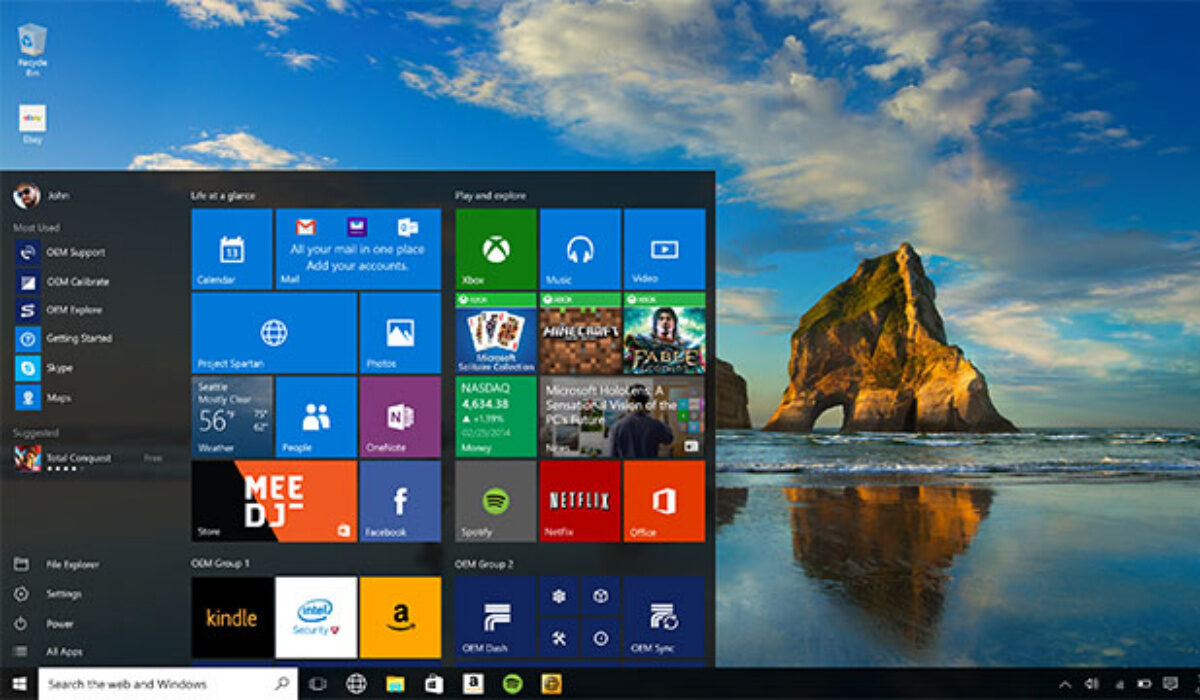
However, there’s no need to worry if you’re having trouble using the language bar on your Windows device. We have several solutions for you that will fix the issue. First, we’ve highlighted some initial workarounds you should try that might help you, then you can go on to the main fixes for this issue if the workarounds don’t help.
First Things to Try
If this is the first time you’re encountering this issue with your device, then do the following:
● Restart it and then check to see if the issue reappears.
● Verify if your device has any pending Windows 10 updates. Update Windows if any updates are still pending.
● To make a tick appear, right-click the Taskbar and choose the Show Touch Keyboard option. Right-click the Taskbar in Windows 11 and then select Taskbar , Taskbar options , and Turn on Touch keyboard .
If you’ve done the abovementioned steps and you’re still unable to locate the Language bar in the Taskbar, then it’s time to move on to the fixes we’ve described below.
Enable Language Bar from Settings
Sometimes, it’s possible that you accidentally disabled the language bar in your settings. Not to worry though, the language bar is simple to re-add. Take these actions to get it done:
● To access Settings , first, select Start Menu .
● Select Time & Language , and then from the list on the left, select Region & Language .
● Selecting Additional date, time, and regional settings is the next step, this can be found under Related Settings .
● Once you’ve done that, go to Language > Advanced settings in the right pane. There, you’ll also see the Switching input method option and the option to Use the language bar when it’s available underneath. Click Options next to this after selecting it.
● A window will then pop up. Your language bar is set to disappear if you see that Hidden is selected.
● Therefore, adjust it to Docked in the Taskbar or Floating on Desktop .
● Following that, the language bar will show up on the desktop or on the taskbar’s right side.
As described in the steps above, changing the language bar’s configuration to Floating on Desktop or Docked in the Taskbar should easily help you resolve the missing language bar on your device.
However, there’s a possibility that it won’t work, in which case you need to try the second method we’ve described below.
Restore Language Bar by Hacking your Registry
For storing system and application setting data, the Microsoft Windows registry is a crucial database. When all of your settings are right, using this approach will enable the starting service needed for the language bar. Keep in mind that you’ll need to use the registry editor with caution.
The following are specific steps you need to restore the language bar using this method:
● Enter “regedit” in the search field after clicking the Cortana icon. To let it run, choose Yes .
● You must move from Computer to Run in the left window.
● Run under SOFTWARE > Microsoft > Windows > CurrentVersion in HKEY_LOCAL_MACHINE .
● Select New > String Value by performing a right-click in an empty area of the right pane.
● Rename it to CTFMON using the right-click menu.
● Once more, right-click the new value CTFMON and select Modify .
● In Value Data , enter “ctfmon”=”CTFMON.EXE”. then press OK .
● Reboot after closing the Registry Editor.
● When you’re done, the Language Bar ought to reappear in the system tray.
Summarily , to get the language bar to appear again on your Windows device, use the two techniques mentioned above. After that, change the preferred language and input method to your liking.
- Don’t miss our mobile phone reviews .
- Follow our news on Google News .
- Join our WhatsApp Group , to be notified of the most important articles and deals,
- Follow us on Instagram , Facebook , Twitter , and YouTube .
