Add MobilityArena as a preferred source on Google
There are mostly two categories of smartphone users: those who change their phones as soon as there’s a new upgrade, and those who don’t care much about the latest device and just appreciate a working smartphone. If you belong to the latter category, you won’t always need to upgrade to the newest iPhone, but you will eventually need to do so whether you want to or not.
It might sometimes be challenging to decide when to replace your iPhone or just update it to the latest OS. Also, if your phone isn’t working properly, there’s the occasional dilemma as to whether you should fix it or get an entirely new one. However, this decision doesn’t have to be so confusing if you know the signs that typically indicate that it’s time to get a new device.
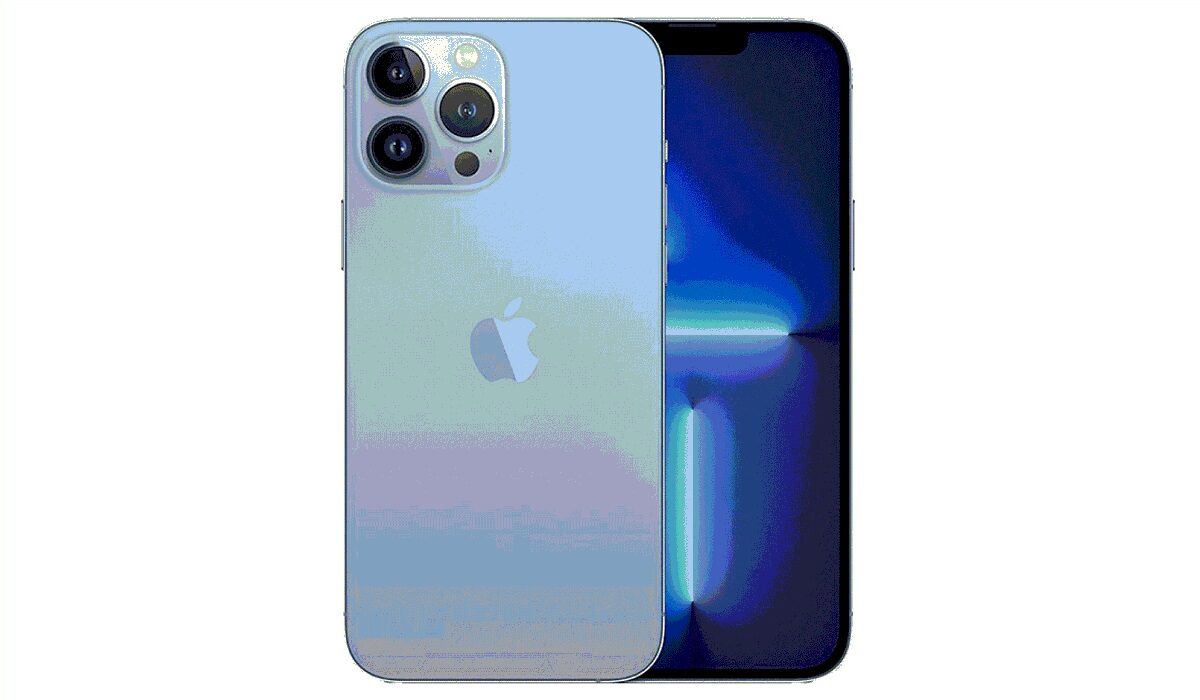
How can you tell when it is time to replace your iPhone?
If you’re not familiar with these helpful hints, then this article is for you. We’ve provided the most prominent indications in this guide that will help you recognize when your iPhone is too old and needs to be replaced with a new one.
How Long Should My iPhone Last?
Under normal circumstances, your iPhone should last a long time if you take good care of it. You can generally anticipate your phone to remain functioning for about four to seven years. Almost always, iOS updates for iPhone models come for years after their release date. The 2014-released iPhone 6 for instance was still able to install iOS 14 updates as of 2021.
Of course, you, and not Apple, will determine how long your phone lasts because, in the end, it’s how you handle the phone that matters most. Your device’s lifespan will naturally get shorter if you misuse it frequently.
How Do You Know It’s Time to Replace your iPhone?
Below, we’ve discussed some important signs that should help you know that it’s time for a new iPhone device.
Faster Battery Drain
Your iPhone’s battery will inevitably deplete more quickly as it gets older. This can also be brought on by temporary elements like chilly weather. However, if you discover that you can’t use your smartphone for extended periods without having to recharge it, upgrading may be your best option.
You might want to think about getting your battery changed instead if you still receive fresh iOS upgrades and don’t want to buy a new phone. If you request the repair through an authorized repair shop instead of Apple, it will probably be far less expensive.
Inability to Download and Install the Latest iOS Software
Even if it doesn’t seem like a major concern to not have the most recent iOS software, there are additional benefits to updating your phone that go beyond the addition of new functions. You run the danger of being exposed to malware and other security threats if you don’t have the most recent Apple software.
Your phone might continue to function normally for a short period after it stops getting the most recent iOS updates. However, it’s generally a good idea to update your iPhone and secure it with the most recent software for your safety.
So, if for whatever reason your iPhone gets to the point where it can no longer install updates, then it’s time to say goodbye to it.
Constantly Insufficient Space
For iPhone users, having insufficient storage capacity is a regular issue. Your device can accumulate a lot of files, apps, photographs, and music if you don’t routinely clear it. As such, it’s a great starting step to go through and delete everything on your phone that isn’t important to you when you’re struggling to free up enough space.
However, there are occasions when a phone’s storage capacity is insufficient to meet all the needs of its user. If this is the case for you, you might want to think about upgrading to an iPhone with greater capacity, especially when you frequently run out of space while using the phone normally.
Lack of Support For Newer Wireless Technologies
Older devices are frequently left behind when tech companies modernize the mobile network backbone. Texting and calling people should still be possible, but doing anything else without Wi-Fi will be more difficult. Even though you don’t need 5G to receive speedy mobile coverage, you’ll be able to maximize the performance of your smartphone if you have at least 4G.
Older phones supporting only 3G networks are mostly obsolete at this point. When your iPhone no longer supports the most widely deployed wireless technologies, upgrading to a new model is a wise and sometimes necessary move.
Some Key Functions Don’t Work
It’s possible that your iPhone still functions well even if you don’t have the most recent software or a part of it — like the screen — is destroyed. However, you should keep in mind that the likelihood that your device will eventually stop operating at a level that is even remotely suitable is substantial.
Your only choice may be to upgrade to a new smartphone if other people typically can’t hear you over the phone, your apps frequently crash, or your touch screen and buttons don’t function as they should, if at all.
Summarily , no matter how carefully you handle your iPhone device, it will still need to be replaced one day. The instructions in this article will help you recognize if all you need is an update sometimes, or if it’s time to replace your iPhone with an entirely new device.
Keep in mind that some things can be fixed just by changing some parts of the phone. However, if it appears that you’ll spend more repairing the phone than you would if you were buying a new one, then the smart choice is pretty obvious.
We hope you’ve learned a lot from this article, so we encourage you to share or recommend it to others.
- Don’t miss our mobile phone reviews .
- Follow our news on Google News .
- Join our WhatsApp Group , to be notified of the most important articles and deals,
- Follow us on Instagram , Facebook , Twitter , and YouTube .
Author:Joan Agie
Add MobilityArena as a preferred source on Google
It happens even to the best of us – trying to clear up some space by deleting files and then deleting the one file you’re not supposed to by accident. This can be quite distressing, so it’s a relief to know that all hope is not lost if you ever delete a file on your Mac unintentionally. Fret not; it is possible to restore accidentally deleted files on Mac computers.
Regardless of whether they are essential documents or personal photos, all files will typically remain hidden on your hard drive and don’t exactly disappear even after being removed from the Mac Trash. We’ll explain in this guide how you can recover Mac trash and retrieve deleted files, both manually and using relevant software.

How to Recover Accidentally Deleted Files on Mac
File deletion is typically broken down into three main topics: permanently deleting files, emptying the recycle bin or trash, and unintentionally deleting files.
You’ll typically be able to use various Mac utilities to recover deleted files on a Mac without using any additional software if you accidentally erase files. Without a trustworthy backup, however, it might be a tad difficult to retrieve deleted files from the trash.
In most circumstances, a Mac Data Recovery application can prove helpful to recover empty trash on a Mac. Below, we’ve described several methods by which you can retrieve your files.
Recovering Files With A Data Recovery Software
If you’re following this file recovery option, the Recoverit Mac Files Recovery software is what we advise that you use. You can typically use this expert data recovery program to recover files on a Mac that have been unintentionally deleted, removed permanently, or even deleted from the trash. All you need to do is select, scan, and recover; these are the three easy actions you’ll need to use this trash recovery tool.
Download the Recoverit Data Recovery Software for free, run it, and then adhere to the next set of instructions to recover deleted data and restore the Trash on your Mac:
● Choose the “Trash” directory to begin using the Recoverit Data Recovery software.
● It will take a few minutes for the Mac data recovery to begin searching the target folder and restore your contents.
● You can examine all retrieved data and files after the scan. Additionally, you can see some of the recovered images, sounds, and office documents. To recover your files, select them and press the “Recover” button.
● So that your data doesn’t get lost again, you should get a secure device to save any restored data and files.
The simpler method to restore your lost data is by using data recovery software, but you also have the option to recover your files without using software, and we’ve described the process below.
Recovering Accidentally Deleted Files on Mac Without Software
Even if you’ve emptied the trash on your Mac device, keep in mind that you may still be able to recover deleted files on a Mac without the aid of software. There are two options to go about this successfully.
Using the Mac terminal is the first option . Similar to the Command Prompt on Windows systems, the terminal is a built-in software on Mac devices. It enables you to perform a variety of operations using the Unix command line.
On a Mac, you can occasionally recover deleted files from the trash using Terminal. However, in general, it might be tricky to recover deleted files using the command line if the files have already been removed from the Mac’s trash.
Using the Mac terminal to retrieve deleted files is easy, just follow these instructions:
● To open Spotlight, press CMD + spacebar together. Type “Terminal” into the search box.
● After entering “cd. Trash,” hit the “Return” key.
● Specify “mv xxx../” and press “Return.” (xxx stands for the deleted file’s name)
● Go to the “Finder” box after typing “Quit.”
● Next, click “Return” after entering the file’s name.
● You’ll see the deleted file again. Click on it, then save it somewhere secure.
The erased files can typically be recovered following the aforementioned steps. The likelihood will, however, be lower if the Mac’s trash has already been cleared. Fortunately, Recoverit Data Recovery for Mac is still an available option, and it’s also the easiest.
The second option to try without using software is to check the external drive’s trash bin to see if you can recover your files. To maintain the regular operations of the Mac computer, several invisible folders are generated whenever an external device is used.
When you delete files from an external storage device, such as an external hard drive or SD card, they are moved to a hidden folder called “.Trashes” instead of the Mac trash. Therefore, even after emptying the Mac trash can, it’s sometimes possible to return deleted files to their original place.
By using the CMD + Shift +.hotkey , you’ll see the hidden files. Use the Mac Terminal if this shortcut doesn’t work. You must first open Terminal and enter the following commands to locate the “.Trashes” folder:
“defaults write com.apple.finder AppleShowAllFiles TRUE
killall Finder”
Once you locate the files you’re trying to restore, make sure to save them in a secure location to keep you from repeating the mistake.
In conclusion , accidentally deleting files doesn’t have to mean the end of the road, as long as you’re equipped with the right information. So, make sure to read through this guide and take advantage of whatever method works best for you to recover any files you’ve deleted by accident.
Please make sure to recommend this article to your loved ones so they can also benefit from it.
- Don’t miss our mobile phone reviews .
- Follow our news on Google News .
- Join our WhatsApp Group , to be notified of the most important articles and deals,
- Follow us on Instagram , Facebook , Twitter , and YouTube .
