Add MobilityArena as a preferred source on Google
Purchasing a new mobile device can be really exciting and pleasant. However, this would also typically require you to move all of your data from the outdated device to the new one.
Fortunately, this procedure is simpler than you might expect, especially if you’re employing the appropriate techniques to complete the task. There are several methods available for transferring data from one Android phone to another, making the process quite straightforward.
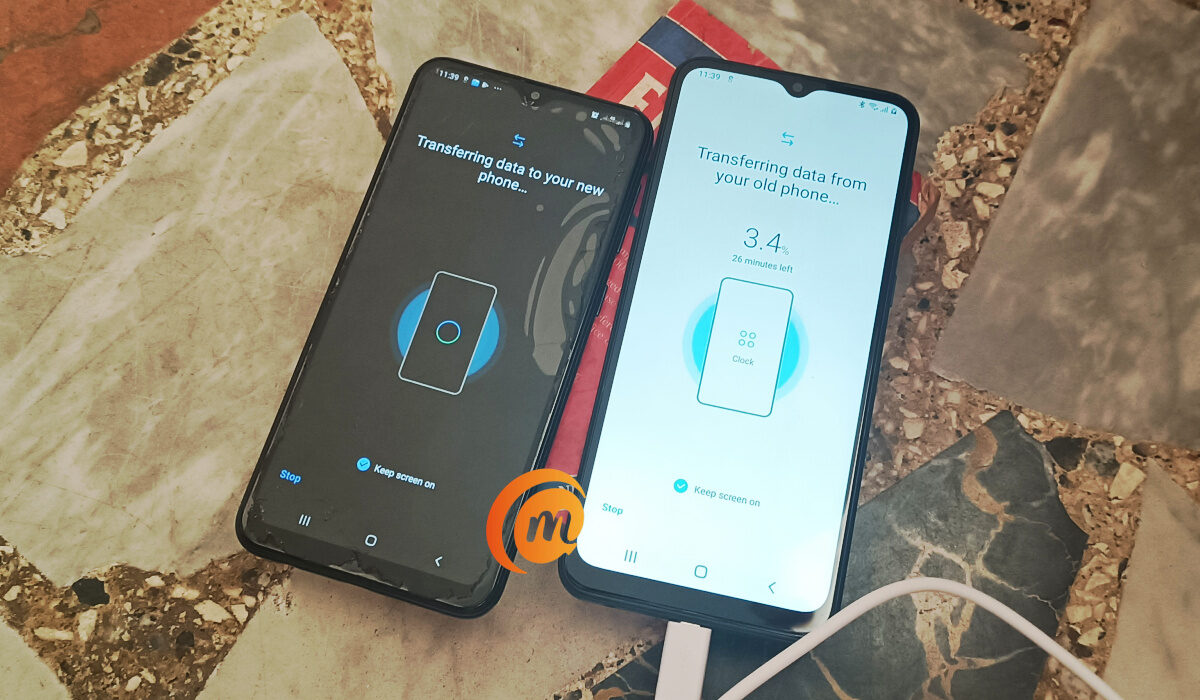
We’ve created this guide to show you the best ways to transfer your files from one Android device to the other. So, keep reading to find out which method will work best for your needs.
- How to Transfer Files Between Android Phones via Bluetooth
- Transfer Files Between Android Phones Using USB Transfer on PC
- Transfer Files Between Android Phones using Near Field Communication (NFC)
- Transfer Files Between Android Phones using Nearby Share
- Transfer Files Between Android Phones Using Third-Party Apps
How to Transfer Files Between Android Phones via Bluetooth
Using your Android smartphone’s Bluetooth function is one of the standard and most well-known ways to transfer data from an Android phone to another. You may effortlessly transmit pictures, movies, music, documents, and more between Android devices by using Bluetooth, and you’ll achieve this without any hassles.
To transfer files using this option:
- Turn on Bluetooth on both devices, then pair them.
- Select the files you wish to transfer by opening File Manager.
- On your device, click Share .
- From the list of choices, pick Bluetooth .
- From the list of associated Bluetooth devices, pick the receiving device.
- The file transfer function will be turned on, and both phones will show the transfer’s status.
Transfer Files Between Android Phones UsingUSB Transfer on PC
You can use this approach to transfer files from an Android phone to an Android tablet without the use of a third-party program.
You would simply need to get a USB cable to connect your Android devices to a PC for this option. Although you’ll be limited in the amount of data you can transfer using this approach, it is a convenient option for exchanging music, images, and movies.
Find out how to use this method below:
- Use a USB cord to connect your old device to a computer.
- Tap the “Charging this device through USB” message on your Android phone, then choose “Use USB for” under File Transfer.
- Following that, launch File Explorer on your computer, choose your phone from the left-hand tab, then copy and paste the files into any folder there.
- Remove this device once the files have been transferred, then attach the new phone.
- To transfer the files from your PC to your new phone, repeat step 2 to gain access to your phone’s internal storage.
Transfer Files Between Android Phones usingNear Field Communication (NFC)
Another quick method for moving data from an old Android phone to a new one is by using NFC, or near-field communication. This technique is especially helpful for transferring huge files rapidly. Be aware that the procedure is time-consuming and somewhat complicated, especially for novices. The NFC function is also not widely supported by Android phones. In any event, it is a useful method for transferring Android data.
Near-field communication (NFC) chips on two cell phones make close-range data sharing simple, and it doesn’t require phone pairing. Just make sure Android Beam and NFC are both turned on if you wish to send data between two Android devices that have NFC.
To transfer files using this method:
- Enable Android Beam and NFC.
- Select Bluetooth & Connections under Settings .
- Enable NFC by choosing it.
- Then choose Android Beam and activate it.
- Then, select the file you wish to transmit by using File Manager.
- Place both phones with their rear panels touching each other and open the file.
- When the phone vibrates, a “Tap to beam” option will appear.
- The transmission will start after you tap the file.
Transfer Files Between Android Phones usingNearby Share
In 2019, Google created its own version of AirDrop for Android called Nearby Share , which is compatible with devices running Android 6.0 or higher. Nearby Share can handle all of your sharing needs, whether you want to send a picture, a video, an app from the Google Play store, or even your location from Google Maps. You may utilize Nearby Share wherever the Share button is on your Android phone.
Follow these steps to share files using Nearby Share:
- Open the file you want to share, tap the Share icon, and then select Nearby Share. Your phone should start searching for nearby devices. Note that the Android smartphone receiving the file must have Nearby Share enabled.
- You only need to tap the device name of the recipient’s phone after your phone recognizes it. You must simultaneously touch Accept on the other phone for the transfer to begin.
- Depending on the files you’re sharing, the transfer will be finished in a short while.
Transfer Files Between Android PhonesUsing Third-Party Apps
There are numerous third-party apps that may be used to move data from one Android smartphone to another. The apps are available for download from the Google Play Store and may be used to move data between Android devices, including files, essential documents, music, and videos. You can use the data transfer apps that various smartphone manufacturers offer as well.
Xender
Xender has over 100 million downloads on the Google Play Store. Simply connect your Android devices using Hotspot, and you may instantly share any kind of file. The best feature of this program is its capacity to transport data between several platforms and link four devices at once.
To use Xender:
- On both of your smartphones, install the app. Make sure that “Personal Hotspot” is turned on on their smartphone.
- Start it up on the outdated device, hit “+,” and select “Create Group.”
- Launch it after that and select “Join Group.”
- Tap the group when you find it.
- After connecting the devices, you can begin transferring files rather rapidly.
Other apps include SHAREall, Files by Google, etc, which offer a fast and easy file transfer process. You’ll typically find these apps downloadable from the Google Play Store.
In summary , moving your important files from one Android smartphone to the other is an easy process as long as you know the right things to do. Simply pay attention to the instructions we’ve provided in this guide and you should be able to do it easily.
Author:Joan Agie
Add MobilityArena as a preferred source on Google
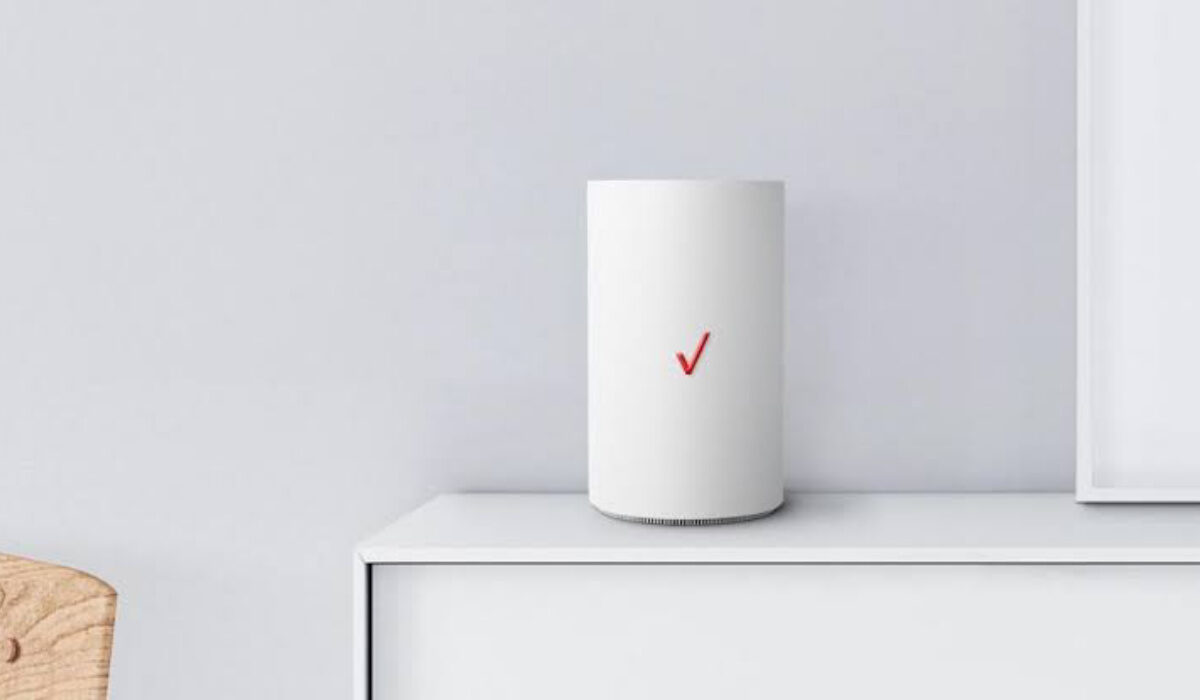
What is Verizon 5G Home Internet? Verizon’s 5G Home service is a wireless home Internet service provided on the carrier’s 5G Ultra Wideband. How does it work? A Verizon 5G tower near you sends a wireless radio signal to a 5G router installed in your home, which then provides your gadgets with an Internet connection via Wi-Fi hotspot.
- What service plans are available on Verizon 5G Home Internet service?
- Frequently Asked Questions Verizon 5G home internet vs fiber: what are the differences? Is it really unlimited? Is there any data cap? Does Verizon 5G home internet slow down? Does Verizon throttle 5G home internet? How many devices can connect to Verizon 5G home internet? What is the Impact of weather on Verizon 5G home internet? How can you improve your Internet speed? Does Verizon 5G home internet have an external antenna? Can you add an antenna to the service? How do I access my Verizon 5G Home Internet router? Where is Verizon 5G Home Internet available? How do I download the Verizon 5G Internet app? How much does it cost? Is it good for online gaming? Is Verizon 5G Home Internet good? How fast is the service?
- How to subscribe
What service plans are available on Verizon 5G Home Internet service?
Verizon offers different 5G Home Internet plans, providing customers with options to suit their specific needs. The 5G Home plan starts at $50/month with autopay and 5G Home Plus plan starts at $70/month with Afterpay.
Below are answers to some commonly asked questions about Verizon’s wireless home service.
Verizon 5G home internet vs fiber: what are the differences?
Verizon 5G Home Internet and traditional fiber internet have distinct characteristics:
Speed and Performance:
- Verizon 5G Home Internet: Offers high-speed wireless connectivity, with potential for fast download and upload speeds, suitable for residential use.
- Fiber Internet: Delivers ultra-fast and consistent speeds, often with symmetrical upload and download speeds, making it ideal for demanding applications and large households.
Installation and Availability:
- Verizon 5G Home Internet: Provides easy self-setup options and is available in select areas with 5G coverage, offering flexibility for installation.
- Fiber Internet: Requires professional installation and is available in specific locations where fiber infrastructure has been deployed, which may limit accessibility.
Reliability and Latency:
- Verizon 5G Home Internet: Offers reliable connectivity with low latency, suitable for most online activities, but may be subject to network congestion in densely populated areas.
- Fiber Internet: Known for its high reliability and low latency, making it well-suited for latency-sensitive applications such as online gaming and video conferencing.
Cost and Value:
- Verizon 5G Home Internet: Can be cost-effective for users seeking high-speed wireless connectivity, especially in areas where traditional wired options may be limited.
- Fiber Internet: Generally considered a high-value option for users who prioritize consistent, high-speed internet and are willing to invest in a reliable wired connection.
Is it really unlimited?
All plans with Verizon Home service come with unlimited data on your home internet connection. Verizon says the Home service offers maximum download speeds up to 1 Gbps, with typical average download speeds of 300 Mbps.
Is there any data cap?
Verizon 5G Home Internet service does not have a data cap or usage limit. Customers can enjoy unlimited data usage when connected to the 5G Home Internet network, without the worry of exceeding data caps or facing additional charges for data consumption.
Does Verizon 5G home internet slow down? Does Verizon throttle 5G home internet?
As is common to all wireless connections, Verizon 5G Internet is subject to weather conditions and network congestion. If you exceed the Fair Usage Policy threshold, your connection may also be throttled, though users say Verizon 5G does not enforce any strict data caps.
How many devices can connect to Verizon 5G home internet?
Verizon 5G home service can be connected to as many as 5 users.
What is the Impact of weather on Verizon 5G home internet?
Yes; weather conditions can impact the connection speed and stability of this wireless Home Internet service. Rain is less of an issue with because 5G works by sending signals in all directions.
Weather can have varying impacts on Verizon 5G Home Internet. Unlike traditional fixed-wireless internet, 5G home internet services are less affected by weather conditions such as rain and wind. This is due to the nature of 5G technology, which is more resilient to weather-related interference. However, extreme weather events like blizzards or severe storms may still potentially impact the service.
How can you improve your Internet speed?
One way to possibly improve signal strength and your connection speed is to change the Wi-Fi channel of your Gateway router/modem.
Does Verizon 5G home internet have an external antenna?
The 5G Home Internet does not support the use of external antennas.
Can you add an antenna to the service?
The 5G Home Internet doesn’t support the use of external antennas, but you can still use your Verizon SIM card in third party 5G LTE routers that do. That way, you can use an external antenna with your service.
How do I access my Verizon 5G Home Internet router?
- From a web browser, sign in to My Verizon , then from the ‘ My Verizon Home screen ‘. Click on, Account , then Device overview , and then the 5G Home Router mobile number. From the ‘ Manage My 5G Home ‘ section, click View Technical Router Info .
Where is Verizon 5G Home Internet available?
Verizon says their 5G Ultra Wideband is available in over 900 cities across the United States. Some of the states they are available in are Los Angeles, Boston, Houston, Sioux Falls, Dallas, Omaha, Chicago, Minneapolis, Denver, Providence, St. Paul, Atlanta, Detroit, Indianapolis, Washington DC, Phoenix, Boise, Panama City, and New York City and more.
How do I download the Verizon 5G Internet app?
How much does it cost?
Where available, Verizon 5G plans start at the low price of $25/month with no annual contract or hidden fees.
Is it good for online gaming?
Feedback from users is that the service works well for online gaming, because the connection is fast and Verizon does not enforce any strict data caps.
Is Verizon 5G Home Internet good?
It isn’t as fast as some other Home Internet services, but it is affordable, has about the widest coverage, and generally offers reliable service for a comfortable monthly fee.
How fast is the service?
You can expect to experience an average download speed of 300 megabits per second when using the 5G Home service.
- Check Availability: Visit the Verizon.com website or contact their customer service to confirm if 5G Home Internet is available in your area.
- Select a Plan: Choose a suitable 5G Home Internet plan based on your internet usage needs and budget.
- Place an Order: Once you’ve selected a plan, you can place an order online through the Verizon website or by contacting their customer service.
- Schedule Installation: If professional installation is required in your area, schedule an appointment for the installation of the necessary equipment. If self-installation is an option, you may receive the equipment for setup at your convenience.
- Activate Service: Once the equipment is installed or received, follow the provided instructions to activate your Verizon 5G Home Internet service.
- Enjoy High-Speed Internet: Once activated, you can start enjoying high-speed internet connectivity through Verizon’s 5G Home Internet service.
Author:Dun
Dun enjoys reading and writing, and is always on her smartphone. She currently uses a Google Pixel 3.
