Add MobilityArena as a preferred source on Google
Nothing beats having an impressive music library on your iPhone. It’s great for easier access, especially if you tend to play music often. But if your collection is extensive and already stored on your computer, there are easy ways to move them to your iPhone.
In this article, I’ll show you how to transfer music from computer to iPhone via iTunes, iCloud, and other third-party apps. You’ll be able to listen to your favorite music on the go after reading this guide.
- How Can I Transfer Music From Computer to iPhone? How to Transfer Music from Computer to iPhone without iTunes Use a Cloud Service – Dropbox Use a Streaming app Use AirDrop How to Transfer Music from PC to iPhone with iTunes
How Can I Transfer Music From Computer to iPhone?
Did you know that you can easily transfer your favorite music from your computer to your iPhone? There are a few quick ways to do this, whether you’re using a Mac or a PC.
I’ve described different options below, so choose your preferred method to transfer music to put music on your iPhone from your computer.
How to Transfer Music from Computer to iPhone without iTunes
iTunes is one of the easier ways to transfer music from computer to iPhone. However, synchronizing will result in data loss on your device. That is why I recommend that you first try the method to transfer music to your iPhone without iTunes.
So, to spare you from unnecessary headaches, I’ve described below how to add music to iPhonefrom a computer using a cloud service or a streaming app.
Use a Cloud Service – Dropbox
You can try a cloud service such as Dropbox to transfer music from Windows to iPhone. With a cloud storage service, you get to save your files, including music, in the cloud and access them from any device that uses the same account.
You must ensure the following for Dropbox to function properly when you’re figuring out how to transfer music from computer to iPhone :
- Use the same account on both the PC and the iPhone.
- Your devices should have reliable and steady network connectivity.
- The music files must not exceed your account’s storage limit.
Now, here’s how to add music to iPhone from computer via Dropbox:
Install Dropbox on your Windows PC and iPhone (at the very least on the iOS device).
Sign in to Dropbox on all of your devices using the same account.
Since you need to transfer music from computer to iPhone, go to your PC and upload the music files to the cloud storage:
If you have Dropbox installed, open it and click “ Upload files ” to choose the songs you wish to upload.
If you do not have Dropbox installed on your computer, visit Dropbox.com and upload the items to Dropbox.
Wait for Dropbox to sync music across all of your devices.
Once it’s completed, open the Dropbox app on your iOS device to see the contents synced from your Windows computer.
Select the music and download them to your device’s internal storage.
It’s that simple! And if you like, you can use a streaming app like I’ve described below.
Use a Streaming app
Streaming services like Spotify, Apple Music, or Google Play Music offer another way to transfer music from a computer to an iPhone. However, you must make sure you have a subscription to the specific streaming app you want to use so that the transfer procedure is successful.
Since Apple Music is the official music streaming software for iOS, let’s use that. Follow these steps:
- On your PC, download and install the Apple Music app. Open the app and sign into your account after that.
- Then, from the Apple Music app, press Playlist and choose New Playlist .
- To add your preferred music files from your PC, click the add ( + ) button.
- After you’ve finished adding music files, you can add a description and save the playlist by clicking Done .
- Finally, open the Apple Music app on your iPhone and navigate to the newly created playlist to listen to the music.
Use AirDrop
If you’re trying to transfer music from a Mac to your iPhone, AirDrop is also a useful option. Here are the steps to follow:
On your iPhone:
- Open the Control Center
- Press down on the upper-left box and select AirDrop from the options here
- Click Contacts Only or Everyone to activate AirDrop
On Your Mac device:
- Launch Finder and select AirDrop. Also activate Bluetooth or Wi-fi while you’re at it
- Click the “Allow me to be discovered by everyone” option in the Airdrop window, then select your iPhone device.
- Choose the music files you want to AirDrop. Then simply drag and drop them from the Mac to AirDrop them to your iPhone.
- Now, you need to click the Accept option on your iPhone as soon as the prompt appears. This action will accept the music file and download it from the Mac.
How to Transfer Music from PC to iPhone with iTunes
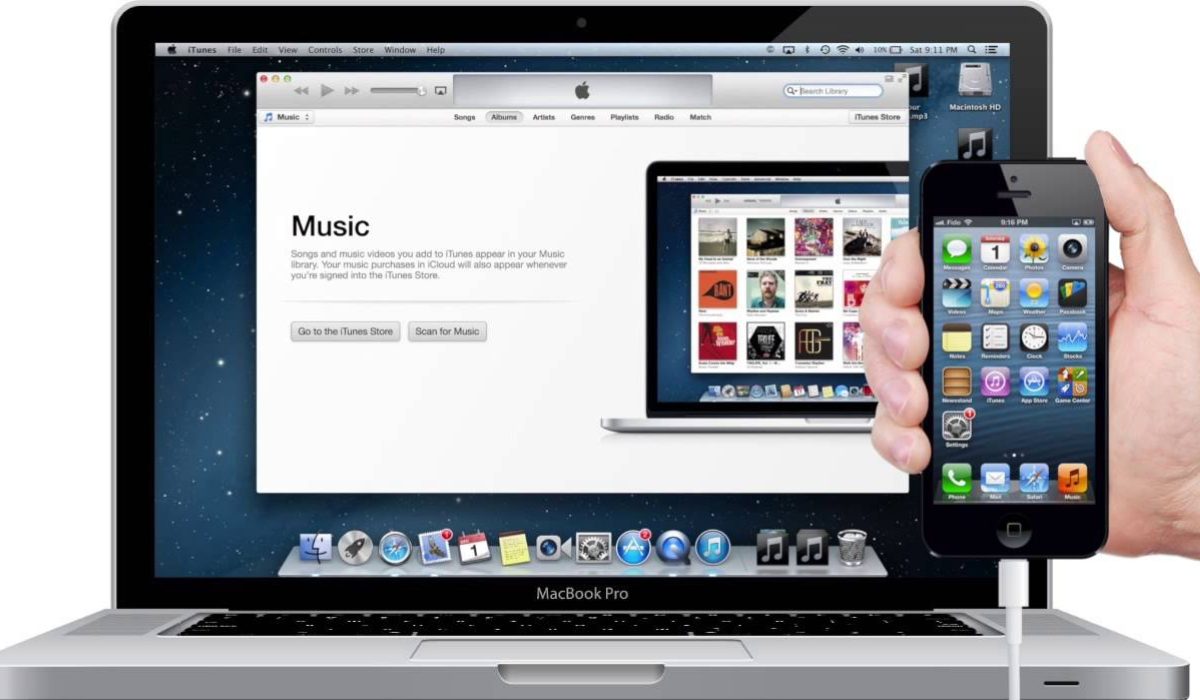
If the songs you wish to put on your iPhone are in your iTunes collection, you can transfer them directly from iTunes to your iPhone. Even if the music does not yet exist in the iTunes collection, it’s possible to transfer music from computer to iPhone using iTunes.
Before you begin, you should be aware that the newly added items will replace your iPhone’s existing music, TV series, movies, tones, and books. If you don’t want to lose these files, I’d say you should look into other methods for transferring music from Windows to iPhone.
Now, to transfer music from a PC to an iPhone using iTunes, follow these steps:
- Connect your iPhone to the computer and wait for iTunes to launch automatically.
- If the songs are already in your iTunes music library, move on to the next stage. If not, add music to iTunes by selecting File > Add File to Library .
- Press the device icon and select the Music option.
- When a popup window notifies you that the existing files on your iPhone will be replaced, select Sync Music and then select Remove and Sync .
- Click Apply > Sync after selecting the music you want to transfer.
- After using iTunes to sync music to your iPhone, check the files by going to Music > Library > Songs on your phone.
To conclude, music transfer from PC to iPhone doesn’t get any easier than this. As you can see, based on your preferences, you can transfer music from PC to iPhone via different options. You’ll be able to listen to your favorite music on the go if you follow these simple steps. Need other file transfer tips across various devices, check out this category .
Author:Joan Agie
Add MobilityArena as a preferred source on Google
Are you in the market for a new phone? If you’d also like a reliable, affordable phone plan, you might want to consider Straight Talk options. Straight Talk offers a wide range of phones at competitive prices, and their no-contract plans are perfect if you want to save some extra cash.
In this article, I’ll share some of the best Straight Talk phones that are available in 2023. Whether you’re looking for a budget-friendly phone or a high-end device, there’s something for everyone. So, let’s get started.
- What Are the Best Straight Talk Phones in 2023? Samsung Galaxy S22 Ultra 5G The Moto G Stylus 5G Samsung Galaxy A71 5G Alcatel TCL A3 The Apple iPhone 14 and iPhone SE series
What Are the Best Straight Talk Phones in 2023?
Straight Talk is known to offer budget phone plans, but it also works with high-end phones. In fact, several phones in the higher price range not only work with Straight Talk, but you can also buy them through dedicated plans with the carrier.
You can also get inexpensive service on any major network, including T-Mobile, AT&T, Verizon, and Sprint, thanks to Straight Talk, a fantastic MVNO (Mobile Virtual Network Operator).
Here’s a short list of some of the best phones for Straight Talk.
Samsung Galaxy S22 Ultra 5G
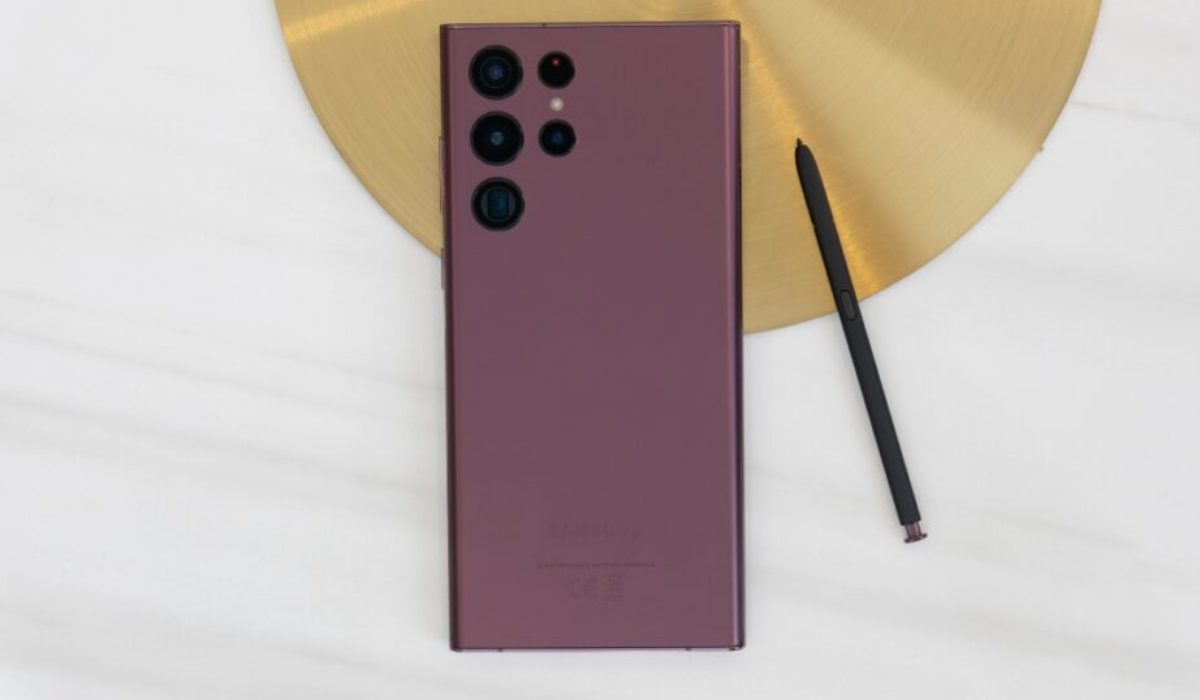
The Samsung Galaxy S22 Ultra 5G is without a doubt one of the best phones available in the U.S. right now, particularly for Straight Talk. The Samsung Galaxy S22 Ultra 5G is equipped with a 6.8-inch Super AMOLED display with a resolution of 3088 x 1440 pixels. There’s also a 120 Hz refresh rate on the monitor.
The Straight Talk Samsung Galaxy S22 Ultra 5G has a 108MP selfie camera, while the back camera arrangement has two 10MP sensors and one 10MP sensor (triple-camera). The smartphone features an octa-core Qualcomm SM8450 Snapdragon 8 processor, 8GB of RAM, and 128GB of expandable storage.
Finally, the Samsung Galaxy S22 Ultra 5G has a 5000 mAh battery with 15W fast charging and wireless charging. I’d say the Samsung Galaxy S22 Ultra 5G is definitely one of the best Straight Talk phones available today thanks to its Snapdragon 8 CPU, 5G functionality, and software features. Essentially, you’d be getting the best of both worlds — great phone, great plan!
The Moto G Stylus 5G
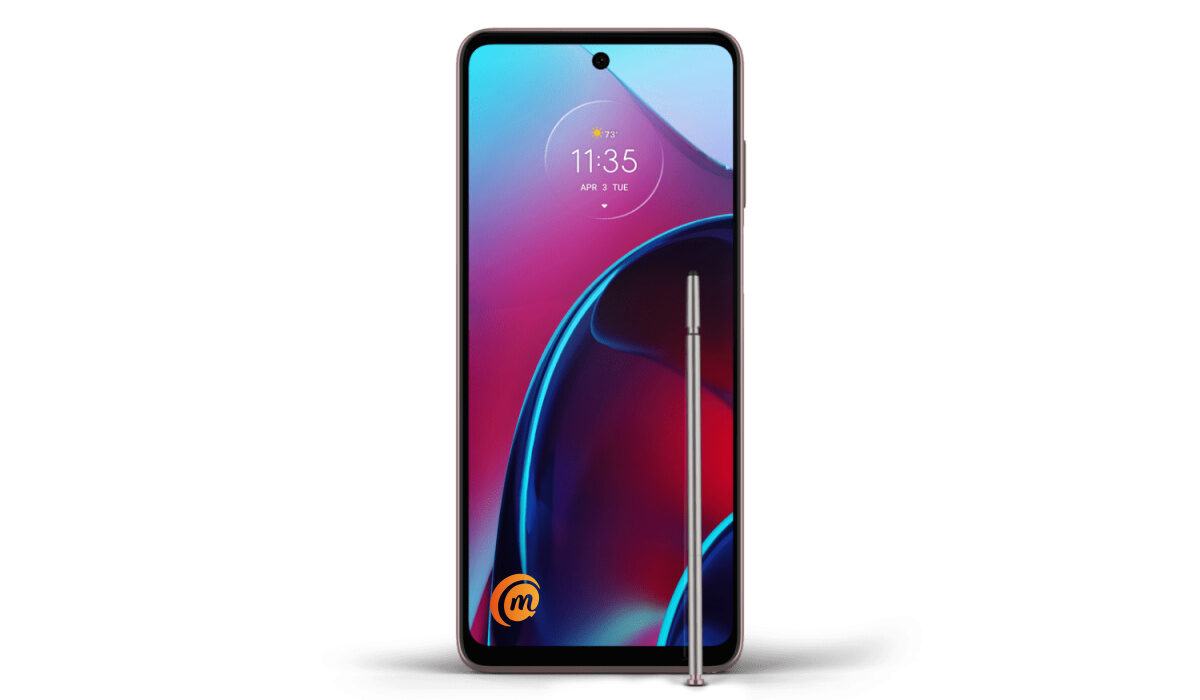
The Motorola Moto G series is more than most people generally expect from Straight Talk phones, even though they aren’t budget-busters. You’ll be able to purchase the Moto G through Straight Talk with or without the stylus and with or without 5G function.
Among its most useful features, the Motorola Moto G sports a 6.8-inch display, a Qualcomm Snapdragon 695 processor, and has a battery life of little over 14 hours on a single charge. So if you enjoy taking notes, creating art, or playing video games, you’ll find the stylus to be a useful addition. No matter whether 5G service is available in your area yet, keep in mind that your phone can handle it.
Samsung Galaxy A71 5G
One of the best smartphones from Samsung is the Galaxy A71 5G. The Galaxy A71 5G (128 GB, 6 GB) has a stylish design and provides a fluid user experience. In addition to being one of the best straight talk phones in 2023, it features a wonderful camera, strong processor, and a screen with exceptional clarity.
Once the phone has been unlocked, all you have to do is insert the SIM card and begin to use Straight Talk services. If you are looking for an excellent straight talk phone, the Galaxy A71 5G is definitely among your best options.
Alcatel TCL A3
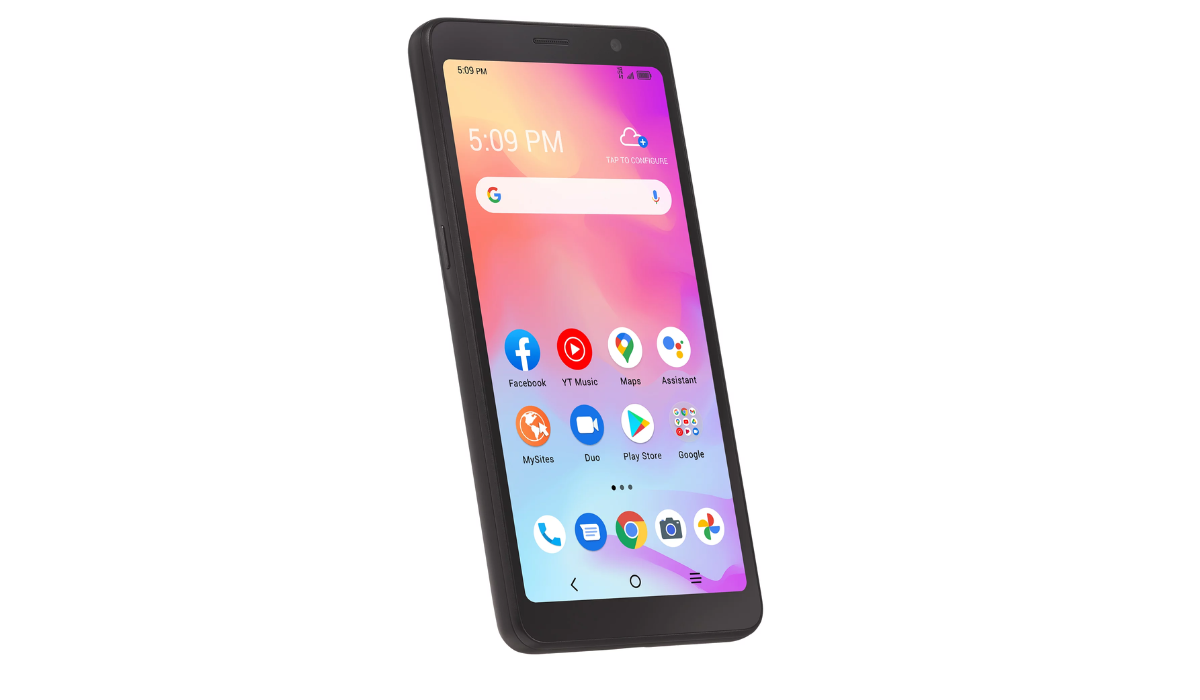
One of the best Straight talk phones from TracFone that comes at an amazing price is the TCL Alcatel A3. It’s fantastic and affordable — top among its best features are its large HD+ display, 8MP back camera, 5MP front camera, and facial recognition capability.
Additionally, the TCL A3 smartphone’s blazing-fast processor, big battery, and lots of expandable memory that is perfect for daily user needs.
The Apple iPhone 14 and iPhone SE series
If you follow the mobile phone market regularly, you might have noticed that many of these Android gadgets are one generation behind. They are still excellent phones—in some cases, even better than the most recent model in the series—but they don’t have the latest hardware.
Unless, of course, you want an iPhone—yes, both the iPhone 14 and iPhone SE 3 are available as Straight Talk phones. The iPhone 14 has a 6.1-inch OLED screen, dual 12MP cameras, and an A15 Bionic chip, which together enable “all-day” battery life. The iPhone SE 3 has the same effective A15 Bionic chip and a 4.7-inch LCD screen with a 12MP main camera.
You can save some money by choosing an older model because Straight Talk also has previous generations of the iPhone and iPhone SE series. You can also pay for all of the models discussed here in installments as you pay your Straight Talk bill each month.
To conclude, I hope this guide helps you find what suits you best among the best phones for Straight talk. Note that Straight Talk also offers a Keep Your Own Phone service that lets you enjoy the advantages on your current device. So if you only want a Straight Talk phone solely for the plan, consider exploring this option so you get to keep your own device.
