Add MobilityArena as a preferred source on Google
When it comes to taking quality pictures, smartphones can easily serve that purpose, in recent times. Of course, they can’t outperform actual cameras. Anyone can easily take out their iPhone and take a selfie or picture and have easy access to it in their hands. But how about if you had pictures on your PC that you would like to have easy access to in your hands, on your iPhone for whatever reason? We are going to look at how to do exactly that today.
I am sure you remember that Apple’s iPhones do not have the ability to send or receive files over Bluetooth. As such, 3rd party solutions are where to find help and add in the functionality. There are multiple ways to transfer photos from your PC to your iPhone, and we explode them, above and below.
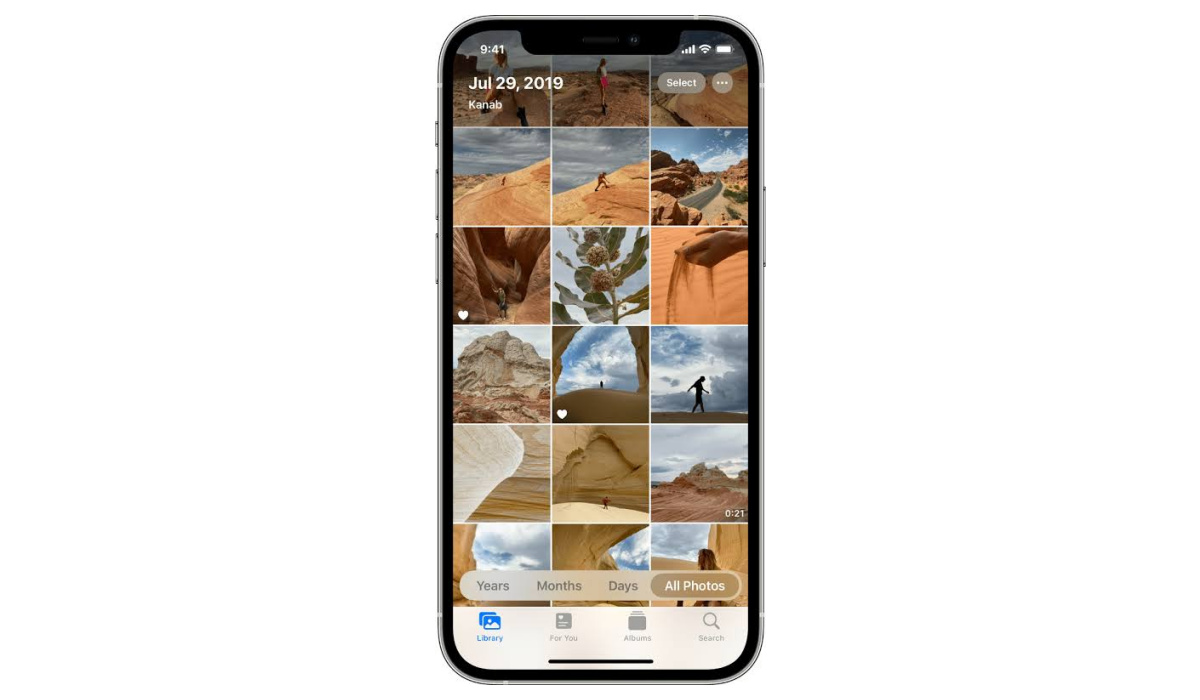
There are a few ways you can transfer pictures to your iPhone from your PC with. They include: iCloud, iTunes, OneDrive, and AnyTrans.
How to transfer photos from your PC to your iPhone using iCloud
With iCloud, you can transfer photos wirelessly from your PC to your iPhone. By setting up both devices to sync with the same iCloud account, your pictures will automatically transfer back and forth. Follow these steps to learn how to transfer photos.
•Download “Cloud for Windows” on your PC
•Log into your account when you open Cloud for windows.
•Select the checkbox next to “photos”.
•Tap on ” apply”
•Open a file.
•look for favorites on the left sidebar, and click iCloud photos.
•Copy the photos to the Upload folder.
When you’re done setting up Cloud on your PC, turn iCloud photos on your iPhone.
•Go to the Settings app
•Tap on your name, then on iCloud, and finally on “Photos”.
•Turn in iCloud photos.
The pictures will first be uploaded to iCloud and then to your iPhone. When the transfer is done, you will have the photos on your iPhone at your disposal.
How to transfer photos from your PC to an iPhone with iTunes
•Open your iTunes.
•Tap I’m the iPhone icon in the top-left of the iTunes window.
•Select photos from the sidebar.
•Opt to check the box to Sync photos.
•Pick either ” Pictures” or choose a folder in the drop-down menu.
•Choose the option that will allow you to sync all or only selected folders.
•Tap “apply” in the bottom-right corner.
Note that syncing your photos this way will overwrite the saved photo library on your iPhone. There wouldn’t be a problem if you only wanted to transfer from one PC but it does become one when you want to transfer/copy from multiple.
Transfer photos to your iPhone with OneDrive
Another way to access old photos from your PC on your iPhone is to use OneDrive. With Microsoft’s OneDrive you get 5Gb of storage space for free. It requires you to install the official OneDrive app on both your computer and iPhone to be able to transfer photos to the said iPhone. Drag the desired files or entire albums to the program window and after a few seconds, you will see the images on the iPhone in the OneDrive app.
When photos are transferred, they are moved to the original quality along with the date they were created/acquired. You can also choose to sort the photos automatically by tags.
Note: The photos will not be accessible on the Photos app. It will, instead, be placed on the OneDrive app, which you must have already installed on your iPhone beforehand. The OneDrive app does not provide built-in image editing, nor support for HEIC photos. if you place HEIC images in OneDrive, you won’t be able to view them or copy them to the Photos app.
How to transfer photos from your PC to your iPhone using AnyTrans
If you have just a select few of the photos you want to transfer from your PC and don’t want to necessarily sync the entire photo library on your PC, AnyTrans is the app to use. AnyTrans lets you move over select files and won’t erase the existing pictures on your iPhone. When you have AnyTrans downloaded and installed on your computer:
- Connect your iPhone to your PC using a USB cable.
- Open AnyTrans.
- Click Device Manager in the sidebar.
- In the middle of the window, click the iPhone screen.
- Navigate to the photos on your computer.
- Select the pictures you want to transfer and click open.
- Unlike OneDrive, you will be able to access your pictures in the photos app, when the transfer is finished.
These are the different ways to transfer photos from your PC to your iPhone. When next you want to send photos from your PC to your iPhone, give these tips a try.
- Don’t miss our mobile phone reviews .
- Follow our news on Google News .
- Join our WhatsApp Group , to be notified of the most important articles and deals,
- Follow us on Instagram , Facebook , Twitter , and YouTube .
Author:Flamez
Flamez loves basketball, art, gadgets and cars.
Add MobilityArena as a preferred source on Google
Apple has just released the latest version of its iOS software, and here’s how you can install it on your iPhone. As most smartphone brands do, Apple has just recently rolled out a new iOS update, the iOS 16. New software is usually rolled out yearly. This software drop has followed months of beta testing and is now available for download.
What iPhone models can the iOS 16 run on?
Most iPhone models can run the iOS 16 update. But Apple has discontinued support for the first iPhone SE model, iPhone 6s, and iPhone 7, following the release of iOS 16. It is also worth noting that the iPhone 14 series come with the iOS 16 preinstalled. So you do not have to go through the little trouble of updating your iPhone. That being said, the iOS 16 will run on the iPhone 8 through the iPhone 14 Pro Max.
How to download and install iOS 16
To update your iPhone to iOS 16, go to your settings, tap “General”, and then select “Software Update”. If “Automatic Updates” is enabled on your iPhone, it will, by itself, start to scan for possible new updates. You will then see the iOS 16 update available for download as an option.
Tap on the option, you will see some “terms and conditions” to download, and agree to them. The update will be requested and then eventually downloaded.
During the early stages of the release, most users will find that it takes quite a while to update. This is because of the amount of people looking to download the update. If you choose to download it a couple of days or weeks after the update release, It might not take as long, it will then depend on the speed of your Wi-Fi or data network. It is preferable and advisable to use Wi-Fi rather than your regular data network when you’re updating to iOS 16.
When the download is complete, you will see the “Install Now” option. The file will be scammed to see if there are no complications and it will be installed. When the process is done, your iPhone will restart and you will then be able to try out the new features of iOS 16.
Should you wait to download iOS 16?
Author:MobileChic
That motivated, gadget-loving geeky chic who tries to stay on top of things. Unapologetic iFan.
