Add MobilityArena as a preferred source on Google
Data Saver mode is a feature built into Android OS that, if enabled, helps reduce your data usage or consumption by restricting apps on your phone from using data in the background. People are often asking, How do I stop my phone from using so much data? A good way to do that is to enable Data Saving on your smartphone.
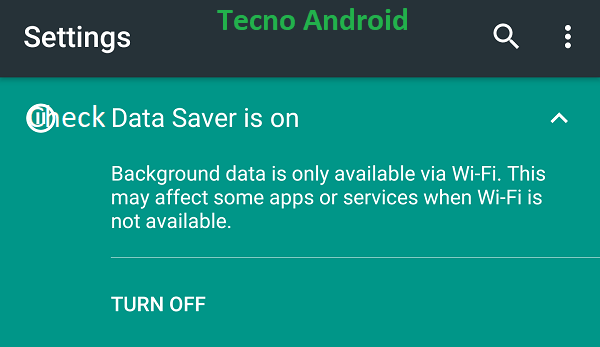
You can restrict background data usage on your Android phone with Data Saver Mode
- Does data saver mode really save data?
- Does data saver slow internet?
- How do I turn on Data Saver on my phone?
- How to enable Data Saver Mode in Google Pixel and Nokia smartphones
- How to turn Data Saver Mode on or off in your Samsung phone
- How to enable Data Saving on Motorola phones
- How to turn Data Saver on or off in OnePlus smartphones
- How to enable Data Saving on OPPO phones
Does data saver mode really save data?
The accurate answer is, it depends. If you are consuming mostly text content, data saver mode won’t do much by way of saving data. The percentage of data saved will be minute. However, if your apps load a fair amount of images and video, this feature will save you much more data. For example, according to Google, enabling Data Saving Mode will save you as much as 50 percent on data by loading a “lightweight version” of videos.
Does data saver slow internet?
When enabled, Data Saver Mode actually helps speed things up, especially if you are on a slow Internet connection.
How do I turn on Data Saver on my phone?
The exact procedures differ from one model to another, thanks to customisations by each manufacturer. Find guides for some brands below.
How to enable Data Saver Mode in Google Pixel and Nokia smartphones
The steps below are valid for any smartphone running stock Android OS. These include Google Pixel and Nokia devices.
- Open your phone’s Settings app.
- Tap Network and Internet Data Saver.
- Turn Data Saver on or off. In your status bar, when Data Saving mode is on, you’ll see the Data Saver icon . You’ll also see a notification at the top of your phone’s Settings app.
How to turn Data Saver Mode on or off in your Samsung phone
As usual when it comes to One UI guides, the first thing you need to do is open the Settings app on your Galaxy device. Then you can follow these steps:
- Tap “Connections”
- Tap “Data usage” followed by “Data saver”
- Tap the Data saver toggle ON to enable the feature
Optionally, you can tap “Allowed to use data while Data saver mode is on” and tap individual toggle switches to set exceptions for the apps that shouldn’t be affected by whenever Data Saving feature is enabled.
How to enable Data Saving on Motorola phones
- Go to Settings > Data usage .
- Touch > Restrict background data .
How to turn Data Saver on or off in OnePlus smartphones
- Open the Settings
- Tap on Wi-Fi & network
- Tap on SIM & network
- Tap on Data Saver
- Enable or disable Use Data Saver
On newer OnePlus devices, you also have a quick toggle setting for Data Saving. You can find it in the notification center.
How to enable Data Saving on OPPO phones
- Open the Settings app on your device and tap on ‘Dual Sim & Cellular Network’.
- Now tap on ‘Data Saving’.
- There will be a toggle at the top of your screen for ‘Data Saving’. Enable the toggle to turn on Data saving on your OPPO phone.
Now you can enable and disable Data Saving to restrict background data usage and save on Internet costs on your Android smartphone.
What does Data Saver do?
In summary, data saver mode helps users use less data on their Android smartphones. If you are on an unlimited data plan, you do not need it.
Author:Mister Mobility
Digital Skills and Communication Coach | Mobile Phone Connoisseur since 2001 | Tech Blogging since 2004
Add MobilityArena as a preferred source on Google
There are now hundreds of 5G Android phones in the market, and almost every smartphone brand is in on the action. As the cost of 5G technology drops, we are seeing more budget devices on that category. I took a look at the market and came up with a list of the best budget 5G Android smartphones you can buy today.
For the purpose of this article, I limited the devices to those coating less than $350 US dollars. This is the upper limit for budget smartphones, so it makes sense to peg the price there if we are looking for the best among 5G Android phones. It also has to be a model that is available to most of the world. What is the point of selecting a best budget 5G Android phone that isn’t available for many people to buy?
My search started with a few hundred models, which I eventually trimmed down to just two – one model from Samsung, OnePlus, and Xiaomi each. Having a list of three models is helpful to you in a few ways. For example, it addresses the problem of availability. If one model is not available in your region, there is a chance that one of the other two is. Another problem it solves is that of personal preference of brand. With three brand options, there is an increased chance that you will see something you really like.
Lastly, budget phones are possible through manufacturers making trade-offs. Of the three models, you will trade-offs with IP rating, fast charging speeds, cameras, etc. Having options means that you are able to pick a model that offers more of what you want in terms of features. Of course, I will wrap up the article with my recommendations, but at the end of the day, you will have the benefit of making a choice that suits you. Having explained all these, let’s have a look at our candidates.
Samsung Galaxy A52s 5G
The A52s 5G has a 6.5-inch, 1080×2400 pixels AMOLED display with 120Hz refresh rate and Gorilla Glass 5 protection, IP67 dust/water resistance, NFC, 32MP selfie camera, 64MP main camera, Snapdragon 778G 5G processor, up to 8GB RAM, up to 256 GB storage, 4500mAh battery, and 25W fast charging.
Samsung Galaxy A52s 5G costs $309 for the 6/128 GB variant, and $370 for the 8/128 GB trim in the US. In the UK, it costs £250 for the 6/128 GB trim, and £340 for the 8/128 GB trim in Europe.
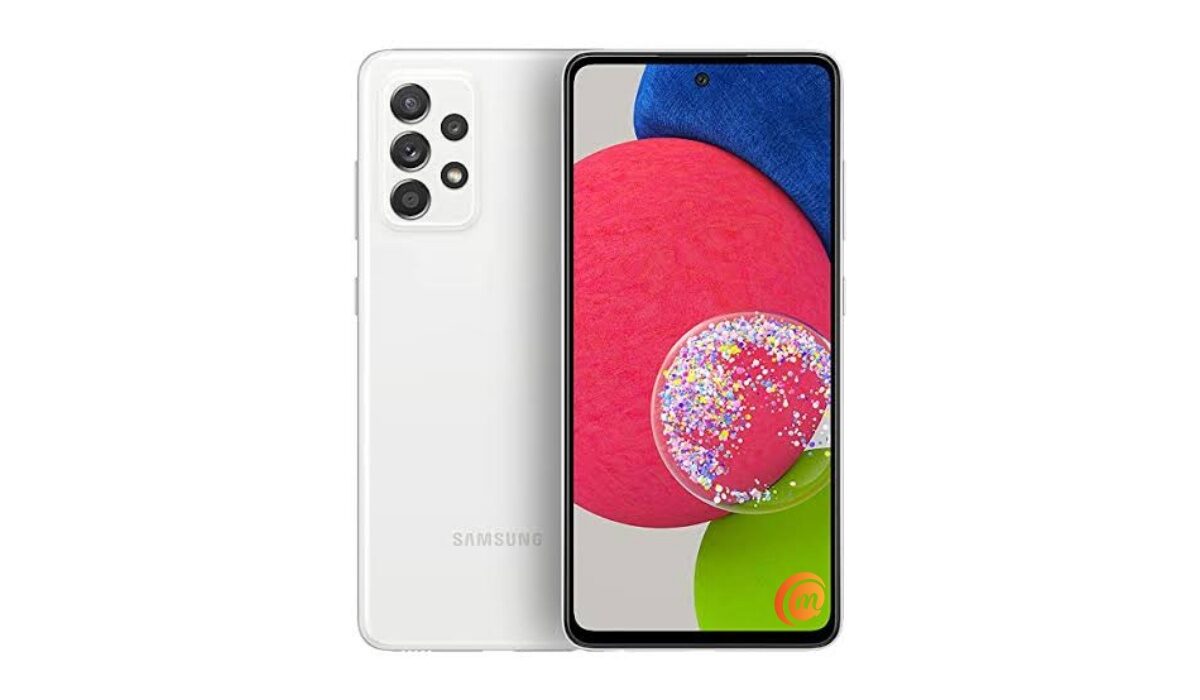
Samsung A52s 5G is one of the best budget 5G Android phones you can buy.
OnePlus Nord CE 2 5G
OnePlus Nord CE 2 has a 6.43-inch, 1080×2400 pixels AMOLED display with 90Hz refresh rate and Gorilla Glass 5 protection, 16MP selfie camera, 64MP main camera, Dimensity 900 chipset, up to 8 GB RAM, 128 GB storage, 4500mah battery, and 65W fast charging.
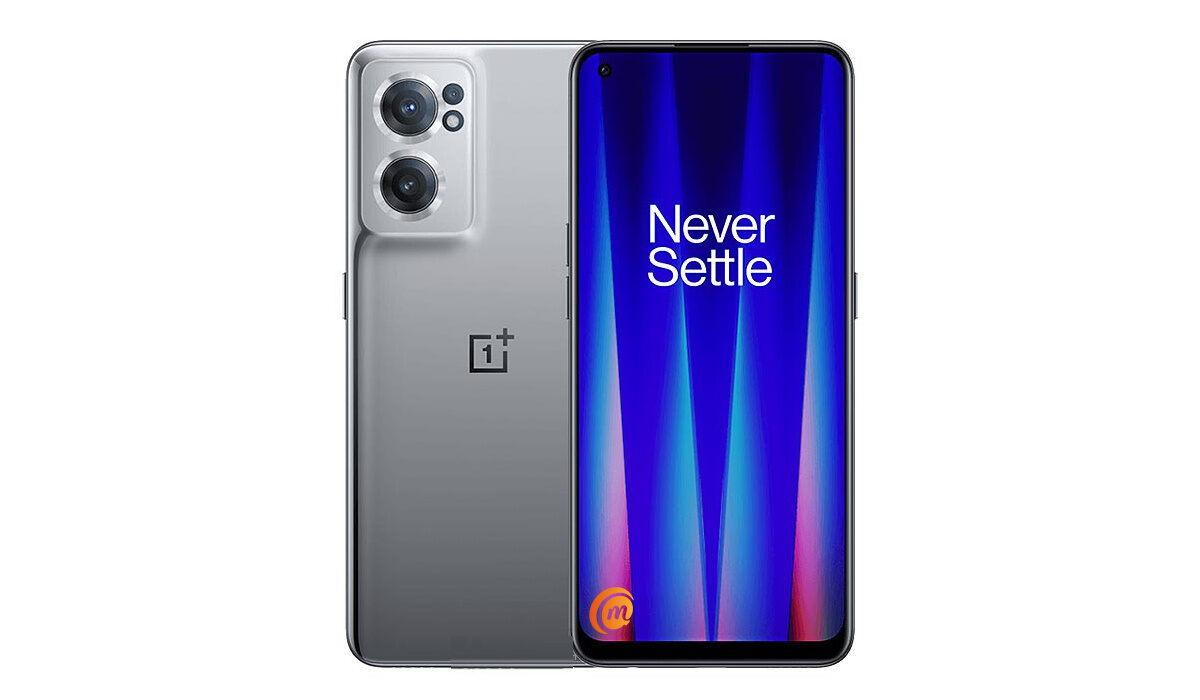
OnePlus Nord CE 2 is one of the best budget 5G Android smartphones
Xiaomi Poco F3
Poco F3 has a 6.67-inch AMOLED display (the largest here), with 1080×2400 pixels resolution, 120Hz refresh rate, Gorilla Glass 5 protection, IP53 dust/splash resistance, NFC, 20 MP selfie camera, 48 MP main camera, Snapdragon 870 processor, up to 8 GB RAM, up to 256 GB storage, 4520mAh battery, and 33W fast charging.
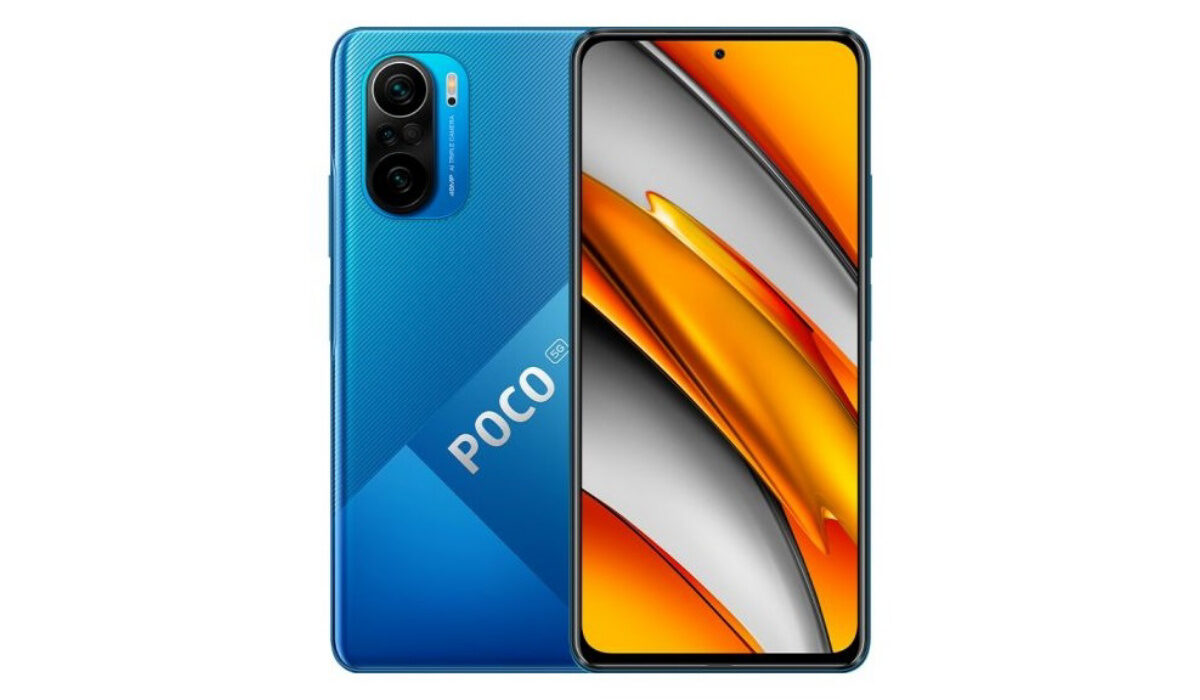
Xiaomi Poco F3 is one of the best budget 5G Android smartphones
As you can see, these are quite capable devices, with shades and tones of specs and features. You also have to decide if you want to play with the different custom user interfaces from each manufacturer – OneUI from Samsung, OxygenOS from OnePlus, and MIUI from Xiaomi.
Which is the best budget 5G Android phone? My recommendations
The Galaxy A52s 5G is the most widely available of the three phones that I narrowed down to here. As such, it will likely be the one that the average person looking for the best budget 5G Android phone will purchase. If you are hard pressed for cash, the OnePlus Nord CE 2 is the most affordable of the three.
But in terms of overall value for money, the Poco F3 is definitely the phone to go with. It is the most powerful phone on this list, and also has the fastest charging speeds. Until something better shows up, it is the best 5G budget Android phone you can buy.
- Don’t miss our reviews .
- Follow our news on Google News .
- Join our WhatsApp Group , to be notified of the most important articles and deals,
- Follow us on Instagram , Facebook , Twitter , and YouTube .
Author:Mister Mobility
Digital Skills and Communication Coach | Mobile Phone Connoisseur since 2001 | Tech Blogging since 2004
