Add MobilityArena as a preferred source on Google
If you own a Google Pixel 4a with 5G, 5, 5a 5G, 6, or 6 Pro, you can use them on 5G wireless carriers and mobile operators in many countries, including the United States, United Kingdom, Canada, and Germany, among others. But sometimes, having 5G active on your smartphone is not expedient, and you should turn off 5G on your Google Pixel phone.
For one, 5G networks are a huge drain on the battery of mobile phones. This is because they take a bigger toll in order to deliver the faster speeds and greater capacity. Secondly, because we are at early stages of 5G network deployment in many places, coverage is still spotty and takes an even greater toll on connected 5G cell phones.
Pixel smartphones are not particularly known for great battery life, and having spotty 5G connections means that their batteries will drain even faster without you even getting faster speeds. For this reason, it might be expedient to turn off 5G on your Google Pixel, if only for a while.
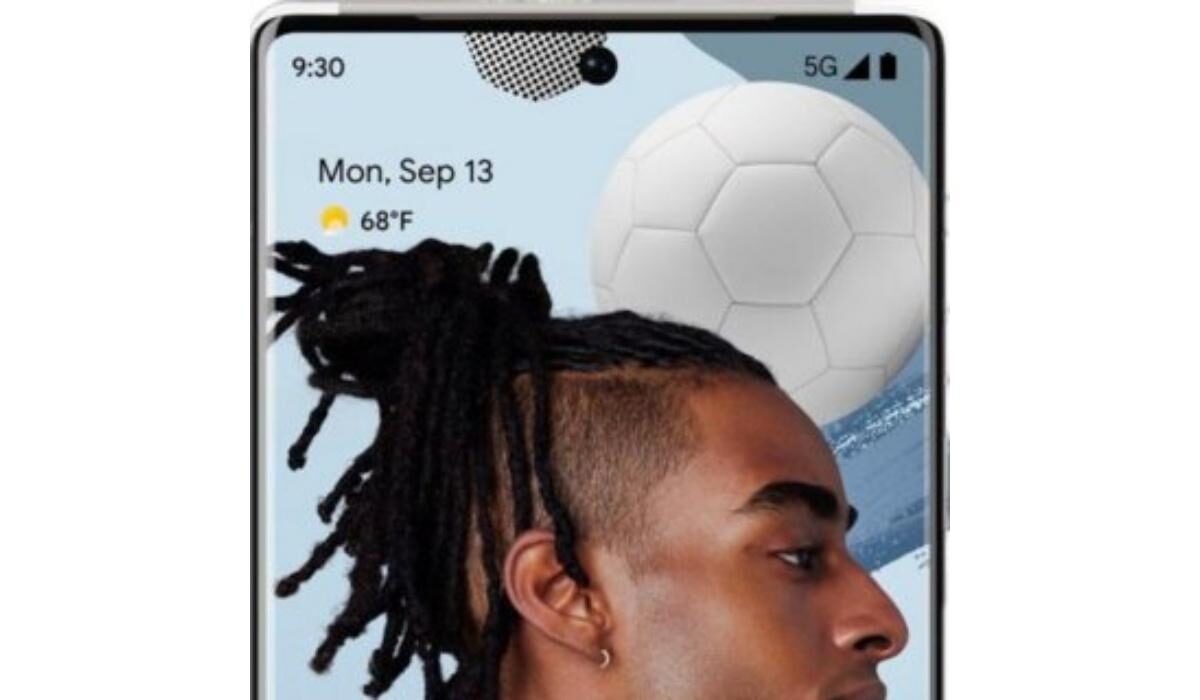
Can you disable 5G on Pixel 5 and Pixel 6?
Yes; you can, and it is easy to do. Just follow the instructions below.
How to turn off 5G on your Google Pixel phone
There are two ways to go about this. One is through the phone settings, and the other is via a USSD code.
Turn off 5G on your Google Pixel phone via settings
On your Pixel cell phone, follow these steps:
- Open the Settings app,
- Find and tap on Network & internet ,
- Tap on ‘ SIMs ‘
- Scroll down, find, and tap on ‘ Preferred network type ,’
- You will see a set of options, with “ 5G (recommended) ” selected; change that to ‘ LTE ‘.
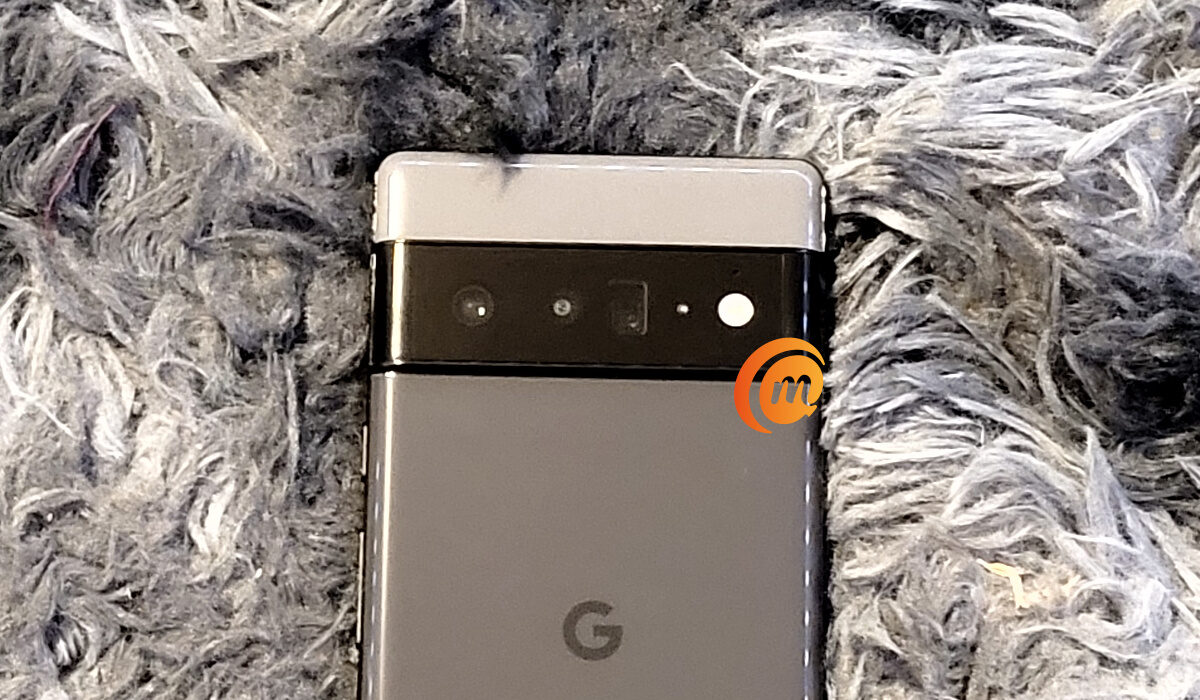
Doing this takes your Pixel cell phone off 5G network and on 4G LTE. From this point, the phone will not try to connect to a 5G network any more, but stay locked on LTE or switch to a lower network. This will conserve your battery.
Turn off 5G on your Google Pixel phone via USSD code
It is possible that the above method does not work, in which case you can use the USSD code option detailed below:
- On your Pixel phone, open the Phone app,
- Tap the dial pad icon, and enter ‘ ##4636## .’ You can also copy the code from this page and paste it in there directly.
- Dialling the code opens a menu called ‘ Testing ‘.
- Tap on ‘Phone information’ and then select WCDMA/LTE .
Doing this takes your Pixel cell phone off 5G network. From this point, the phone will not try to connect to a 5G network any more, but stay switching between WCDMA and LTE. This will conserve your battery.
The above processes might work for other brands of Android phones – like Samsung, Nokia, Motorola, OPPO, Xiaomi, Vivo, BLU, Alcatel, and others. As a principle, if you are in a spotty 5G coverage area and need to conserve battery life, disabling 5G on your phone is a good way to achieve that.
- Don’t miss our reviews .
- Join our WhatsApp Group , to be notified of the most important articles and deals,
- Follow us on Instagram , Facebook , Twitter , and YouTube .
Author:InfoDesk
Add MobilityArena as a preferred source on Google
Before now, if you wanted to reset your iPhone, you had to go through a very long and quite complicated process. Maybe you forget your password, your iPhone gets tampered with, whatever the case might be you could only reset your iPhone by connecting it to a computer or an existing iTunes account.
The former process was quite technical, and most people paid a lot just to reset their iPhones or erase their iPhone memory. It was almost a nightmare to certain people if for any reason their iPhones got blocked, or they forgot their password. Let us now take a run down of what was involved in resetting an iPhone previous, we will look at the challenges and finally a how-to on the new and improved method of resetting an iPhone.
- The Old Way To Reset Your iPhone – With iTunes And A Computer Connection
- The New Way To Reset Your iPhone Without A Computer Connection
The Old Way To Reset Your iPhone – With iTunes And A Computer Connection
The previous method of restoring an iPhone that we stated to be “quite technical” required the iPhone to be connected to a computer or be restored using an iTunes account. Firstly, let us look into what was involved in the process involving an iTunes account.
With the iTunes process, you must have a MAC or PC (which must be running Windows 8 or above). The following steps were to be taken.
- Turn off your iPhone.
- Next, put your iPhone in recovery mode. To do this, press and hold the recovery button on your iPhone while it is connected to the MAC or PC; recovery buttons are different on various iPhone models, iPhone 8 and above uses the power button, iPhone 7 use the volume down button and iPhone 6 uses the home button).
- Hold down the recovery button until you see the recovery mode pop up on your iPhone screen.
- Locate your iPhone on iTunes in the MAC or PC it is connected to.
- When you find your iPhone, click on the restore button and wait for the software download process to finish.
- Lastly, disconnect your iPhone when the restore is completed.
The major issues with this reset method were that first you must have a MAC or PC (you must have a computer) handy before you can start the process. This caused a lot of people who do not have a computer to visit technical support stores and pay to get their iPhone restored or unlocked. Another issue was that this process at times took a long time (10-15 minutes) in some cases. This called for a refined approach to how you can restore your iPhone, and Apple took a better turn with the iOS 15.2 update.
The New Way To Reset Your iPhone Without A Computer Connection
It is high time we wave goodbye the quite rigorous process of resetting our iPhones with iTunes and a computer connection, iOS 15.2 brought the answer we have all been seeking for. Not only is this new method less stressful it is even more secure as nobody will have the ability to erase data on your iPhone except you, this new method is available via your Apple ID. What do you need to reset your iPhone now? Let us find out:
- Ensure your iPhone is running iOS 15.2, this method will not be available for iPhones running any version lower than iOS 15.2.
- With the new operating system up and running, and you have forgotten your password for any reason, you will see an Erase Device option on the screen.
- Tap the Erase Device option twice to erase your device.
- Now enter your Apple ID password to sign out of your locked iPhone, then tap erase device permanently.
- Your device will restart, and you will be required to follow a few instructions to set up the device.
In just a few easy steps, you will have accomplished what was once a long and stress filled process. Well, you might be wondering what will happen to your data stored on your iPhone after the reset. All data will be lost, so to be on the safe side, always back up your important data to your iCloud service.
Remember that this new method requires your Apple iPhone to be running iOS 15.2 and newer. That means, iPhone 13 mini, iPhone 13, iPhone 13 Pro, and iPhone 13 Pro Max .
iOS 15.2 is also compatible with the following older models: iPhone 6s, iPhone 6s Plus, iPhone SE, iPhone 7, iPhone 7 Plus, iPhone 8, iPhone 8 Plus, iPhone X, iPhone XS, iPhone XS Max, iPhone XR, iPhone 11, iPhone 11 Pro, iPhone 11 Pro Max, iPhone SE 2 , iPhone 12 mini, iPhone 12, iPhone 12 Pro, and iPhone 12 Pro Max .
If you use any of these eligible older models, you need to update it, after which you can use the new method to reset it without the need for a PC.
- Don’t miss our reviews .
- Join our WhatsApp Group , to be notified of the most important articles and deals,
- Follow us on Instagram , Facebook , Twitter , and YouTube .
Author:KittysTech
Tech analyst, Collins Eshiet, writes about technology. Follow me on Twitter @KittysTech.
