Add MobilityArena as a preferred source on Google
By default, automatic updates are enabled on your Windows 10 PC. This is designed to protect you. Updates bring timely security fixes to your computer, and the fastest way to get it to you is to have it run automatically. However, you might want to turn off automatic updates in Windows 10 for a number of reasons.
Automatic updates in Windows 10 can be obstructive or distracting at times. Perhaps you are in the middle of work, and your PC interrupts you to prompt you for a reboot. Besides that, if you are on a limited data plan, automatic updates can not only be disruptive to your work when you suddenly run out of data because updates were downloading in the background, but can also be a financial strain on you.
Running automatic updates on anything other than an unlimited data plan means you have to buy extra data, from time to time. As such, it can be a good idea to turn off automatic updates in Windows 10.
You might also be wondering if Windows 10 updates are really necessary. They sure are. As mentioned before, they help keep your system up-to-date against security issues. They also sometimes come with new, improved functionality or features. You really should take your updates seriously.
Another question that I get asked is if are Windows 10 updates are free. Yes; the updates are free from Microsoft. But they are often heavy and so will cost you data. If you use an unlimited data plan, you have nothing to worry about. If you are on a costly data bundle, though, it can be a concern, and you might want to turn off automatic updates, even if only temporarily. Or perhaps turn it off permanently and enable the option to manually install your updates at your pleasure. I cover all these scenarios in the instructions below.
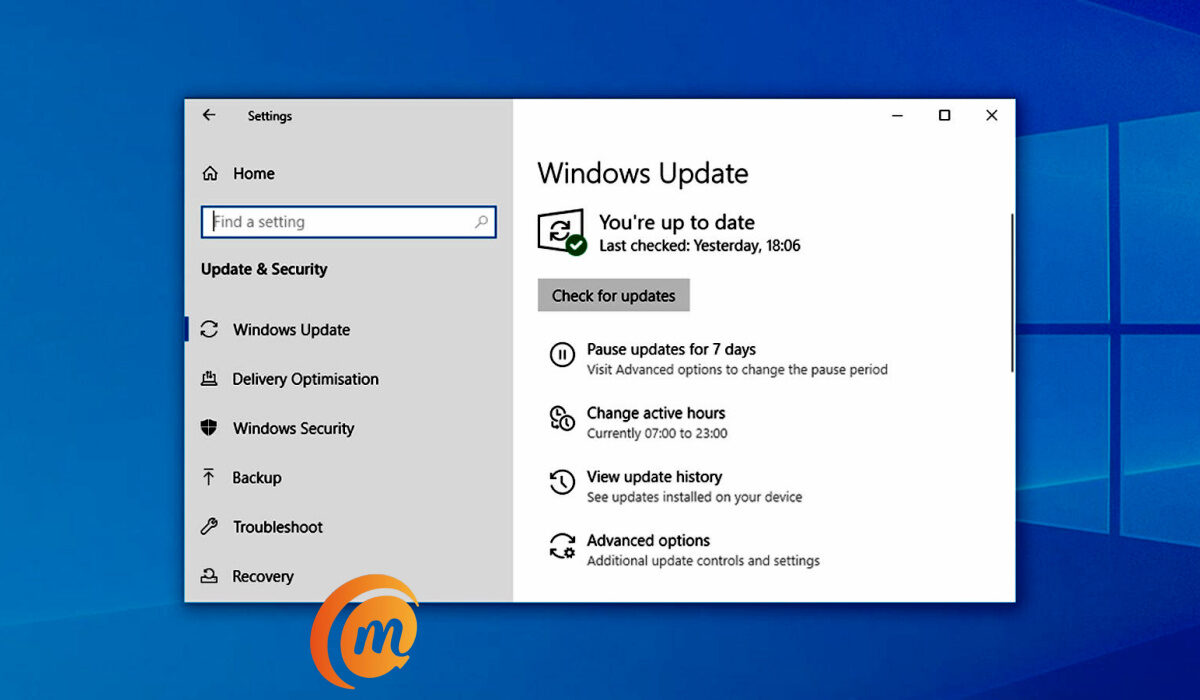
Turn off automatic updates in Windows 10, temporarily, for 7 days
- Click the Start button and select the gear icon to open the Settings menu.
- Select “Update & Security”
- Select “Windows Update”
- Find the option that says, “Pause updates for 7 days” and click on that.
You have successfully turned off automatic updates temporarily – in this case for 7 days. Your PC will display that updates have been passed and will resume on a certain date. On that date, automatic updates will start running again. Of course, you can manually unpause before then. Should you find 7 days too short and want a longer period, you can do that too.
Turn off automatic updates in Windows 10, temporarily, for up to 35 days
- Click the Start button and select the gear icon to open the Settings menu.
- Select “Update & Security”
- Select “Windows Update”
- Scroll down and find the option that says, “Advanced options” and click on that
- Scroll down to “Pause updates” and select a date from the drop-down menu titled, “Pause until”. The maximum number of days you can pause it for is 35.
But should you want to permanently disable automatic updates on your Windows 10 PC, how do you go about that? Let’s find out.
Turn off automatic updates in Windows 10 permanently
This one is a little more technical than temporarily disabling automatic updates. But it isn’t difficult, so don’t freak out.
- Press the Windows key and R together. This will open the Run box.
- Type “services.msc” in the box, then click the OK button. This opens the Windows Services window.
- Scroll down to “Windows Update”, right-click on it, and select “Properties”.
- Select “Disabled” from the drop-down menu.
- Click “Stop” in the Service status section.
- Click the OK button.
You have now permanently disabled automatic updates on your Windows PC. Note that in Step 4 above, instead of choosing “Disabled”, you can alternatively choose “Manual”. This will allow you to manually check for updates whenever you want and install them at your own pleasure.
How to manually update your Windows 10 PC
If you choose manual updates, whenever you want to manually check for and run any available updates, follow these steps:
- Click the Start button and select the gear icon to open the Settings menu.
- Select Update & Security
- Select Windows Update
- Click the “Check for updates” button. A list of available updates will be presented to you. Click the “Download and install” link to run it.
That’s it. You now know how to turn off automatic updates in Windows 10, and how to manually update your PC, should you want to.
- Don’t miss our reviews .
- Join our WhatsApp Group , to be notified of the most important articles and deals,
- Follow us on Instagram , Facebook , Twitter , and YouTube .
Author:Mister Mobility
Digital Skills and Communication Coach | Mobile Phone Connoisseur since 2001 | Tech Blogging since 2004
Add MobilityArena as a preferred source on Google
5G is rolling out in multiple countries around the world, and with that is increasing interest in the subject. With that is also a lot of confusion as telecom operators and carriers roll out with various branding to market their 5G services.
You will have come across terms like low-band, mid-band, C-band, and millimeter wave or mmWave, 5G Evolution, Ultra-wide band, and the like. We explain them all in this article.
What is 5G low-band?
5G low-band occupies a part of the electromagnetic spectrum below 4GHz and is closer to 4G, not just on the spectrum, but also in terms of capacity and speed. It is regarded as non-standalone (NSA). This is a basic version of 5G that is dependent on 4G LTE infrastructure. It is also referred to as sub-6GHz.
What is 5G mid-band?
5G mid-band is also known as C-band. It occupies frequency bands between 3.4GHz and 8GHz, and offers better speeds than 5G low-band. C-band is regarded as the sweet spot for deployment, as it offers a balance of coverage, capacity, and speed.
What is 5G mmWave?
5G millimeter-wave occupies radio frequency spectrum between 24GHz and 100GHz. This is a spectrum with very short wavelength, and delivers the fastest speeds possible. 5G mmWave is a standalone (SA) technology.
Millimeter wave (mmWave) is also the most susceptible to obstruction from physical objects, like walls, terrain, and the like. As such, rollout of 5G mmWave is more tasking, requiring a greater concentration of transmission equipment. That means, you need more equipment to cover a given area with mmWave than if you were deploying C-band or low-band.
What is 5G Ultra Wideband?
Ultra Wideband is a marketing term used by Verizon to classify its C-band and mmWave networks, which are standalone technology.
What is 5G Evolution?
5G Evolution is a misleading marketing term that AT&T calls its upgraded 4G network. In reality, it is not 5G at all.
What is AT&T’s 5G Plus?
5G Plus is what AT&T calls its C-band and mmWave 5G networks.
What is Extended Range 5G?
This is what T-Mobile calls its low-band 5G service.
What is Ultra Capacity 5G?
Ultra Capacity 5G, or 5G UC, is T-Mobile’s marketing name for its C-band and mmWave services.
In summary, lower frequency bands are more congested, cover much greater distances, but offer slower data speeds, while higher frequency bands cover much smaller areas but have more capacity and deliver much greater speeds. Low-band is the slowest, mid-band or C-band offers reasonable speeds, and millimeter wave (mmWave), which occupies the higher frequencies, delivers the fastest speeds.
Deployment
Naturally, low-band (sub-6GHz, NSA) technology was what the first 5G networks were deployed on, since they leveraged on existing 4G LTE infrastructure, and so were cheaper and faster to deploy. But the speed difference between sub-6GHz and LTE was not much. Carriers needed to deliver on the promise of greater speed and capacity.
Some carriers and networks then began to deploy millimeter wave (mmWave) in limited scopes to fulfil that promise. Elsewhere around the world, governments freed up the C-band, which had previously been deployed for other uses, including satellite communications, and made it available for 5G deployment. Mid-band/C-band has characteristics that makes it the ideal, balanced, deployment.
In the United States, it has been referred to as the saviour of 5G. Mid-band/C-band is now being used for 5G rollout in more and more countries around the world (including Nigeria ) and is likely to become the most popular form.
Author:Mister Mobility
Digital Skills and Communication Coach | Mobile Phone Connoisseur since 2001 | Tech Blogging since 2004
