Add MobilityArena as a preferred source on Google
The vibration produced by phone keypads can be both useful and annoying. This is due to the irritating sound they make as well as the unusual movements they orchestrate under the fingertips. Which is why some users like to turn off vibration and keyboard sound.
Removing the vibration and sound can save us from an embarrassing situation at work, such as when you look at your phone during the workday or an important meeting and don’t want your bosses or colleagues to notice. On the other hand, when you receive a WhatsApp message and respond by making the same or more noise than when you received it, you end up disturbing the meeting.
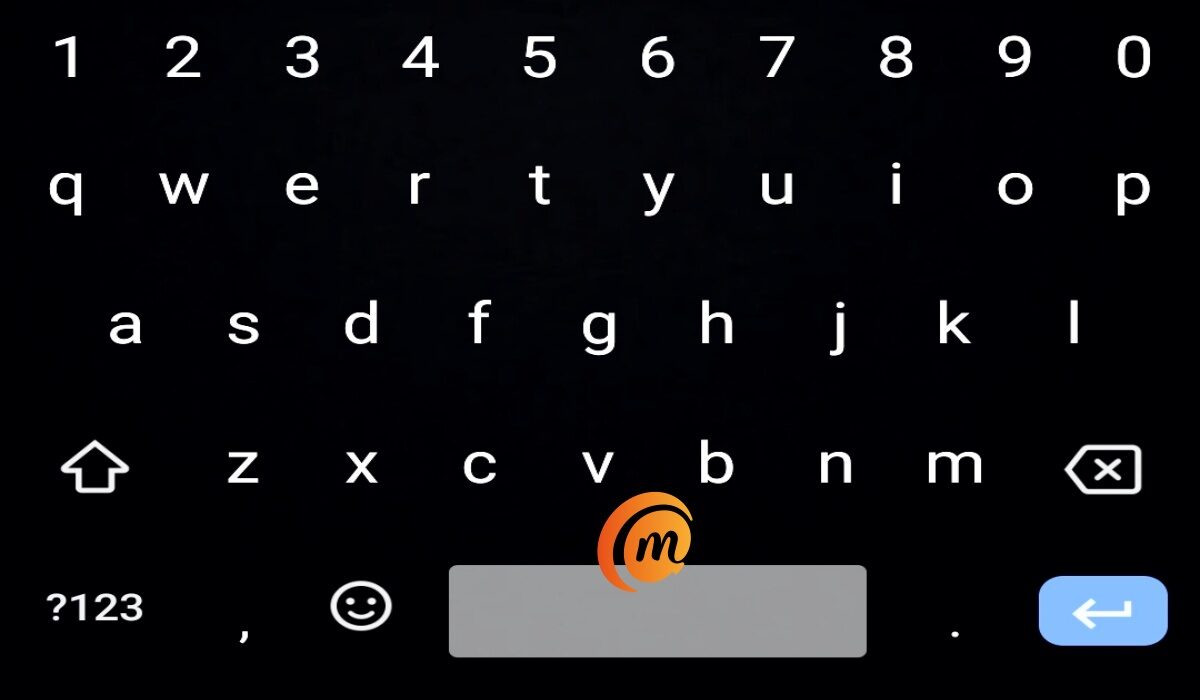
How Do I Turn Off Vibration and Keyboard Sound on Androidphones?
To remove this function from the Android system’s default keyboards, follow these steps:
I. Open the CONFIGURATION menu on our Android-powered smartphone.
II. Look for the KEYBOARD AND LANGUAGES option under the PERSONAL submenu.
III. Once inside this section, click the CONFIGURATION button in ANDROID KEYBOARD.
IV. The boxes ” VIBRATE ON KEY PRESS ” and ” SOUND ON KEY PRESS ” are now checked.
In this way, the sound and vibration of the keypads would have been turned off.
Although the operating system of mobile devices such as Huawei, BQ, Xiaomi, Moto G, or Samsung is Android, the configuration menus or method for deactivating the sound may differ, or the terminal may have an installed format or one of its own created by the brand.
1. How to turn off vibration and keyboard sound inHuawei phones
Deactivating this option is a little more hidden in the case of Huawei, particularly the latest generation. However, we will reveal it to you:
I. Open the configuration or terminal settings by clicking on the gear icon located between the applications.
II. ADVANCED SETTINGS is one of the last options on this menu. Sign in to see your keyboard preferences. You can use the default, the gboard (provided by Google), or an installed one.
III. Click on the PREFERENCES option to access the option that is marked as in use.
IV. Once inside that screen, look for the option ” VIBRATE WHEN KEY IS PRESSED ” near the bottom. That’s all there is to it.
You will have to repeat these steps if you have multiple keyboard options.
2. How to turn off vibration and keyboard sound inBQ Phones
It is very similar to the Android system in use, and even to that of Huawei, in this device, though it takes a different path, which is as follows:
I. Navigate to the terminal settings.
II. Navigate to the SOUND AND NOTIFICATIONS tab.
III. Look for OTHER SOUNDS in this menu.
IV. Enter ” KEYBOARD TONES ” and then click ” VIBRATE WHEN TOUCHING “.
You’d save your battery by turning this feature off.
3. How to turn off vibration and keyboard sound inMotorola phones
Motorola’s interface is similar to Android in general, but the options are usually labeled differently. To summarize, deactivating vibration would be as follows:
I. Locate the SETTINGS icon.
II. Locate it under the LANGUAGE AND TEXT INPUT menu.
III. The various keyboards, such as the GBOARD, will appear (which is the one that these smartphones usually have active).
IV. Now all you have to do is uncheck the option ” VIBRATE WHEN YOU PRESS THE KEY “.
4. How to turn off vibration and keyboard sound inSamsung phones
The only difference between this process and Motorola is the names of the menus.
I. Look inside the APPLICATIONS icon for the SETTINGS menu.
II. Enter the SOUNDS AND NOTIFICATIONS option within it.
III. Click VIBRATIONS from the list of available options.
IV. Deactivate the “VIBRATION RESPONSE” option.
5.How to turn off vibration and keyboard sound in Google Gboard
GBOARD, Google’s intelligent keyboard system, is the default setting on most phones. It is one of the most comprehensive on the market because it allows you to write with one hand, insert emojis, and search for GIFs.
The Google keyboard is the default keyboard in the latest Xiaomi and iPhone models, so you must disable the sound or vibration through it. The steps are as follows:
I. First, launch an app that uses the keyboard, such as WhatsApp, Google Chrome, or the Google search bar.
II. Press to compose a message.
III. When the keyboard appears, press the distinctively colored G of Google.
IV. When the options are displayed, click on the three points at the end of the small bar. Press SETTINGS to see some new options.
V. Press PREFERENCES on the newly opened screen.
VI. Finally, deactivate the option ” TOUCH RESPONSE WHEN PRESSING THE KEYS ” and you’re done.
6.How do I disable keyboard vibration inSwiftKey?
The SWIFTKEY keyboard app is the most downloaded and used app after GBOARD, with over 2 million users having it on their devices.
SwiftKey is an advanced keyboard application that learns the user’s most frequently used phrases and suggests words before they are typed. This promotes more agile typing while also indirectly lowering battery consumption because the device will spend less time with the screen on.
Additionally, it analyzes your finger precision and corrects any deviations that the user may have. This app is currently the best because it allows you to adjust the duration of the vibration when you touch the keys, select the sound when you press the main keys, and toggle the sound on and off. To turn off vibration in SwiftKey, do the following:
I. Launch the SwiftKey app.
II. Select the WRITING option.
III. Uncheck the “SOUND AND VIBRATION” box here.
- Don’t miss our mobile phone reviews .
- Follow our news on Google News .
- Join our WhatsApp Group , to be notified of the most important articles and deals,
- Follow us on Instagram , Facebook , Twitter , and YouTube .
Author:Moses Udah
Creative, teacher, web content writer, copywriter, and student.
Add MobilityArena as a preferred source on Google
It can be quite a pain being the only Android user among a group of iPhone owners, especially when it comes to sharing photos and videos. Most of the available means for getting this done tend to compromise the video’s quality. However, this does not need to be a difficult process.
Don’t feel limited by the lack of iMessage or Airdrop access; you can still transmit high-quality videos to iPhone users via other means that won’t reduce the quality of your videos. With Google Photo’s quick video-sharing technique, sending high-resolution videos to iOS users has become pretty simple.
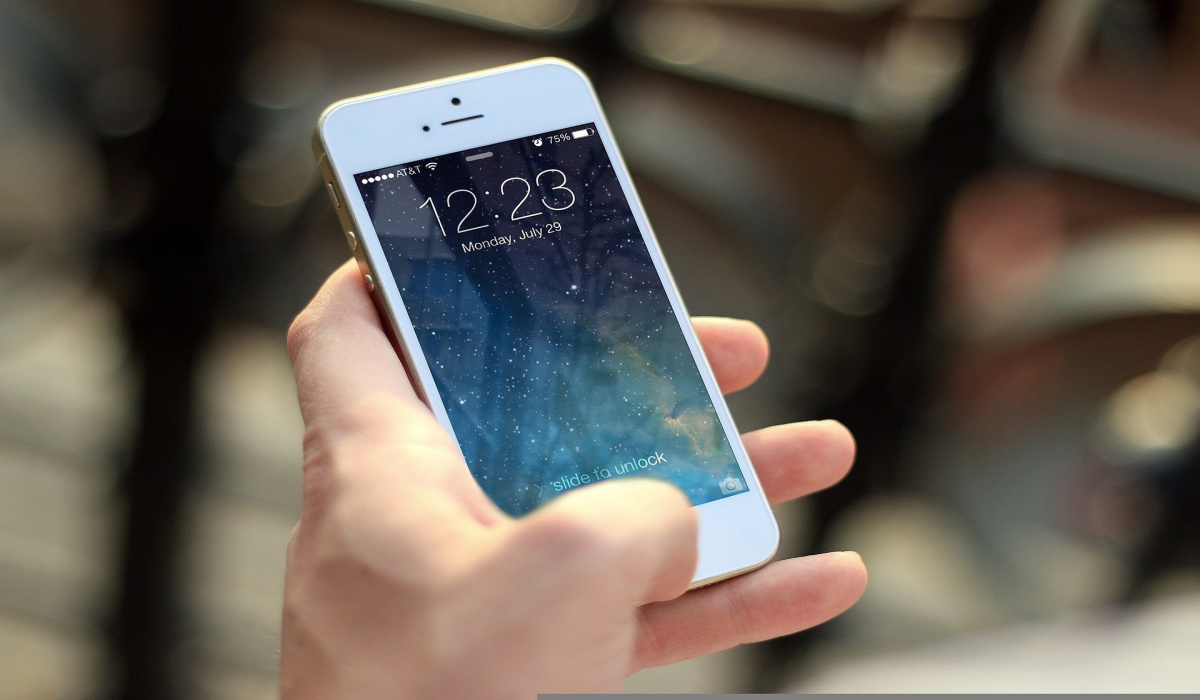
If you’re not already familiar with this process, we’ve created this guide for you. So, keep reading to learn how to take advantage of Google Photo’s features to share high-quality videos from your Android smartphone to iPhone devices.
How does Google Photos’ Video Sharing Work?
Google Photos is typically preinstalled on almost all US smartphones. You can share HD films with any mobile user using Google Photos’ free auto backup feature, which saves the videos to the cloud. Actually, you can view and share your films on any platform thanks to Google Photos, which is not only compatible with Android and iOS but also has a fantastic web interface.
Below are the necessary steps to share videos from your Android smartphone to iPhone devices using Google Photos:
- Step 1: You must sign in first if you have never used Google Photos before. Your default Google account should appear when you open the Google Photos app. If this does not happen, switch the email to your main account. As soon as “Back up & sync” is enabled, select “Next.” The page where you can select your backup options will now be presented to you. Both “Original” and “High Quality” are the available options you should see.
Although you just have a small amount of backup space with Original, your video quality will not be compromised. Videos created with High Quality are compressed but still retain HD definition, and you get limitless backup space. As a result, we’d advise that you choose High-Quality.
Additionally, you can decide if you want to back up your videos using data. Be careful because it can take a lot of data if you choose to enable this. Press the “Confirm” button next. Your videos will now be synced and backed up by the app.
Follow these steps to enable “Back up & sync” if you have previously signed in to Google Photos. Press the three horizontal lines in the top-left corner of the app’s main screen. From the menu, pick “Settings,” then click the “Back up & sync” option. Click on the “Backup & sync” option; this will enable it on the “Back up & sync” page. Your videos will now always be saved in the cloud for the next time you’re connected to Wi-Fi.
- Step 2: Simply capture a video as you typically would after turning on “Back up & sync” in your Google Photos app. Within seconds of completing the recording, if you’re connected to Wi-Fi, the video you’ve made will be transferred to the cloud. The video will be uploaded the next time you are connected to Wi-Fi if you are using mobile data.
Therefore, the only thing you actually need to do is share the video after it has been uploaded. There are two ways to do that: The first method is for iPhone users with the Google Photos app running on their devices, and the other is for those who don’t.
- Step 3a: This method is for sharing with iPhone users that have Google Photos installed. Find the video you want to share in the Google Photos app and tap it. The share button, which is the bottom-leftmost, should be pressed next. Additionally, you can go through your video library if you want, and choose multiple videos to share at once.
You’ll be able to send videos to any contact on your Gmail thanks to Google Photos’ integration with Gmail. In an ideal world, you could simply put in your friend’s name and they would appear. There will be a tiny pinwheel icon indicating that they have a Google Photos account if they do. Look up the name of your friend and then click on it when you see it. Note that there is no requirement that you share with just one individual at once.
You could also type a message to accompany the video once you’ve decided who you want to share the video with. You can choose to let the individuals you invite contribute their own videos and images to the album by tapping on the lock icon. Click the blue “Send” button when you’re ready to share the videos. Your friends should now be able to watch the videos you’ve shared on iOS, Android, and the web.
- Step 3b: If you don’t know your friend’s email address or you want to share with folks who don’t have Google Photos, use this method. You can share content with Google Photos by sending someone a link to a video that can be viewed on any device and operating system.
When you choose the video you want to share and click the “Share” button, a “Create link” button will appear in the bottom left corner. By pressing this button, Google Photos will generate a sharing link that is open to users without a Google Photos account. As soon as the link is made, it is automatically copied to your clipboard so that you can paste it wherever you desire (such as in your Messages app).
As an alternative, you can send it directly to your preferred app, such as in a message with a link to the photos. Click on the “Messaging” app to do this. You may then share your link with any contact, even iOS users, once it has been pasted. When they click the link, they will be taken immediately to the video with the option to download it.
In summary, you can take advantage of this easy video-sharing method, and never have to worry about compromising video quality when sharing videos with your iOS user friends. Make sure to follow the instructions correctly to achieve this.
- Don’t miss our mobile phone reviews .
- Follow our news on Google News .
- Join our WhatsApp Group , to be notified of the most important articles and deals,
- Follow us on Instagram , Facebook , Twitter , and YouTube .
