Add MobilityArena as a preferred source on Google
With Windows 10 or 11 devices, a need occasionally arises to uninstall a few programs and/or applications for several reasons. It’s possible that you need to clear up some space, or you’re trying to get rid of a program you don’t use anymore; whatever the reason may be, you’ll find that this need arises from time to time.
Depending on the program you want to uninstall, there are a few different ways to do so, you just need to try a different approach if one fails. In this article, we’ll guide you through the different methods of uninstalling programs or applications on your Windows 10 or 11 devices.
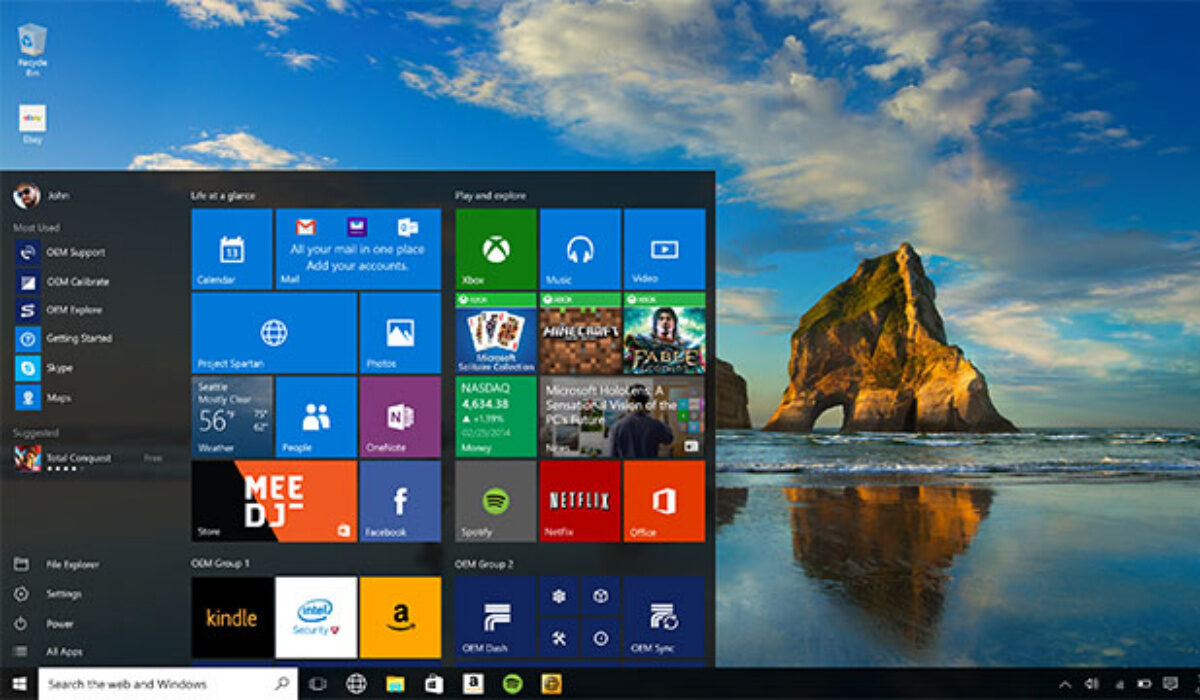
Keep in mind that not all apps can be deleted using the techniques we’ve described in this article. Some built-in applications, like Microsoft Edge, can only be uninstalled using a program with a command-line interface, such as Windows PowerShell. They will typically require more work, but the uninstalling procedure is pretty easy for most apps if you follow our guidelines below.
Uninstalling Apps from the Start Menu
Simple applications, including those downloaded through the Microsoft Store, are easy to delete from the Start menu. You might need to do a more formal removal for more prominent apps and programs that might keep settings in the Windows Registry and other locations on your device.
It’s vital to completely remove applications rather than just deleting them since Windows may retain little portions of the program in several system locations.
To uninstall an app from the Start menu:
- In Windows 10 devices, press the Start button and browse the All Apps list on the left or the tiled area on the right for the program you want to uninstall. Right-click on the program, and you’ll notice an Uninstall option in the pop-up menu if you’re able to delete it in this manner. Once you click it and verify that you want to remove it, it disappears.
- For a Windows 11 device, click on the Start button. Search for any pinned applications you want to uninstall. To view all the installed programs on your computer, click the All apps entry in the menu’s upper right corner. You can uninstall an app by selecting the option from the context menu when you right-click on the app.
Uninstalling Apps from the Control Panel
If you prefer this method, you can also remove a program by searching for “Control Panel” in the search bar, and then selecting “Uninstall a Program” from the Programs subheading.
- To find the program you wish to uninstall, scroll down.
- When you’ve located the program, select it and then click the “Uninstall” or “Uninstall/Change” button at the top of the page. You can either double-click the application or choose “Uninstall” or “Uninstall/Change” from the context menu when you right-click on it.
- The next steps vary according to the program you wish to delete. Sometimes the application will be deleted and you won’t need to take any further action. A pop-up window may appear asking you to verify. If so, select “Uninstall.” Do you want to allow this app to make changes to your device? may also appear in a window. Choose “Yes.” if that happens. If an uninstall window appears, click “Next” or “Continue” and then adhere to the instructions in the window to remove the application.
- When you’re done, click “Finish.”
Uninstalling Apps Using App Settings
To access all the programs on your computer more quickly, you can navigate to Settings > Apps > Apps & features. You should be able to find every program installed on your computer on this screen, which displays both Windows Universal and traditional desktop programs.
Locate the program you want to uninstall by scrolling down the list, clicking it directly in Windows 10 or the three-dot icon in Windows 11, and then choose the Uninstall option.
In summary, there’s no need to feel frustrated when it seems like your Windows device is full of unwanted programs, you can very easily uninstall them and make space for your preferred apps. Pay attention to the different methods we’ve described above to make this possible. Note that you may also be needing some third-party apps if the steps above don’t work for the programs you intend to delete.
Make sure to recommend this article to your friends and loved ones, you have no idea how helpful they might find it.
- Don’t miss our reviews .
- Follow our news on Google News .
- Join our WhatsApp Group , to be notified of the most important articles and deals,
- Follow us on Instagram , Facebook , Twitter , and YouTube .
Author:Joan Agie
Add MobilityArena as a preferred source on Google
Security has become a major concern for smartphone users. The world is losing billions of dollars just because hackers exploit the personal information of users by using the weak spots of smart devices. Considering this security issue, some people often prefer to use the most secured phones available on the market. By using such phones, they can add a strong layer of security.
Let’s look at highlights of the top five most secure smartphones in the world.
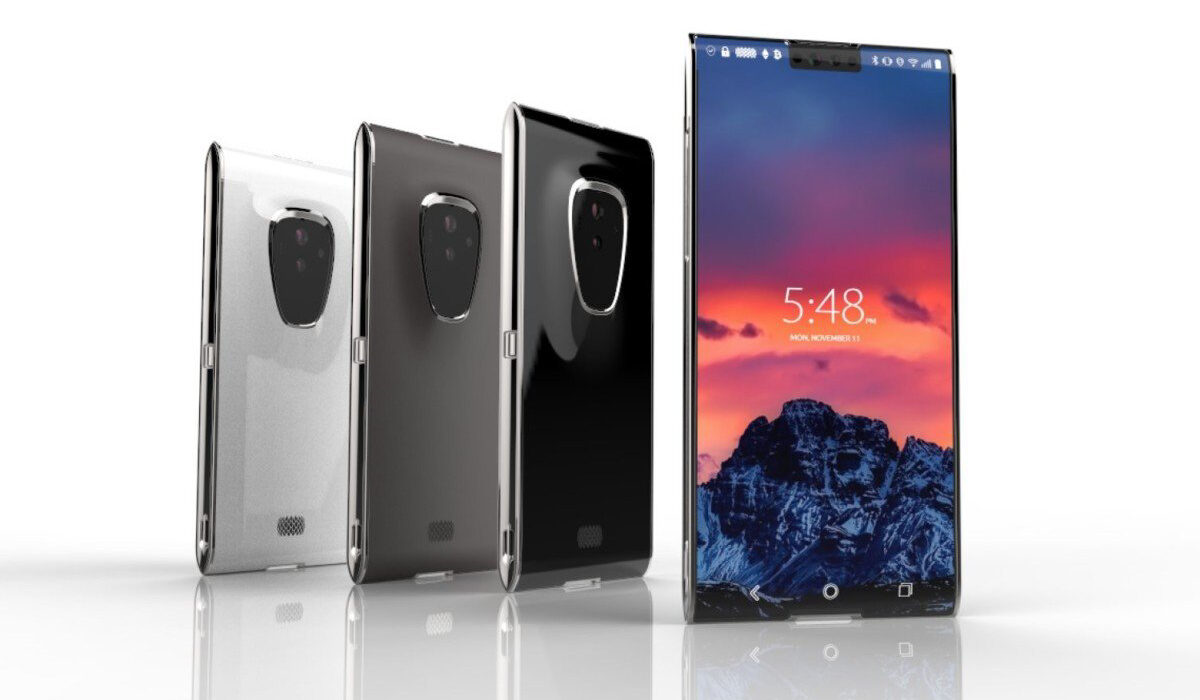
Which are the most secure smartphones in the world?
- Purism Librem 5
- Apple iPhone 14 Pro Max
- Blackphone PRIVY 2.0
- Sirin Labs Finney U1
- Google Pixel 7 Pro
- Which is the most secure smartphone in the world?
Purism Librem 5
One of the most secure smartphones in today’s world is the Purism Librem 5 . If you use this phone, you won’t have to worry about your security. However, it doesn’t mean this phone is immune to cyber threats. This phone uses an open-source OS known as the PureOS . The OS is completely different from Android and iOS. However, the interference is pretty easy and no one should have a tough time using it.
Using Linux on Purism Librem 5
Though the Purism Librem 5 uses PureOS which is based on the Debian OS, the users can install Linus OS to this system. However, using the Linus OS will make this phone a bit more complex, as most of the navigation is done through command lines when it comes to Linux.
Apple iPhone 14 Pro Max
This is one of the recommended regular phones for security-conscious people. Apple has secured a solid stance in the line of the world’s most secured phones. People are spending huge amounts of money on Apple iPhone 14 Pro Max because the platform is much more secure. However, you should still use VPN while using the Apple phone to browse the internet. One of recommended VPN is CyberghostVPN as it encrypts your data connects and hides your identity. While using the VPN, your device will not slow down for a second. However, the data connection might seem a little bit slower but it is worth it since you are encrypting all the information in the network.
Blackphone PRIVY 2.0
One of the most secured Android-based phones can own is the Blackphone PRIVY 2.0. This phone runs on a heavily modified version of Android, which means all the bugs related to security issues are fixed. You can expect to make phone calls, text messages, and video communication in a completely encrypted medium.
One of the key perks of using the Blackphone PRIVY 2.0 is that you won’t have to deal with a new interface, as it runs on the Android platform (see a review here ). Once you get used to this device, you love the way it is curated for your personal use. Moreover, being a lucky owner of the Privy 2.0, you are most likely to get regular security updates on your phones. The PRIVY 2.0 is easily one of the most secure smartphones in the market today.
Sirin Labs Finney U1
Those who are dealing with the cryptocurrency industry might consider getting the Sirin Labs Finney U1 . This phone is solely developed for hardcore cryptocurrency users. The phone comes with built-in cold crypto storage so that you don’t have to lose your wallet key. Most importantly, these factors help to deal with the three-factor authentication method. Some often considered these features as the best security module for the Sirin OS.
If you use this phone for the first time, you might have to spend a few hours learning the curves and hidden perks. Once you learn the proper way to use the Sirin OS, you might consider it better than Android and iOS. But this will not be the case for most of the users.
Google Pixel 7 Pro
It’s no surprise that Google Pixel 7 Pro has secured a position on our list of the most secure smartphones. It is another regular phone for people who are concerned about security. Google has always been overly concerned about the security factors used in their phones. They are constantly updating their stock OS to protect their customers from hackers. The use of the Tensor chip in Pixel 6 has allowed Google to use multi-layer security.
The Tensor2 chip uses TrustZone technology, which enables the users to keep their data safe even in the public network. But this doesn’t mean the users will start giving away their sophisticated information in the public network. Note that even when using a Pixel 7 Pro, you need to follow the basic safety protocol to keep your data safe from hackers.
Which is the most secure smartphone in the world?
If security and privacy are important to you, and you do not mind spending extra to have that edge, the above are some of the most secure smartphones in the world that you can buy today. Each one costs more than the average smartphone, but knowing that your smartphone is above the rest in terms of security is solid value.
