Add MobilityArena as a preferred source on Google
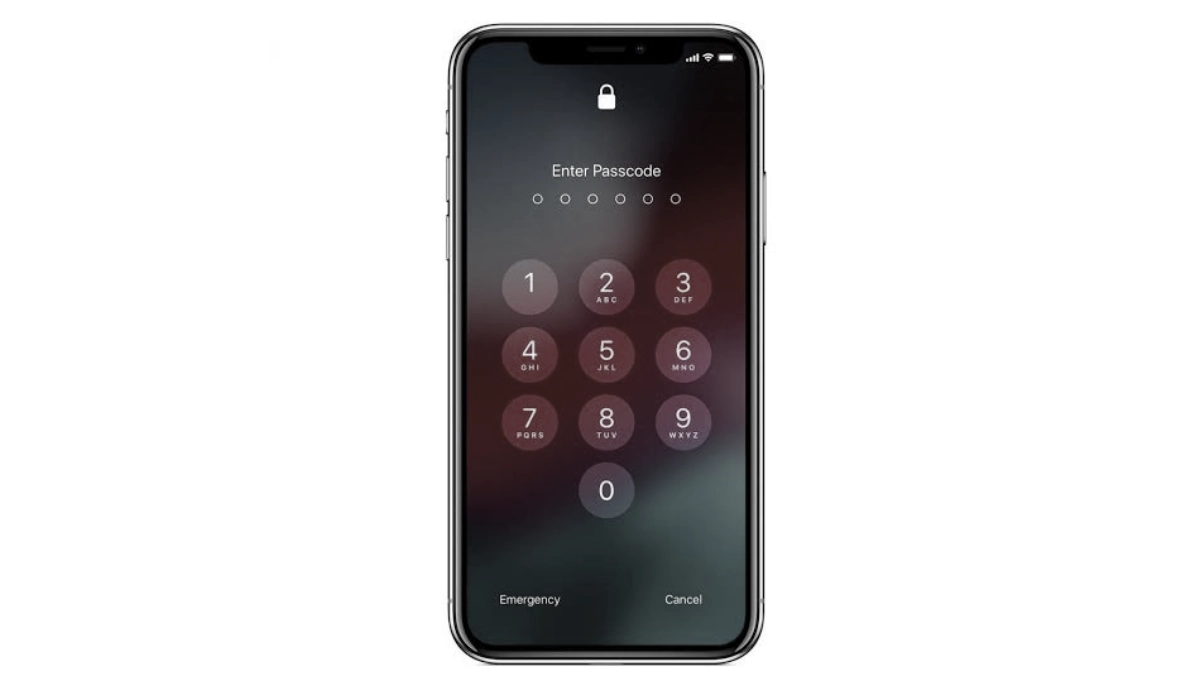
Knowing how to unlock iPhone passcode is important. An iPhone passcode is a security feature designed to protect your device from unauthorized access. It is a combination of numbers or alphanumeric characters that you must enter to unlock your iPhone and gain access to its contents and functions. The passcode can serve as the first line of defense against unauthorized users, ensuring that your personal data remains secure.
Whether it is a more recent model like iPhone 14 Pro Max or an older model from years back, the guide below will show you how to unlock iPhone passcode. Most of the steps are easy to follow, even if you are a non-techie. If you find one too technical, try another. I list four different ways to unlock your iPhone passcode.
- Before You Begin
- Method 1: How to unlock iPhone Passcode with a Known Passcode
- Method 2: How to unlock iPhone Passcode with iCloud
- Method 3: How to unlock iPhone Passcode with iTunes (Recovery Mode)
- Method 4: How to unlock iPhone Passcode with Apple ID (iOS 15 and later)
Before You Begin
Before you go about unlocking the passcode of an iPhone, it is important that you have a backup of your data. Why? Sometimes, unlocking an iPhone can result in data loss. You do not want to find yourself losing all the data on your phone without a backup to fall back on. You can use either iCloud or iTunes for backing up your data.
Method 1: How to unlock iPhone Passcode with a Known Passcode
- Go to “Settings” on your iPhone.
- Scroll down and tap “Touch ID & Passcode” (or “Face ID & Passcode” on newer models).
- Enter your current passcode to access the settings.
- Scroll down to the “Change Passcode” section and tap it.
- Enter your current passcode again to confirm.
- Enter your new passcode twice to confirm the change.
- Tap “Done” to save the new passcode.
Method 2: How to unlock iPhone Passcode with iCloud
- Go to iCloud.com on a computer or another device.
- Log in using your Apple ID and password.
- Click on “Find iPhone.”
- Click on “All Devices” at the top of the screen and select the iPhone you want to unlock.
- Click on “Erase iPhone” to erase all data and settings on the iPhone.
- Follow the on-screen instructions to confirm the erase process.
- Once the iPhone is erased, you can set it up as a new device or restore it from a backup.
Note: This method will erase all data and settings on the iPhone, so make sure to back up your iPhone before using this method if possible. Also, your iPhone needs to be connected to the internet for this method to work.
Method 3: How to unlock iPhone Passcode with iTunes (Recovery Mode)
- Connect your iPhone to your computer using a USB cable.
- Open iTunes on your computer.
- Put your iPhone into recovery mode: For iPhone 8 or later: Press and quickly release the Volume Up button, then press and quickly release the Volume Down button, then press and hold the Side button until the recovery mode screen appears. For iPhone 7 and 7 Plus: Press and hold the Side button and Volume Down button at the same time until the recovery mode screen appears. For iPhone 6s and earlier: Press and hold the Home button and Side button at the same time until the recovery mode screen appears.
- When prompted to “Restore” or “Update” your iPhone, select “Restore.”
- iTunes will download the latest iOS software and install it on your iPhone.
- Once the installation is complete, you can set up your iPhone as a new device or restore it from a backup.
Note: This method will erase all data and settings on the iPhone, so make sure to back up your iPhone before using this method if possible. Also, if you have Find My iPhone enabled, you will need to enter your Apple ID and password after the restore process to activate your iPhone.
Method 4: How to unlock iPhone Passcode with Apple ID (iOS 15 and later)
- On another device, go to iCloud.com/find.
- Log in using your Apple ID and password.
- Click on “Find iPhone.”
- Click on “All Devices” at the top of the screen and select the iPhone you want to unlock.
- Click on “Erase iPhone” to erase all data and settings on the iPhone.
- Follow the on-screen instructions to confirm the erase process.
- Once the iPhone is erased, click on “Remove from Account” to remove the iPhone from your iCloud account.
- Turn on your iPhone and follow the on-screen instructions to set it up as a new device.
Note: This method will erase all data and settings on the iPhone, so make sure to back up your iPhone before using this method if possible. Also, your iPhone needs to be connected to the internet for this method to work. Additionally, if you have Find My iPhone disabled or if your iPhone is not connected to the internet, this method will not work.
Author:MobileChic
That motivated, gadget-loving geeky chic who tries to stay on top of things. Unapologetic iFan.
Add MobilityArena as a preferred source on Google
What are AT&T Phone Services ? AT&T Phone Services, also called AT&T Home Phone, is a digital phone service that is delivered over an AT&T internet connection. It provides customers with a reliable and secure phone service that includes features such as unlimited calling within the US, voicemail, caller ID, call waiting, and call forwarding.
AT&T Phone Services also offers international calling plans and the ability to make calls from your smartphone using the AT&T Phone app. Customers can choose from a variety of plans and bundles that suit their needs, and can easily manage their account and settings online. Because it is dependent on an Internet connection, AT&T Phone Services is available to customers in select areas where AT&T internet service is available.
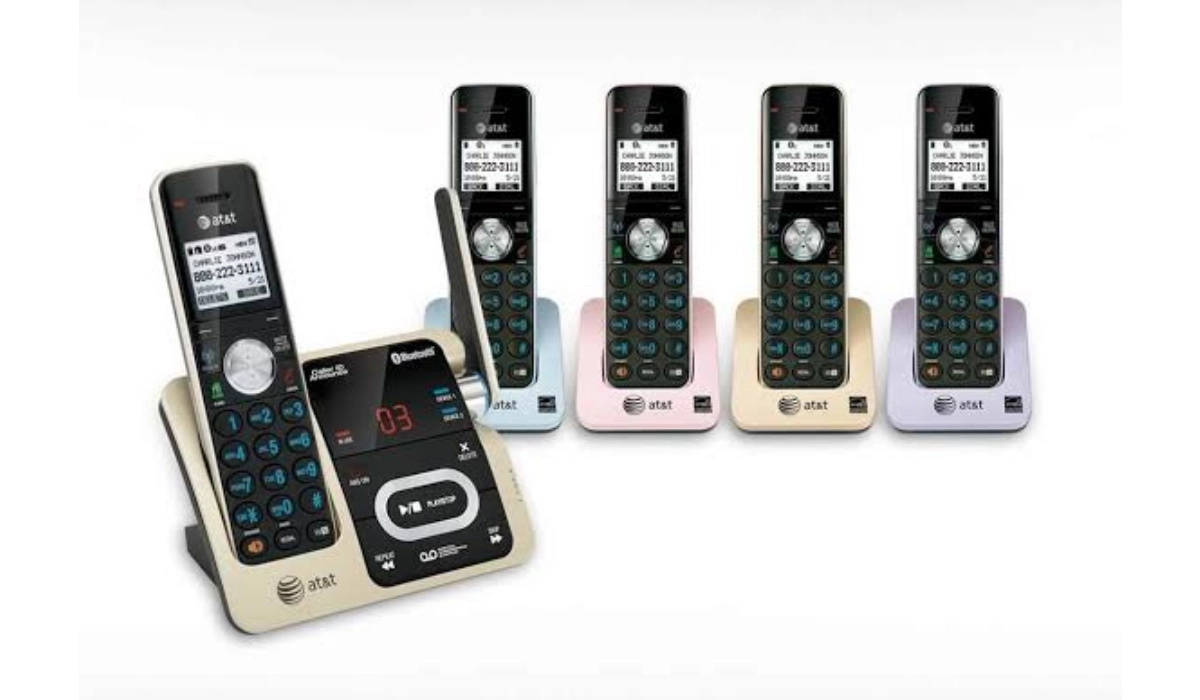
AT&T Phone Services work like regular telephone lines, but use VOIP (voice over IP) technology to deliver telephone service over an internet connection. As already mentioned, this means that you need an active Internet connection to be able to use the services.
- What is the best AT&T Phone Services Plan?
- How to find the best AT&T Phone Services plan
- AT&T Phone Service Number
- AT&T Phone Customer Service Website
What is the best AT&T Phone Services Plan?
AT&T Phone Services plans and tariffs keep changing over time. They are also fine-tuned for different needs. As such, it is difficult to declare one plan as the best. The best AT&T Phone Services plan depends on what your needs are.
How to find the best AT&T Phone Services plan
To find the best AT&T phone service plan for your needs, I recommend visiting the AT&T website or contacting the AT&T phone services number (listed below) for the most up-to-date information. Here are some factors to consider when evaluating AT&T phone service plans:
- Data Usage : Determine how much data you need each month for web browsing, streaming, and other online activities. AT&T offers different data tiers to accommodate various usage levels.
- Talk and Text : Consider your talk and text needs. Most plans include unlimited talk and text, but it’s essential to verify this and check for any limitations.
- Number of Lines : If you’re getting a family plan, decide how many lines you need. Family plans often offer cost savings per line compared to individual plans.
- Device Subsidies : Check if you want to purchase a new phone through AT&T. Some plans offer device subsidies or installment payment options for the latest smartphones.
- International Usage : If you travel internationally frequently, look for plans that offer international calling and data options.
- Streaming Services : AT&T may bundle its plans with streaming services like HBO Max. Evaluate whether these additional features are of value to you.
- Prepaid Plans : AT&T offers prepaid plans that don’t require a credit check or long-term commitment. This can be a flexible option for some users.
- 5G Access : If you have a 5G-capable phone and want to access 5G networks, ensure that the plan you choose includes 5G access.
- Customer Service and Coverage : Research AT&T’s coverage in your area and read customer reviews to gauge the quality of customer service.
- Promotions and Discounts : Check for any ongoing promotions, discounts, or special offers that might make a plan more attractive.
- Data Rollover : Some plans allow you to roll over unused data to the next month, which can be useful if your data usage varies.
AT&T’s website and customer service can provide the most current information on available plans and promotions at any time. I recommend that you reach out to them to ask about any ongoing deals, offers, and promos. The customer service contact details are listed below for your convenience.
AT&T Phone Service Number
To reach out to AT&T customer service for information about available plans and tariffs, call +18445111964. That is the AT&T Phone Service number.
AT&T Phone Customer Service Website
Visit the AT&T Phone Services website here .
Author:Anna Makama
Gadget lover making my way through life one day at a time.
