Add MobilityArena as a preferred source on Google
The SIM card plays an important role in your iPhone, as it stores important information such as your phone number, contacts, and carrier details. Unlocking your SIM card allows you to enjoy the flexibility of switching carriers, using local SIM cards when traveling, and exploring different network plans.
In this article, I’ll walk you through how to unlock SIM card for iPhone. I’ll cover contacting your mobile carrier for this purpose, and various other unlocking methods. So, keep reading to find out how to unlock your iPhone’s SIM card easily.
- How to Unlock SIM Card For iPhone Unlock SIM Card for iPhone Via Settings App Unlock SIM Card for iPhone Via Phone App Unlock SIM Card for iPhone With PUK Unlock SIM Card on iPhone Using Third-Party Services
How to Unlock SIM Card For iPhone
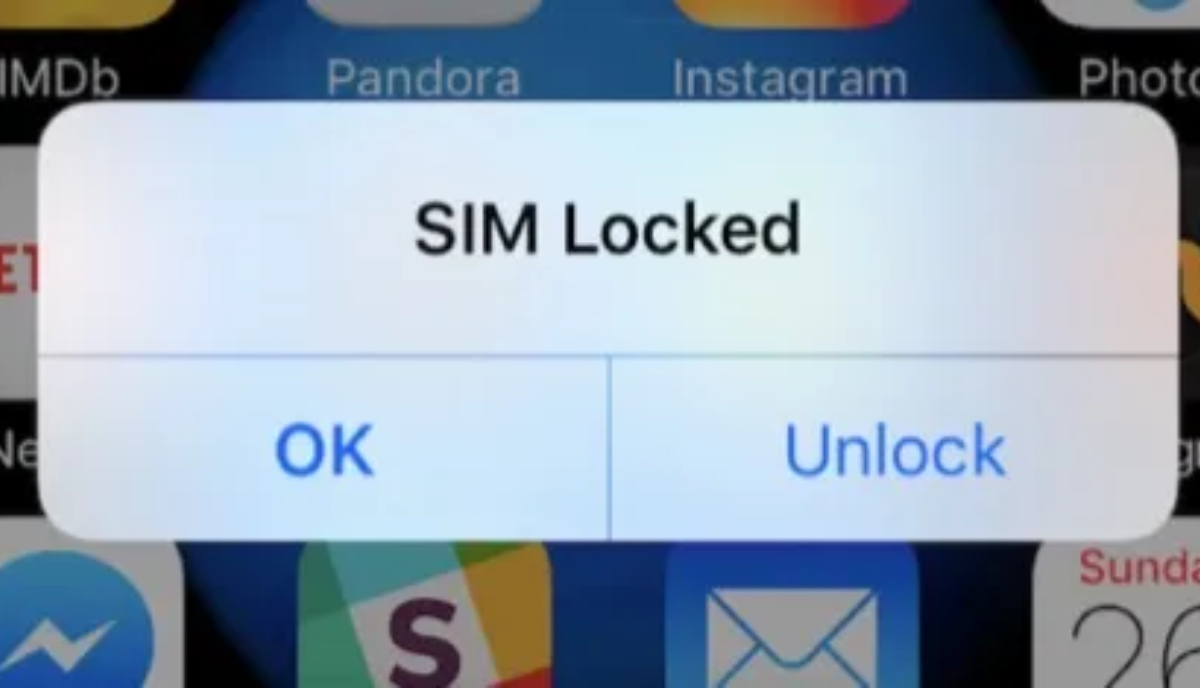
Locking the SIM card with a PIN is done to safeguard your cellular data and personal calling. If your iPhone displays a message stating that the SIM card is locked, it’s because there is a SIM PIN in place to protect your account. Once the SIM card lock is enabled, you’ll see this message frequently when attempting to switch carriers or remove the SIM card.
Luckily, there are various methods available to unlock an iPhone’s SIM card, and I’ve described them below. Try one or more of these options if you ever have to unlock SIM cards for an iPhone.
Unlock SIM Card for iPhone Via Settings App
Using the Settings app is one of the simplest methods to unlock an iPhone’s SIM card if the PIN code is locked. To unlock your iPhone’s SIM card with the Settings app, follow these steps:
- Open the Settings app on your iPhone.
- Scroll down and tap on “ Cellular ” or “ Mobile Data ” depending on your device.
- Look for the option “ SIM PIN ” or “ SIM Card Lock ” and tap on it.
- Enter your current SIM card PIN.
- Toggle off the switch next to SIM PIN .
Unlock SIM Card for iPhone Via Phone App
If you’d rather unlock the SIM card on your iPhone using the Phone app, follow the instructions below:
- Navigate to the Contacts page on your iPhone using the Phone app.
- Make a call, which can be to any random contact.
- A dialog will appear with a “ Unlock ” button. To continue, click it.
- Enter your SIM PIN and tap the green button to unlock your iPhone’s SIM card.
- If you don’t remember your SIM PIN, click “ Keypad ” at the bottom of the screen on the Phone app
- Enter the following code: “ *#06# ”
- Your iPhone’s IMEI number will appear on the screen. Write it down or take a screenshot.
- Contact your mobile carrier’s customer support and provide them with your IMEI number.
- They will guide you through the process of unlocking your SIM card.
Unlock SIM Card for iPhone With PUK
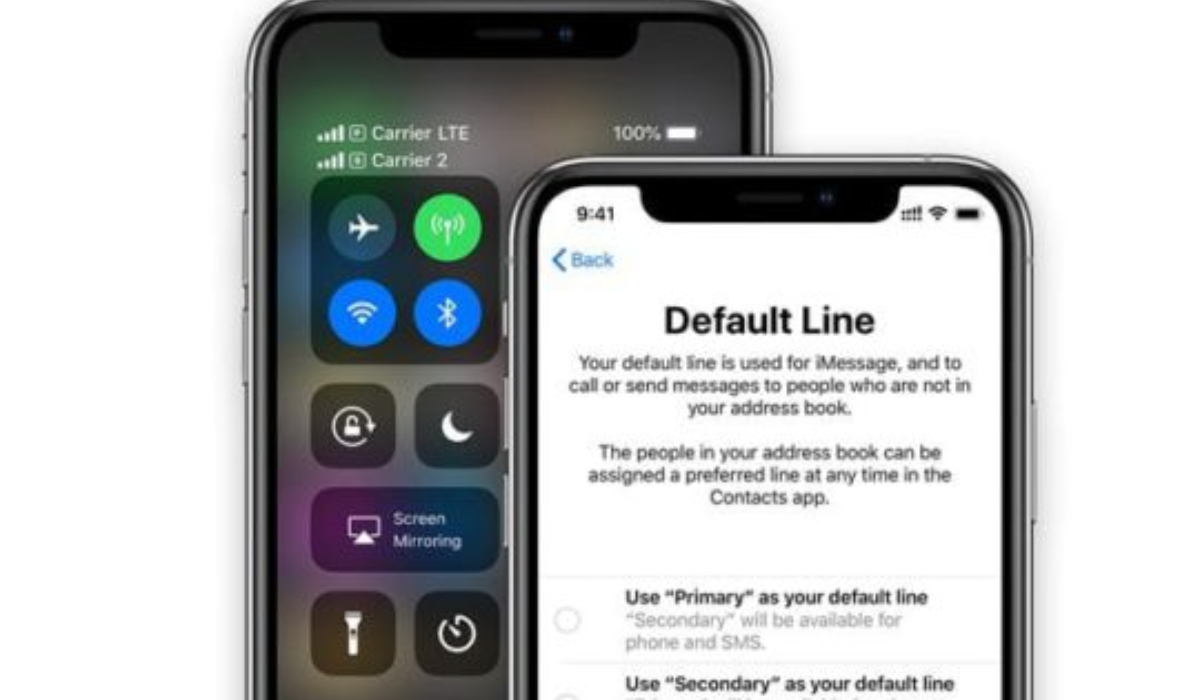
If you’ve set your SIM card to be locked with a PIN, it’s possible to unlock it with the same PIN. However, if you forget that PIN and find yourself locked out of your iPhone, your iPhone may start requesting a PUK code after you entered the wrong PIN multiple times. It’s important in this case to inform your carrier of this development, so they can help you unlock your SIM card using a PUK code.
To unlock your SIM card with the PUK code, follow these steps:
- Contact your mobile carrier’s customer support.
- Request the PUK (Personal Unblocking Key) code for your SIM card.
- Once you have the PUK code, enter it when prompted on your iPhone screen.
- Follow the on-screen instructions to set a new SIM card PIN.
Remember, the PUK code is unique to your SIM card and should be provided by your mobile carrier. Also, when you do set a new SIM pin, make sure to write it down somewhere so you don’t forget it next time.
Unlock SIM Card on iPhone Using Third-Party Services
To unlock your SIM card on an iPhone using third-party services, you can search online for trusted providers like UnlockBase or EaseUS MobiUnlock . These tools can unlock your iPhone SIM card regardless of your service provider.
You would need to download the software onto your computer, connect your iPhone, and follow the on-screen instructions, making sure to provide the necessary information to unlock your SIM card. However, make sure to read reviews before choosing any of these third-party services and proceeding with their instructions.
To sum up, unlocking your iPhone SIM card can be done through various methods. Each of the methods outlined above has its own steps and requirements, so choose the one that suits you best. Remember to follow the instructions carefully to successfully unlock your SIM card and enjoy the flexibility of using any SIM card with your iPhone. If you’re in need of other useful iPhone tips, make sure to check out this category .
Author:Joan Agie
Add MobilityArena as a preferred source on Google
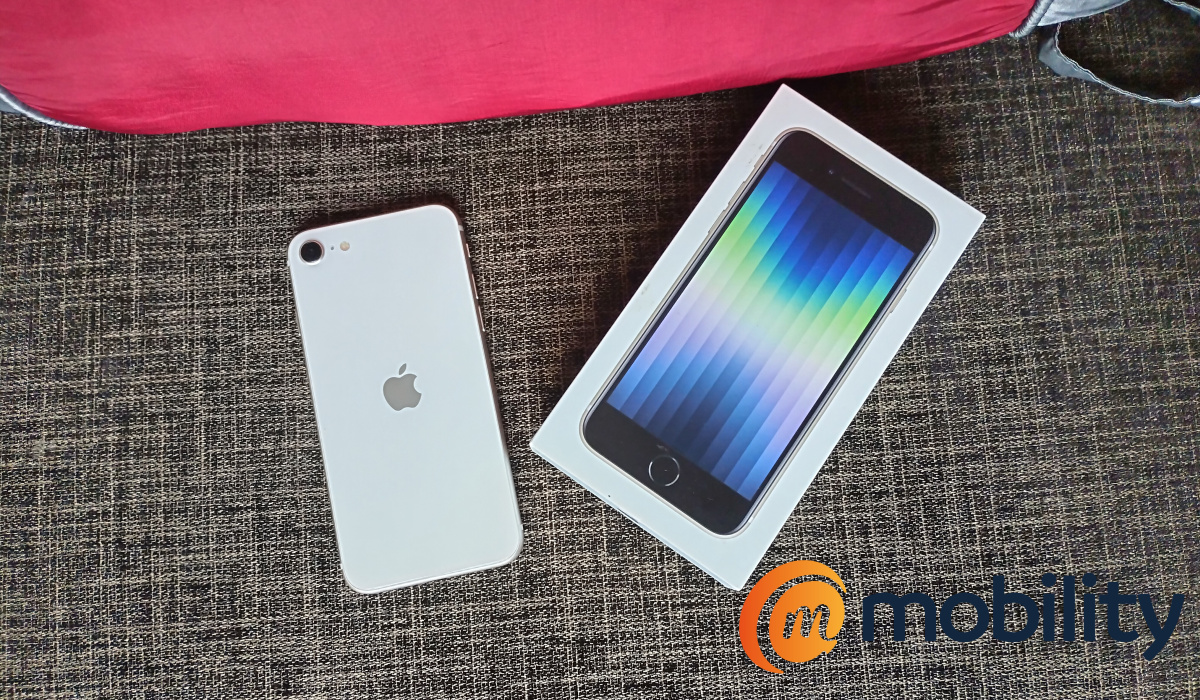
There isn’t any way to dance around it: the battery life of iPhone SE is by default the worst of any iPhone model released in the same year . Why is this so? The iPhone SE series consists of the smallest models in Apple’s smartphone line-up. This means that it also has the smallest batteries. Small batteries are poor battery life are bosom friends.
Whether you are looking at the original iPhone SE released in 2016, the 2020 model, or the 2022 model, the battery life of iPhone SE models is nothing to be excited about. If you are after really good battery life in an iPhone, you should be looking at the Pro and Pro Max models. But perhaps I am getting ahead of myself. How bad is the battery life of iPhone SE devices? Come find out.
Is the battery life of iPhone SE good?
- Battery life of iPhone SE 2016
- Battery life of iPhone SE 2020
- Battery life of iPhone SE 2022
- What to do to improve the battery life of iPhone SE smartphones
Battery life of iPhone SE 2016
The original SE was released in 2016 with a battery capacity of 1624 mAh. That is a rather small capacity and I did not have any hopes that the device would hold up for long hours. At that time, regular iPhone models already had a nasty reputation for poor battery life. The battery life of iPhone SE lived up to that reputation.
It provided about 14 hours of non-stop video playback. That might seem like a lot, but the iPhone 14 goes over 18 hours at it, and the Samsung Galaxy S23 does about the same on a full charge. Like I said already, smaller battery sizes make great battery life difficult.
Battery life of iPhone SE 2020
Fast forward four years to the iPhone SE 2020. This improved model arrived with a slightly beefier 1821 mAh, 18W fast wired charging, and 7.5W wireless charging. However, it did not deliver any battery performance improvements to its predecessor overall. If you were to play video on it, non-stop, the battery would run out in about 9 hours only.
Battery life of iPhone SE 2022
The iPhone SE (2022) has a battery capacity that is larger than the battery in both the original iPhone SE and the iPhone SE (2020), yet it delivers even less usage times on a full charge. With a 2018 mAh battery, one would expect it to best its older siblings, but it does not.
In my personal usage, the iPhone SE 2022’s battery lasted for as little as 6 hours under heavy usage. You will get only 10 hours of non-stop video playback on this model. Bummer. On days I had to go out, if I was driving, I had a car charger handy for the SE 2022. If I was not driving, I carried along with me a portable battery (power bank). The SE 2022 is a powerful beast, but the Achilles heel of this device is the poor battery life. You can check out our iPhone SE 2022 review for more details.
What to do to improve the battery life of iPhone SE smartphones
There are several things you can do to improve the battery life of your iPhone SE:
- Update your iPhone SE to the latest version of iOS . Apple often includes battery life improvements in software updates.
- Reduce screen brightness . Brightness is one of the biggest battery drainers, so reducing it can help extend battery life.
- Disable Raise to Wake . This feature wakes up your phone’s screen when you lift it, but it can also drain battery life. Disabling it can help extend battery life.
- Use Wi-Fi instead of cellular data whenever possible . Wi-Fi uses less power than cellular data, so using Wi-Fi whenever possible can help extend battery life.
- Use a battery case or portable charger . If you need to use your phone for an extended period of time, a battery case or portable charger can help extend battery life. In my personal experience with the SE range, this is an absolute must. get an external battery pack of some sort if you want to be able to use your iPhone SE all day.
By following these tips, you can help improve the battery life of your iPhone SE and get more out of your device. If solid battery life is important to you, do not buy an SE model; get one of the iPhone Pro or Pro Max models. Thank me later.
Author:Mister Mobility
Digital Skills and Communication Coach | Mobile Phone Connoisseur since 2001 | Tech Blogging since 2004
