Add MobilityArena as a preferred source on Google
Apple produces upgrades to macOS — the operating system (OS) that runs on your Mac — every year. The yearly cycle for Apple Mac updates frequently includes repetitive improvements, but some years have rather significant changes. Typically, as long as Apple still supports your device, you can update your macOS operating system (or OS X for earlier versions of macOS) every fall.
Regularly, it is ideal to check your Mac for and apply software updates. Updates to macOS are great because they bring new features, increase power effectiveness, or fix troublesome software problems. To make sure everything is performing exactly as intended, your Mac’s apps also need to be updated, in addition to the operating system.
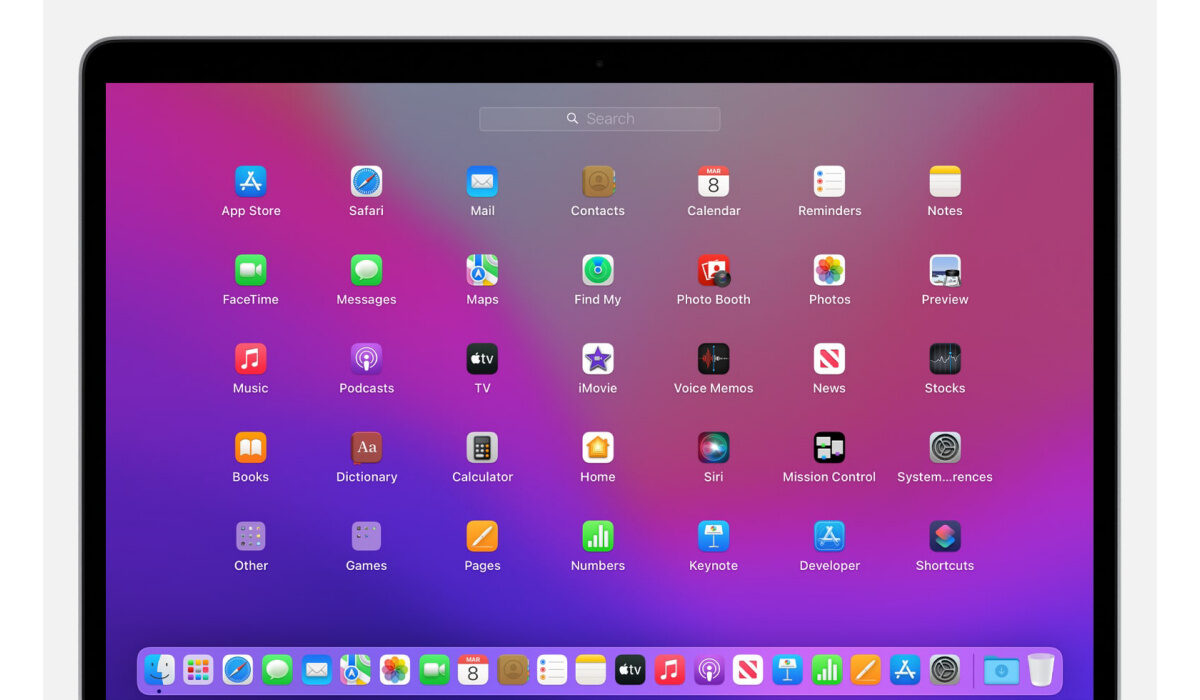
In this article, we’ll take you through how to set up your Mac for updates, how to properly upgrade macOS to the most recent release of OS X or macOS, as well as how to update apps on your Mac device.
The Updating Process
To check for fresh Apple software upgrades on your Mac, follow these steps:
- Select the Apple menu.
- In the window that appears, select About This Mac , then select Software Update .
- The System Preferences window will open and check for fresh updates to macOS. Click on Update Now to download and set up any updates that are discovered. To install the update if it has already been downloaded, click Restart Now .
Depending on the update size and the strength of your internet connection, downloading and installing a new Mac software update could take anywhere from five minutes to five hours. Your Mac will ask you to restart it after the update has been downloaded so that it can install.
Setting up Automatic Operating System Updates
Configuring your Mac to automatically update macOS does sound like a smart move so you never have to stress about missing any crucial updates. First, however, a word of warning. Many people have their Macs set for automatic updates so they won’t have to worry about it every few months.
Although this is fine, some newer macOS releases have features that break older apps. Avoiding automatic upgrades is advisable in this case if you can’t risk programs not functioning or possibly, files being moved. Instead, we would urge you to think carefully about your specific needs.
That being said, to automatically update your Mac OS:
- Access the Software Update page in the System Preferences .
- Select the option that reads Automatically keep my Mac up to date .
Remember that you do have some power over this situation. Your Mac can be set to automatically check for updates but not download them. This is a wise option for individuals who want a little more control over their Mac updates, and we favor the idea because it enables you to use Get Backup Pro to make a backup of your contents to secure them before installing the update.
You have the benefit of getting real-time security updates apart from standard macOS upgrades if your Mac is running macOS 13 Ventura. This adjustment was made by Apple to guarantee that, even if you don’t update your macOS on time, your Mac always conforms to the most recent security requirements and is less susceptible to malware and security breaches.
Updating Apps on your Mac
Every app on your Mac needs to be updated frequently, much like the operating system. You can guarantee that you have all the newest features and none of the newest defects by installing the most recent software upgrades for your Mac programs.
Unfortunately, updating all of your programs is a tad more difficult than updating macOS. This is because you need to update programs that you downloaded from the App Store and apps that you downloaded elsewhere using different procedures.
To update Mac App Store applications:
- Launch the Mac App Store .
- In the sidebar, select Updates .
- Click on Update All to download and set up any available updates.
You must go to the developer’s website and download the most recent updates there to update Mac apps that you did not purchase from the App Store. These apps can also ask you to upgrade when you launch them.
- Don’t miss our reviews .
- Follow our news on Google News .
- Join our WhatsApp Group , to be notified of the most important articles and deals,
- Follow us on Instagram , Facebook , Twitter , and YouTube .
Author:Joan Agie
Add MobilityArena as a preferred source on Google
In truth, even the most durable laptop batteries ultimately fail. It is also important to remember that unless you pay close attention to some essential factors, the battery in your Mac laptop or PC won’t ever last as long as advertised by the manufacturer.
The good news is that once you discover which specific settings to change, none of this takes much effort to figure out. As such, this article will guide you through the best and easiest ways to maximize the life of your laptop’s battery.
Use the Windows Performance Management Tool
The Windows performance management tool is the first thing to consider when seeking ways to improve your laptop’s battery life. This tool is a slider in Windows 10 that can be accessed via the task bar’s battery icon. It may be found in Settings > System > Power & Battery > Power Mode in Windows 11. It strives to organize every setting that impacts battery life into a few simple categories.
Which settings the battery slider impacts depends on who built your PC. But generally speaking, remember these suggestions:
- People willing to sacrifice battery life in exchange for speed and responsiveness should use the Best Performance mode. Windows won’t prevent background apps from using a lot of power in this mode.
- The Better Performance (or Recommended ) mode favors power above efficiency, but it restricts resources for background apps.
- Compared to the default settings on earlier versions of Windows, the Better Battery mode provides longer battery life.
- The Battery Saver mode, a slider option that only appears when your computer is disconnected, lowers the screen brightness by 30%, pauses Windows Update downloads, halts Mail app syncing, and suspends the majority of background apps.
Use Battery Settings on macOS for Mac Laptops
Modern Mac laptops with the most recent versions of macOS feature a wide range of power and battery settings that you can adjust. Open the System Preferences application on macOS Monterey and select Battery .
Make sure “ Enable Power Nap when on battery power ” is unchecked and “ Slightly dim the display while on battery power ” is checked. (When Power Nap is turned on and your MacBook is asleep, it will occasionally wake up to search for updates. Until you decide to wake up your MacBook, disabling it keeps it entirely dormant.) If “ Slightly dim the display when on battery power ” is enabled on newer MacBook Pro laptops, the display brightness resets to 75% when the device is disconnected from power.
You might have access to extra settings in the Energy Saver preferences pane, depending on the MacBook you have and the version of macOS you are running. A couple of these are “ Optimized battery charging ” and “ Optimize video streaming while on battery ,” which disable HDR video playback. Similar to the previously mentioned Windows performance management tool, certain Macs also include an Energy Mode setting. The following choices are available if Energy Mode is selected in the Battery section of system preferences:
- Low Power : Use less energy to prolong battery life.
- Automatic : Set your Mac to operate at its optimal performance level.
- High Power : Use more energy to perform well under prolonged workloads
Shut down Energy-consuming Apps that are not in Use
The battery life on your machine will deplete more quickly if you have several programs and processes running at once, even though you probably aren’t utilizing all of them right then. The Settings app in Windows is the place to start looking for energy-guzzling programs.
For a list of the most power-hungry apps, enter “ See which apps are affecting your battery life ” into the search bar for Windows 10. This list is accessible in Windows 11 under Battery Usage in the Power & Battery settings pane. Make sure to shut down any infrequently used apps if you notice them using a lot of power. These are usually programs like Adobe Reader or Spotify that you’ve opened in the background but completely forgotten about.
Be Careful of Airflow
Thanks to advancements in software and firmware as well as battery technology advancements, the majority of laptops today come with lithium-polymer batteries that require significantly less maintenance than batteries from ten years ago. The battery no longer needs to be fully discharged regularly to calibrate it, nor do you need to be concerned that doing so would harm your laptop.
However, heat must be avoided because it will speed up a battery’s expiration. Physically blocking the ventilation ports is the major source of issues. One issue is dust accumulation, which you may fix by cleaning the laptop’s fan and vents (occasionally, blow some of the dust out using a can of compressed air.) However, placing the laptop on a pillow or blanket might restrict the ventilation fan and trap heat from the system, making this a more common problem. To prevent this, only use your laptop on flat, rigid surfaces like a desk or table that won’t flex and obstruct airflow or cooling.
- Don’t miss our reviews .
- Follow our news on Google News .
- Join our WhatsApp Group , to be notified of the most important articles and deals,
- Follow us on Instagram , Facebook , Twitter , and YouTube .
