Add MobilityArena as a preferred source on Google
Our phones are packed with great functionality that improves our driving experience and makes things easier for us. You can perform all necessary tasks on your phone without having to actively use it. I will show you how to use a phone when driving, with safety tips to follow.
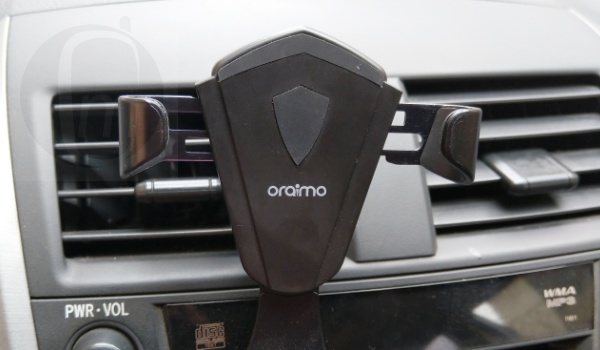
- Make use of a phone mount A phone mount is a good structure to hold your phone securely when driving. It positions your phone at eye level, so it’s visible without having to hold your phone or adjust it from time to time. The best spots to place the phone mount are the dashboard and the vent. A question people ask a lot is “Can you put a phone holder on the windscreen?” and the answer is yes, but make sure it doesn’t block your view of the road. If you’re a driver that uses the GPS a lot, then the phone mount is for you.
- Use an in-dash system Instead of using a phone mount, you can make use of an in-dash system. You can either use Apple CarPlay or an Android Auto, they both work well with phones, and they keep you concentrated as well as improve your driving experience. Using this dash system will mirror the functions of your phone and place it on the bigger screen of the dash system.
- Use a Speakerphone or headset You can get a “one-touch” function Bluetooth headset for answering and ending calls with ease. If your vehicle has a speakerphone built into its system, you can use that instead for convenience. Both a speakerphone and a headset work perfectly for those who are always receiving calls. However, both have their downsides. Using a headset for long hours can cause discomfort, while a speakerphone will pick up background noise when driving on the highway.
Safety tips for using phones when driving
- Understand how your phone works
You need to have been using your phone for quite some time before you decide to use your phone features when driving. If your phone has keypads, you should know where each button is so you can perform speed dial functions easily without losing your concentration on the road.
- Make everything you do hands-free While I suggested that you know every single keypad of your phone for speed dial functionality, I mentioned this with the belief you’ll only utilize it once or twice. You need full concentration when driving, and the best way to achieve that is by hands-free operation. You can set up voice assistants on your phone to keep you concentrated on the road.
- Avoid serious conversations If the conversation you are having on your phone is getting too serious, and you’re starting to get emotional and losing concentration, you have to end that call. If the weather condition is hazardous and you’re driving on the road, stop any conversation you are having on your phone.
- Position your phone screen for a clearer view You need a very clear view of your mobile phone, so position it in a way that you won’t have to strain your eyes or spend so much time focusing on the screen. As said earlier, use voice assistants for additional security. Knowing how to use a phone hands-free in a car will help you a lot.
- Never make a call, only receive calls If you want to make a call, you will have to search your address book for the number you want to call, and that will make you shift concentration from the road to your phone. This is disastrous, no matter how fast you feel you can get the number, anything can happen within a split second. To be on the safe side, only receive calls, do not make calls.
How to use Google Assistant driving mode
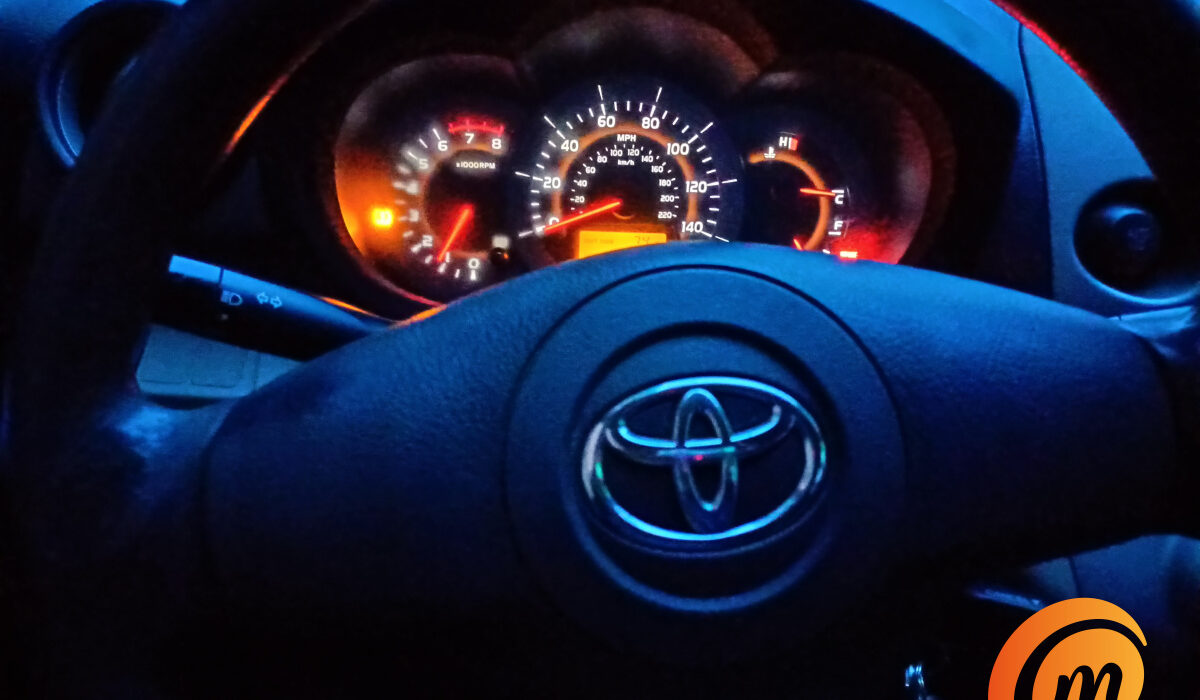
With the Google Assistant driving mode, you will be able to navigate the road with Google Maps, and at the same time, you can make calls, read and send messages and control your media player. For Google Assistant driving mode to work seamlessly, your phone has to be Android Version 9.0 or higher, it has to be 4GB RAM or more, and you must tilt it to portrait mode. Here is how to go about it:
- Make sure your phone’s voice command is activated
- Launch the Google Maps app
- Search for the destination you’re going to
- Tap on “Start”
(Since the voice command has been activated, you just need to say “Hey Google, navigate to [input destination]”)
- Other actions you can perform within Google Maps are:
- Sending a message to a particular contact
- Making and receiving a call
- Getting your message read
- Playing songs
Alternatives to Google driving mode
Android Auto connectivity of the Sygic app improves your driving experience with your phone. You can use it in place of Google Driving mode, and it is easy to use.
How to check Android Auto compatibility with phone and car
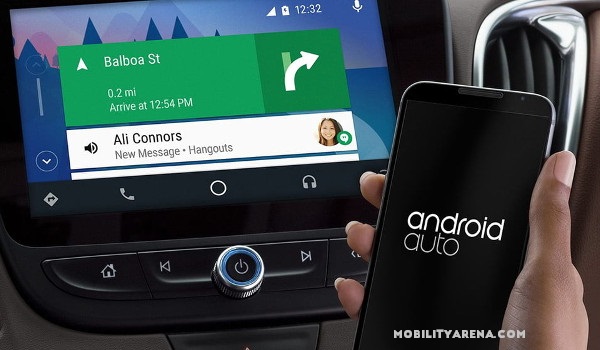
You can’t use this feature on all devices and cars. You can make a quick search online to know if it’s compatible with your phone and car. However, if you’re unable to get a suitable answer, you will have to check it out via your car’s infotainment system.
- Plug your phone into your car’s infotainment USB port.
- Search for Apps then tap on it.
- Tap on the Sygic app from the list.
- If you see Connected to Android Auto that means your phone and car are compatible with Android Auto.
- Use a USB cord to connect your phone to the infotainment system
- Wait for the Sygic GPS Navigation icon to show
- To start the route tap on the Sygic icon.
- Control the Sygic app with the buttons or knobs of the infotainment system.
Conclusion
Now that you know how to use a phone when driving, you will be able to use your phone to make things easier for you. However, at Mobility Arena we do not condone the active use of your phone when you drive due to how disastrous it can be. When driving with your phone as a way to navigate or perform other tasks, make sure you’re cautious and make use of only voice commands. If you can’t actively focus on the road, put your phone away.
You are reading Mobility Arena .
- Don’t miss our reviews .
- Join our WhatsApp Group , to be notified of the most important articles and deals,
- Follow us on Instagram , Facebook , Twitter , and YouTube .
Author:Mukhtar Sadiq
Add MobilityArena as a preferred source on Google
Once upon a time, we had to sit through two or three hours of charging to get a full battery in our phones. Heck, sometimes, we sat two hours to get a 50% charge. Thanks to fast charging technology, that is fast charging. Pun intended. Quick Charge 3.0 wall chargers (developed based on Qualcomm’s 18W QC 3.0 standard), promise to charge your smartphone from 0% to 80% in 35 minutes max. I own an 18W QC 3.0 compatible phone, and it is a superb feeling being able to quickly top up the battery (although I much prefer 33W, which is much, much faster for topping up a smartphone battery).
The only way to describe it is that it is superb convenience. If you have a smartphone that is compatible with the Qualcomm QC 3.0 standard, getting a robust and durable Quick Charge 3.0 wall charger is one of the best investments you can make. This is even more so as some phone makers are not shipping chargers in the sales box any more. Here are some of the best QC 3.0 wall chargers in the market.
UGREEN 18W Quick Charge 3.0 Wall Charger
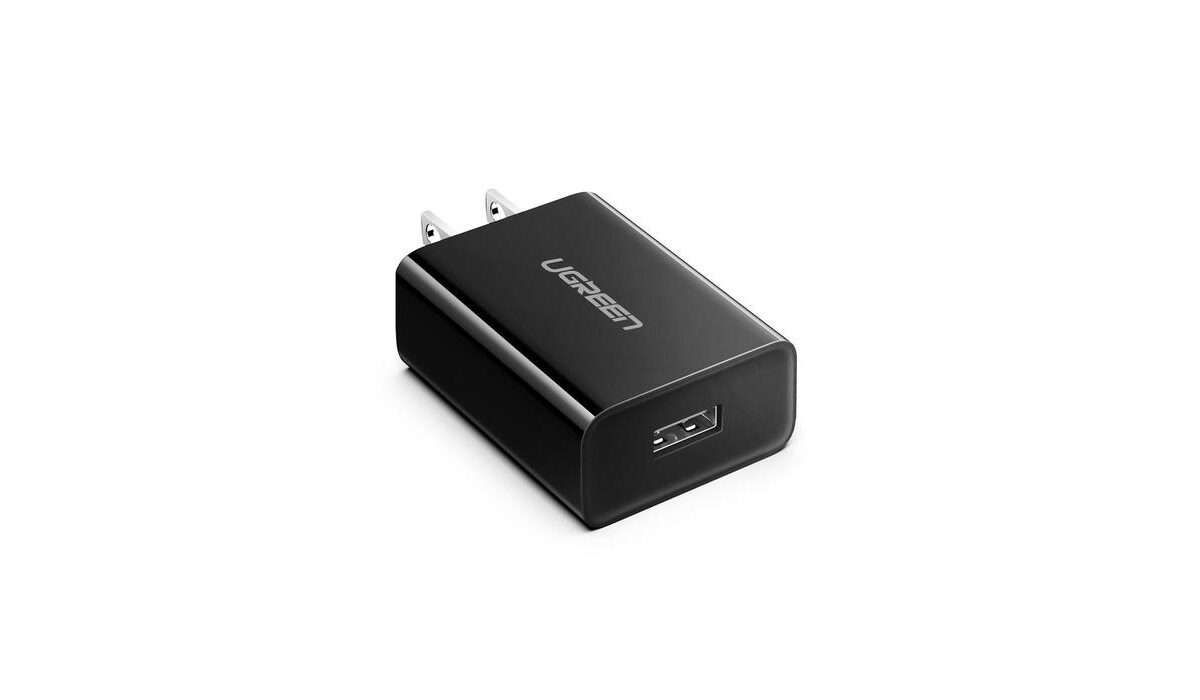
UGREEN say that their QC 3.0 wall charger rapidly charges compatible devices 50% faster than regular chargers do, and that it is backward compatible with Qualcomm Quick Charger 2.0, and conventional chargers. This backward compatibility means that the charger will work with non-QC phones, topping them up at regular 5W or 10W charging speeds. Price: US$12.99.
Belkin BOOST↑CHARGE™ USB-A Wall Charger 18W with Quick Charge 3.0

PNY Quick Charge 3.0 Wall Charger EU
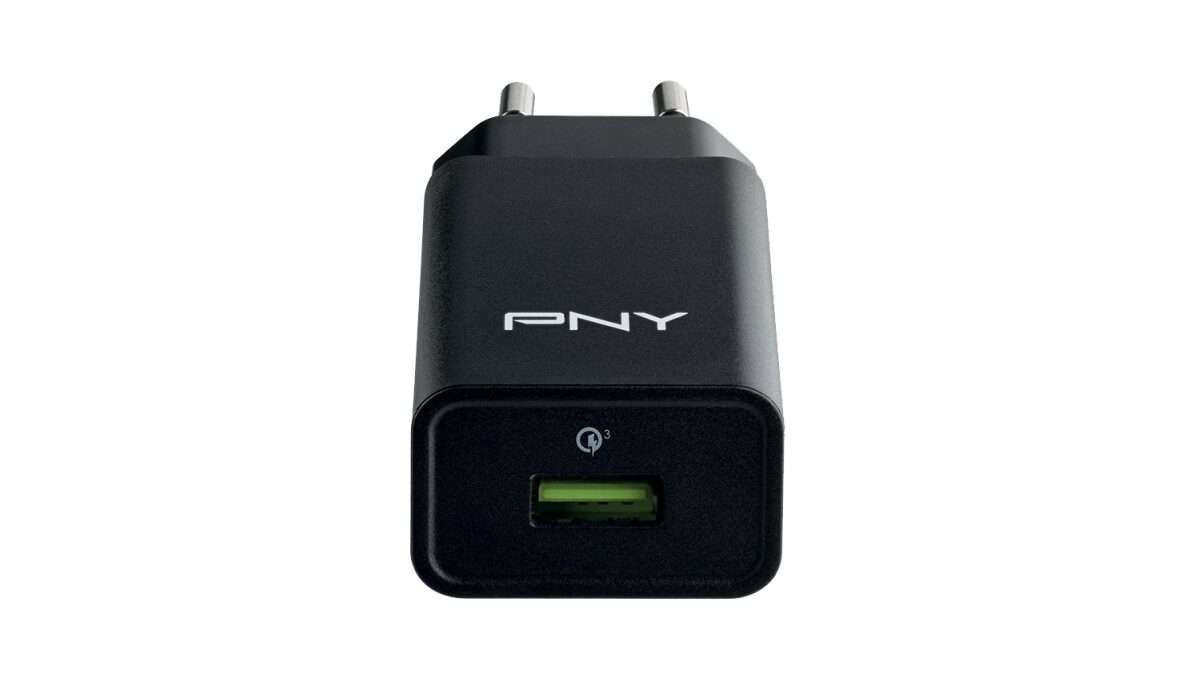
if you are in the UK or Europe, PNY is not a strange name to you. The brand’s Quick Charge 3.0 Wall Charger has 18W output and is available all over continental Europe and the United Kingdom.
ANKER Powerport+ 1 Quick Charge 3.0, 18W 3Amp USB Wall Charger
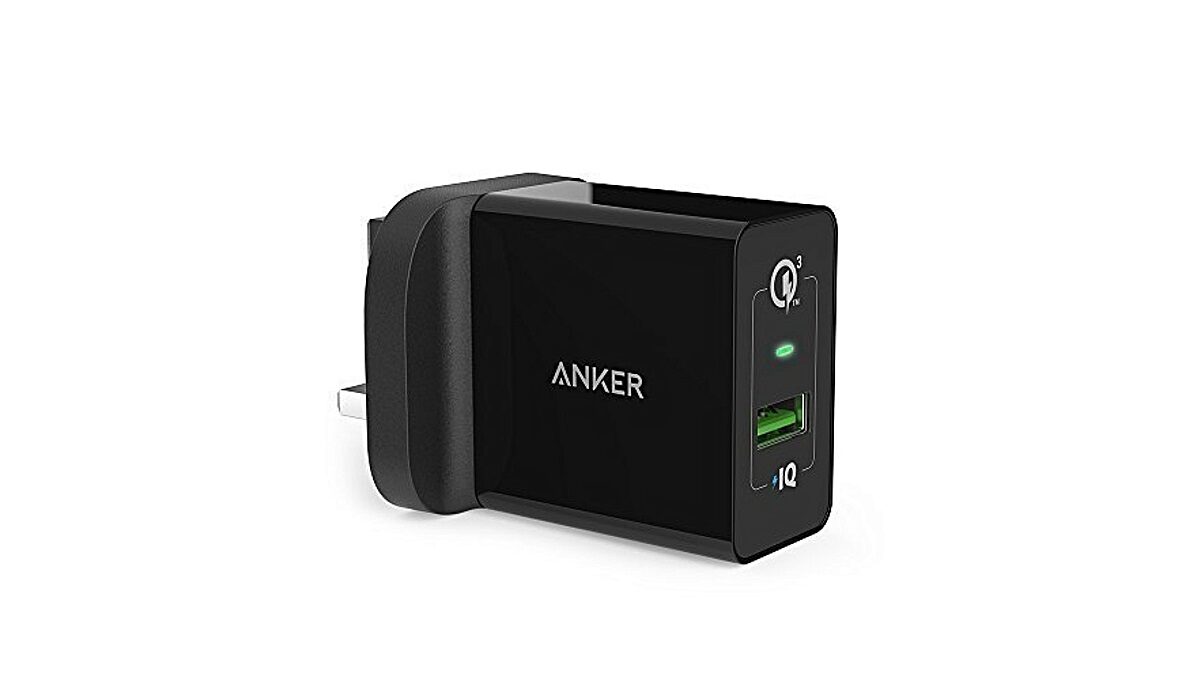
Anker is a known brand across different continents, and the preferred provider of power and charging solutions for many mobile users. The Powerport+ 1 Quick Charge 3.0 wall charger is backwards-compatible with all versions of Qualcomm Quick Charge technology (1.0, 2.0 & 3.0). It also charges non–Quick Charge devices at up to 2.4A, so your device is not left out if it isn’t QC-compliant. Anker says this product provides surge protection, temperature control and more advanced safety features. For the low price of $15.99, it sounds like a great bargain.
We have reviewed the Anker Powerport+ 1 Quick Charge 3.0 charger here on MobilityArena, so do check it out.
The above are four of the best Quick Charge 3.0 wall chargers available to buy today. You will find almost all of them at your favourite phone accessories store or online retailer.
Author:Mister Mobility
Digital Skills and Communication Coach | Mobile Phone Connoisseur since 2001 | Tech Blogging since 2004
