Add MobilityArena as a preferred source on Google
I am a huge fan of Canva, the simple and easy-to-use graphic design tool. The service went mobile in 2020, first with an iOS app, and also now with Android. I use Canva regularly and can tell you that it is just as great to use as the website. In this article, I show you how to use Canva, too, to create eye-catching graphics, if you are new to the app.
If you have been held back by not being able to afford a graphic designer, Canva is the service that lets you create professional grade designs – flyers, banners, YouTube thumbnails, and more – even if you have no idea how to use regular graphic design tools. It deploys a drag-and-drop interface to help you get work done.
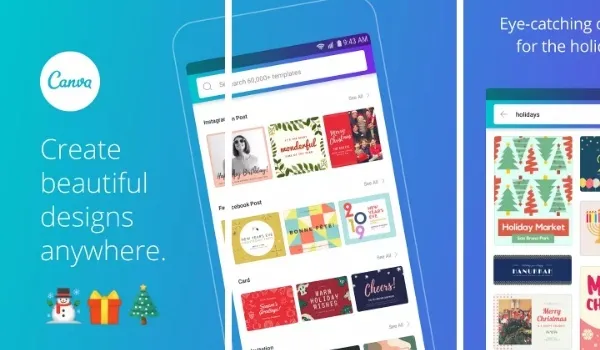
Use Canva app to create eye-catching graphic designs for personal or business use.
Drag an image to where you want it, adjust transparency; type your text, select a colour; and in a few minutes, you have a design ready for social media, for use on your website, or for printing out. You can download and share, too, all from the Canva app or website.
If you want to build a website – be it a personal blog or business website, there are great tools out there now that require no knowledge of coding on your part and with which you can build your website in a manner of minutes. This is similar to how Canva works. You do not need to have professional knowledge of graphic design to use it for creating eye-catching images for your website or social media account.
Thankfully, the iPhone and Android apps for Canva rock just as much as the Canva web interface does. Using the Canva app is a breeze. It is a testament to the thinking and design skills of the team behind it that they were able to translate the simple, easy-to-use interface of Canva on a big screen to the tiny screen of a smartphone.
Who can use Canva? Anyone. If you know how to use Facebook, Instagram, Snapchat, or Twitter, you will be comfortable with the app. Almost anyone can use Canva easily. While it does not necessarily replace a professional graphic designer, you can use Canva to get by without one. I am betting that graphic designers will love it too and will likely use it a lot.
I now use Canva on mobile – both iPhone and Android, and I can tell you that it is an amazing app. You have to experience it, because, you know, the taste of the pudding is in the eating. I do not remember the last time I used the Web interface.
Tutorial on how to use Canva for Beginners
Download and install the app to your iPhone, or your Samsung, OnePlus, Nokia, or TECNO smartphone. You can download it from Google Play HERE . You can also download Canva for iPhone HERE . If you don’t want to use the app, open your Web browser and go to canva.com.
Create your free account and sign in . Do not forget that to use Canva, you need to have a stable Internet connection, as it is a cloud service. All your work happens in the cloud and you will be able to download the finished design to your phone.
Use pre-built templates . On the first page (dashboard), you will be presented with the option to try some pre-built designs/templates. These include mobile video, Instagram story, YouTube thumbnail, and many others. As you are a beginner with no graphic design skills, this is your best option. Scroll through the suggested designs till you find one that describes what you want to create. Pick that.
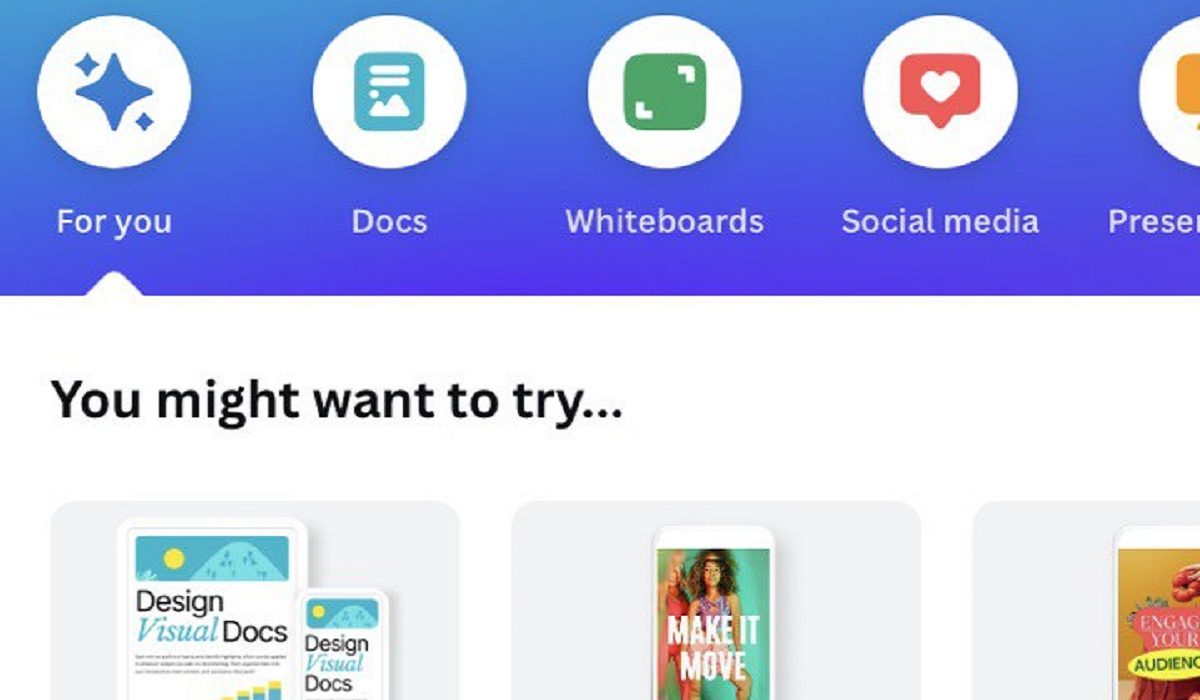
As a beginner, use pre-built templates and designs
Edit/Modify the selected design . Now it is time to modify the design you picked – use the tools on the page to resize, add text, change colours, move items around, add new images, etc. Tap on any item on the design that you want to modify, e.g., text, a photo, a banner, etc.
If you tap on a text, you will notice a contextual menu appear at the bottom of the Canva app, with options to Edit the text, change the font, change the font size, change the font color, etc. Tap on which action you want to carry out and do it. Canva saves your work automatically, as long as you have an active Internet connection, so do not worry. You can also use the Undo button at the top of the page to rectify any mistake you commit.
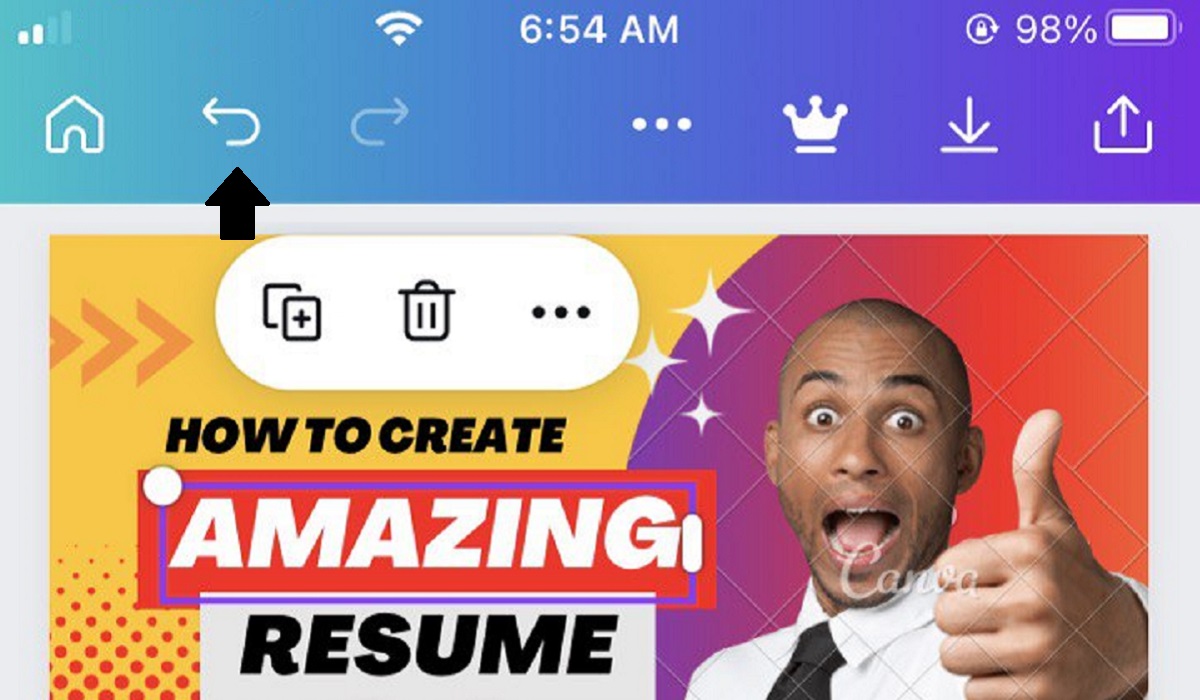
Use the Undo button to correct a mistake
To delete or remove an item in your design, tap on that item and a small pop-up menu will appear near it, with actionable options. One of them is a dustbin icon; tap on it to delete the item you selected. Again, if you delete anything by mistake, you can correct that by using the Undo button at the top of the page.
Download your artwork . When you are done, click the Download button to download your design and then use on your website, or use the Share tools to share to your social media page.
Do not fuss if your first designs are not as fantastic as you would have wanted; you will get better at it. The important thing is that you now know how to use Canva to create a quick graphic for your use. As you get better at editing pre-built designs when you use Canva, you will develop the skills and confidence required to create your own designs from scratch.
- Don’t miss our reviews .
- Follow us on Instagram , Facebook , Twitter , and YouTube .
Author:Mister Mobility
Digital Skills and Communication Coach | Mobile Phone Connoisseur since 2001 | Tech Blogging since 2004
Add MobilityArena as a preferred source on Google
There is no end to the number of attempts to push a Google-free Android OS to free users from data and privacy invasion. Those attempts keep failing. The latest attempt is Eelo. What is it doing differently and how good are its chances of success?
Let me say this upfront, if I got $1,000 for each time there has been a new initiative to push a Google-free Android fork, I would be rich by now. It is the utopian dream of those of us who understand the implications of the privacy-invading nature of Android OS as it currently is.
Yet, not one of those initiatives has succeeded till date. CyanogenMod perhaps had the biggest chance, and yet it failed . Or perhaps it was Nokia, with their Microsoft-centric Nokia X platform . That failed too.
Eelo For Freedom and Privacy
Now, from the ashes of CyanogenMod has risen Eelo, but with the same battle cry – “Pry Android OS away from Google’s intrusive ways!”
Eelo is being forked from LineageOS, which was forked from CyanogenMod. The new platform will have a new, distinct user interface (UI) of its own different from stock Android and LineageOS, and it will offer basic web services that replace those of Google and so free users from personal data spying and advertising.
The Google services that will be replaced with open source alternatives in Eelo include: Search, Maps, Calendar, Mail, Web Browser, AI Assistant, Social, Office and App Store. The goal is a completely Google-free Android OS.
Eelo also wants to offer software updates for 3 years or more for devices.
The question is, What makes the Eelo project different this time? Why should anyone believe that it even stands a chance?
The Man Behind Eelo
The man behind Eelo is someone who is not new to rebellion against digital intrusion of privacy. Gaël Duval is the software engineer behind Mandrake-Linux, which in 1998 was the first Linux distribution to address ease of use. Mandrake was around 7 years before Ubuntu OS.
His declaration:
I came out about my decision to leave Apple and Google. It’s a lifestyle choice to escape the tech giants that make me a product by privatizing my personal data .And I don’t like what Apple is doing now, Apple’s attitude, new iPhone and their price… It’s also an act of freedom for my children and all the people who will care: I want them to have a choice, and also a clear and informed view on how their choices can impact their life and their economical ecosystem as well. That’s what eelo is all about: offering a viable and attractive alternative to users for their digital life.
Mandrake was revolutionary, but then it never achieved mainstream use as a PC operating system. Can Gaël pull it off with Eelo on mobile this time? Only time will tell.
But Gail himself admits that this will be a hard and long journey – which is a good thing. Unlike what we saw with Cyanogen, there is no loud bragging and hype about this; just a calculated plans of what needs to be done.
Long Road Ahead To A Google-free Android OS
Gael has launched a KickStarter campaign to raise funds to ‘bootstrap the project and pay some developers for a few months to reach a first “privacy-enabled” and viable eelo product that users will be able to install or order on quantity-limited pre-installed Eelo smartphones’.
Author:Mister Mobility
Digital Skills and Communication Coach | Mobile Phone Connoisseur since 2001 | Tech Blogging since 2004
